
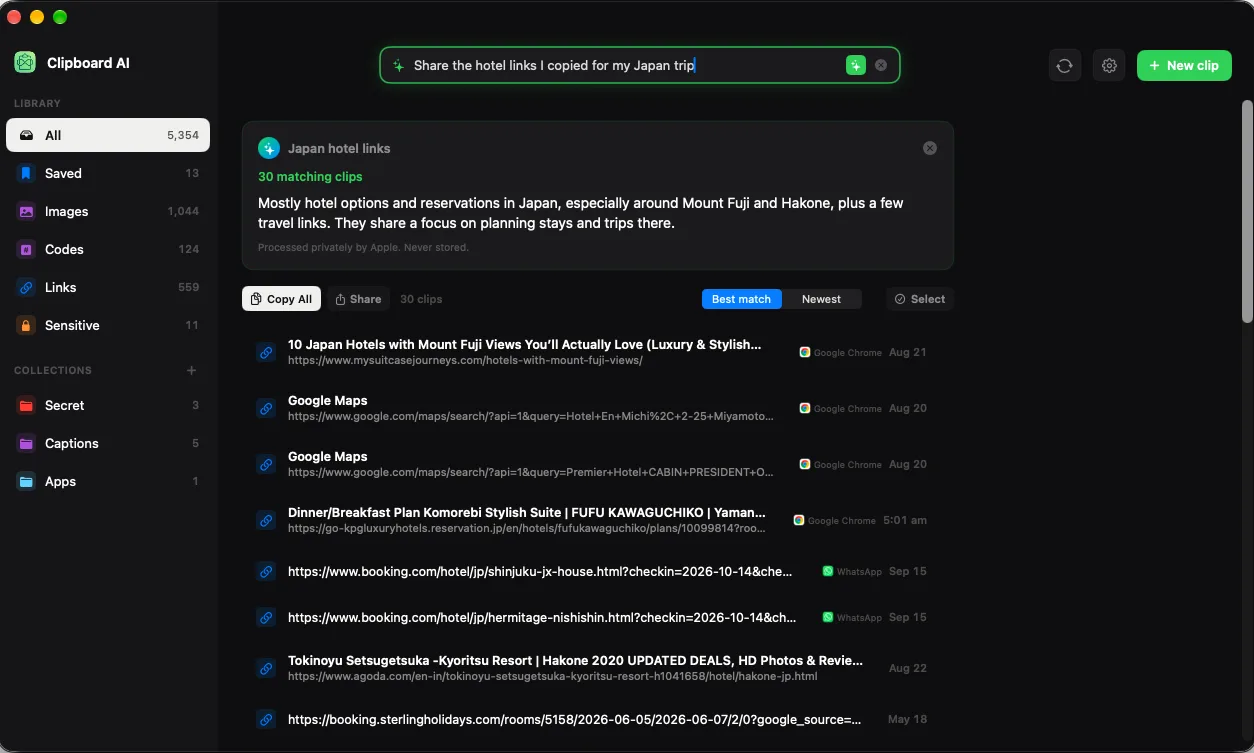
Finding clips and doing something with them used to be separate errands: search, then hunt each result down one at a time. In All Clips, a search or an Ask answer now comes with its own action bar, so you can save, file, merge, or delete every match in one go.
Search in All Clips, click Select, then Select all, and pick Save, Add to Collection, Copy as one, or Delete. Saved clips and clips already in a collection stay out of Select all unless you tick them yourself.
Act on a search
- Open All Clips and type a search, or ask a question with the sparkles.
- Click Select above the results. A checkbox appears on every row; tick the ones you want, or click Select all.
- Choose an action from the bar: Save, Add to Collection, Copy as one, or Delete.
The four actions
- Save pins every selected clip so it never rolls off your history.
- Add to Collection files them all into the collection you pick.
- Copy as one stitches the selected text clips together, one per line, and puts the result on your clipboard as a single clip. Images in the selection are left out. See Paste several clips at once on Mac.
- Delete erases every selected clip. The confirmation states the count and calls out any saved clips you ticked by hand, because there is no undo.
Two rules that keep it safe
- Select all skips the clips you kept on purpose. Saved clips and clips already in a collection are left out of Select all. Tick them individually if you really do want them in the batch.
- Changing the search clears the selection. Results are ranked, so a broad search can include weak matches you never scrolled to. Edit the query or a filter chip and the selection is dropped, so nothing you did not look at gets caught in a delete.
Search "standup", Select all, Copy as one: every standup note becomes a single paste. Search an old project's name, Select all, Add to Collection: filed. Search a domain you no longer use, Select all, Delete: gone, with the count shown before you confirm.
Or drag the whole selection
With clips selected, drag any one of them onto a collection in the sidebar and the entire selection travels together. Drop onto Saved to bookmark them all, or onto All to take them out of a collection. See Pin, name, and organize clips on Mac.
Outside a search
When you are browsing rather than searching, Select works per day section instead: click Select in a section header to pick from that day's clips, with the same actions and the same exclusion of saved and filed clips.