
Some clips you only need once. Others you reach for every day. Pin them, name them, and group them into Collections so the keepers are always at hand.
Pin the clips you keep
In the menu bar or in All Clips, save a clip to pin it. Pinned clips live in your Saved list in the sidebar, so they never roll off the bottom of your history.
Give them names
Rename a clip to something you will recognise, like Guest WiFi or Standup link. The name shows in your lists and in the floating menu, while the real content still pastes. Here is how.
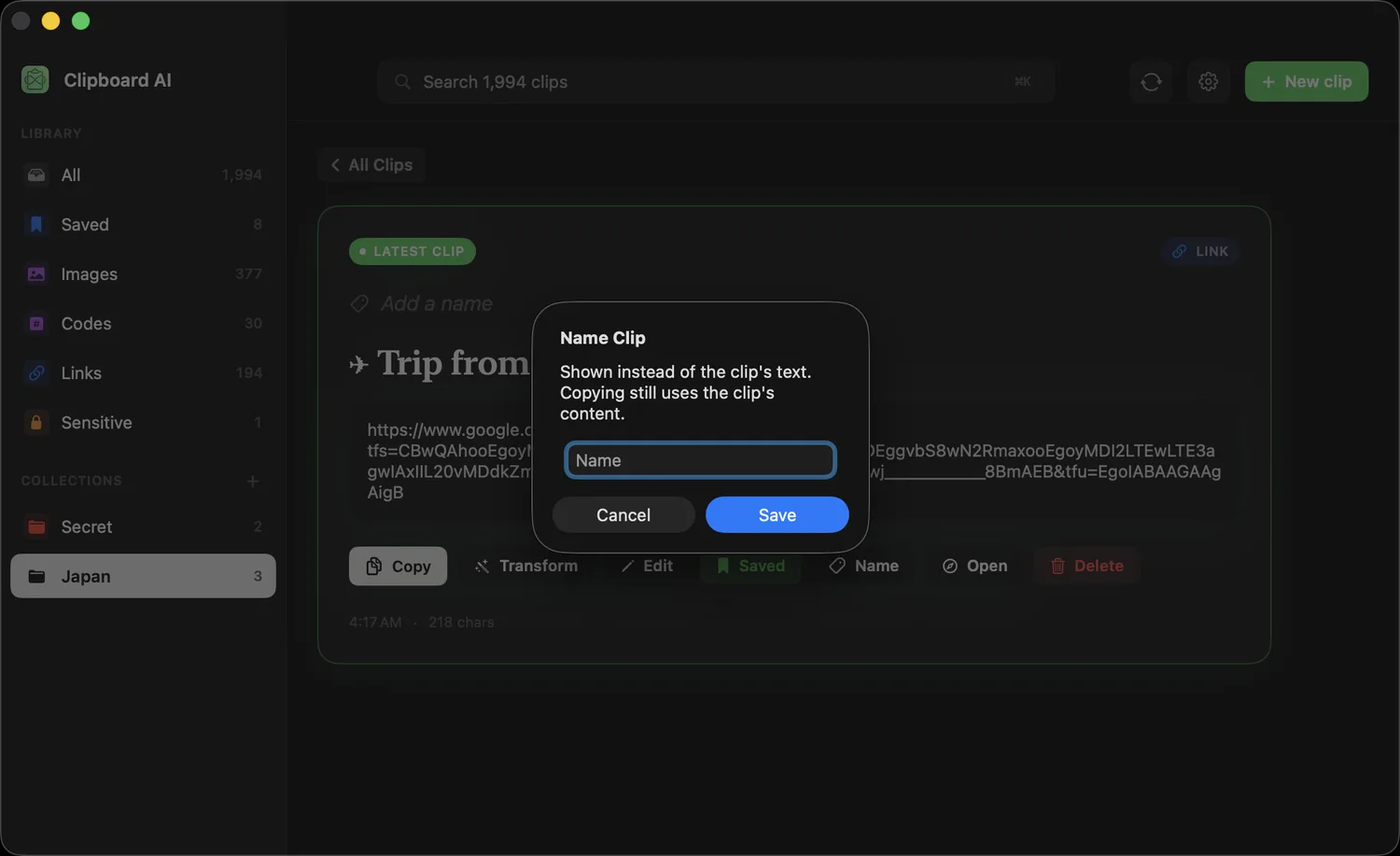
In All Clips, click a clip to open it, then click Add a name at the top.

Type the name you will remember and click Save. Copying still pastes the clip's real content, not the name.
You do not have to open the full window. Right-click any clip in the menu bar and choose Name Clip.
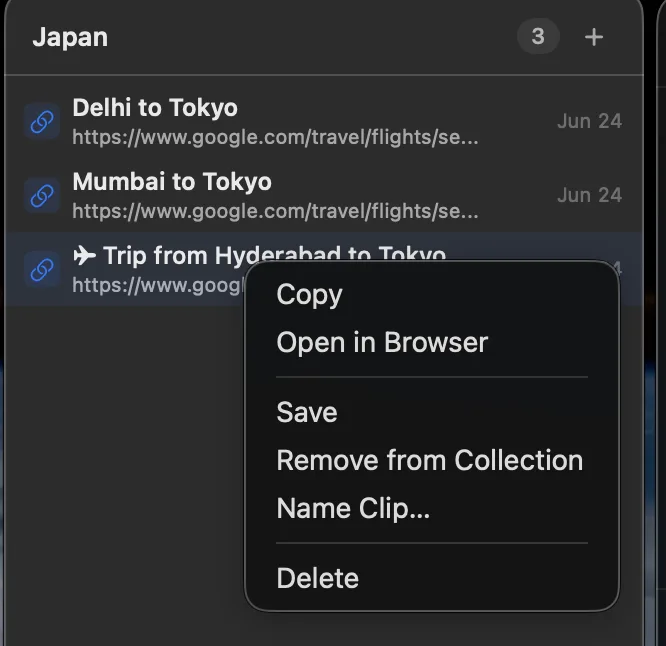
Once a clip has a name, you do not have to remember its contents. Press ⌘⇧V, type the name, and paste, in seconds, no matter whether you copied it last week or months ago. See Search your clipboard on Mac.
Group them into Collections
Build Collections for the things that belong together, each with its own icon and colour. Open All Clips, click New Collection in the sidebar, give it a name, then drag clips onto it or use Add to Collection.
Drag and drop works on the sidebar rows that describe where a clip belongs: drop a card or row onto a Collection to file it there, onto Saved to bookmark it, or back onto All to take it out of a Collection. Select a few clips first and the whole selection travels together.
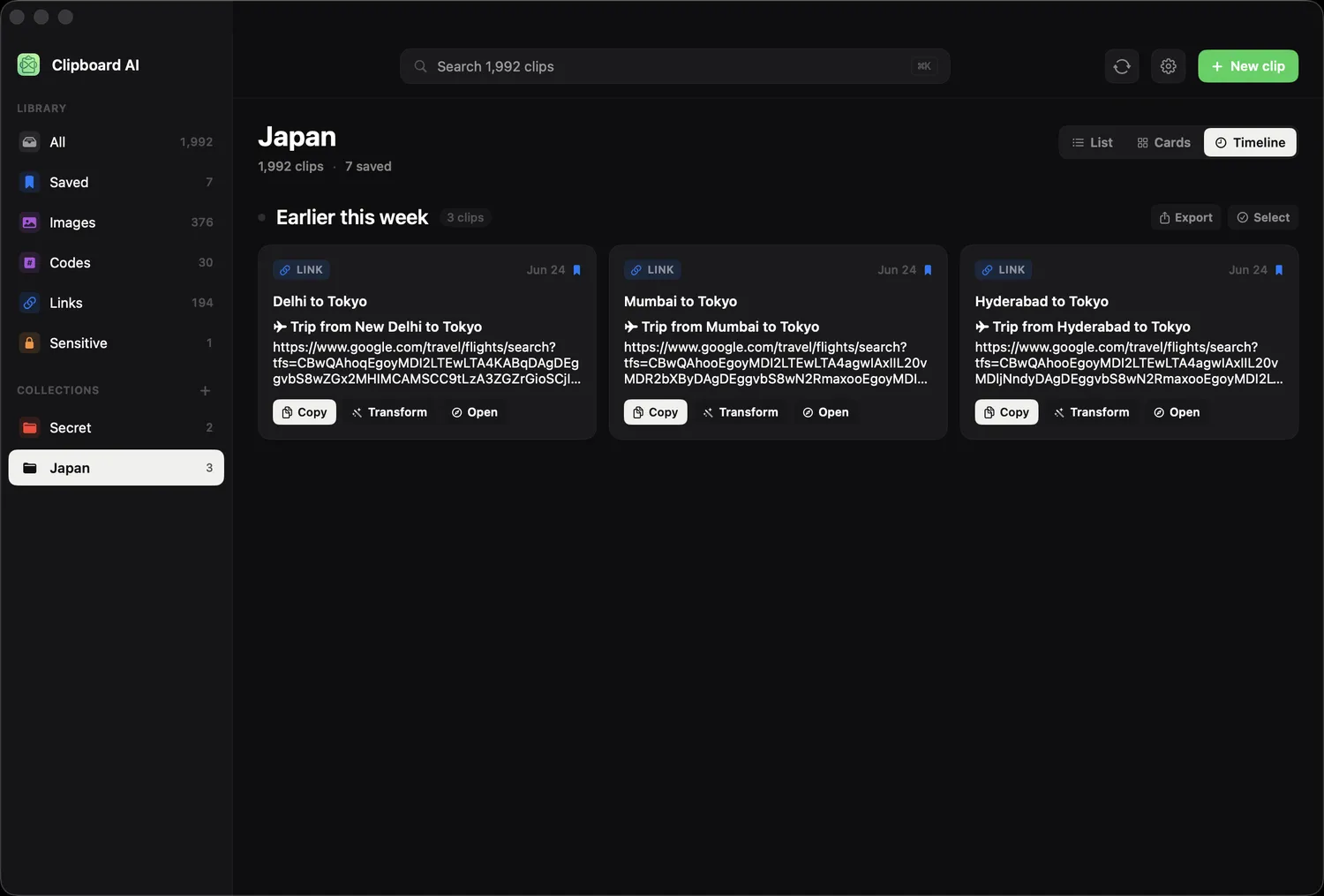
With sync on, your Collections and saved clips show up on your iPhone and iPad too. See Your clipboard on every device.