
Here is the magic of Clipboard AI: anything you have ever copied is a couple of keystrokes away. Press ⌘⇧V, type a word, and paste, often in under three seconds, whether you copied it an hour ago or months ago.
Search the floating menu
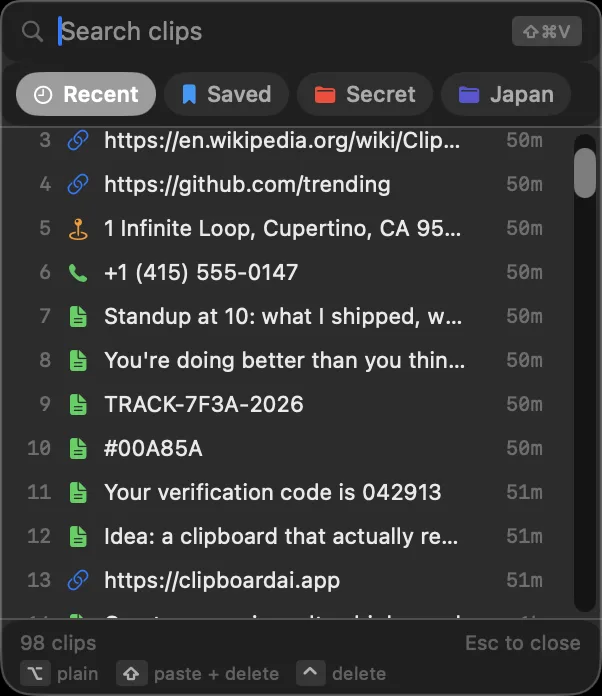
Press ⌘⇧V anywhere to open the floating menu, then just start typing. The list narrows to clips that match as you type. Use the Recent, Saved, and Collection tabs at the top to jump straight to a group, then press Return to paste.
Search your whole history
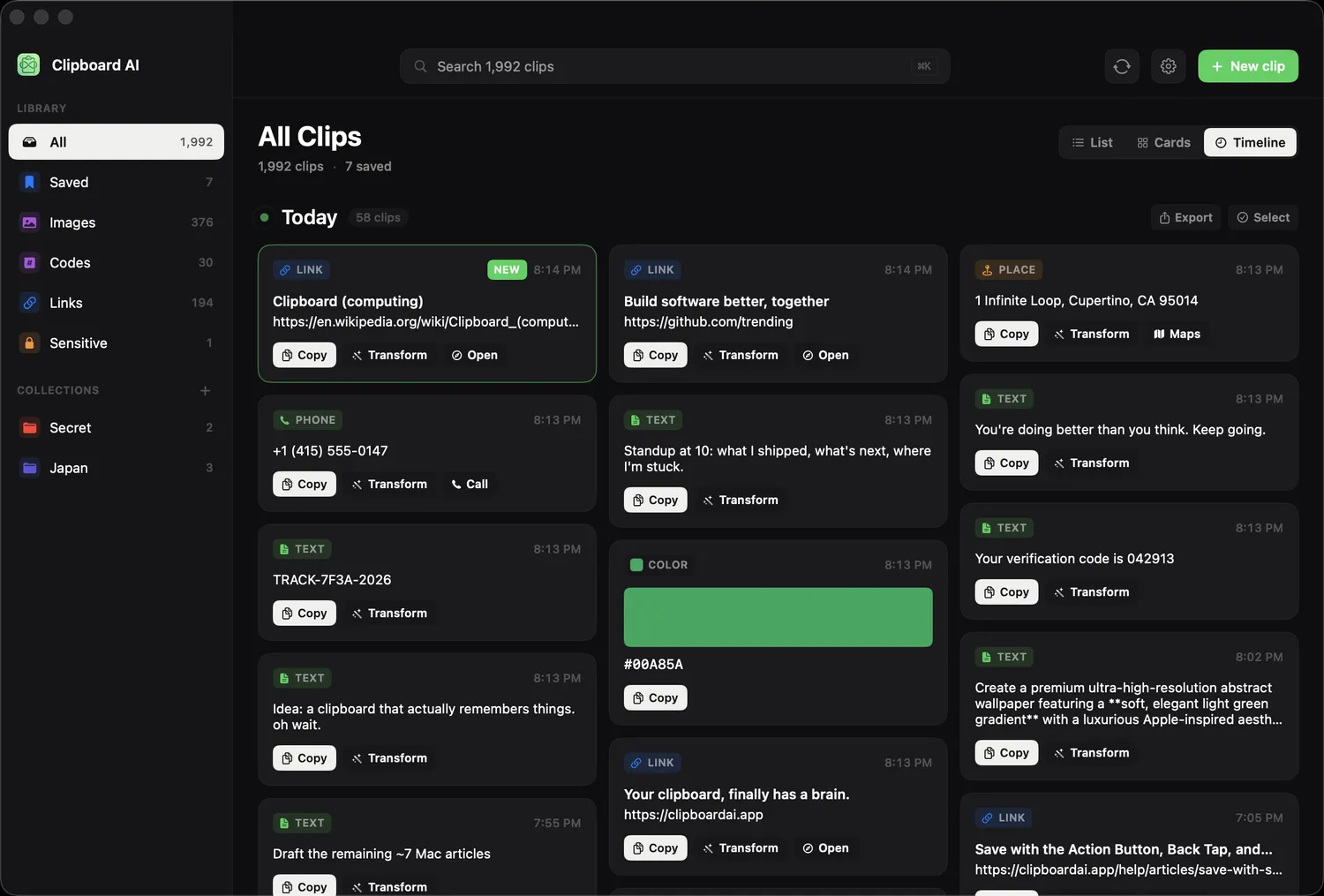
For a deeper look, open All Clips from the menu bar. The search box at the top searches your entire history, and you can narrow it further with your Collections or Saved items in the sidebar.
Filters you can type
A few short tokens narrow any Mac search before the words do. Type them in the search field, or pick them from the suggestions that appear as you type, which show real app icons:
| Token | What it narrows to |
|---|---|
type:image | One kind of clip: text, link, image, code, email, phone, or address |
app:safari | Clips copied from that app on the Mac |
date:week | A recency window: today, yesterday, week, or month |
is:saved | Only your saved clips |
Combine them with ordinary words, like app:chrome date:week invoice. Arrow keys move through the suggestions, backspace removes the last filter chip, and anything that is not a known token is searched as plain text, so ratio:16:9 still finds the clip that says exactly that. Matches found inside a screenshot show a snippet of the text that matched, so you can see why an image turned up.
Or just ask
On a Mac that supports Apple Intelligence, click the sparkles in the All Clips search field and describe what you want: "hotels I copied for the trip", "the wifi password". You get a one-line answer with the matching clips under it, ready to copy or share as one list. See Ask your clips a question.
Search from Spotlight
Turn on Find Clips in Spotlight in Settings, under Privacy, and your clips appear in the Mac's own ⌘space search; picking one opens it in All Clips. Codes and sensitive clips are never included. See Find your clips in Spotlight.
Give the clips you reuse a short name like Guest WiFi, then just press ⌘⇧V, type the name, and paste. See Pin, name, and organize on Mac.