
Sometimes what you copied is not quite in the shape you need. Clipboard AI has nine quick text tools to fix case, clean up spacing, strip formatting, and handle links, all on your device, plus six Apple Intelligence rewrites for when the words themselves need work.
Transform a clip
- Open a text clip, from the home screen or your Saved tab.
- Tap Transform.
- Pick a tool. You see the result update live, then tap Copy Transformed Text to put it on your clipboard.
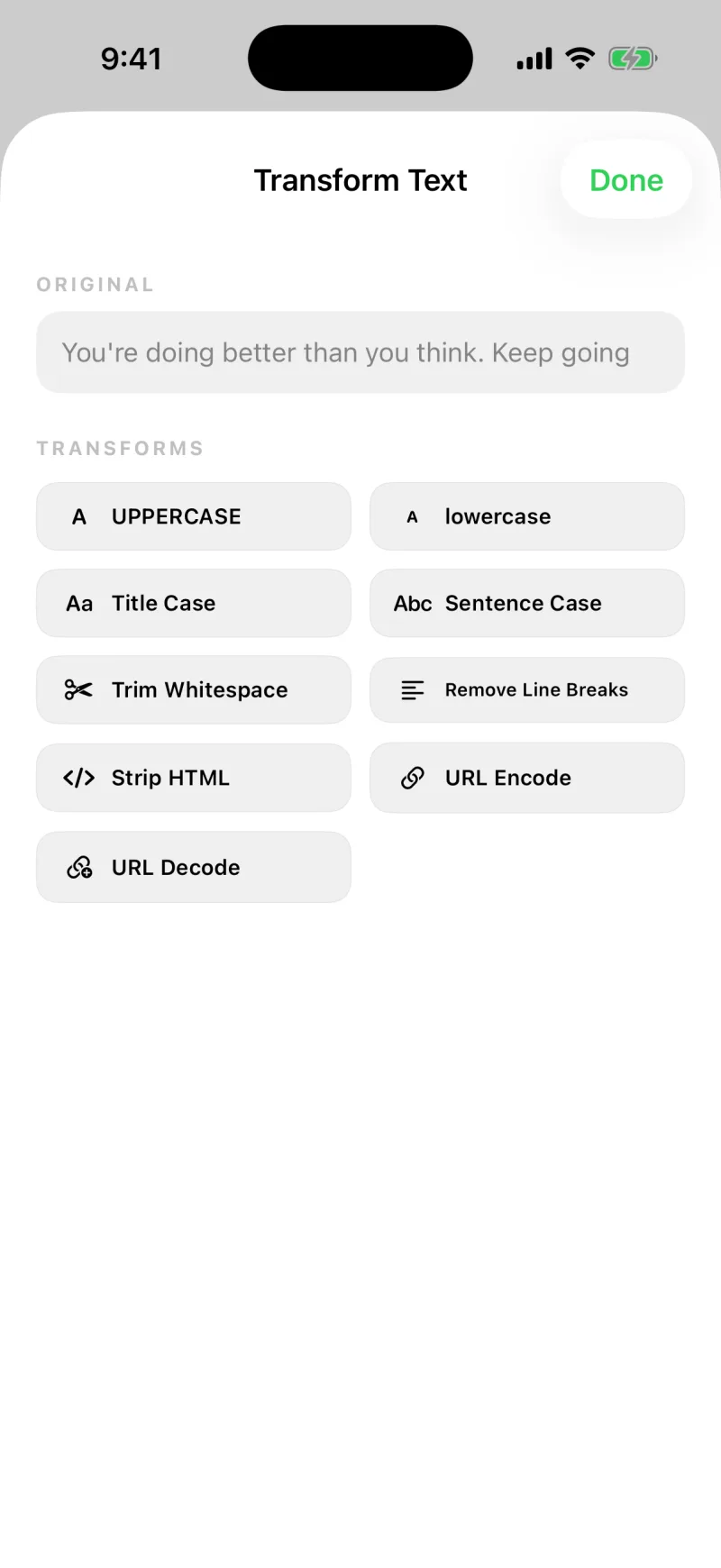
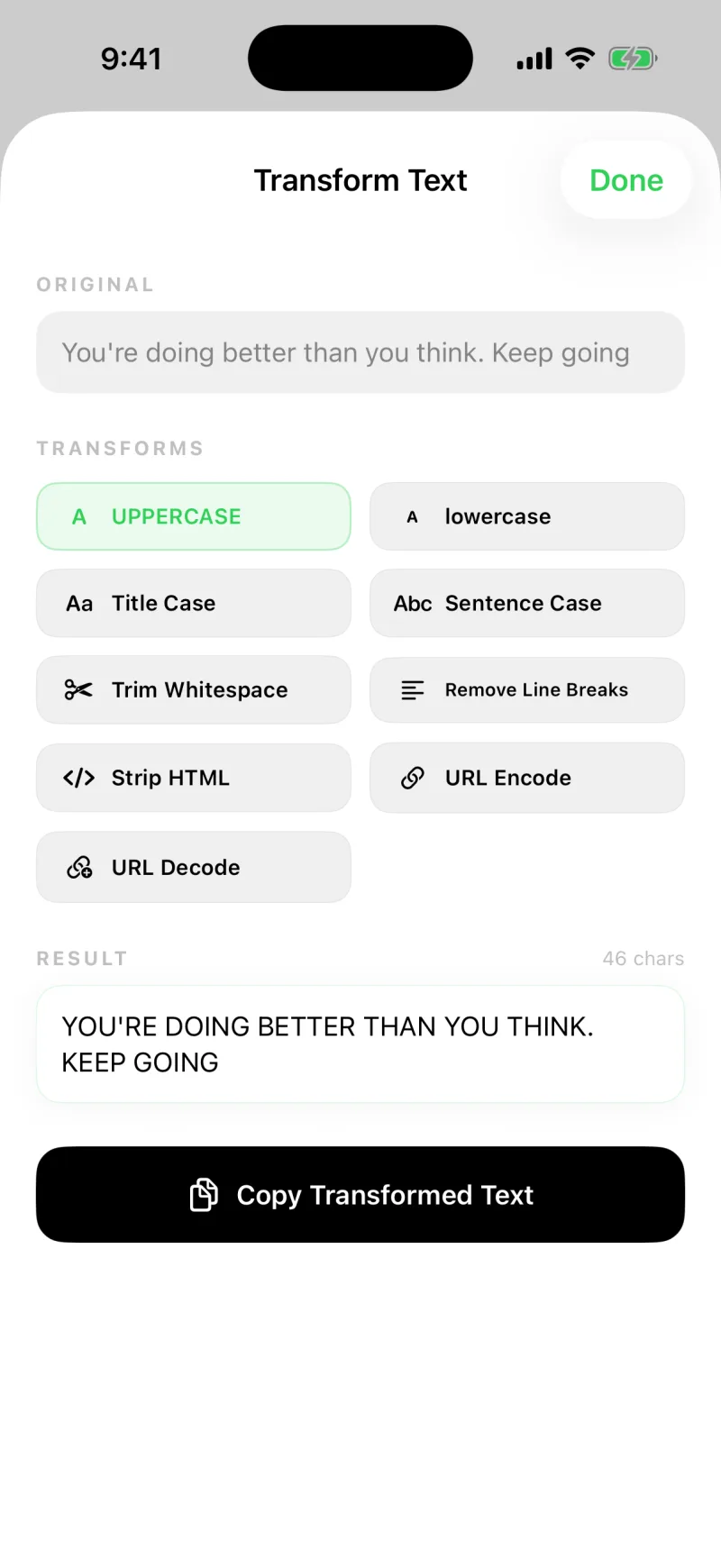
The nine tools
- UPPERCASE and lowercase for quick case changes
- Title Case and Sentence Case for headings and tidy sentences
- Trim Whitespace to remove stray spaces at the ends
- Remove Line Breaks to flatten a block into one line
- Strip HTML to pull clean text out of copied markup
- URL Encode and URL Decode for working with links
Paste from a website and it brings extra spacing or formatting? Trim Whitespace and Strip HTML clean it up in one tap. Pasting a name that came in all caps? Title Case fixes it.
The nine tools run entirely on your iPhone. Nothing is sent anywhere to change your text.
Rewrite with Apple Intelligence
The full guide, with what each rewrite is for, is in Rewrite a clip with Apple Intelligence. In short: above the nine tools, the Apple Intelligence section rewrites the clip for you. Tap one and the new version streams into the Result box as it is written, ready for Copy Transformed Text like any other transform.
- Summarize condenses the text to a few sentences
- Key Points turns it into a bulleted list
- Proofread fixes spelling, grammar, and punctuation
- Make Professional and Make Friendly change the tone
- Shorten cuts it to about half the length
Every result ends with a line that says where it was made. On iOS 26 that is always your own device: "100% on this device, using Apple Intelligence." On iOS 27, longer text can be handed to Apple's private cloud, and the line reads "Processed privately by Apple. Never stored." Apple's private cloud has a daily allowance; when it is nearly or fully used up, the section says so and rewrites run on your device instead.
The rewrites are included with Clipboard AI Pro. They need iOS 26 or later on an iPhone or iPad that supports Apple Intelligence, with Apple Intelligence turned on in the Settings app. On any other device the section does not appear, and the nine tools work exactly as before.