
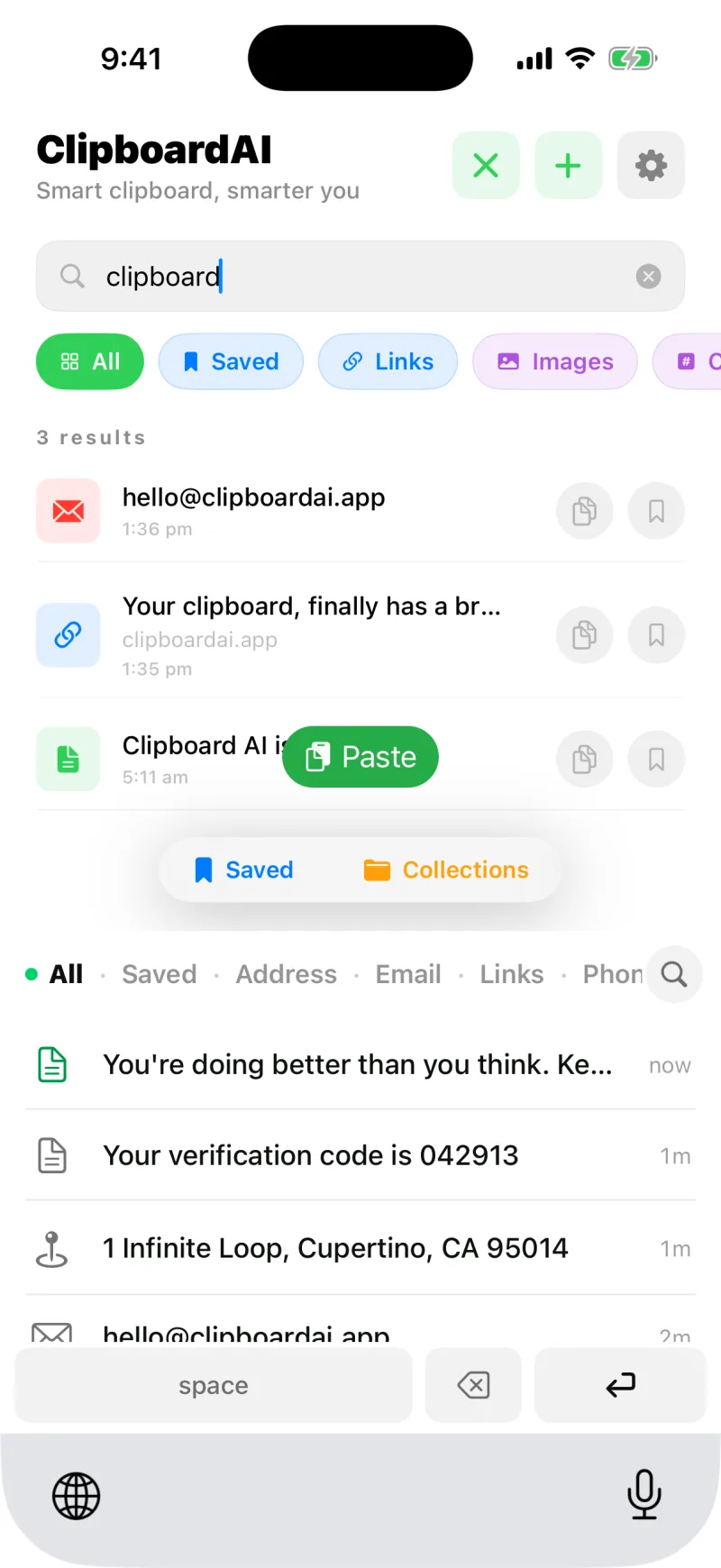
Your history organises itself. The moment a clip is saved, Clipboard AI works out what it is and files it under the right category, all on your device.
The seven categories
- Links for web addresses, with the page title and icon fetched for you
- Phone for phone numbers, with a quick Call action
- Email for email addresses, with a quick Mail action
- Address for postal addresses, with a quick Maps action
- Codes for things like verification codes and short keys
- Text for notes and everything else
- Images for pictures you copy or share in
Why it helps
Categories turn a long list into something you can scan. Need that address you copied this morning? Filter to Address. Hunting for a link? Filter to Links. Each category also unlocks the right quick action, so a phone number offers Call and an address offers Maps.
Where a clip came from
Clips captured on the Mac remember the app they were copied from, and that label travels with the clip, so a clip that arrived from your Mac says Copied from Safari, or Slack, or Notes, on its detail screen. iOS does not tell apps where a copy came from, so clips captured on the iPhone carry no source.
Numbers that are not phone numbers
Order numbers, card numbers, ISBNs, IP addresses, and airline e-tickets used to land under Phone with a Call button on them. Now a number has to look like a real phone number somewhere in the world, not merely be the right length, so those stay under Text or Codes where they belong.
Sums, conversions, and other languages
Two more things are spotted as a clip is saved. A calculation like 12 * 8, 20% of 150, or 5 km to miles shows its result on the clip, and text in another language gets a Translate button. See Calculations, conversions, and translation from a clip.
Copy a URL and Clipboard AI fetches the page title and icon, so a row of links reads like a list of pages instead of a wall of web addresses.
Detection happens on your device. Your clips are categorised without being sent off to a server to be read.