
The menu bar shows your most recent clips for a quick grab. But your whole history lives in the All Clips window: every copy you have made, with search, Collections, and your saved items, all in one place.
Open All Clips
Click the Clipboard AI icon in your menu bar, then choose Show all clips. The full window opens.
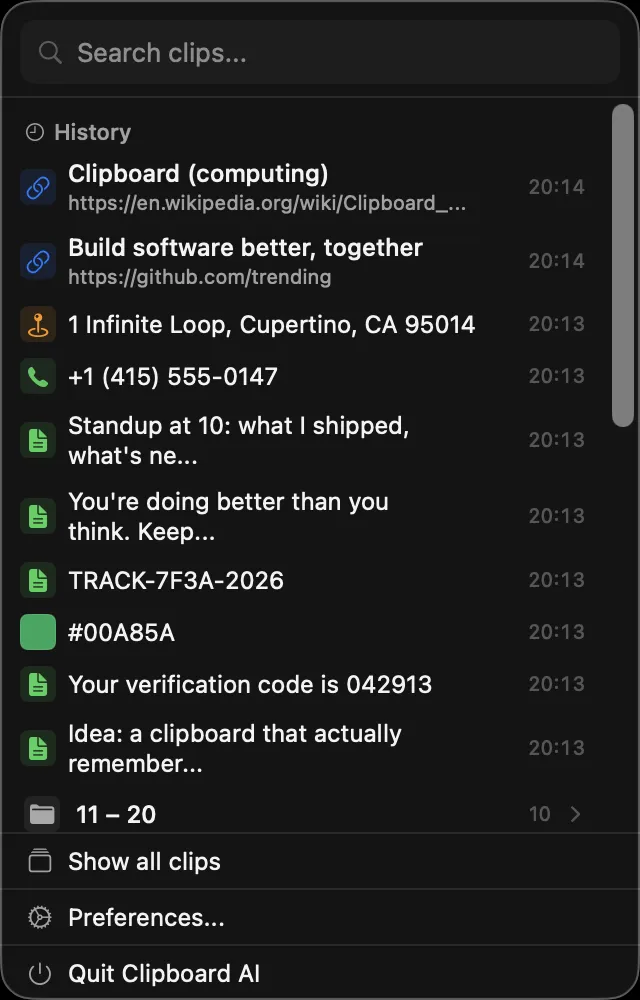
Clipboard AI in the menu bar, then Show all clips.
Find your way around
The All Clips window is built for browsing a lot of clips without losing the thread:
- Search across everything you have copied from the box at the top.
- Collections and your Saved items sit in the sidebar, so the things you reuse stay one click away.
- The timeline groups clips by when you copied them, so older items are easy to scroll back to.
- Click any clip to see its full detail, copy it, save it, drop it into a Collection, or clean it up. Back from a search result returns you to the results, not to the top of the list.
- Ask a question with the sparkles in the search field, and get a one-line answer with the real clips under it. See Ask your clips a question.
- Select above any search, then Select all, to save, file, merge, or delete every match together. See Act on a whole search at once on Mac.
- Drag a card or row onto a Collection in the sidebar to file it, onto Saved to bookmark it, or onto All to take it out of a Collection.
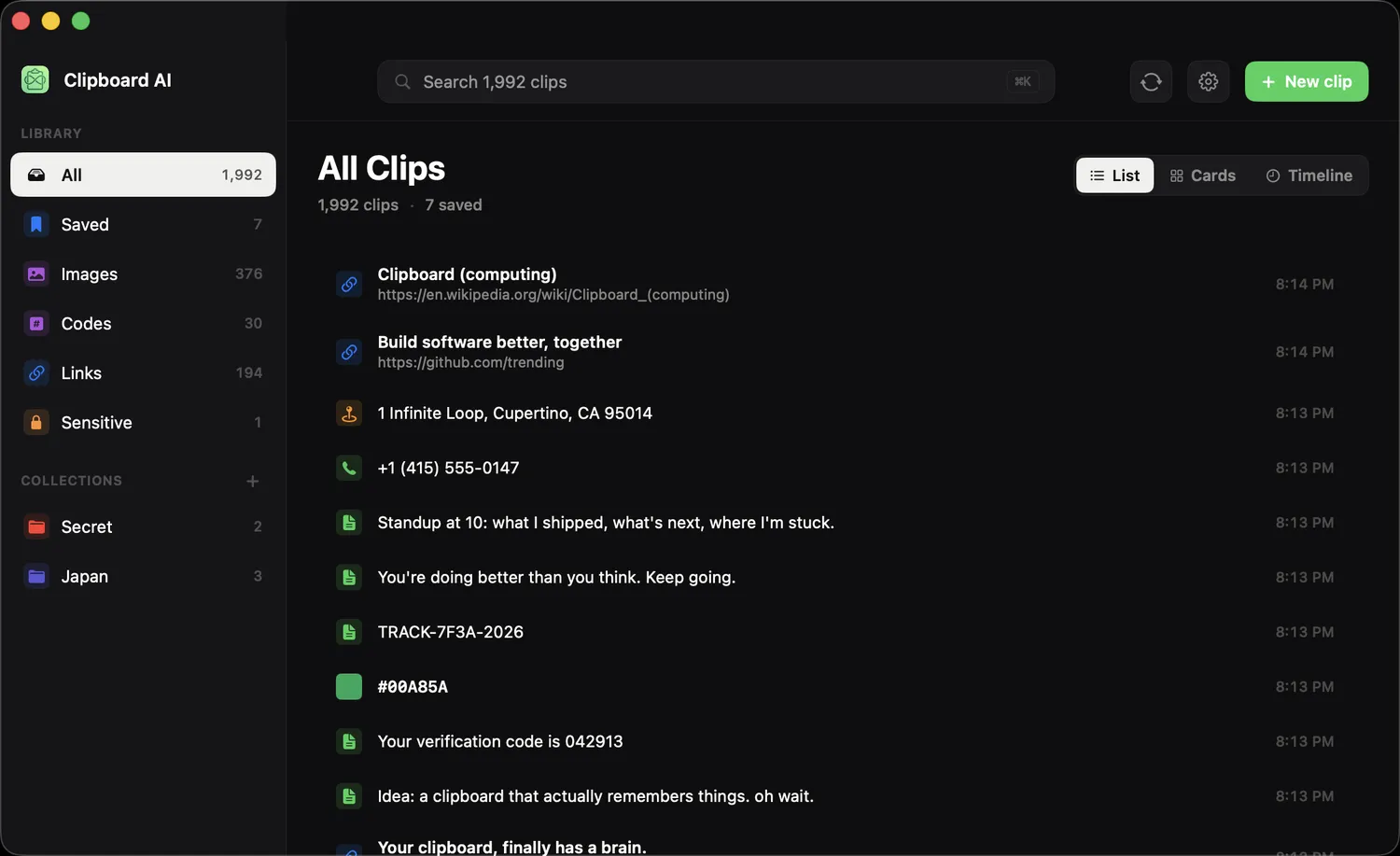
Everything you have copied, with search, Collections, and Saved in the sidebar.
⌨️
Need a clip right now instead?
For a quick paste without opening the full window, press ⌘⇧V to pop the floating menu at your cursor. See Paste anywhere with the hotkey.
🔎
Looking for one specific clip?
Start typing in the search box and the list narrows as you go. See Search your clipboard on Mac.
Common questions
Where is my full clipboard history on Mac?
Click the Clipboard AI icon in the menu bar and choose Show all clips. The All Clips window holds your whole history, with search, Collections, and your saved items in the sidebar.
How far back does my Mac clipboard history go?
Clipboard AI keeps your history so you can scroll back through everything you have copied. Use the search box or the timeline in All Clips to jump to older clips quickly.
Was this article helpful?
Thanks for the feedback.