
One selection, a whole stack of clips pasted in order. When you are filling out a form, wiring up a spreadsheet, or dropping a batch of snippets into a document, Clipboard AI can paste them all for you instead of one trip to the floating menu at a time.
There are three ways to do it, and they each solve a different problem. Here is when to reach for which.
First, pick the clips you want
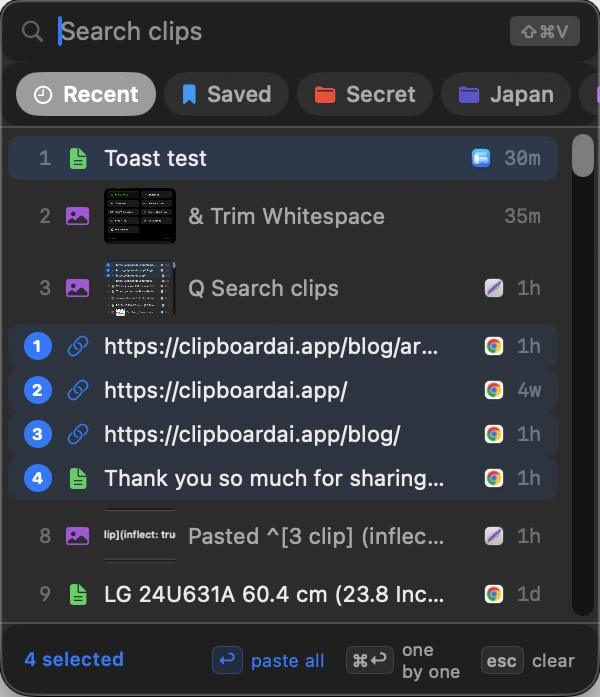
Open the floating menu with ⌘⇧V, then hold ⌘ and click each clip you want. A small number appears on every one you pick, showing the order it will paste in, so choose them in the order you want them to land. You can select the same way in the All Clips window: click Select, then tap the clips.
Clip 1 pastes first, clip 2 next, and so on. Click them in the sequence you want, and if you change your mind, click a clip again to drop it from the selection.
Paste All: send the whole stack at once
With your clips selected, press return or click paste all in the footer. Clipboard AI hands focus back to whatever app you came from and pastes each clip in order, one after another. A small card in the corner counts them off, "Pasting 3 of 5", so you can watch it work.
This is the fast path when everything is going to the same place, like dropping several paragraphs into a document or a run of lines into a chat. Bold, links, and lists survive the trip: when Paste All folds several clips into one paste, it keeps their formatting.
Hold ⌥ as you press return to paste the whole batch as plain text, with fonts and colours stripped out. Hold ⇧ to paste and then remove those clips from your history in one go. If you would rather have plain text every time, one setting makes it the default and ⌥ flips back to keeping the formatting.
Paste One by One: you place each drop
Sometimes each clip needs to go somewhere different: a name in one field, an email in the next, a code in the one after that. Select your clips and press ⌘return, or click one by one. Clipboard AI loads the first clip and steps out of your way.
Now paste with your own ⌘V, wherever your cursor is. The instant you do, Clipboard AI quietly swaps in the next clip, ready for your next ⌘V. Tab to the next field, paste, tab, paste. A card in the corner shows where you are and previews what is coming up, with Skip and Cancel if you need them.
Copy something new while a queue is running and Clipboard AI cancels it automatically, so you never paste a stale clip by accident.
Copy as one: merge into a single clip
Want several clips joined into one block of text instead of a run of pastes? In the All Clips window, click Select, choose the text clips you want, and click Copy as one. Clipboard AI stitches them together, each on its own line, and puts the result on your clipboard. Paste once and the whole set lands together.
It works on text, so any images in your selection are left out. Reach for it when you want to keep the combined text around as a single clip you can paste again later, rather than firing several pastes now.

From a search, too
In All Clips, a search or an Ask answer comes with its own Select bar. Click Select, then Select all, and Copy as one merges every match into a single clip. See Act on a whole search at once on Mac. For a run of single pastes into different fields, pin the floating menu instead and press a number for each one.
Straight from a Collection
Built a Collection of boilerplate, like an onboarding email plus a link plus a signature? Right-click the Collection, or any saved item, in the menu bar and choose Paste All or Paste One by One. The whole group fires off without you opening the floating menu at all.
Which one should I use?
| Use this | When |
|---|---|
| Paste All | Every clip is going to the same place, in order, right now |
| Paste One by One | Each clip goes somewhere different and you want to place them by hand |
| Copy as one | You want a single merged clip you can paste, and reuse, as one block |
Batch and sequential paste are part of Clipboard AI on Mac at no cost. For the keys behind them, see the Mac keyboard shortcuts cheat sheet.