
Copy a line from a website, a Google Doc, or an email, and it brings its old life with it: someone else's font, a grey highlight, a colour that vanishes against your background, links you never asked for. Clipboard AI can drop the words and leave the styling behind, for one paste or for every paste from now on.
Hold ⌥ as you pick a clip to paste it as plain text. Want it every time? Turn on Always paste as plain text in Settings, General. It is free, and it takes one click.
Paste one clip without formatting
Open the floating menu with ⌘⇧V, then hold ⌥ Option as you choose the clip you want. It works however you pick: clicking the clip, pressing return, or tapping its number.
Prefer the mouse? Right-click any text clip and choose Paste as Plain Text. Same result, no keys held.
⌥ works in the floating menu, in the menu bar list, and in the All Clips window, and it works on a whole batch too: select several clips and press ⌥return to paste all of them clean.
Make plain text the default
If you almost always want clean text, stop holding a key for it. Click the Clipboard AI icon in your menu bar, open Settings, stay on the General tab, and turn on Always paste as plain text under Behaviour.
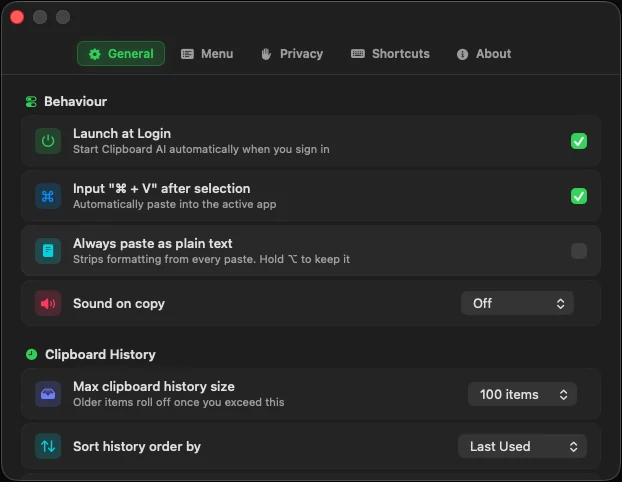
From then on, every clip you paste from Clipboard AI arrives as clean text: the floating menu, the menu bar list, the All Clips window, batch or one by one pastes, and even a piece of a clip you select and copy inside All Clips. The setting stays put when you quit and reopen the app.
Keep the formatting when you actually want it
Turning it on does not take the choice away. ⌥ Option always gives you the opposite of your default, so with Always paste as plain text switched on, holding ⌥ pastes that one clip with its formatting intact. Right-click a clip and the menu offers Paste with Formatting instead.
Look at the bottom of the floating menu. The ⌥ hint reads "plain" normally and flips to "formatted" once the setting is on, so the keycap always tells you what you are about to get. The same legend lives in Settings, Shortcuts, under Paste Modifiers.
What plain text strips, and what it keeps
Rich text travels as several hidden versions of the same content, and the app you paste into picks the fanciest one it understands. Plain text hands over just the characters.
| Left behind | Carried over |
|---|---|
| Fonts, sizes, and text colours | Every character you copied |
| Bold, italics, and highlights | Line breaks and spacing |
| Hyperlinks hiding behind words, leaving the words | Emoji and accents |
| The hidden RTF, HTML, and PDF versions | Tabs and indentation inside the text |
Plain text means nothing for a picture, so image clips ignore the setting completely and always paste as an image. Nothing to switch off first.
Why not just use Paste and Match Style?
macOS has ⌘⌥⇧V for pasting without formatting, but it is an app by app affair. Plenty of apps never added it, some map the keys to something else, and where it does exist it matches the destination's style rather than truly stripping the clip. It also only ever works on the one thing currently on your clipboard.
Clipboard AI applies the same rule everywhere, in every app, to any clip in your history, including something you copied last Tuesday.
When you want to clean the text, not just strip it
Plain text removes the styling. If the text itself needs work, Clipboard AI has tools for that: Strip HTML pulls out leftover tags, Trim Whitespace tidies runaway spacing, and there is case conversion and URL encoding alongside them. Right-click a clip, pick a transform, and paste the tidied result. See Clean up text on Mac.
⇧ pastes and deletes the clip, ⌃ deletes without pasting, and they combine with ⌥. The full set is in the Mac keyboard shortcuts cheat sheet.
New to pasting from Clipboard AI on Mac? Start with Paste anywhere on Mac with the hotkey.