
Collections group related clips together with their own icon and colour. They are perfect for the sets of things you reuse, like launch copy, trip details, or the snippets you paste every day.
Create a Collection
- Open the Collections tab and tap New Collection.
- Give it a name (or tap a suggestion), then pick an icon and a colour.
- Tap Create. Your new Collection is ready for clips.
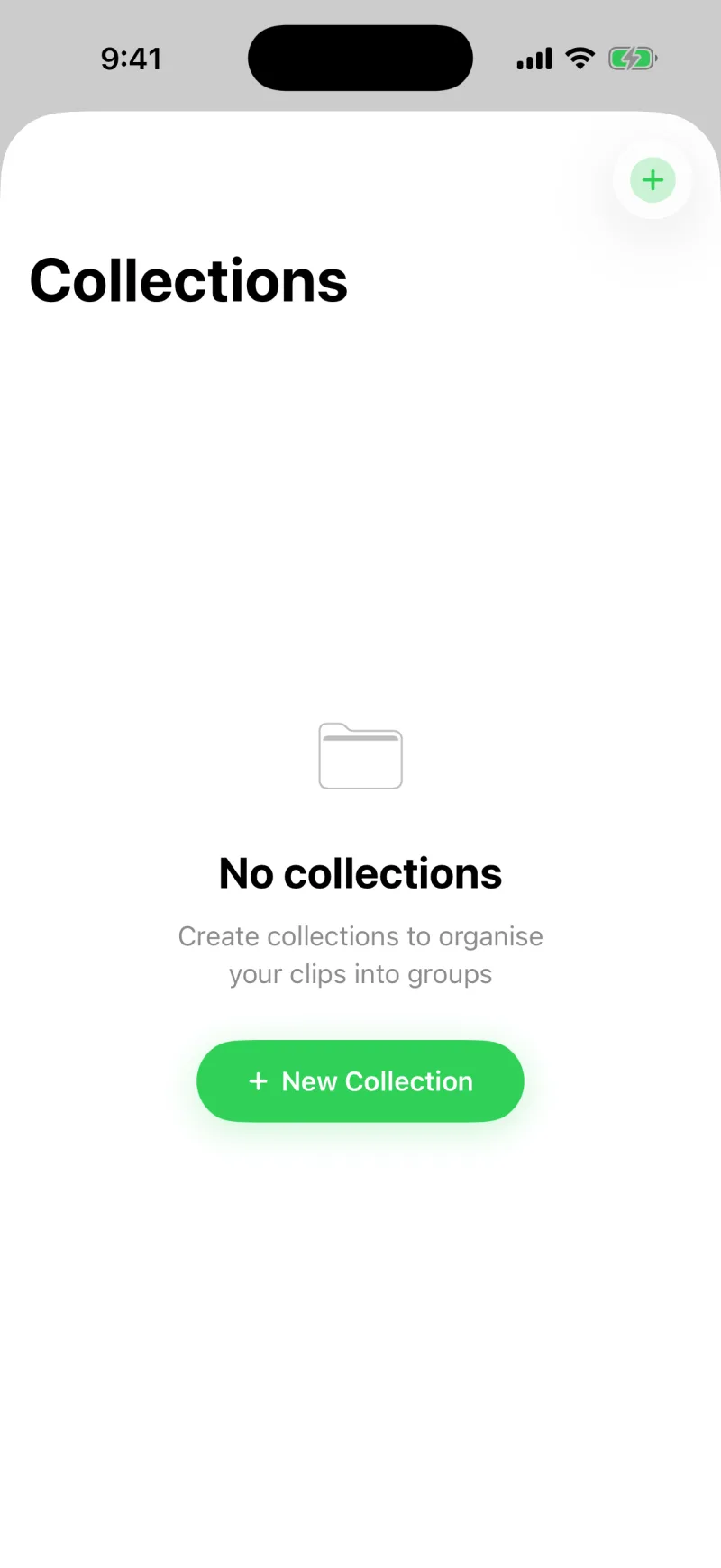
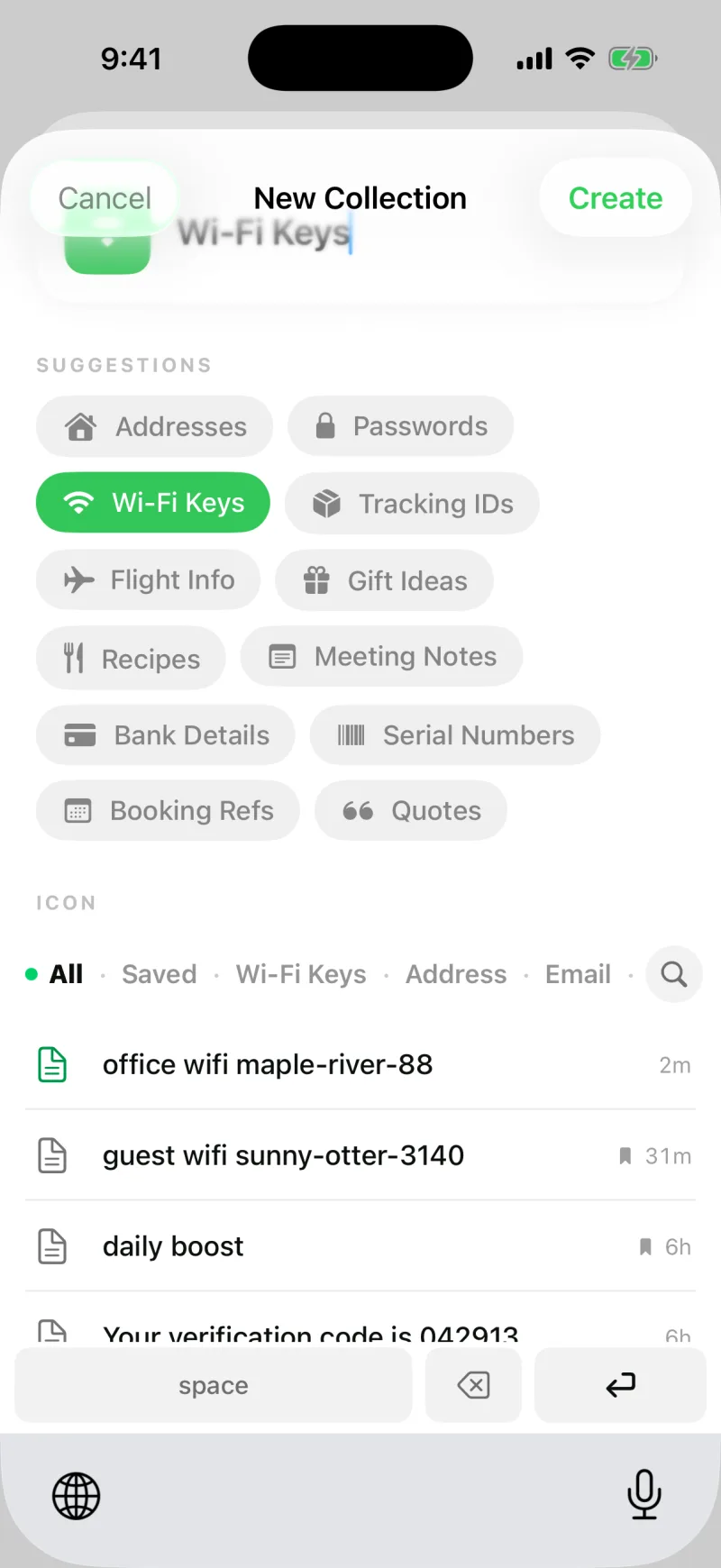
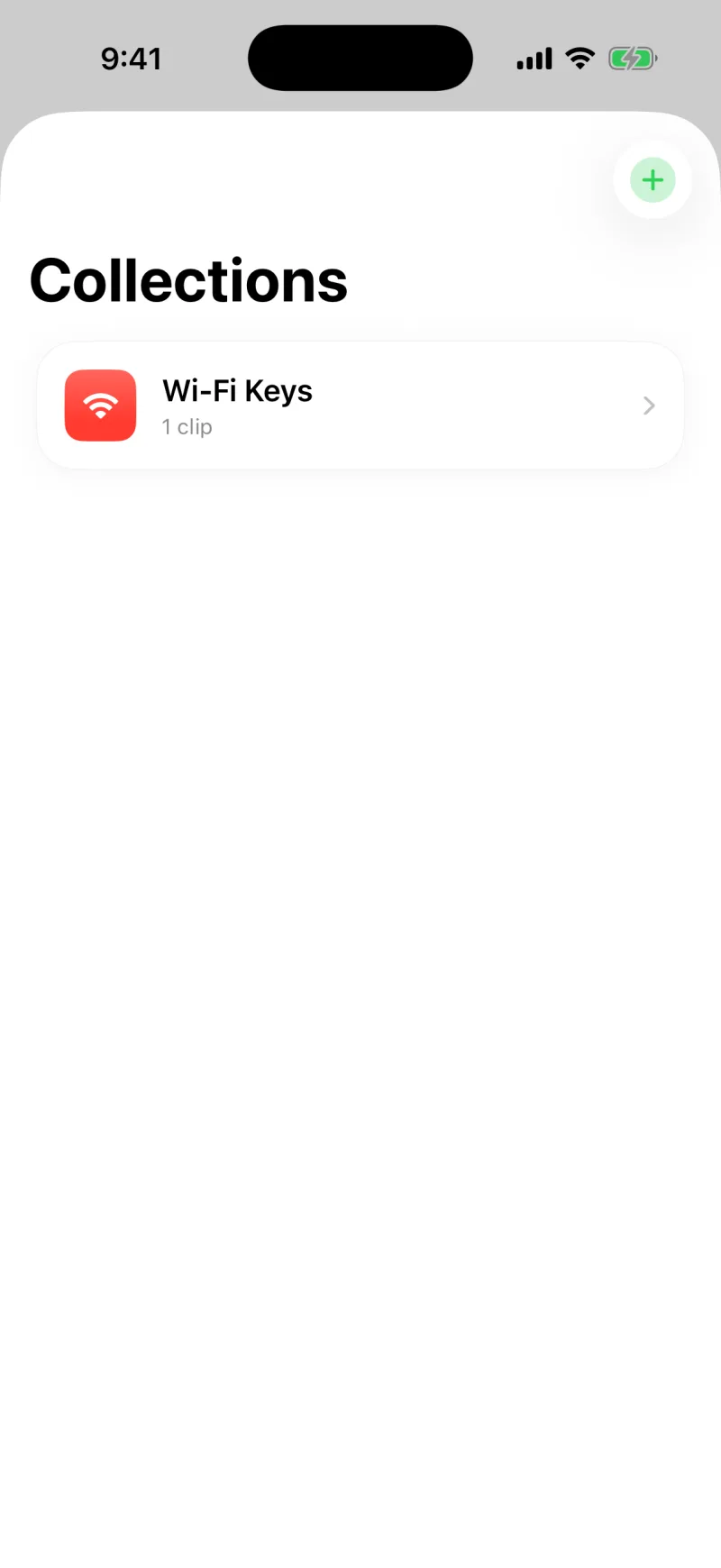
Creating Collections is part of Clipboard AI Pro. See Clipboard AI Pro and billing.
Add a new clip to a Collection
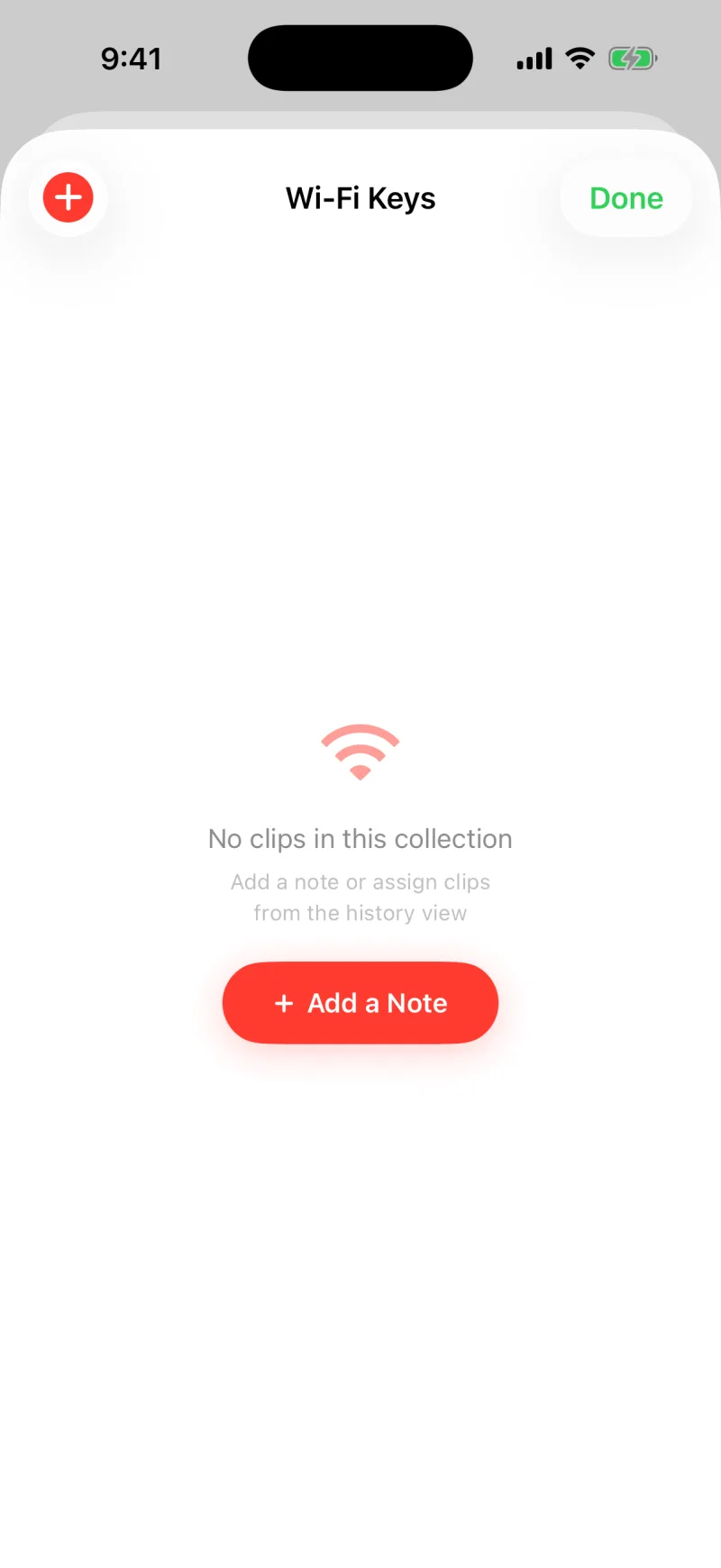
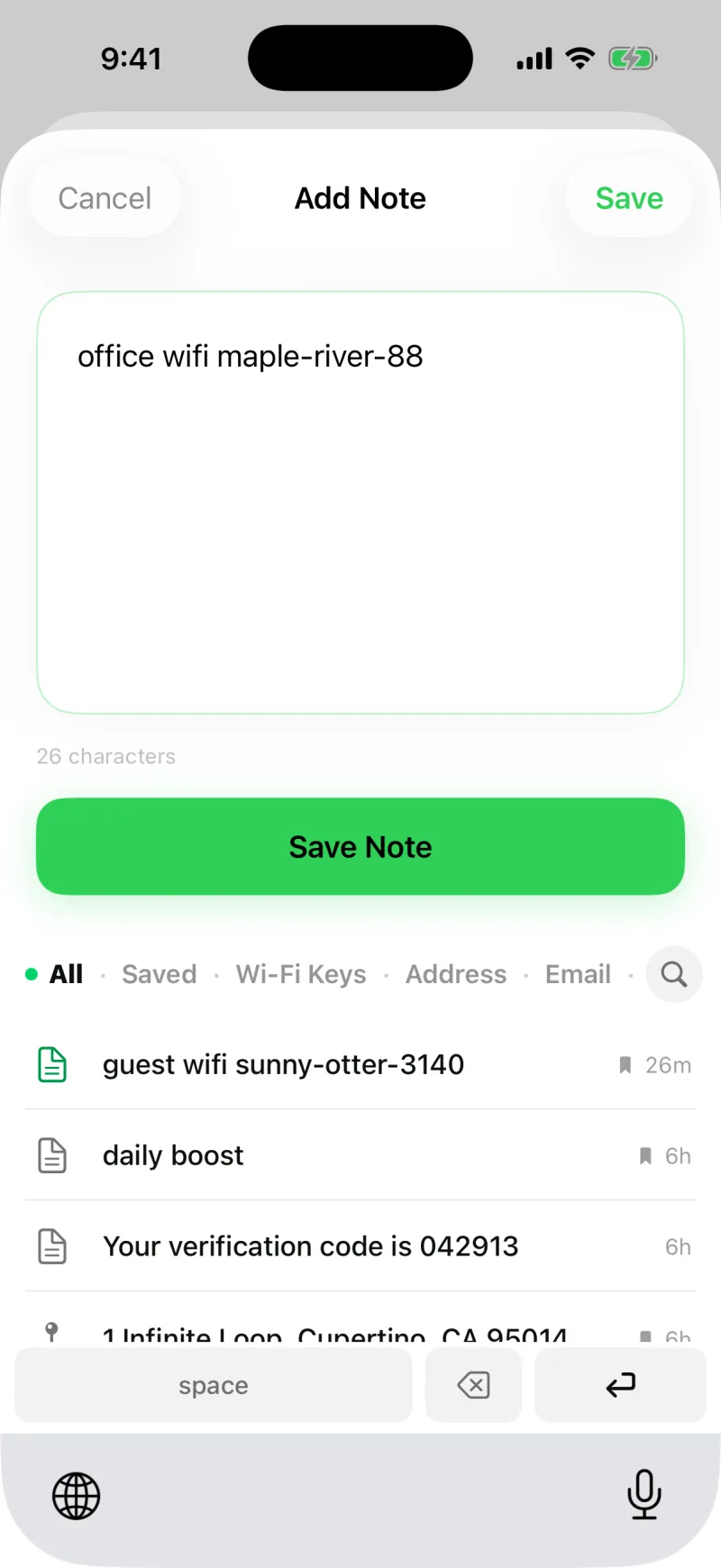
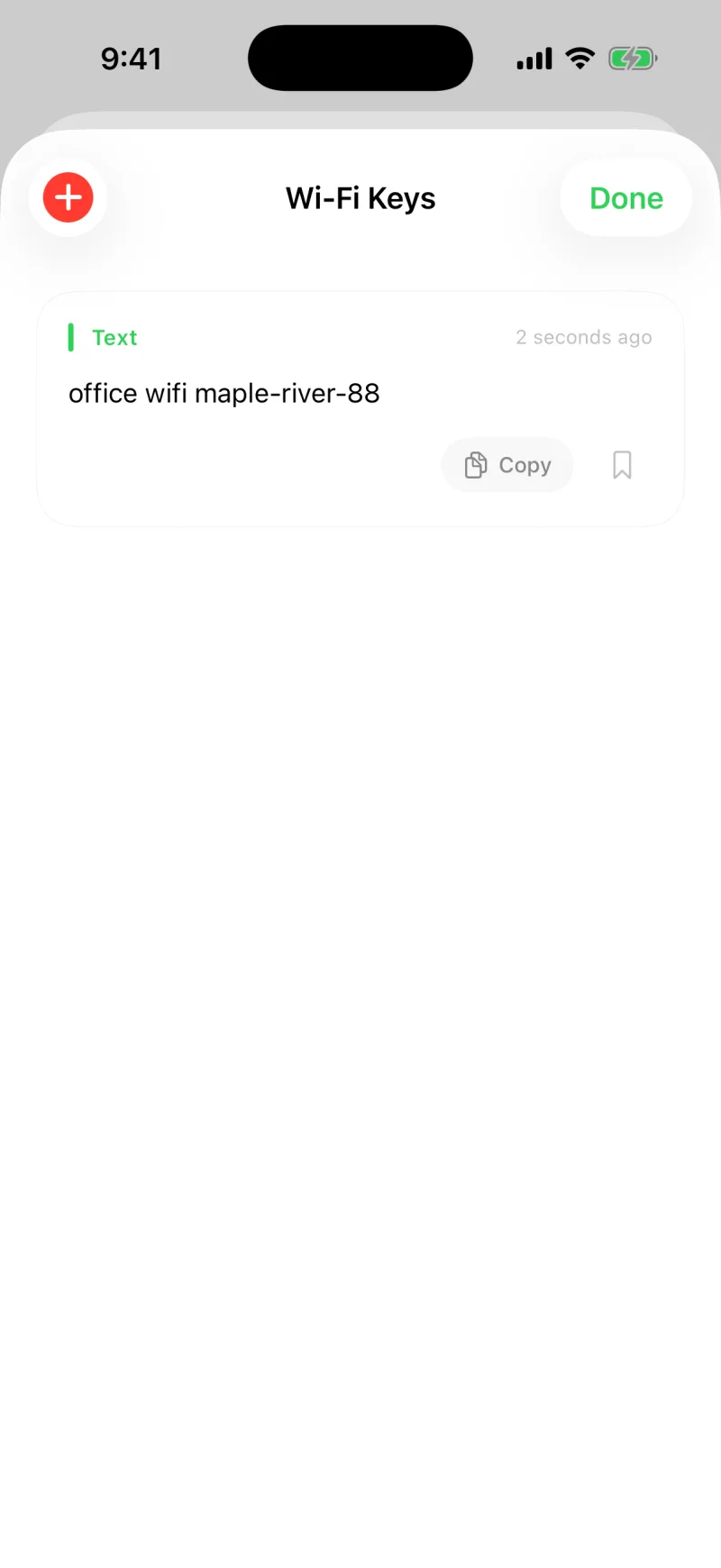
The quickest way to fill a Collection is to open it and tap Add a Note. Type your clip, like a Wi-Fi password, and it is saved straight into that group.
Add an existing clip to a Collection
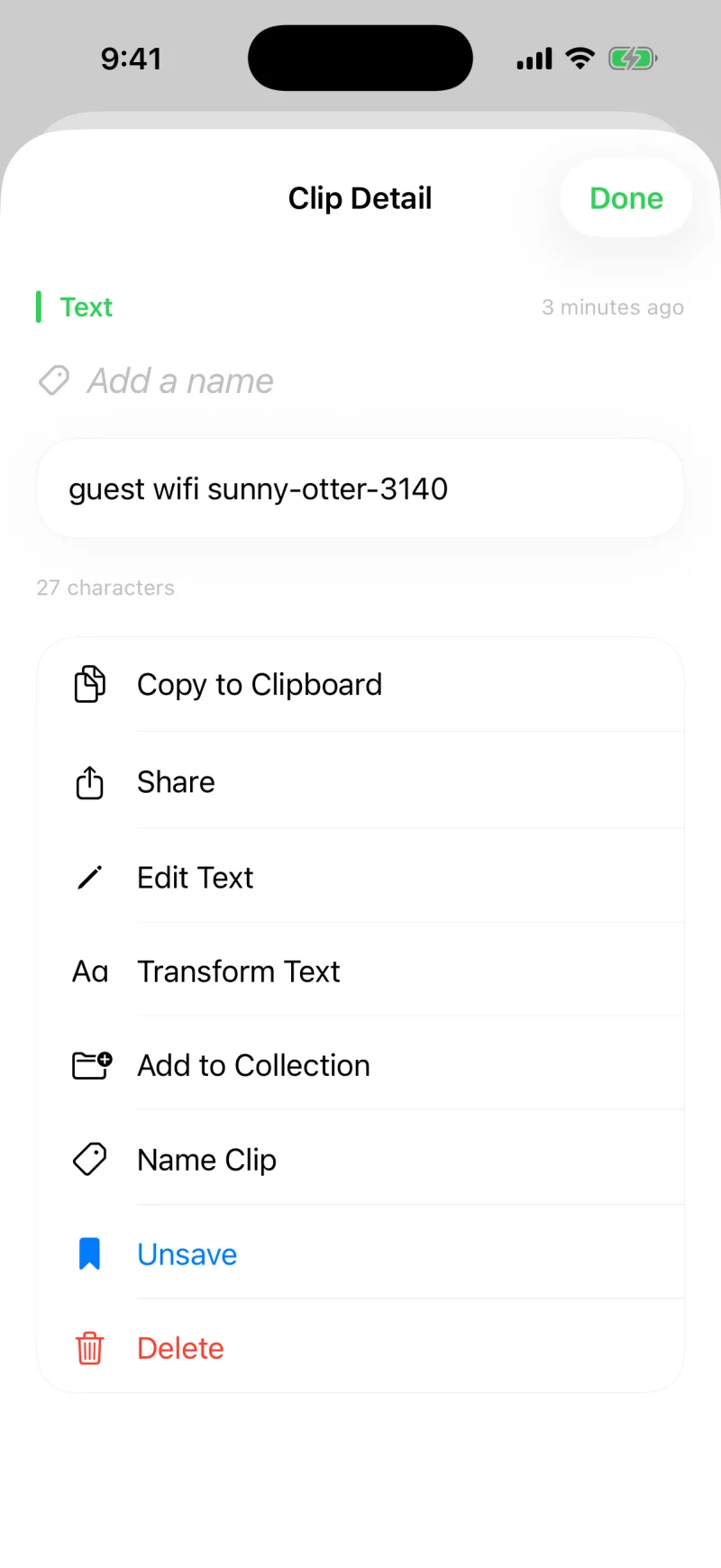
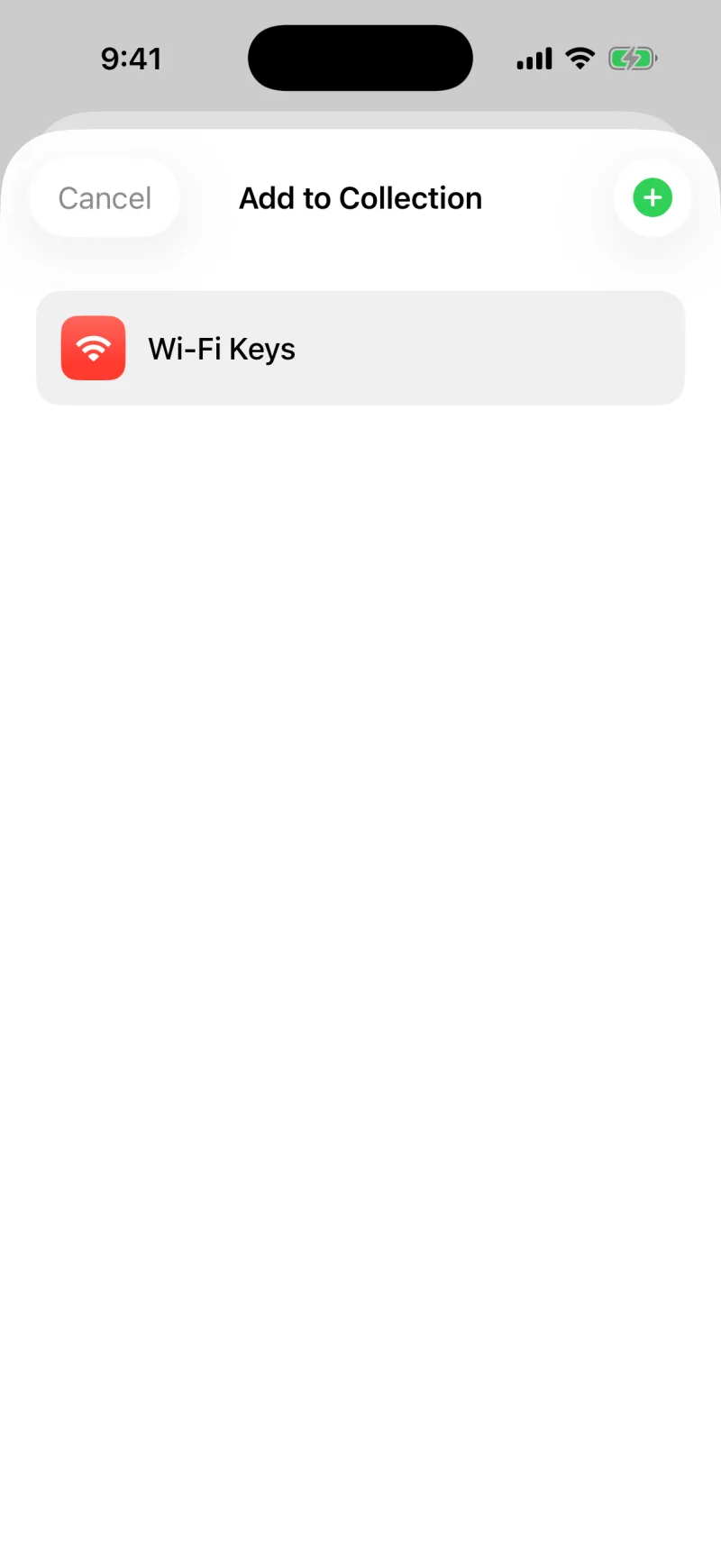
Already saved something? Open the clip to its detail, choose Add to Collection, and pick the Collection. The clip is filed into that group, ready whenever you need it.
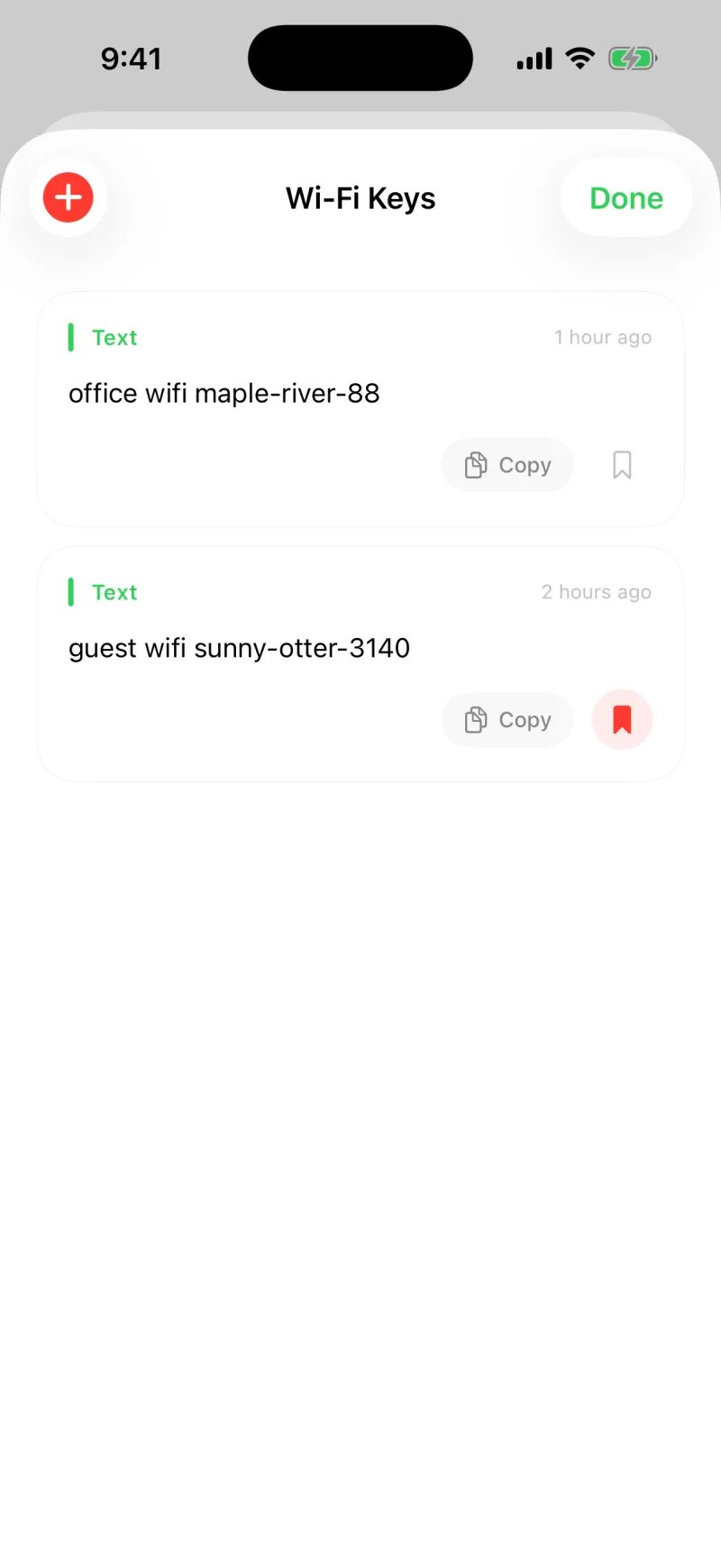
Try one for "Work" snippets, one for a trip with addresses and confirmation numbers, and one for the canned replies you send most.
Edit or delete a Collection
Press and hold a Collection to rename it, change its icon and colour, or delete it. Deleting a Collection does not delete the clips inside it, so your saved items stay safe.
Put a Collection on the Home Screen
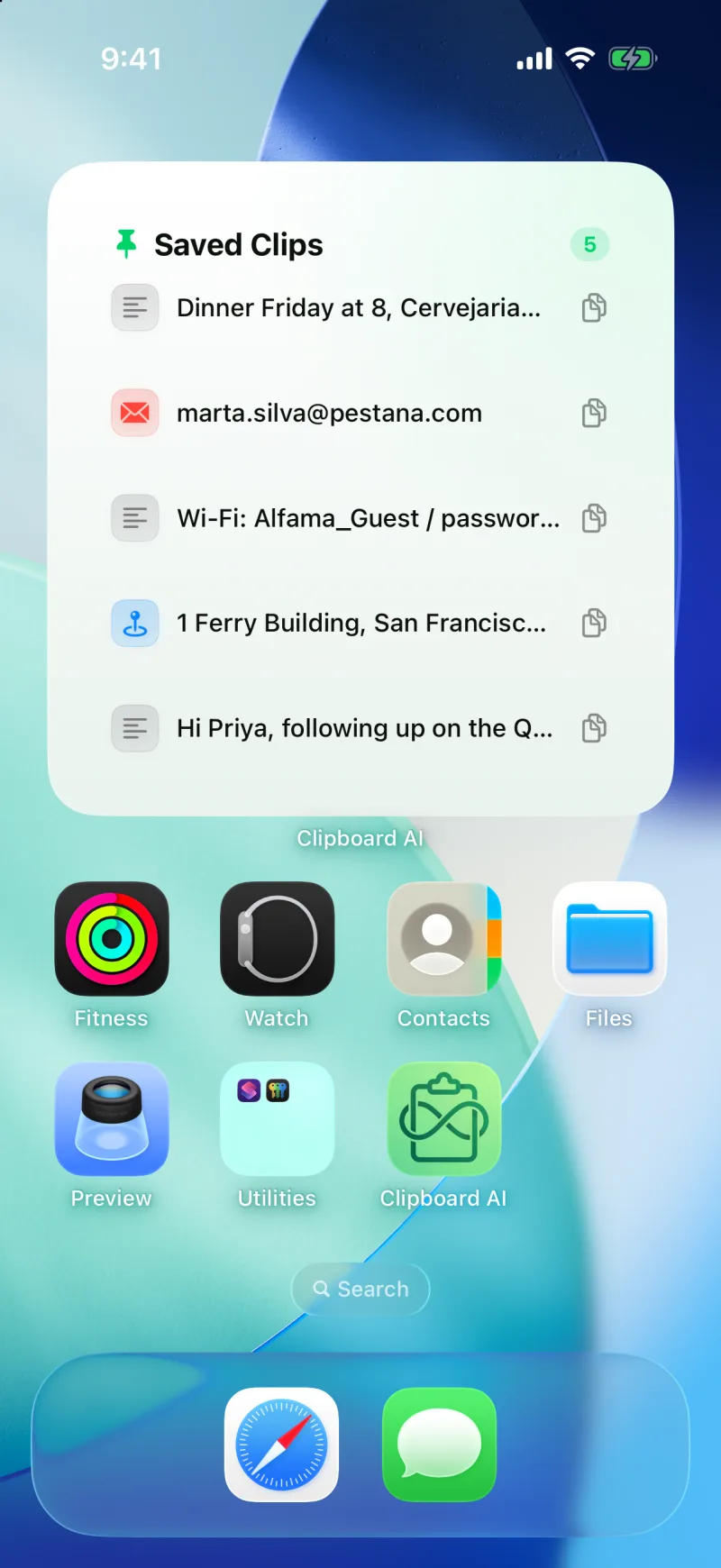
The Collection widget shows any one Collection, or your Saved clips, on the Home Screen, and a tap on a row copies that clip without opening the app. It is the fastest way to reuse a set of things you paste on the go, like a trip's booking references. See Widgets, Control Center, and the Lock Screen.
With sync on, your Collections appear on every device, so the same groups are waiting on your iPad and Mac. When two of your devices are on the same Wi-Fi, a new Collection, or a deleted one, shows up on the other straight away, without waiting on iCloud. On the Mac you can also drag clips straight onto a Collection in the sidebar; see Pin, name, and organize clips on Mac.