
On iPhone, an app cannot quietly read your clipboard in the background. That is an Apple privacy rule, and it is a good one. So saving a clip in Clipboard AI is a quick, deliberate tap. Here are the four ways to do it.
iOS only lets an app read what you copied while you are actively using that app. Clipboard AI cannot watch your clipboard from the background, so it gives you four fast ways to hand a copy over instead.
Save with a Siri command, the Action Button, or a double tap on the back of your iPhone. See Save with Siri, Shortcuts, and the Action Button.
1. Save it from the keyboard
This is the quickest way, right where you copied. After you copy something, tap the globe key to switch to the Clipboard AI keyboard. The moment it opens, it saves what you just copied, and your clips are right there to paste.
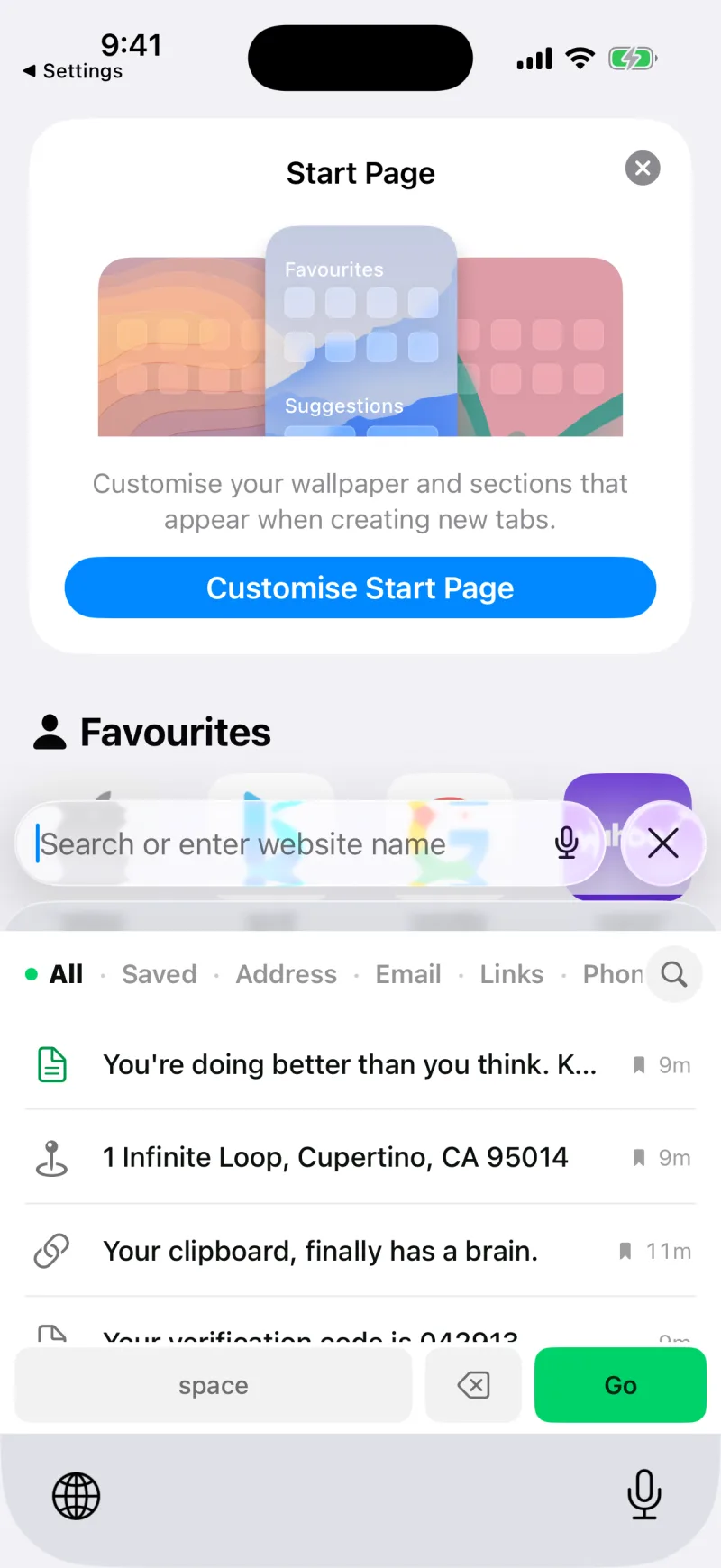
Switch the keyboard on once in Settings. See Enable the Clipboard AI keyboard.
2. Save it with the Share sheet
Great for links, images, and anything you cannot easily copy. Select the text or open the thing you want to keep, tap Share, and choose Clipboard AI from the row of apps.
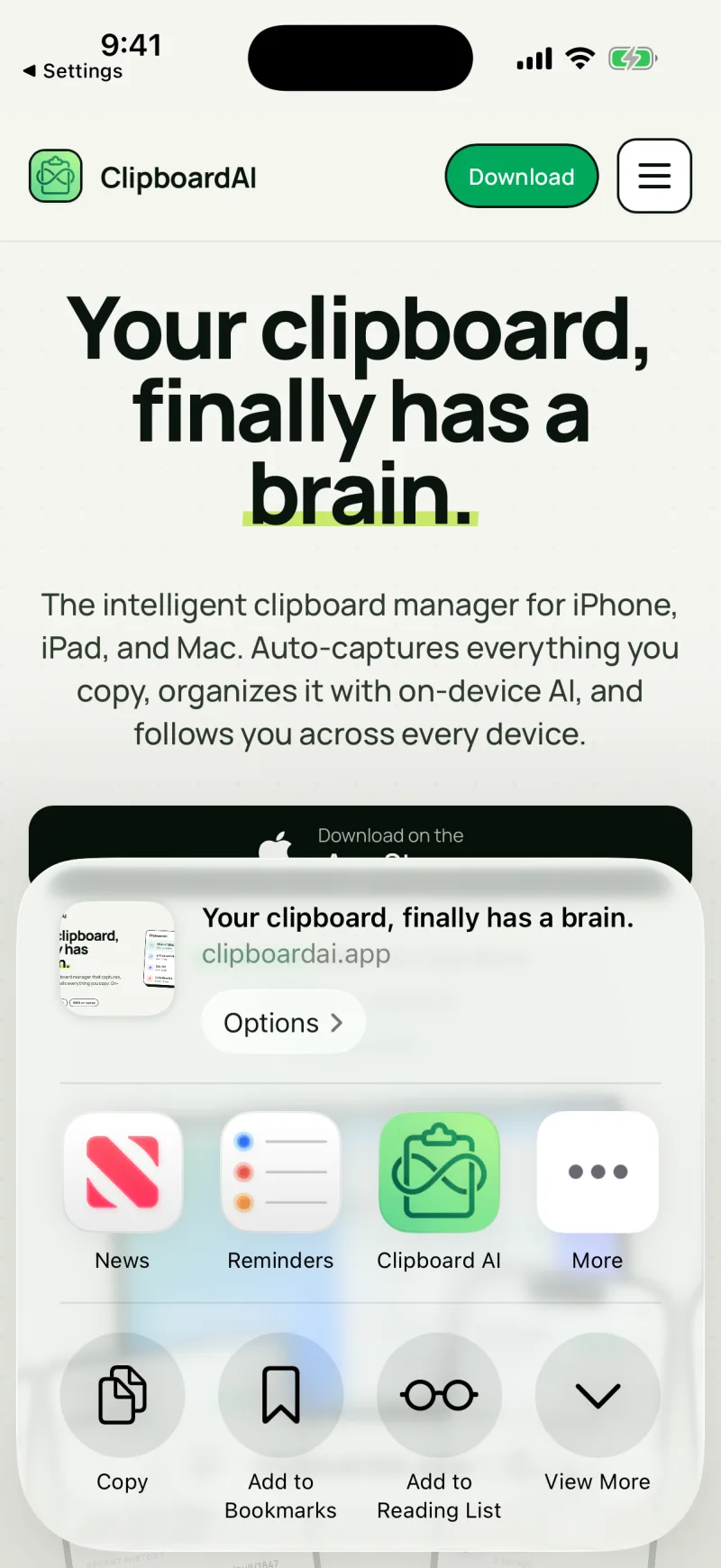
The Share sheet keeps full images too. See Save text, links, and images with the Share sheet.
3. Copy, then open the app
The simplest of all. Copy something the normal way, then open Clipboard AI. As soon as the app is in front, it can read what you copied and saves it to the top of your history.
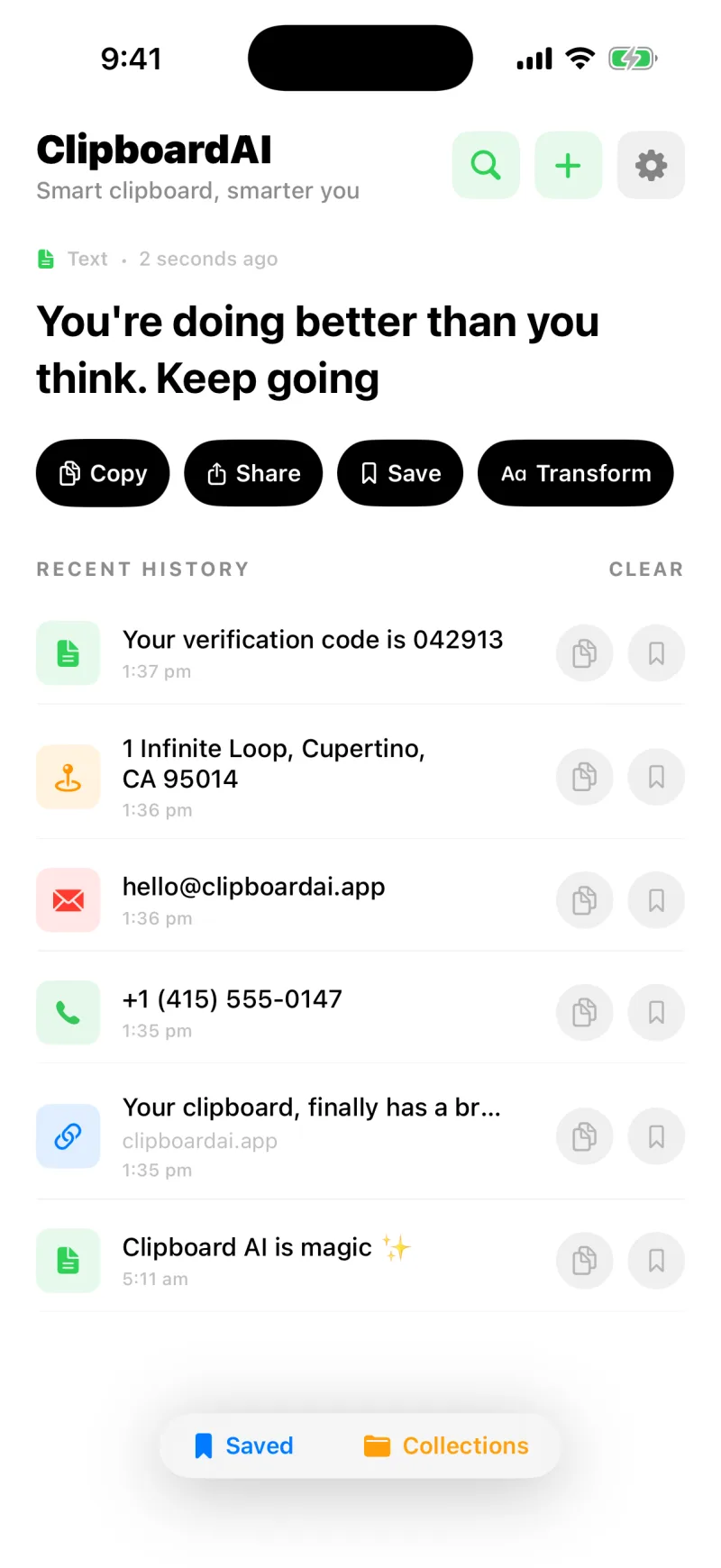
Set Paste from Other Apps to Allow so opening the app saves your copy instantly, with no pop-up. See Skip the paste prompt.
4. A button, from anywhere
On iOS 18 and later, the Save Clipboard control can sit in Control Center or on the Lock Screen, and the small Quick Capture widget does the same from the Home Screen. Tap it and Clipboard AI comes forward for a moment, saves what you copied, and you are back. Nothing to install. See Widgets, Control Center, and the Lock Screen.
Settings worth knowing
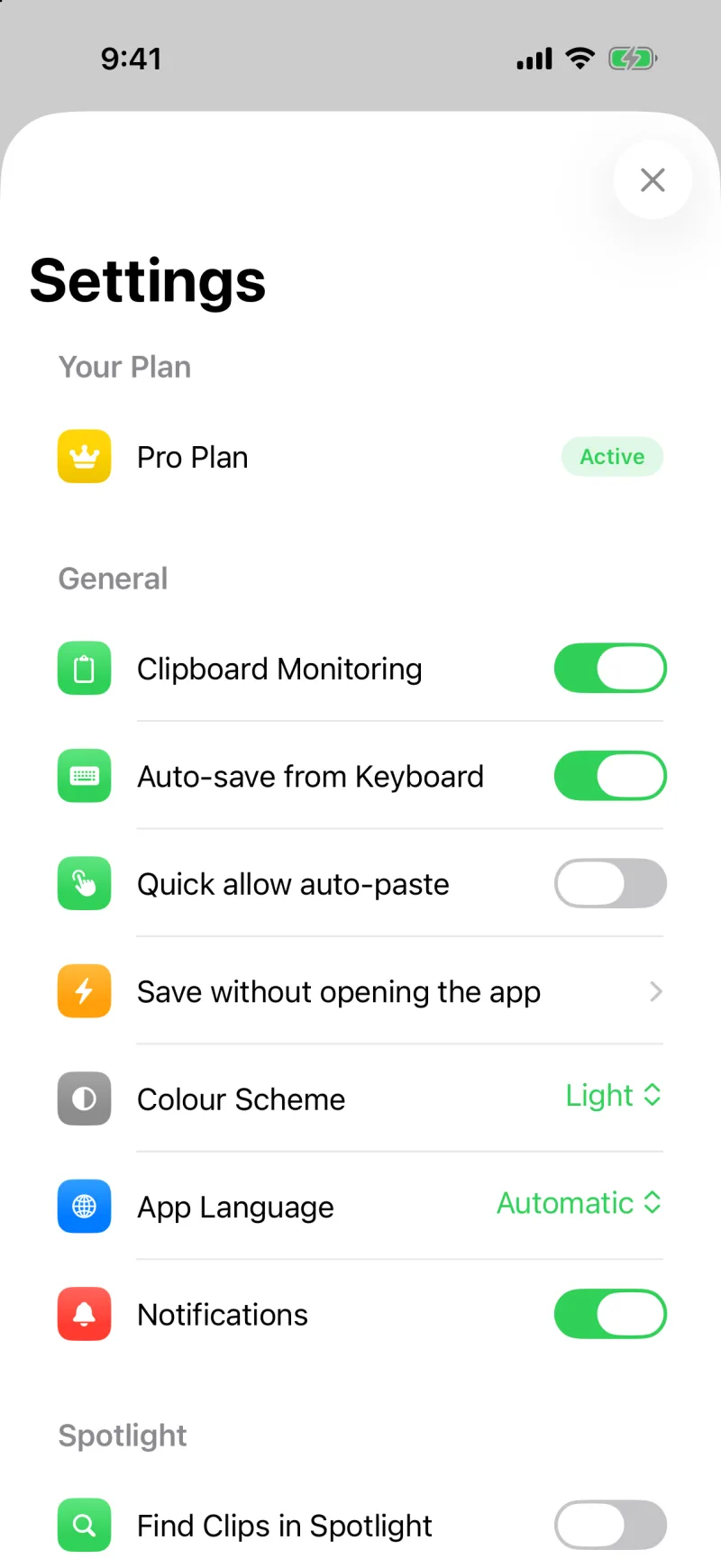
A few rows in the app's Settings shape how saving works:
- Auto-save from Keyboard controls whether switching to the keyboard saves your latest copy.
- Clipboard Monitoring controls whether the app saves your copy when you open it. Turn it off any time you want Clipboard AI to stop saving new clips.
- Quick allow auto-paste re-opens the short guide to setting Paste from Other Apps to Allow, if you dismissed it the first time.
- Save without opening the app re-opens the hands-free capture guide for the Action Button and Back Tap, including the current shortcut to add.
- Ask Before Deleting, under Data, keeps the confirmation on deletes. See Deleting clips: what is erased, what is kept.