
The floating menu is built to appear, paste one thing, and get out of the way. Some jobs are not like that: filling a form from a dozen clips, or going through everything you copied in a meeting and deciding what to keep. Pin the menu and it stays put while you work, and it grows a few keys for keeping or discarding clips without leaving it.
Press ⌘P in the floating menu, or click the pin. It now stays on screen while you switch apps. ⌘S saves the highlighted clip, ⌘⌫ deletes it, Escape closes the menu.
Pin it
Open the floating menu with ⌘⇧V, then press ⌘P or click the pin in the top corner. The pin turns red and the menu stops closing when you click away or switch apps. Pick a clip and it pastes into whatever app is in front, the row flashes to show it went through, and the menu is still there for the next one. Press ⌘P again, or click the pin, to unpin.
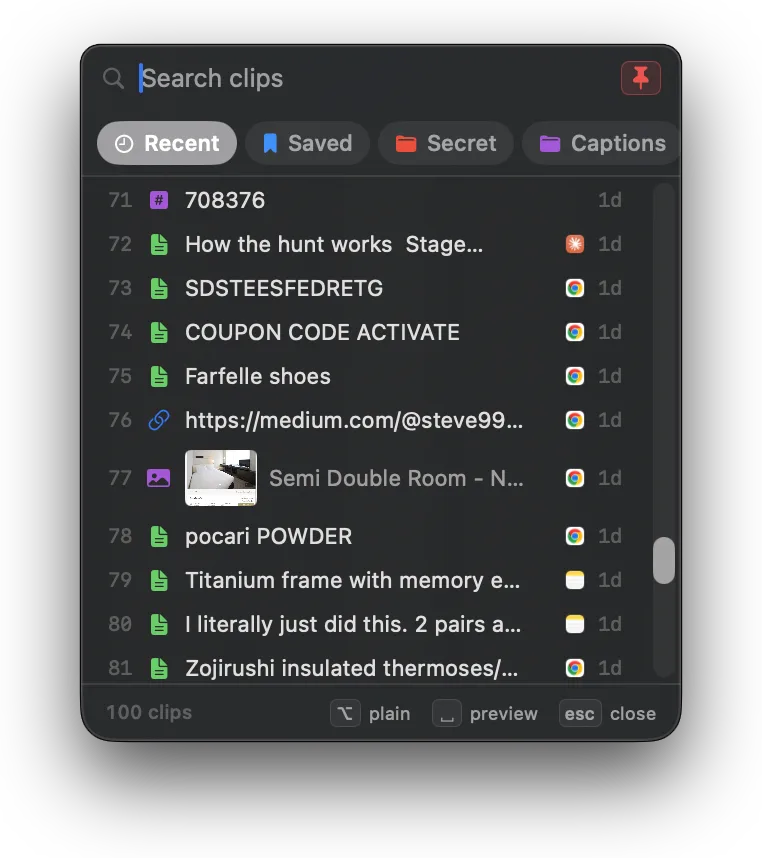
Pinning is a decision about the session you are in. Close the menu with Escape and the next ⌘⇧V opens an ordinary picker again, so a quick paste never has to fight a menu that will not go away.
Fill a form without reopening anything
Pin the menu, click into the first field of the form, and press the number of the clip you want. Click the next field, press the next number. The menu keeps its place, so a form with a name, an email, a phone number, and an address is four clicks and four keys. For a run of pastes into one place, batch paste is faster still: see Paste several clips at once on Mac.
Keep or discard as you go
While the menu is open, pinned or not, two keys act on the highlighted clip so you can sort out a session's clips in one pass with the arrow keys:
| Shortcut | What it does |
|---|---|
| ⌘S | Save the highlighted clip. Press again to remove it from Saved |
| ⌘⌫ | Delete the highlighted clip. It asks on the row first; Escape backs out |
| right-click | Save or Remove from Saved, Add to Collection, Delete, and Paste as Plain Text or Paste with Formatting |
| esc | Back out of a pending delete, then clear a batch selection, then close the menu |
Arrow down, ⌘S the ones worth keeping, ⌘⌫ the ones that are not, and the menu acknowledges each one with a flash on the row. Keeping a clip used to mean closing the menu and hunting for it again in All Clips.
Right-click a clip and choose Add to Collection to drop it straight into a collection. The option appears once you have made a collection. See Pin, name, and organize clips on Mac.
A deleted clip is erased straight away, which is why the row asks first. To skip the question, turn off Ask before deleting a clip in Settings under Deleting. See Deleting clips: what is erased, what is kept.
The rest of the keys
Everything else the floating menu can do from the keyboard, from number keys to plain-text paste to batch selection, is in Mac keyboard shortcuts, the full cheat sheet.