
Deleting in Clipboard AI is deliberately final. A clip you delete is erased straight away, not moved to a bin, because a clipboard manager that quietly keeps what you told it to forget is not private. Here is exactly what each way of deleting does, and what it leaves alone.
Delete erases a clip immediately, with no undo. The app asks first unless you turn that off. Clear All History and auto-delete both keep your saved clips and anything in a collection.
Delete one clip
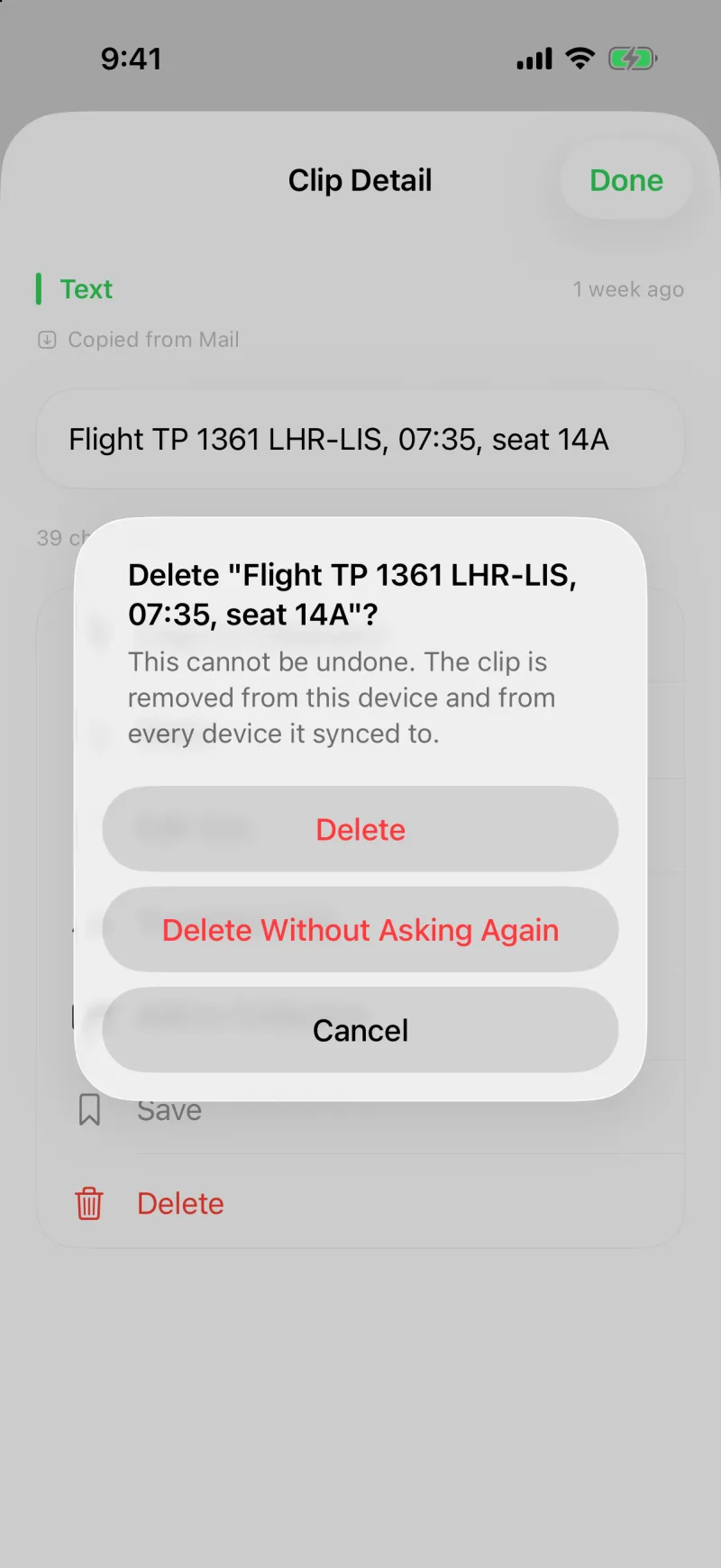
Touch and hold a clip and choose Delete, open its detail screen and tap Delete, or use the Delete button under the clip at the top of the home screen. A prompt asks Delete this clip? and shows the clip so you can see what you are about to lose. Tap Delete to confirm, or Delete Without Asking Again if you would rather the prompt stayed out of your way from now on.
- The clip's content is erased the moment you confirm. There is no trash and no undo.
- With sync on, the deletion travels to your other devices too, so the clip does not come back from your Mac later.
- If the clip is a code, a password, or anything else flagged sensitive, the prompt does not show its contents.
Turn the confirmation on or off
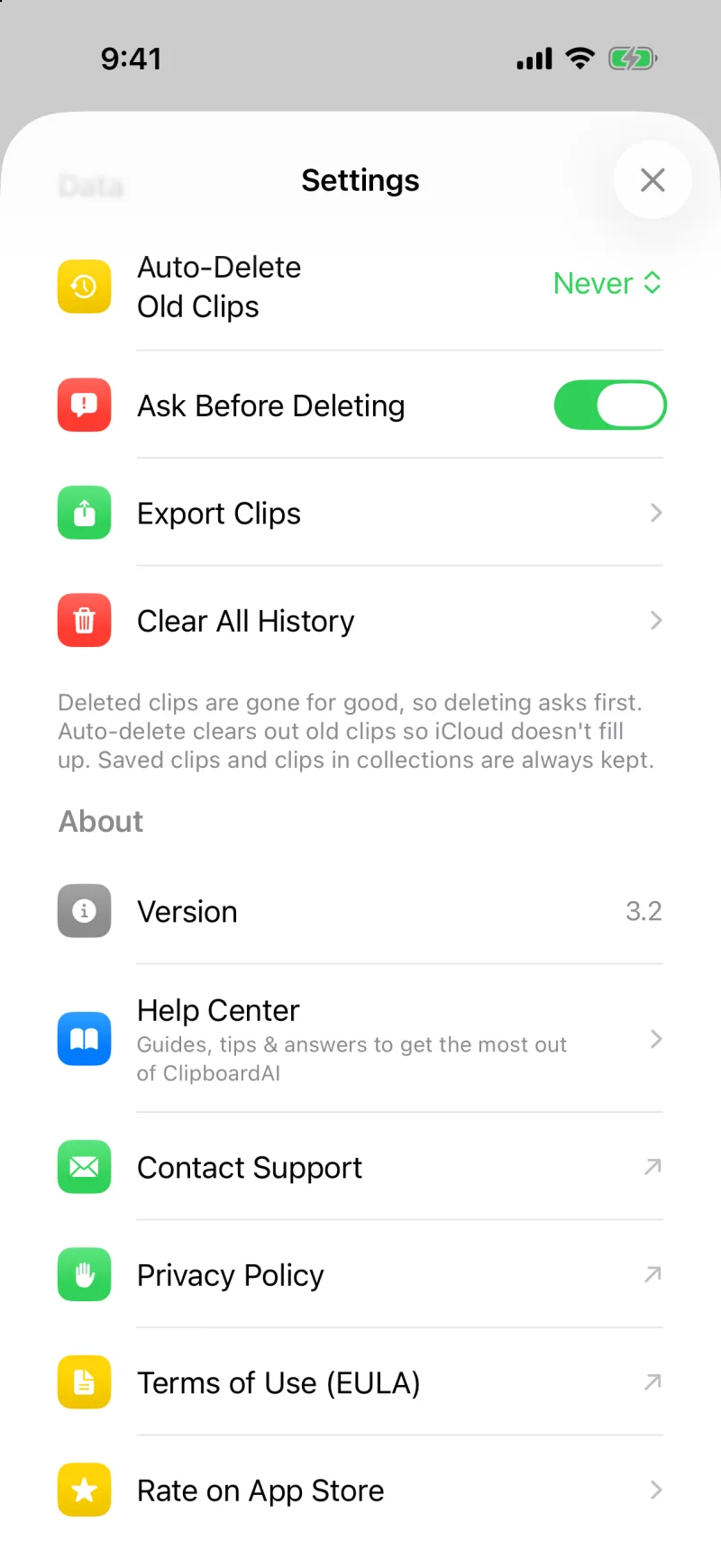
In Settings, under Data, the Ask Before Deleting switch controls the prompt. It is on by default. If you tapped Delete Without Asking Again and want the safety net back, turn the switch on again here.
A long press and a slip of the thumb is one stray tap from a permanent delete. The prompt costs you half a second and saves the clip you did not mean to touch.
Clear All History
Clear All History in Settings erases every clip in your history, but it keeps your saved clips and anything you filed into a collection. The things you kept on purpose are never part of a clear-out. The app asks you to confirm, because the rest is gone for good.
Auto-delete old clips
Auto-Delete Old Clips in Settings clears history older than a window you choose, from off all the way to a year. It follows the same rule: saved clips and clips in collections are always kept, no matter how old.
Delete a collection
Deleting a collection removes the grouping, not the clips. Everything inside it goes back to your history and stays saved if it was saved. See Organise clips into Collections.
On Mac
The same rules apply. A confirmation card appears when you delete a clip, with a Delete without asking again option and a matching switch in Settings under Deleting. In the floating menu, a delete confirms right on the row, and Escape backs out of it. Clear History in Settings removes unsaved clips and keeps saved and collection clips. See Customize the hotkey and menu on Mac.
An undo would mean keeping a copy of the clip somewhere after you asked for it to go, which is exactly what people delete a clip to avoid. Clipboard AI erases the content instead and asks first, so the decision is yours and it is made once.