
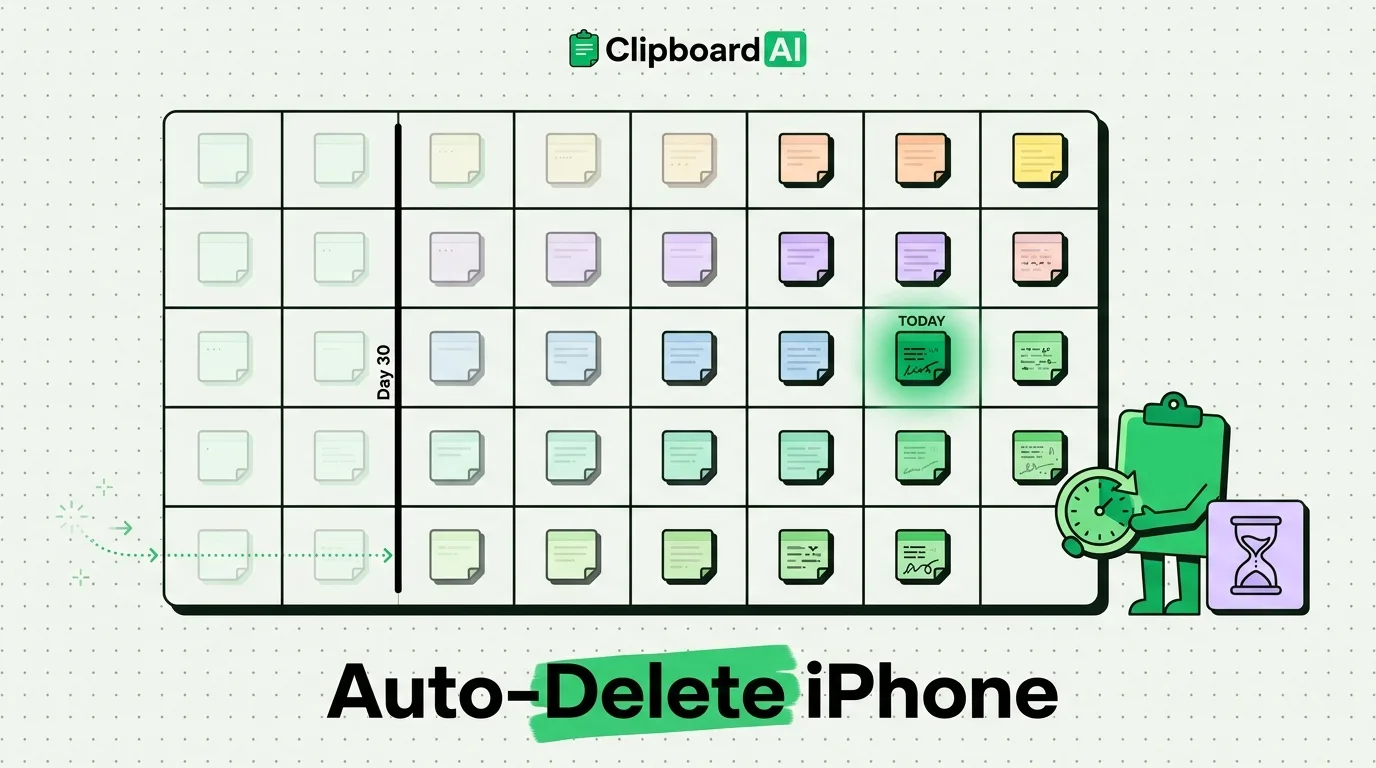
To set up auto-delete for old clipboard items on iPhone, you must configure a cleanup window within a third-party clipboard manager like ClipboardAI, as native iOS does not feature a time-based clipboard history clear setting. While iOS automatically overwrites your single active clipboard slot whenever you copy new text, ClipboardAI's Auto-Delete Old Clips setting lets you wipe your local database history after 30 days, 60 days, 3 months, 6 months, or 1 year to protect sensitive logs.
Our clipboards are filled with sensitive data. Throughout a typical week, you copy passwords, Wi-Fi keys, physical addresses, private emails, and occasionally bank routing numbers. If you use a clipboard history manager to preserve your copies, that information is logged into a database. Left unmanaged, this historical log becomes a security liability. If your device is lost or compromised, years of plain-text copied data could be readable.
Clipboard Retention Decision Tree & Settings Matrix
To secure your clipboard history without breaking your productivity workflows, apply these retention settings based on data type:
| Data Type | Risk Profile | Target Destination | Recommended Retention | Safety Logic |
|---|---|---|---|---|
| Passwords & Credentials | High Risk | Password Manager Vault | Immediate Auto-Clear (30 - 90 seconds) | Never store in general history; use system AutoFill keyboard integrations. |
| One-Time SMS Codes (OTPs) | Medium Risk | Verification Input Field | Instant Deletion (Upon successful paste or autofill) | Codes expire within minutes; keeping them in history offers zero benefit. |
| Client Details & Addresses | Medium Risk | Contacts or CRM | Manual Delete (once logged); 30 Days if using auto-delete | Needs to be active during active communication; delete once logged in primary database. ClipboardAI's shortest Auto-Delete Old Clips window is 30 days, so shorter-lived items are best cleared manually. |
| Writing Snippets & Templates | Low Risk | Document drafts | Keep Indefinitely (Pin to secure categories) | Non-sensitive text blocks that save time; pin to protect from auto-clean sweeps. |
| Web links & Reference URLs | Low Risk | Bookmark manager / browser | 30 Days (Auto-expire) | Allows retrieval of research links; auto-deletes to prevent database bloat. |
The Hidden Risks of Clipboard Hoarding
Why is managing your clipboard history so critical?
- Background Scraping: Prior to iOS 16, any app running in the foreground could read your system clipboard without prompting. While Apple’s security updates now display banners, rogue apps can still trick users into pasting or scraping local buffers.
- iCloud Universal Clipboard Sync: If you share an Apple ID across devices, everything you copy on your iPhone is synced to your Mac and iPad. If your laptop is left unlocked in a public place, your copied iPhone data is instantly accessible.
- Database Exposure: Clipboard history managers save text to a local database. If this database is not encrypted or clean, any diagnostic backup file or system dump could expose your history.
How to Set Up Auto-Delete in ClipboardAI
ClipboardAI is designed with privacy as a core value. Here is how to configure your data retention policies inside the app:
Step 1: Set Your Global Retention Policy
- Open the ClipboardAI app.
- Navigate to Settings > Auto-Delete Old Clips.
- Select your auto-clear threshold. We recommend 30 Days, the shortest available window, for a balance of utility and security. Any item older than this window will be deleted from your device database.
Step 2: Enable the Password Manager Block
To prevent your password manager copies from entering your history database:
- Under ClipboardAI Settings, go to Security Filters.
- Toggle on Ignore Password Managers.
- ClipboardAI uses bundle ID tracking to identify when you copy text from apps like 1Password, Bitwarden, or LastPass and blocks those strings from entering the history database.
Step 3: Set Up Manual Sweeps
If you copy highly sensitive information (like your Social Security Number or tax documents):
- Open the ClipboardAI main history screen.
- Locate the clip, swipe left, and tap Delete. This removes the data from your local memory block.
Honest Caveats & System Limitations
When implementing auto-deletion rules, be aware of these functional limitations:
- The "Gone Forever" Reality: Once ClipboardAI deletes an item under an auto-delete policy, it is unrecoverable. There are no cloud backups of deleted items to retrieve. If you have a clip you know you will need repeatedly, you must explicitly Pin it. Pinned items are whitelisted from automatic deletion sweeps.
- Keychain Native Limitation: If you copy passwords manually from Apple Keychain (Settings > Passwords), iOS does not auto-clear the system clipboard. You must copy a blank space or generic word to overwrite the system buffer manually.
- Sync Latency on Delete: If you delete a clip on your iPhone, there may be a short latency delay before the sync engine registers the deletion on your connected iPad or Mac.
Where ClipboardAI Fits (And Where It Does Not)
ClipboardAI is built to be a high-productivity utility, not a long-term data archive. It excels at local history logging, cleaning links, and providing fast access templates via a custom keyboard.
However, it is not a secure password manager. Never use ClipboardAI to store passwords, API keys, credit card pins, or encryption phrases. Use dedicated, encrypted password managers for credential storage, and configure ClipboardAI’s ignore-filters to block those apps entirely.
Frequently Asked Questions
Can I set different auto-delete timers for text vs. images?
Currently, ClipboardAI applies its global Auto-Delete Old Clips window to all data types in your history. If you set your expiration to 30 days, both copied text strings and image files will be wiped after that time.
How does Apple's native "Clean Up Automatically" work?
This iOS feature applies specifically to verification codes received via SMS and Mail. When you auto-fill the code into an app or website, iOS automatically deletes the underlying text message or email to keep your apps clean.
What happens if I copy something and want to keep it forever?
Inside ClipboardAI, tap the pin icon next to the clip. Pinned items are saved in custom categories (like "Templates" or "Work") and are protected from the auto-delete rules.