Your iPhone still has no clipboard history in iOS 27. The paste suggestion that iOS 27 added above the keyboard, in the bar where QuickType words usually appear, previews the last thing you copied and nothing before it. To see older copies you need a clipboard manager such as Clipboard AI, or a Shortcut that logs each copy to a note before the next one replaces it.
Where the clipboard lives on iPhone
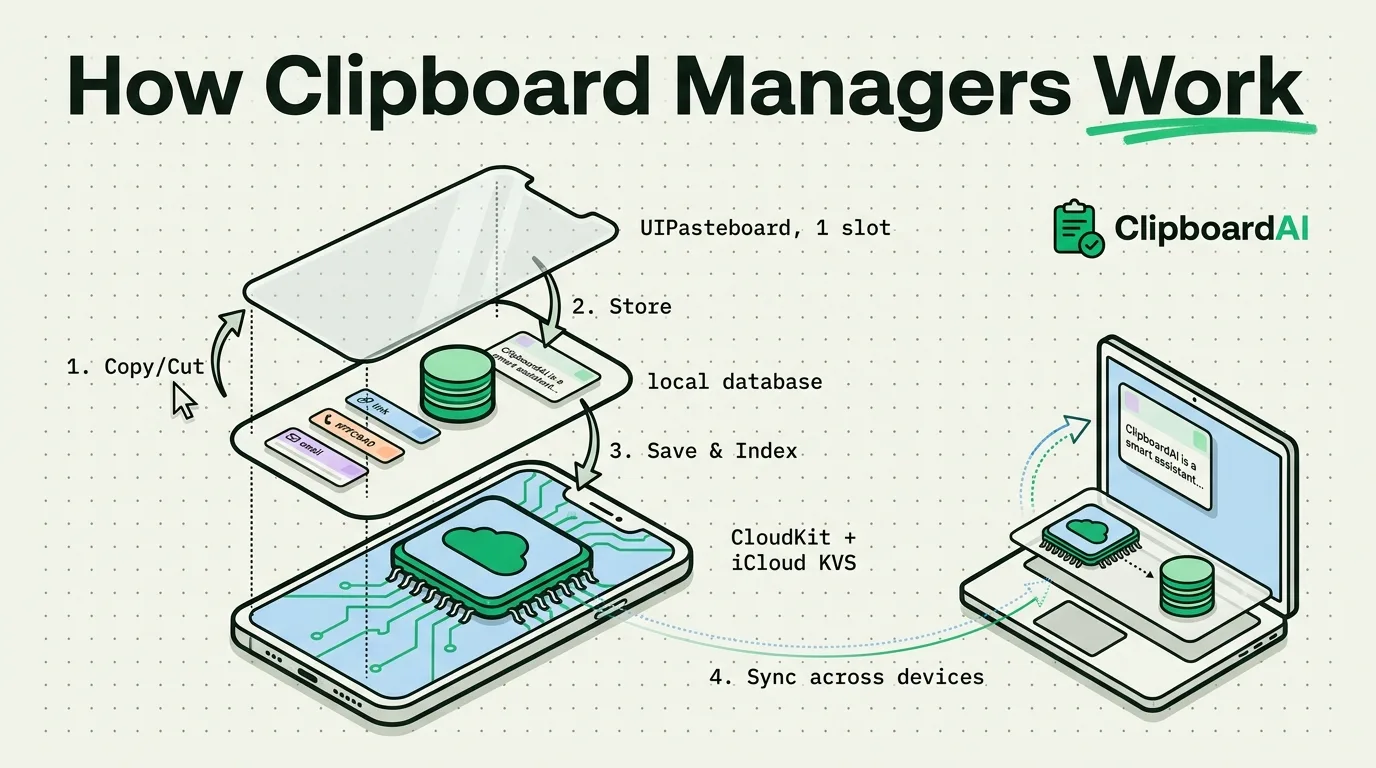
There is no clipboard app on an iPhone and no clipboard page in Settings. The clipboard is a system service that apps reach through Apple's UIPasteboard interface, and the general pasteboard that every app shares holds one item at a time: some text, a link, an image, or a few formats of the same thing. Copy something new and that item is replaced. iOS keeps no record of what was there before, so there is nothing to browse and nothing to restore.
Apps cannot read that slot behind your back either. Since iOS 14 the system shows a banner when an app takes something you copied in another app without you asking, and since iOS 16 it asks first. You can set the answer per app under Settings > Apps > [app name] > Paste from Other Apps, where the choices are Ask, Deny and Allow.
What the iOS 27 paste bar shows
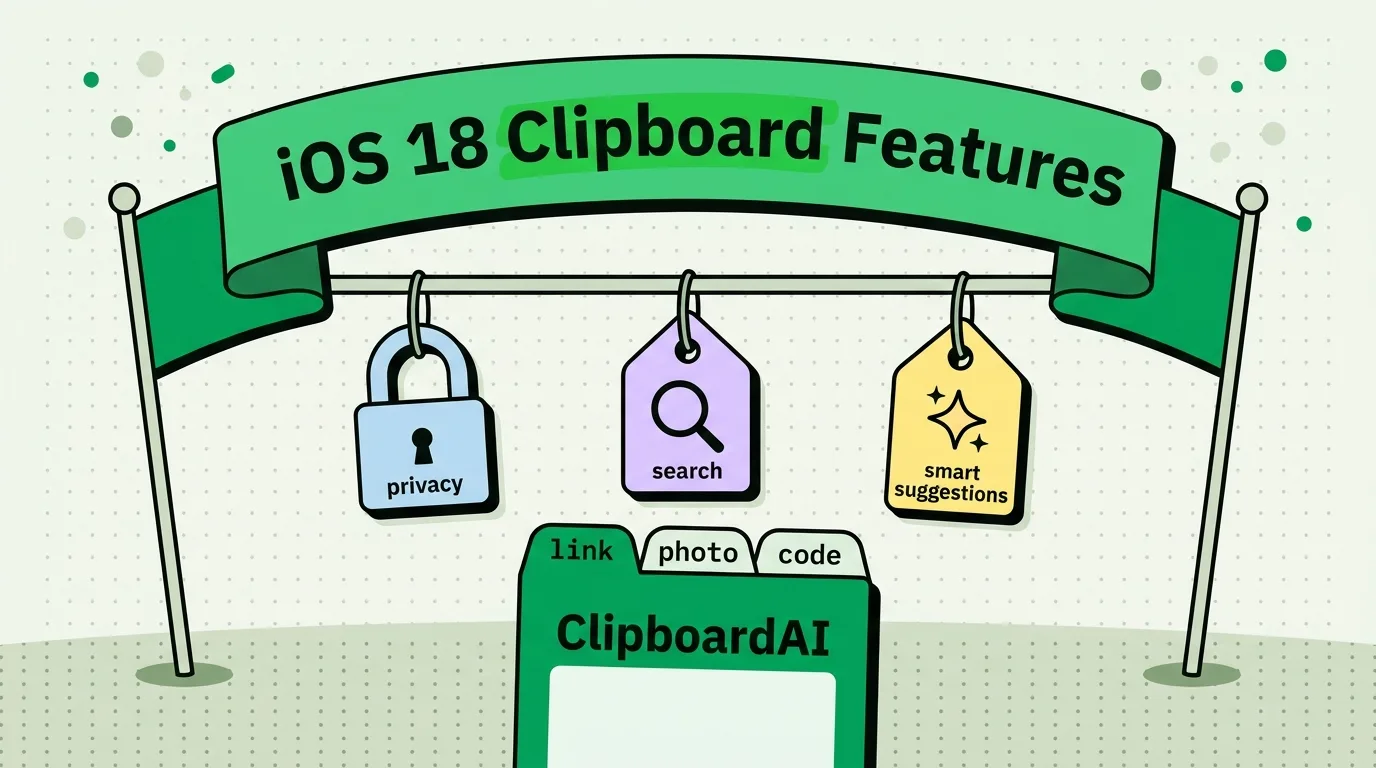
iOS 27, released in September 2026 for iPhone 11 and later, added a paste suggestion to Apple's keyboard. Copy something, tap into a text field, and the bar above the keys offers it with a short text preview or a small image thumbnail, labelled with the app it came from, for example Paste from Safari. One tap pastes it, and it handles text, links and photos.
It is a faster button for the same single slot. The suggestion always holds your latest copy, and the moment you copy something else it switches to that instead. There is no list of earlier copies, no search, no pinning, and nothing comes back once it has been replaced. It also belongs to Apple's keyboard, so it does not appear while a third-party keyboard is on screen.
That makes it a handy way to check what is on your clipboard, and no help when the thing you need is three copies back.
Three ways to check what you copied
- Look above the keyboard (iOS 27). Tap into any text field, such as the Safari address bar or a new note. If something is on the clipboard, the paste suggestion previews it without pasting anything.
- Paste it somewhere harmless. Open Notes, start a blank note, touch and hold, and tap Paste. This works on every version of iOS.
- Run a two-action shortcut. In the Shortcuts app, tap +, add Get Clipboard, then add Show Result. Name it View Clipboard and add it to your Home Screen, and one tap shows the current item in a pop-up.
All three show the same single item, and none of them can show you what was there before it.
Or skip the note altogether: our free clipboard viewer shows what you last copied with one tap, right in Safari, and nothing is uploaded.
How to keep a real clipboard history
Because iOS will not let any app watch the clipboard in the background, every history tool on iPhone saves a copy at a moment you choose. What separates the options is how much effort each saved copy costs you, and whether you can paste from the history without leaving the app you are typing in.
Option 1: a clipboard manager
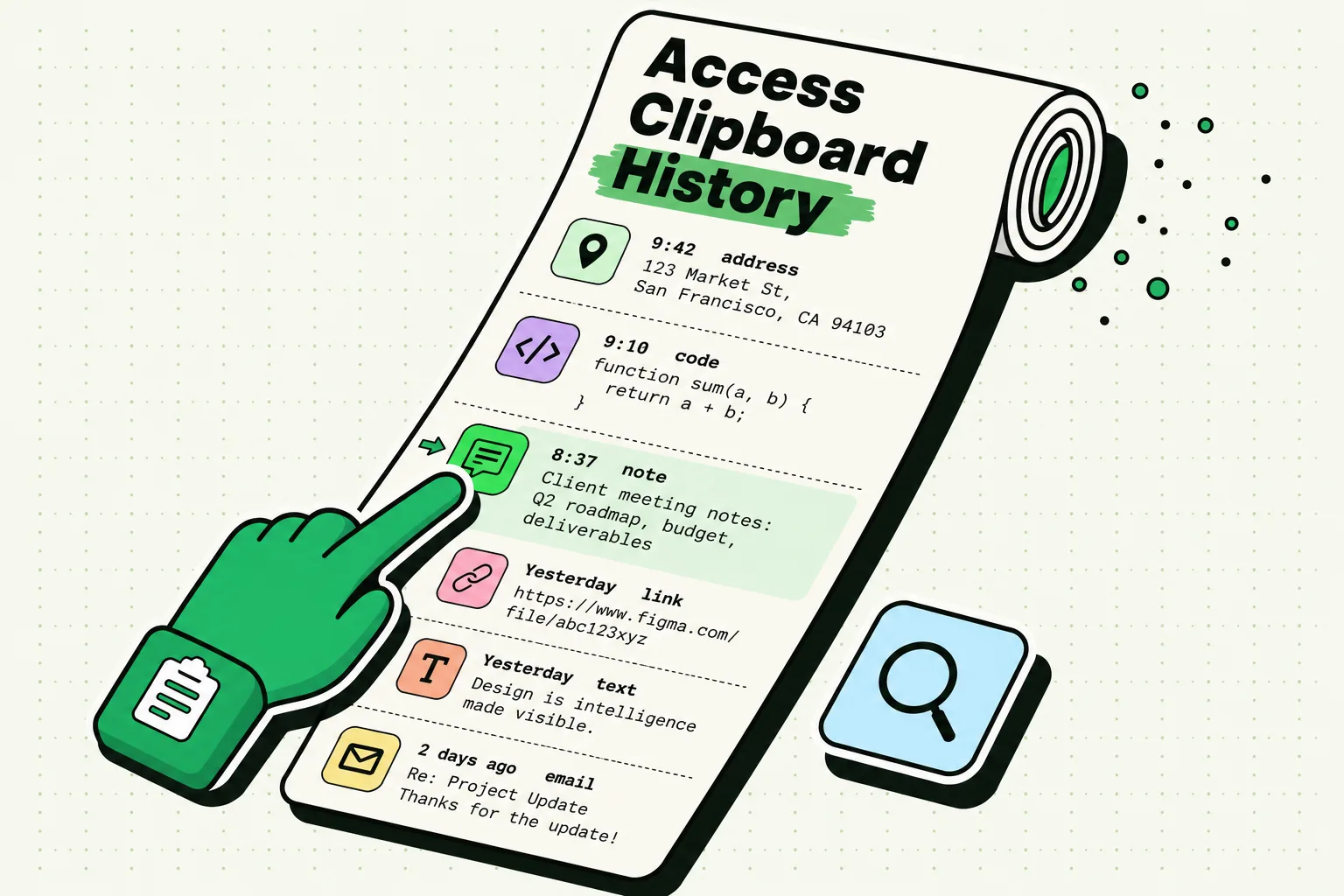
Clipboard AI keeps a searchable history of the copies you hand it, sorts them into categories such as links, addresses, codes and images, and puts that history inside a keyboard you can open from any app. Each of its four ways to save a copy is a single action:
- The keyboard. Switch to the Clipboard AI keyboard with the globe key. It saves your latest copy as it opens, with your history ready to paste.
- Opening the app. Copy as usual, then open Clipboard AI and the copy lands at the top of your history. Set Paste from Other Apps to Allow for Clipboard AI and it stops asking.
- The Share sheet. Tap Share in any app and choose Clipboard AI. This is the way to keep full images and links you cannot easily copy.
- A button or a phrase. Add the Save Clip To ClipboardAI shortcut and run it from the Action Button, a Back Tap double tap or Siri, without opening the app.
The free plan keeps your last 10 copies plus 5 saved clips, and the keyboard is free. Clipboard AI Pro removes both limits and adds iCloud sync and Collections for $19.99 a year, with a 7-day free trial, or $34.99 once for Lifetime. Turning the keyboard on takes about a minute at Settings > General > Keyboard > Keyboards > Add New Keyboard: choose Clipboard AI, tap it, and switch on Allow Full Access. The setup guide walks through it with screenshots, and searching your clipboard history covers finding a clip once you have a few hundred.
Option 2: a shortcut that logs to Notes
If you would rather not install anything, a three-step shortcut can append each copy to one running note:
- Open Shortcuts, tap + and add Get Clipboard.
- Add Append to Note and point it at a note called Clipboard log.
- Name the shortcut Log Clip, then put it on the Action Button or on Back Tap under Settings > Accessibility > Touch > Back Tap.
Notes can search the log, and it costs nothing. It is built for text, nothing gets sorted or masked, and you still have to run it before your next copy replaces the last one.
Option 3: a pinned note
The zero-setup version is one pinned note that you paste into before copying the next thing. It works on any iPhone and costs an app switch for every copy you want to keep.
iPhone, Mac and Windows compared
The iPhone is now the odd one out among Apple's and Microsoft's systems. macOS 26 Tahoe added clipboard history to Spotlight in 2025, and Windows has kept one since the 2018 Windows 10 update. Neither of those histories reaches an iPhone.
| System | How you open it | What it keeps | How long | Other devices |
|---|---|---|---|---|
| iPhone, iOS 27 | Paste suggestion above Apple's keyboard | 1 item, your latest copy | Until you copy again | Universal Clipboard relays the latest copy, briefly, to devices nearby |
| Mac, macOS 26 Tahoe | Command-Space, then Command-4 | Text, links, images and files, formatting stripped | 8 hours by default; 30 minutes, 8 hours or 7 days since macOS 26.1 | That Mac only |
| Windows 11 | Windows key + V | 25 items, plus anything pinned | Pinned items survive restarts | Other Windows PCs on the same Microsoft account |
| Clipboard AI | Globe key on iPhone, Command-Shift-V on Mac | 10 copies and 5 saved clips free, unlimited with Pro | Until you delete them or auto-delete clears them | iPhone, iPad and Mac with Pro sync |
If you also use a Mac, the Clipboard AI Mac app keeps the same library as your iPhone, so a link copied on one shows up on the other.
When the copy you need is already gone
If you copied over something before saving it, iOS cannot give it back. Go back to where it came from instead: the email or message thread, Safari's history, or the app that produced the code, since a verification code can usually be sent again. Universal Clipboard will not rescue it either, because it only ever relays the latest copy. How to recover copied text on iPhone goes through each place to look, and why iPhone only saves one copy explains the design behind it.
Privacy and the Full Access switch
Every iPhone clipboard keyboard needs Allow Full Access, because a keyboard is the only way a third-party app can put text into another app, and Full Access is what lets that keyboard read the clips its own app has stored. The same switch also makes network access possible, so the useful question is what a given app does with it. Clipboard AI sorts, searches and reads text in images on the device, sends nothing to its own servers, and only uses your private iCloud database if you turn sync on. Codes and passwords appear as a padlock in its keyboard until you tap them, and iOS always swaps in Apple's keyboard for password fields, so no third-party keyboard sees what you type there. To clear something sensitive from the system clipboard, see how to clear the clipboard on iPhone.
Frequently Asked Questions
Does the iPhone clipboard survive a restart?
Yes. Apple documents the general pasteboard as persistent across device restarts and app uninstalls, so a restart will not erase something sensitive. Copy a single space over it instead, or run a shortcut whose only action is Copy to Clipboard with empty text. Clips you saved in Clipboard AI live in the app's own database and are still there after a restart.
Can I keep clipboard history without turning on Full Access?
Yes, with less convenience. Full Access is only needed for the Clipboard AI keyboard to show your clips inside other apps. Without it you can still save copies by opening the app, by using the Share sheet, or with the Save Clip To ClipboardAI shortcut, and then copy any saved clip back out of the app. The Notes log shortcut needs no keyboard at all.
Can I see my iPhone's clipboard history on a Mac?
Not with Apple's tools. Spotlight's clipboard history in macOS 26 only records what you copy on that Mac and never syncs, and Universal Clipboard hands over just the latest copy. With Clipboard AI Pro and iCloud sync on, your iPhone history appears in the Mac app, which opens with Command-Shift-V.
Will a clipboard manager store passwords I copy?
It stores whatever you hand it, so the safer habit is to let AutoFill fill passwords and never copy them at all. If one does land in Clipboard AI, the keyboard shows a padlock in place of the text until you tap it. On a Mac, Clipboard AI skips anything a password manager flags as concealed, which 1Password and KeePassXC do automatically.
Sources
- MacRumors, “iOS 27 Adds a Useful New Copy-and-Paste Feature to Your iPhone”, July 1, 2026
- 9to5Mac, “iOS 27 adds convenient new iPhone feature you’ll use all the time”, September 22, 2026
- Apple Developer Documentation, “UIPasteboard”, read October 5, 2026
- Apple Support, “Use Universal Clipboard to copy and paste between your Apple devices”, read October 5, 2026
- MacRumors, “Apple Expands Spotlight Clipboard Settings in macOS Tahoe 26.1”, November 4, 2025
- Microsoft Support, “Using the clipboard”, read October 5, 2026