To stop the Allow Paste pop-up on iPhone, go to Settings > Apps, choose the app that keeps asking, tap Paste from Other Apps and pick Allow, or Deny if that app has no reason to read your clipboard. The pop-up is iOS checking with you before an app reads something you copied in a different app, a safeguard Apple added in iOS 16, and it works the same way in iOS 26 and iOS 27.
What the Allow Paste prompt means
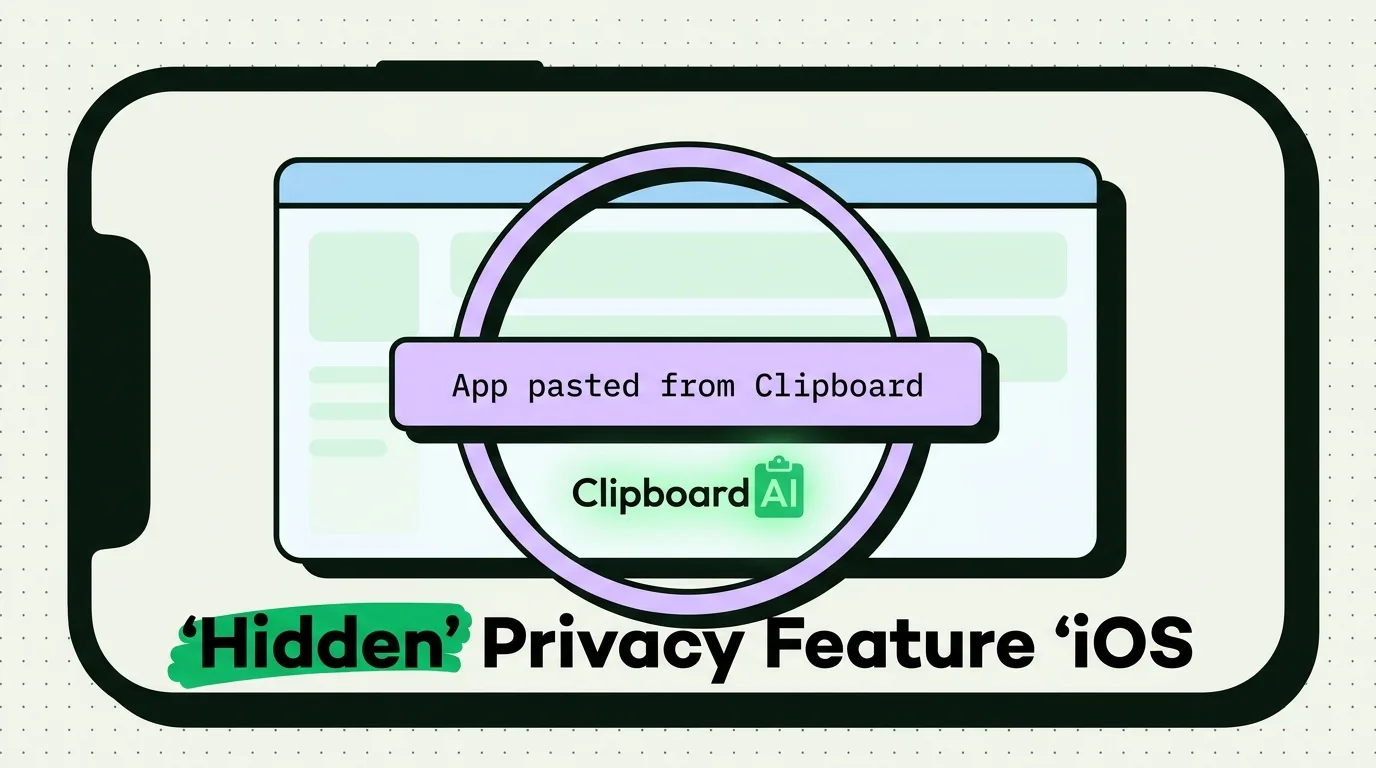
The prompt appears when an app tries to read your clipboard on its own and the item there was copied in another app. It names both apps, in the form "Messages" would like to paste from "Safari", and offers two buttons, Allow Paste and Don't Allow Paste. Don't Allow Paste sends the app away with nothing. Allow Paste lets it read that one copy, and it will ask again next time.
You will not see it when you paste yourself. Apple's documentation counts tapping a system Paste control or pressing Command-V as your intent, and apps can use Apple's own paste button to paste without a prompt for the same reason. The prompt covers the other case: an app looking at your clipboard the moment it opens, for example to offer to use a link you just copied. iOS enforces the check itself, so no app can switch it off.
Apple added these checks in stages after 2020, when the researchers Talal Haj Bakry and Tommy Mysk showed dozens of popular apps reading the clipboard every time they opened, including anything copied on a Mac through Universal Clipboard. Which apps were caught reading the clipboard tells that story in full.
How to stop the pop-up for one app
- Open Settings, scroll to the bottom and tap Apps.
- Find the app in the list, or type its name in the search field at the top.
- Tap Paste from Other Apps.
- Choose Allow, Deny or Ask.
Each choice changes what the app can do:
- Ask is the default. The app has to show the prompt each time it wants something you copied in another app.
- Allow lets the app read what you copied without asking. The prompt stops, and so does the check: whenever you have that app open, it can read a password you copied a minute earlier.
- Deny answers no on your behalf. The prompt stops and the app cannot read what you copy in other apps. If an app then refuses to paste something you expect, switch it back to Ask.
Which apps to allow, deny or leave on Ask
Allow suits the few apps you paste into all the time and trust with everything you copy, such as your email app, your notes app or a clipboard manager. Clipboard AI is in that group: opening it saves your current copy, and setting it to Allow stops the prompt each time, as its Allow Paste setup guide shows with screenshots. Deny suits apps that have no reason to see your clipboard, such as most games. AI chat apps sit in between, and whether AI apps can read your clipboard explains when they can. Leave everything else on Ask and read the prompt when it appears.
If a game asks to paste from your password manager, the answer is easy.
What changed in each iOS version
| Version | Released | What changed |
|---|---|---|
| iOS 14 | September 2020 | A banner appears when an app reads something you copied in another app without you pasting it |
| iOS 16 | September 2022 | Reading another app's copy without your action shows the Allow Paste prompt first |
| iOS 16.1 | October 2022 | Paste from Other Apps added to each app's settings, with Ask, Deny and Allow |
| iOS 18 | September 2024 | App settings moved to the Apps list at the bottom of Settings |
| iOS 27 | September 2026 | Apple's keyboard previews your latest copy in a paste suggestion above the keys |
The newest change is not a permission at all. iOS 27's paste suggestion belongs to Apple's keyboard and previews whatever you copied last, labeled with the app it came from, so anyone who taps into a text field on your phone can see it. That is one more reason to copy over anything sensitive once you have pasted it; how to clear the clipboard on iPhone shows three ways.
Other clipboard settings worth checking
There is no single clipboard page in Settings. Paste from Other Apps is the main control, and four other settings decide where your copies can go:
- Handoff. With it on, Universal Clipboard offers your latest copy to your nearby devices on the same Apple Account, where their apps can read it. It has no switch of its own: turn off Handoff in Settings > General > AirPlay & Continuity if you never paste between devices.
- AutoFill. In Settings > General > AutoFill & Passwords, turn on AutoFill Passwords and Passkeys so saved passwords fill straight into login fields and never reach the clipboard.
- Keyboards with Full Access. A third-party keyboard with Full Access can use the clipboard and the network, which clipboard keyboards need to work. Review yours in Settings > General > Keyboard > Keyboards and remove any you no longer use.
- App Privacy Report. Settings > Privacy & Security > App Privacy Report shows seven days of which apps used data such as your location, photos, camera, microphone and contacts, and which domains they contacted. Apple's description of it does not mention the clipboard, so treat it as a general check.
For how these fit together, see whether the iPhone clipboard is safe, and the clipboard privacy guides for the rest.
What the prompt does not cover
The prompt guards one moment, an app reading your clipboard, and leaves the rest to you. There is no screen in Settings that lists which apps have read your clipboard. Once you set an app to Allow, the prompt no longer stands between it and your copies. Nothing stops you pasting a password into the wrong place, and the prompt has no say over what a clipboard manager keeps once you hand it a copy. Clipboard AI is subject to the same prompt as every other app, and on iPhone it can only read your clipboard while you are using it.
Frequently Asked Questions
Is there one switch to stop Allow Paste for every app?
No. iOS only offers the choice app by app, and the Paste from Other Apps row appears for an app only after it has asked to paste from another app at least once. That is why most apps in Settings > Apps do not show it.
Is Paste from Other Apps somewhere else on older iPhones?
Yes. Before iOS 18, each app had its own entry in the main Settings list, so the path was Settings, then the app's name, then Paste from Other Apps. iOS 18 moved those entries into Settings > Apps, where they still are in iOS 26 and iOS 27.
Does the Allow Paste prompt mean an app was spying on me?
No, not on its own. Some apps read the clipboard when they open so they can offer to use what you copied, such as a link or a tracking number. Apple also lets apps check whether the clipboard holds a link, a number or a search term without reading it and without telling you. The prompt only means the app wanted the contents.
Do I need to set Paste from Other Apps again on my iPad?
Yes, plan on it. When the setting arrived in iOS and iPadOS 16.1, a choice made on one device did not carry over to another, so set the app on your iPad as well. The three choices sit in the same place in iPadOS.
Sources
- Apple Developer Documentation, "UIPasteboard", read October 5, 2026
- Apple Developer Documentation, "UIPasteControl", read October 5, 2026
- OS X Daily, "iOS 16 'Allow Paste' Between Apps Popup Bug Can't be Disabled, for Now", September 19, 2022
- MacRumors, "iOS 16.1 Introduces New Copy-and-Paste Permission Settings on Per-App Basis", October 17, 2022
- MacStories, "iOS and iPadOS 16.1 Betas Add Per-App Clipboard Access Permissions to the Settings App", October 18, 2022
- 9to5Mac, "Here's what's new with the revamped Settings app in iOS 18", September 18, 2024
- Mysk, "Popular iPhone and iPad Apps Snooping on the Pasteboard", March 10, 2020
- MacRumors, "iOS 27 Adds a Useful New Copy-and-Paste Feature to Your iPhone", July 1, 2026
- 9to5Mac, "iOS 27 adds convenient new iPhone feature you'll use all the time", September 22, 2026
- Apple Support, "Hand off tasks between your iPhone and your other devices", read October 5, 2026
- Apple Support, "Automatically fill in strong passwords on iPhone", read October 5, 2026
- Apple Developer, "App Extension Programming Guide: Custom Keyboard", read October 5, 2026
- Apple Support, "About App Privacy Report", read October 5, 2026