
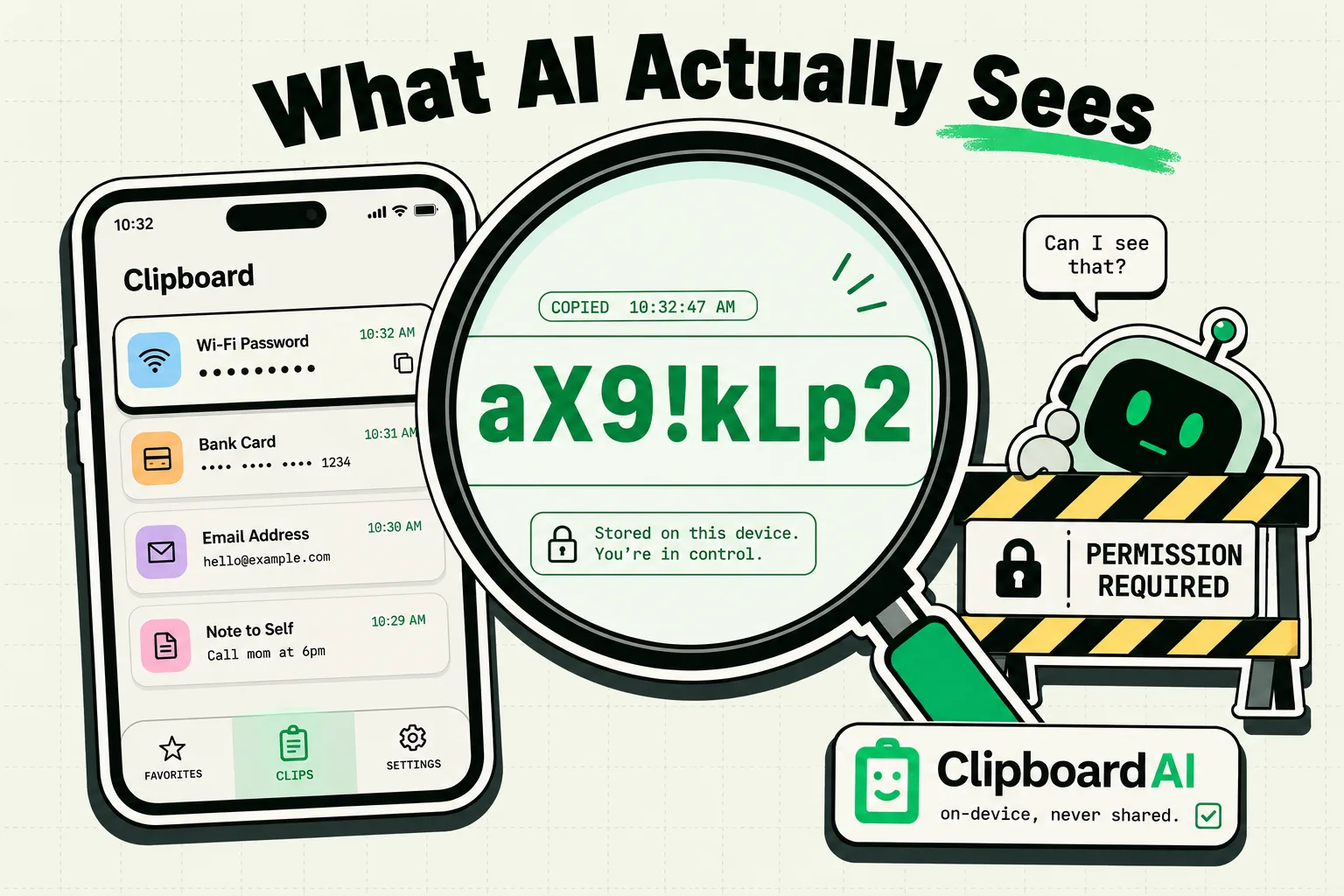
An AI application or assistant can only read your clipboard if it is the active foreground app on your screen, if you initiate a manual paste action, or if you have enabled system-level permissions like "Allow Full Access" for a custom keyboard. Mobile and desktop operating systems use sandboxing to block background apps from silently scraping your clipboard history. However, once you paste text into an AI prompt, that data is sent to the developer's cloud servers.
The Sandbox: How iOS and macOS Protect Your Clipboard
With the rise of generative AI tools like ChatGPT, Claude, and Gemini, users are increasingly concerned about data privacy. A common question arises: if you copy a sensitive password, bank details, or confidential work documents to your system clipboard, can background AI apps silently read and analyze that data?
To answer this, we must look at how operating systems handle clipboard memory (officially called the pasteboard).
Both Apple (iOS/macOS) and Google (Android) enforce a security model called application sandboxing. Under this model:
- An app can only read your system clipboard when it is the active, foreground application on your screen.
- Background apps are completely blocked from reading the pasteboard.
- Since iOS 14, Apple displays a clear banner notification whenever an active app reads your clipboard: "App pasted from Safari."
- Since iOS 16, apps must ask for explicit user permission before programmatically reading the clipboard.
Therefore, an AI app cannot quietly scrape your clipboard while running in the background. The risk only occurs when the app is active, when you paste text yourself, or when you use third-party keyboard extensions.
AI Clipboard Access Risk Matrix
Understanding the level of risk depends entirely on the type of application you are using. Here is a breakdown of clipboard exposure across different app categories:
| App Type | Clipboard Access Capability | Network Transmission | Privacy Risk Rating | Primary Vulnerability | Safety Action |
|---|---|---|---|---|---|
| Web-Based AI (ChatGPT Web) | Active page only | Yes (Sent to cloud models) | Medium | Accidental paste of sensitive data. | Manually overwrite clipboard after copying sensitive keys. |
| Custom AI Keyboards | System-wide (if Full Access is granted) | Yes (If server-connected) | High | Keylogging and history transmission. | Only use custom keyboards that run completely offline. |
| Local-First Utilities | System-wide | No (Local SQLite database) | Low | Local physical device theft. | Use device-level passcode lock and local database encryption. |
| Native iOS UIPasteboard | Single-item only | Yes (Via iCloud Handoff) | Low | Universal Clipboard sync leaks to shared devices. | Turn off Handoff if sharing Apple IDs. |
The Danger of "Allow Full Access" Custom Keyboards
Many clipboard managers and AI assistance tools operate as custom keyboards. When you install a third-party keyboard on an iPhone, iOS prompts you with a warning: "Allow Full Access?"
If you enable Full Access, you grant the keyboard permission to:
- Read everything you type (including messages, names, and search queries).
- Access your clipboard history.
- Transmit your keystrokes to their external cloud servers for processing.
If a developer has malicious intent or poor server security, this represents a severe data leak risk. Only grant Full Access to keyboards from developers you trust completely, and check whether the keyboard can function without network access.
How ClipboardAI Protects Your Privacy
ClipboardAI was designed with a privacy-first architecture to address these exact security risks.
- Local SQLite Storage: ClipboardAI stores your clipboard history locally on your physical device. Your clipboard data is not uploaded to our servers, keeping it secure from cloud-based scraping.
- App Exclusion Filters (Mac): On Mac, ClipboardAI automatically recognizes the nspasteboard.org privacy markers that apps like 1Password, KeePassXC, and BetterTouchTool already stamp on sensitive copies, no setup required, and lets you add any other app to an "Excluded Apps" list so nothing copied while it's frontmost gets saved. This is a Mac-only capability; iOS has no equivalent setting.
- Opt-In Sync: Any cross-device synchronization (such as syncing clipboard items between your iPhone and Mac) is completely opt-in and runs through your own private iCloud account (CloudKit and iCloud Key-Value Store), encrypted in transit and at rest by Apple, the same protection tier as your Photos and Notes. Nothing ever passes through or lands on a ClipboardAI server, and you can leave sync off for a fully local, on-device-only setup.
Checklist: Clipboard Privacy Lockdown
Protect your clipboard data from unauthorized access by auditing your settings:
- Review Third-Party Keyboards: Go to Settings > General > Keyboard > Keyboards. Tap each third-party keyboard and check if "Allow Full Access" is enabled. If you do not trust the developer, disable it or delete the keyboard.
- Check Paste Permissions: Go to Settings > Privacy & Security > Paste from Other Apps. Review the permission list and set high-risk apps to Ask or Deny.
- Disable Universal Clipboard on Shared Devices: If you share an iPad or Mac with family members under the same Apple ID, go to Settings > General > AirDrop & Handoff and toggle off Handoff to prevent your iPhone copies from syncing to their screens.
- Manage AI Data Training: If you paste work documents into tools like ChatGPT or Claude, go to the AI app's settings and disable "Chat History & Training" to prevent your data from being used to train public models.
Honest Caveats: Security Limits of the Clipboard
Even with sandboxing, perfect security does not exist. Keep these parameters in mind:
- Shared RAM Vulnerability: While background apps cannot read the clipboard, the plaintext data still resides in your system RAM until overwritten. If you copy a password, manually copy a random word immediately after pasting to clear the RAM.
- OS Security Exploits: Zero-day operating system exploits can occasionally bypass sandbox security. Keep your iOS and macOS versions updated to patch these vulnerabilities.
- The Human Error Factor: The biggest security risk is copy-pasting sensitive database keys, credentials, or client files into public AI prompt bars. Once you click "Submit," that data leaves your device sandbox.
- Local History Protection: If you store your history locally, anyone who knows your device passcode can read your clips. Use the built-in biometrics (FaceID/TouchID) lock feature in ClipboardAI to secure the database.
Frequently Asked Questions
Can an AI app read my clipboard if I don't paste?
No. Standard iOS/Android sandboxing blocks apps from accessing your clipboard data programmatically in the background. The app must be in the foreground, and you must initiate a paste action or grant keyboard full-access permissions.
Why does my phone say an app pasted from another utility?
This is a native iOS security alert. It means the active app tried to read your clipboard contents when you opened it. If an app does this without your direct action, it is scraping your clipboard data, and you should review its permissions or delete it.
How does ClipboardAI identify password managers?
On Mac, ClipboardAI automatically honors the nspasteboard.org "transient/concealed/auto-generated" markers that password managers like 1Password and KeePassXC already attach to sensitive copies, no configuration needed, so those copies are never saved. You can also manually add any app's bundle ID to the "Excluded Apps" list in Mac Settings so nothing copied while that app is frontmost gets recorded. This is a Mac-only feature; there is no equivalent setting on iPhone or iPad.