On this page
The Bottom Line
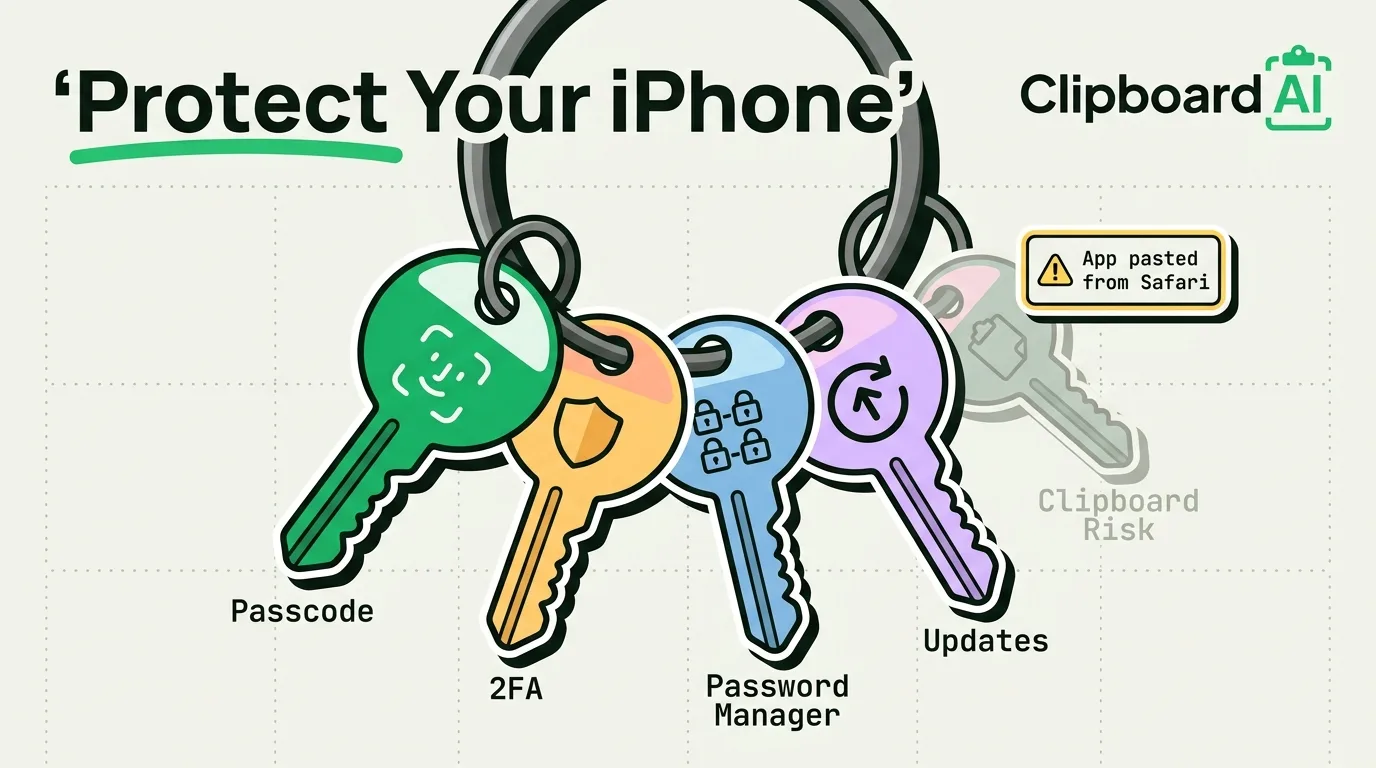
Realistically, the highest-value iPhone security moves are boring: a strong passcode plus Face ID, a unique password on every account via a password manager, two-factor authentication turned on, and iOS updates installed promptly. Most "hacked iPhone" stories that make headlines are phishing or account takeovers, not exotic device exploits. Here is what to actually do, ranked by how much it matters.
Highest Impact, Do These First
- Use a passcode, not "no passcode." Settings > Face ID & Passcode. A 6-digit or longer alphanumeric passcode plus Face ID covers the vast majority of physical-access risk.
- Turn on two-factor authentication for your Apple ID (Settings > [your name] > Sign-In & Security) and for every other important account (email, banking, social).
- Use a password manager (Apple's built-in Passwords app, or 1Password/Bitwarden) so every account has a unique password. Reused passwords, not clipboard tricks, are the number one way accounts actually get compromised.
- Install iOS updates promptly. Settings > General > Software Update. Security patches close known vulnerabilities; delaying them leaves those doors open.
Worth Doing, Lower Urgency
- Review App Store permissions periodically. Settings > Privacy & Security shows every app and what it can access (location, contacts, camera). Revoke anything that looks unnecessary for what the app does.
- Turn on Find My iPhone (Settings > [your name] > Find My) so a lost or stolen device can be located, locked, or wiped remotely.
- Be skeptical of links in unexpected texts and emails, even ones that look like they're from Apple. Apple does not send links asking you to "verify your account" via text.
What About Clipboard-Related Risk?
The realistic clipboard risk is narrow: if you copy a password and it sits in your clipboard, any app you switch to next can technically read it while it's active in the system pasteboard. Since iOS 14, Apple shows a banner ("App pasted from Safari") whenever an app reads your clipboard, which surfaces most unwanted access attempts. The practical fix is to use AutoFill/Keychain or a password manager's autofill instead of manually copying passwords, so the password never touches the general clipboard in the first place.
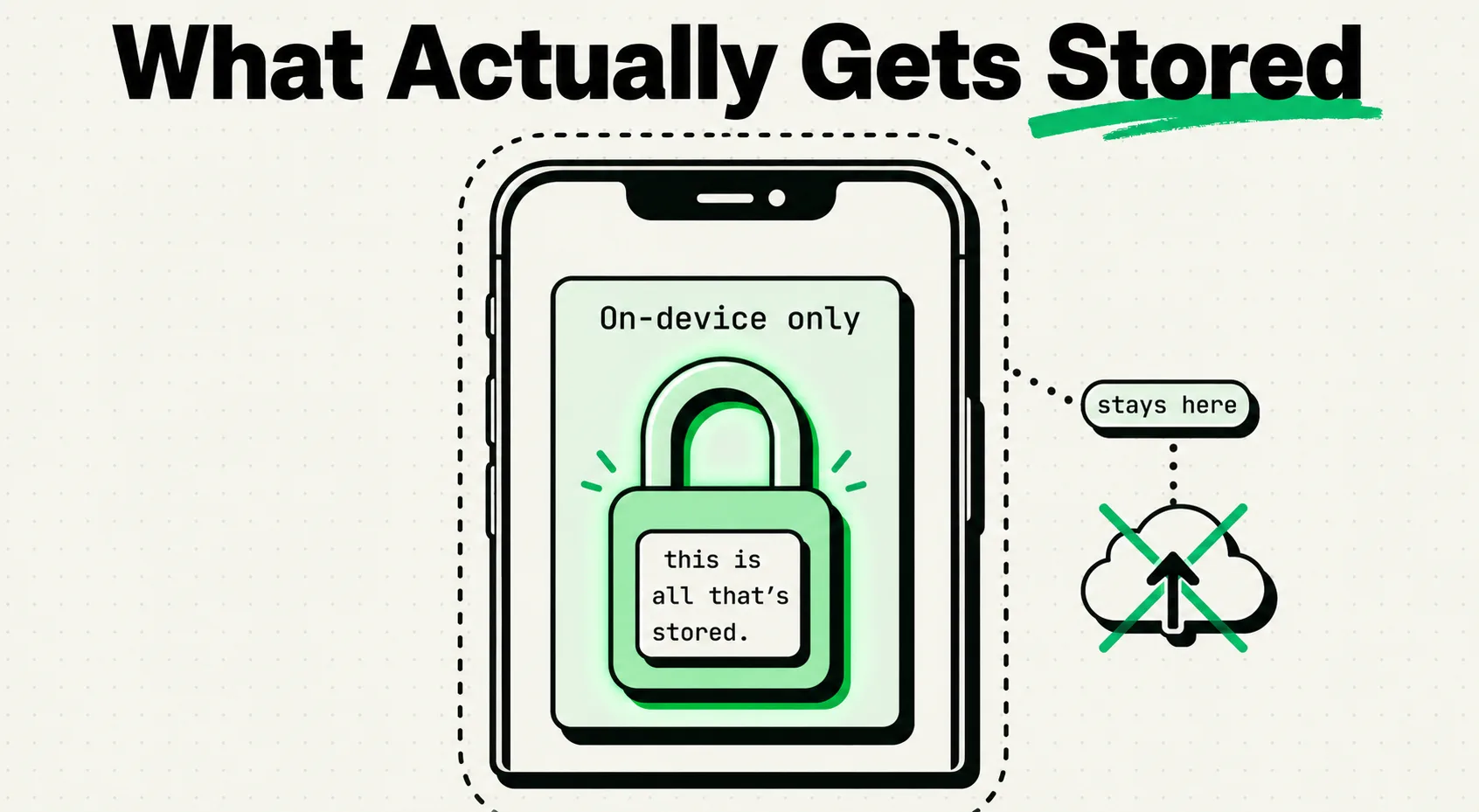
ClipboardAI's clipboard history is stored on-device by default, and it never passes through a ClipboardAI server. If you turn on sync, it moves through your own private iCloud account using Apple's CloudKit, encrypted in transit and at rest, and you can leave sync off entirely to keep everything on your device. On Mac, ClipboardAI also recognizes the nspasteboard.org "transient/concealed" markers that password managers like 1Password already set, and automatically skips saving that content, plus a manually curated Excluded Apps list.
What Gets Overhyped
Public Wi-Fi "clipboard sniffing" and exotic zero-click exploits make for dramatic headlines but affect a vanishing fraction of ordinary users, and are not something antivirus-style iPhone apps meaningfully protect against, iOS's sandboxing already does most of that work at the OS level. Spend your effort on account security and update hygiene, not on chasing every security app that promises comprehensive protection.
Frequently Asked Questions
Do I need a security app on iPhone?
Generally no. iOS's sandboxing model already limits what apps can access without your permission. A password manager and 2FA cover most of the realistic risk; standalone "iPhone antivirus" apps add little beyond what iOS already does.
How is my clipboard history kept private?
Everything you copy is stored on-device, and it never touches a ClipboardAI server. There is no ClipboardAI account. Sync is optional, and when you turn it on it moves through your own private iCloud account (CloudKit plus iCloud Key-Value Store, and a direct device-to-device transport when your devices share Wi-Fi), encrypted in transit and at rest, the same protection tier as your Photos and Notes. You can also leave sync off entirely to keep everything on your device.
What is the single most effective thing I can do?
Turn on two-factor authentication for your Apple ID and stop reusing passwords across accounts. Both take under ten minutes and close the two most common paths to a compromised account.