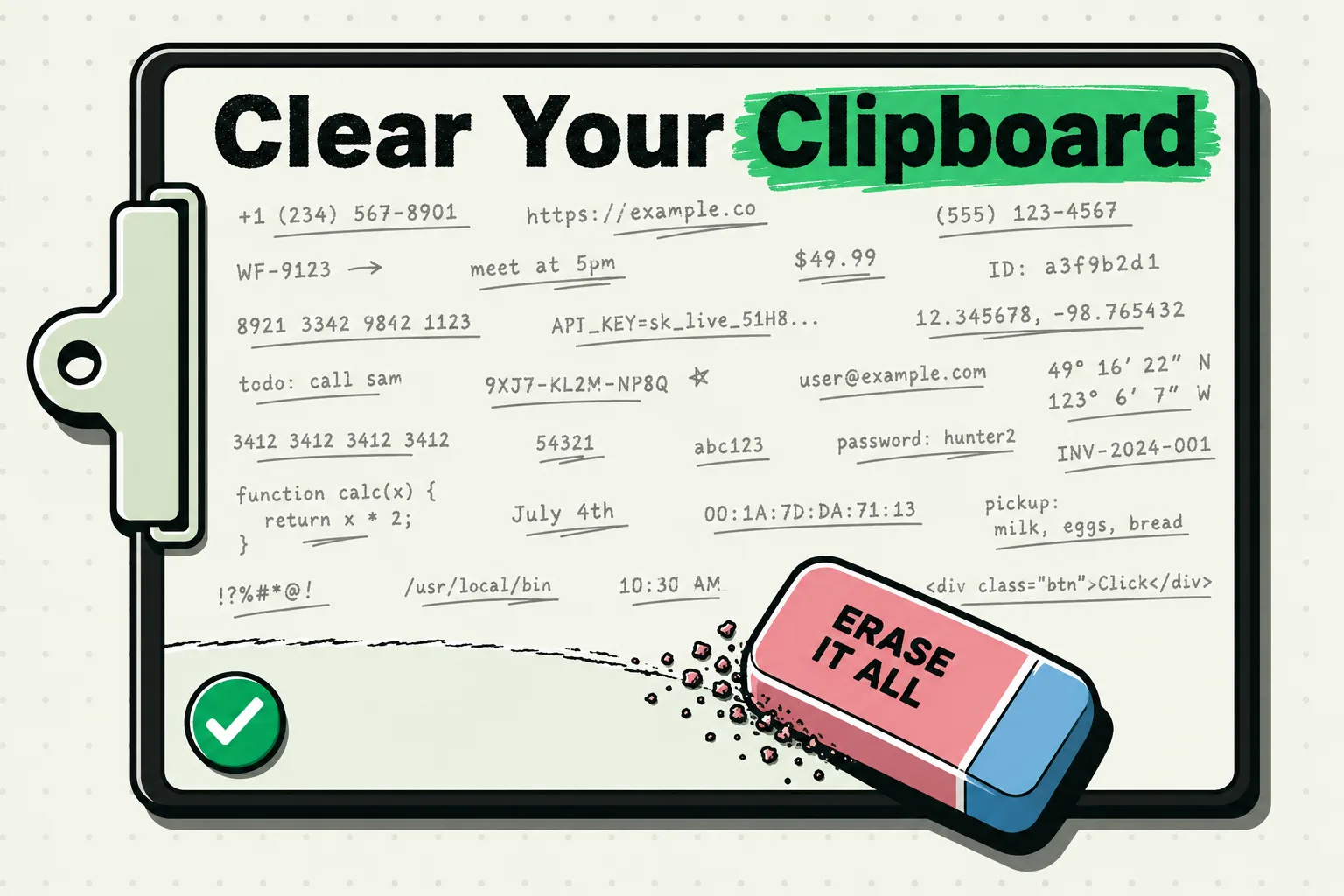
To clear the clipboard on iPhone, copy something harmless over it, such as a single letter, and whatever you copied before is replaced. iOS 26 and iOS 27 have no Clear Clipboard button, so overwriting is the method that always works, and a one-tap shortcut can do it for you. The same steps work on iPad. If you use a clipboard manager, the history it keeps is separate, and you delete that inside the app.
The system clipboard holds one item at a time (here is where the iPhone clipboard lives and what it keeps), so anything new you copy replaces the old item, whether that was text, a photo or a code.
Why it is worth clearing on iOS 27
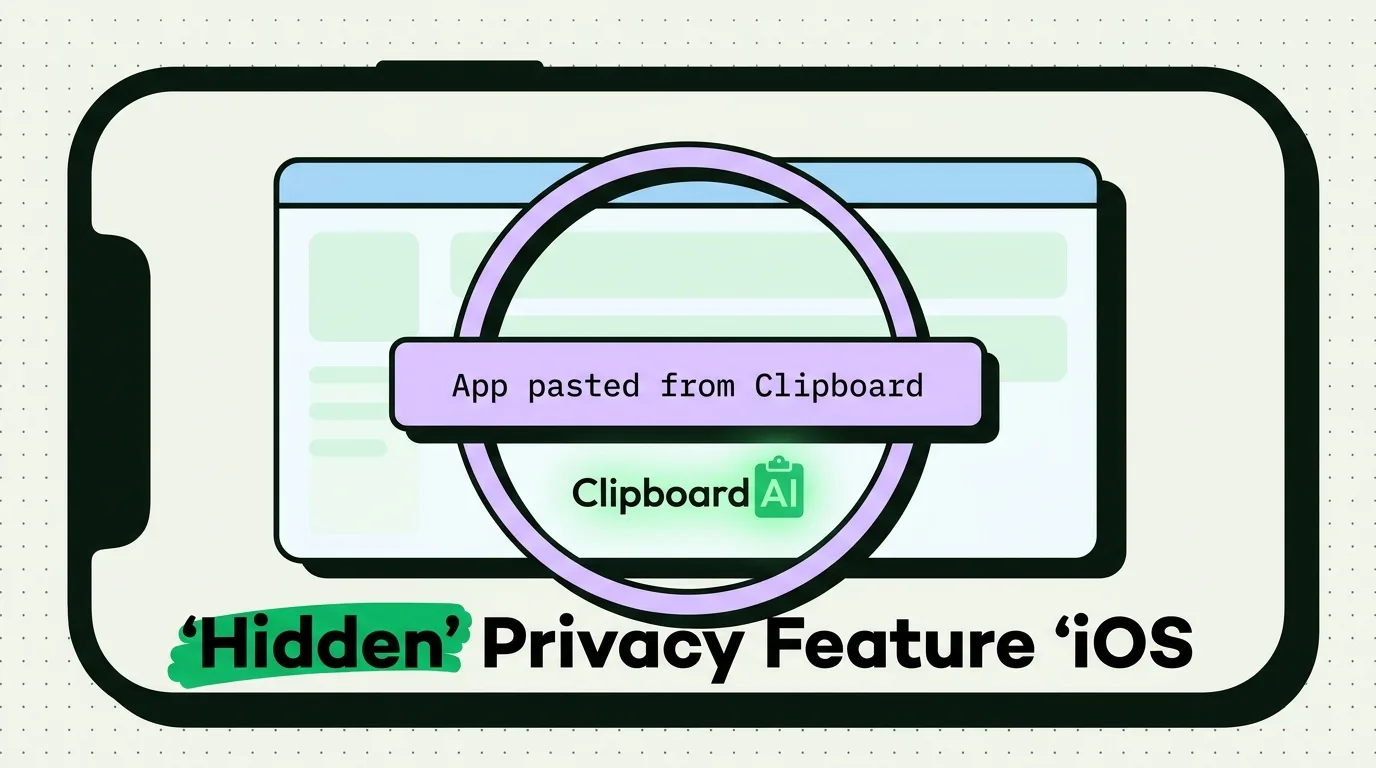
iOS 27, released in September 2026, made a forgotten copy easier to spot. After you copy something, Apple's keyboard offers it as a paste suggestion in the bar above the keys, with a text preview or an image thumbnail and the name of the app it came from, such as Paste from Safari. That is handy for an address. It is less handy for a password, a card number or a private message, because the preview appears for anyone who taps into a text field on your phone: a friend you hand it to, or everyone watching while you share your screen.
The suggestion only ever shows your latest copy, so once you copy over the clipboard, the old preview is gone.
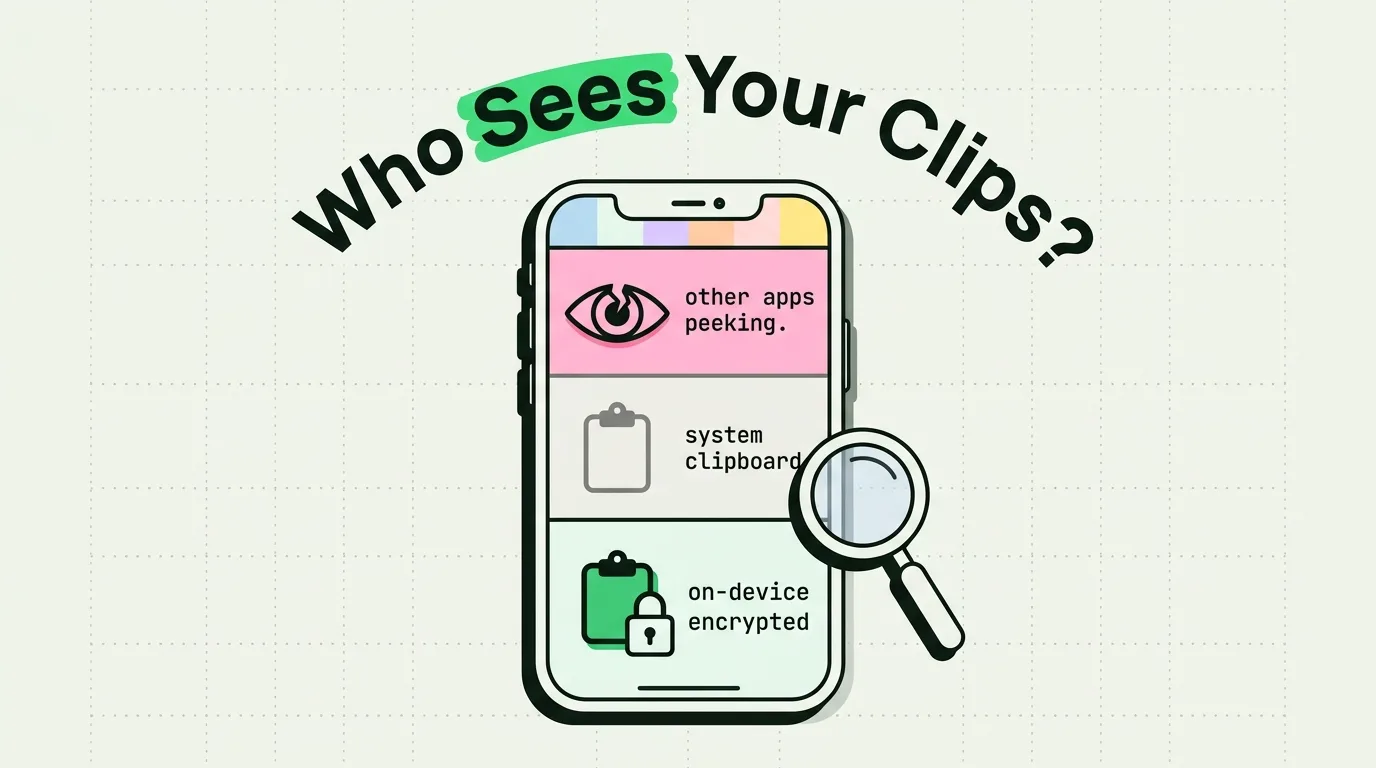
Apps are the other audience. Since iOS 16, an app has to ask before it reads something you copied in another app, unless you have set it to Allow; what the Allow Paste prompt means explains those settings. For everything else that can reach a copy, see the clipboard privacy and security guides.
Method 1: copy something harmless over it
This needs no setup and works on any iPhone.
- Open Notes and start a new note, or tap into any text field, such as the search field in Settings.
- Type a single letter, such as x.
- Double-tap the letter to select it, then tap Copy.
- Delete the note or the letter if you like. The clipboard now holds that letter and nothing else.
To check that it worked, touch and hold in another app's text field and tap Paste: only the letter should appear. If you would rather not type anything, select an ordinary word on a web page and copy that instead. And before the next sensitive copy, it is worth a look at the things you should never copy to the clipboard at all.
Method 2: make a one-tap Clear Clipboard shortcut
If you copy sensitive things often, let the Shortcuts app do the overwriting.
- Open Shortcuts and tap + to start a new shortcut.
- Search the actions for Text, add it, and type a single space or letter in its box.
- Search for Copy to Clipboard and add it under the Text action.
- Name the shortcut Clear Clipboard and tap Done.
Then put it where your thumb already is. To add it to the Home Screen, open the shortcut's Details and tap Add to Home Screen. On an iPhone with an Action Button, go to Settings > Action Button, swipe to Shortcut and pick it. You can also run it with a double tap on the back of the phone, set under Settings > Accessibility > Touch > Back Tap, or by saying its name to Siri.
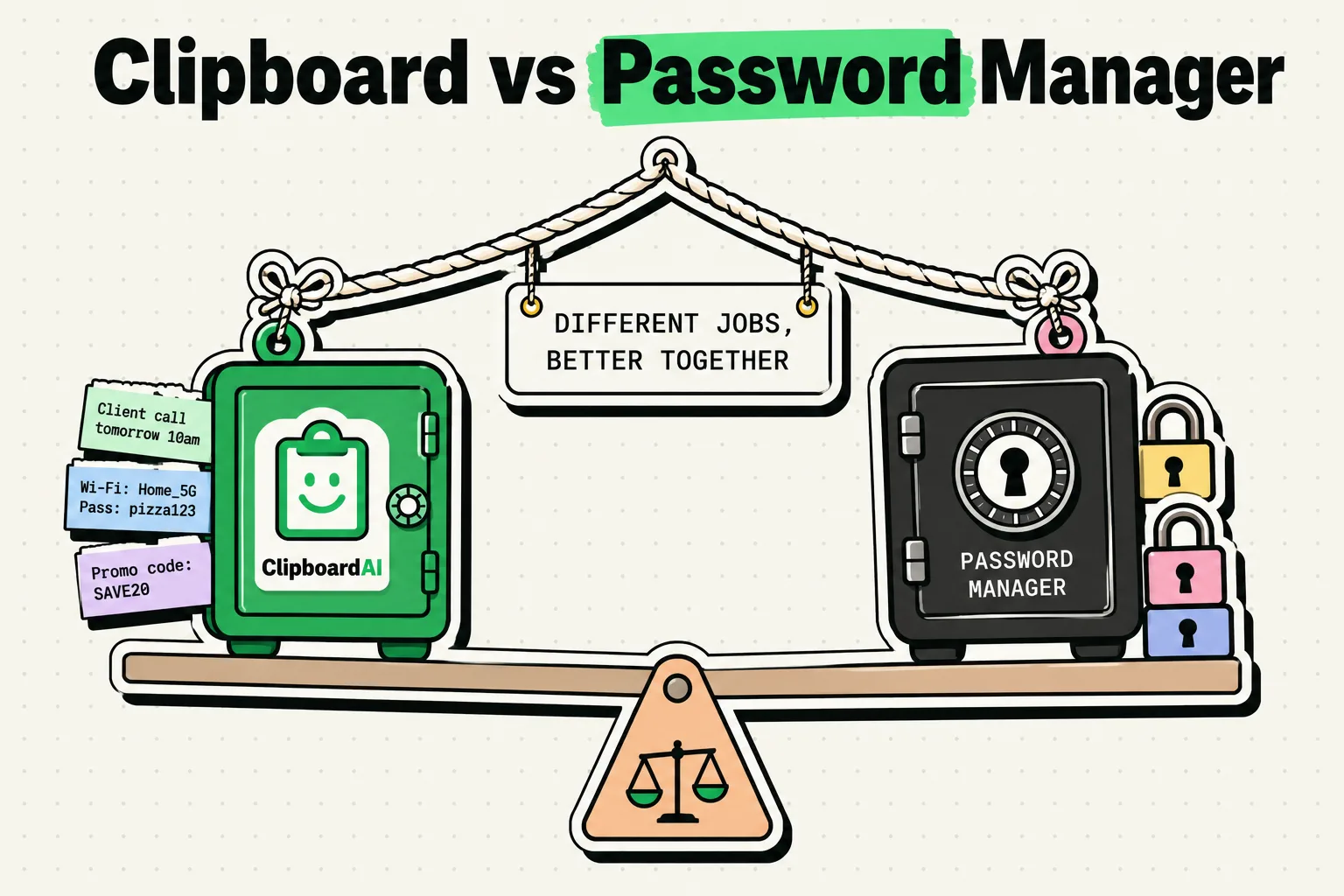
Method 3: let your password manager clear it
Password managers can wipe what they copied after a set time, so a password does not linger. 1Password does this by default and removes a copied password after 90 seconds; the switch is Clear Clipboard in its Settings > Security. In Bitwarden the setting is Settings > Other > Clear clipboard, and Bitwarden's own help says to pick any value other than Never. Apple's guide to the Passwords app describes a Copy Password button but no timer, so after pasting a password from it, copy over the clipboard yourself.
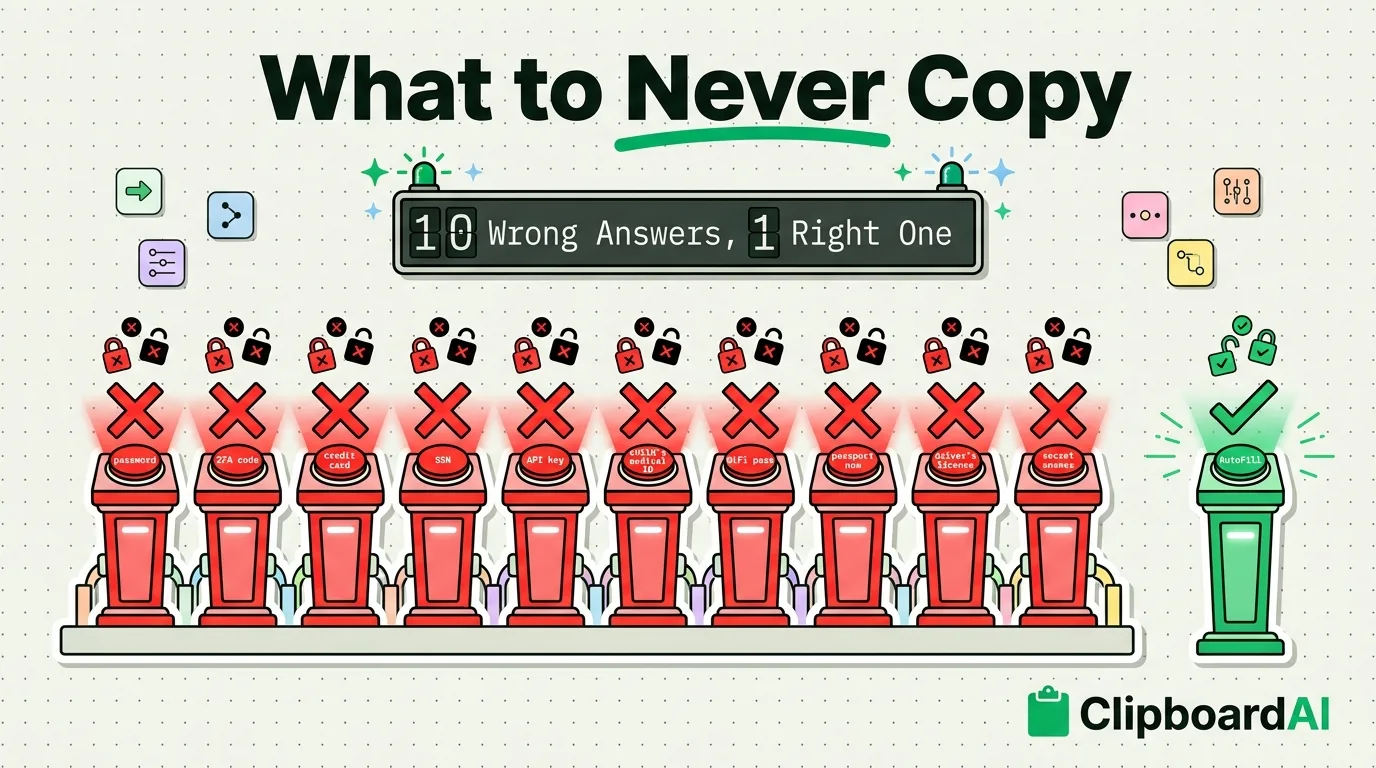
The better habit is not to copy passwords at all. Turn on AutoFill in Settings > General > AutoFill & Passwords and iPhone fills saved passwords straight into the login field without using the clipboard; keeping passwords off the clipboard walks through the setup.
Clearing the clipboard vs deleting clipboard history
These are two different jobs. iOS keeps no record of earlier copies, so on its own there is nothing to delete beyond the current item. A clipboard manager keeps the copies you hand it in its own database, and copying over the system clipboard does not touch that database. Deleting a saved clip does not change the system clipboard either. To remove something sensitive from both places, copy over the clipboard first, then delete the saved copy in the app.
In Clipboard AI, the three ways to delete do different things:
- Delete one clip. Touch and hold the clip and tap Delete, or open it and tap Delete. It is erased at once, with no trash and no undo, and with iCloud sync on it disappears from your other devices as well.
- Clear All History. This button in Settings erases every clip in your history but keeps the clips you saved and anything filed in a Collection.
- Auto-Delete Old Clips. Also in Settings, this clears history older than the window you pick: 30 days, 60 days, 3 months, 6 months or 1 year. Saved clips and Collections are kept here too.
On iPhone, Clipboard AI saves a copy only when you switch to its keyboard, open the app, share to it or run the Save Clip To ClipboardAI shortcut, so a password you paste and copy over before doing any of those never reaches its history. If one does, its keyboard shows the clip as a padlock until you tap it. To keep it from saving anything for a while, turn off Auto-save from Keyboard in its Settings and don't open the app until you are done. What each kind of delete erases and keeps has the full detail.
How to clear the clipboard on iPad
iPad clears the same way, since iPadOS has no clear button either. Copy a harmless word over the clipboard, or with a Magic Keyboard or other hardware keyboard, select a word and press Command-C. The Clear Clipboard shortcut runs on iPad too; add it to the Home Screen or run it with Siri, since Back Tap is an iPhone setting. Paste permissions are in the same place as on iPhone, under Settings > Apps, then the app, then Paste from Other Apps.
The reports on iOS 27's paste suggestion describe the iPhone keyboard and do not say whether iPadOS 27 shows the same bar, so after copying something sensitive on an iPad, check the bar above the keyboard the next time you type.
Clear it on your Mac and other devices too
With Handoff on, Universal Clipboard offers your latest copy to your other Apple devices that are signed in to the same Apple Account, have Wi-Fi and Bluetooth on, and are within about 30 feet (10 meters). Apple says the copy stays available briefly, or until you copy something else on either device, so copying over it on the iPhone also replaces what your Mac and iPad are offered. If you already pasted the item on another device, that device has its own copy now, so copy something harmless there too; on a Mac, select any word and press Command-C. If the Mac runs macOS 26, Spotlight may also have kept the item in its clipboard history, which Clear Clipboard History in System Settings > Spotlight empties.
If you never paste between devices, turn off Handoff in Settings > General > AirPlay & Continuity; older versions of iOS call that screen AirPlay & Handoff.
Where to clear each kind of copy
| What you want gone | Where | What happens |
|---|---|---|
| The iPhone or iPad clipboard | Copy a harmless word, or run a Clear Clipboard shortcut | The old copy is replaced at once |
| A password copied from 1Password | Settings > Security > Clear Clipboard | Cleared after 90 seconds; on by default |
| A password copied from Bitwarden | Settings > Other > Clear clipboard | Cleared after the time you choose |
| One clip in Clipboard AI | Touch and hold the clip, then Delete | Erased with no undo, on every synced device |
| All Clipboard AI history | Settings > Clear All History | Saved clips and Collections are kept |
| Old Clipboard AI history | Settings > Auto-Delete Old Clips | History older than 30 days to 1 year is cleared |
| Spotlight history on a Mac | System Settings > Spotlight > Clear Clipboard History | macOS 26 and later |
Frequently Asked Questions
Does restarting an iPhone clear the clipboard?
No. Apple documents the general pasteboard as persistent across device restarts and app uninstalls, so a restart is the wrong tool for a copied password. Copying a harmless word over it is quicker and certain, and a restart does nothing to copies a clipboard manager has already saved in its own database.
Can I delete a link I copied on iPhone?
Yes. A link sits on the same clipboard as text, so copying any word replaces it. That includes links copied with Copy Link after you touch and hold a link, and with Copy in Safari's share sheet.
Is clearing the clipboard different on iPhone 13?
No. iPhone 13 runs iOS 27, which supports iPhone 11 and later, and these steps are the same on every model it runs on. An older iPhone that stopped at an earlier version of iOS clears the same way; it just lacks the iOS 27 paste suggestion.
Can I empty the clipboard without copying something else?
No. iOS gives you no command that leaves the clipboard empty, so something new has to replace what is there. Apps can also attach an expiration time to what they copy, and iOS removes the item when that time comes, but only the app that made the copy can set it.
Sources
- MacRumors, "iOS 27 Adds a Useful New Copy-and-Paste Feature to Your iPhone", July 1, 2026
- 9to5Mac, "iOS 27 adds convenient new iPhone feature you'll use all the time", September 22, 2026
- Apple Support, "Use Universal Clipboard to copy and paste between your Apple devices", read October 5, 2026
- Apple Support, "Copy and paste between your iPhone and other Apple devices", read October 5, 2026
- Apple Support, "Hand off tasks between your iPhone and your other devices", read October 5, 2026
- Apple Support, "Automatically fill in strong passwords on iPhone", read October 5, 2026
- Apple Support, "View your passwords and related information on iPhone", read October 5, 2026
- Apple Support, "Add a shortcut to the Home Screen on iPhone or iPad", read October 5, 2026
- 1Password Support, "Copy and fill passwords into apps that don't work with 1Password", read October 5, 2026
- Bitwarden, "Password Manager FAQs", read October 5, 2026
- Apple Developer Documentation, "expirationDate", read October 5, 2026
- MacRumors, "Apple Expands Spotlight Clipboard Settings in macOS Tahoe 26.1", November 4, 2025