On this page
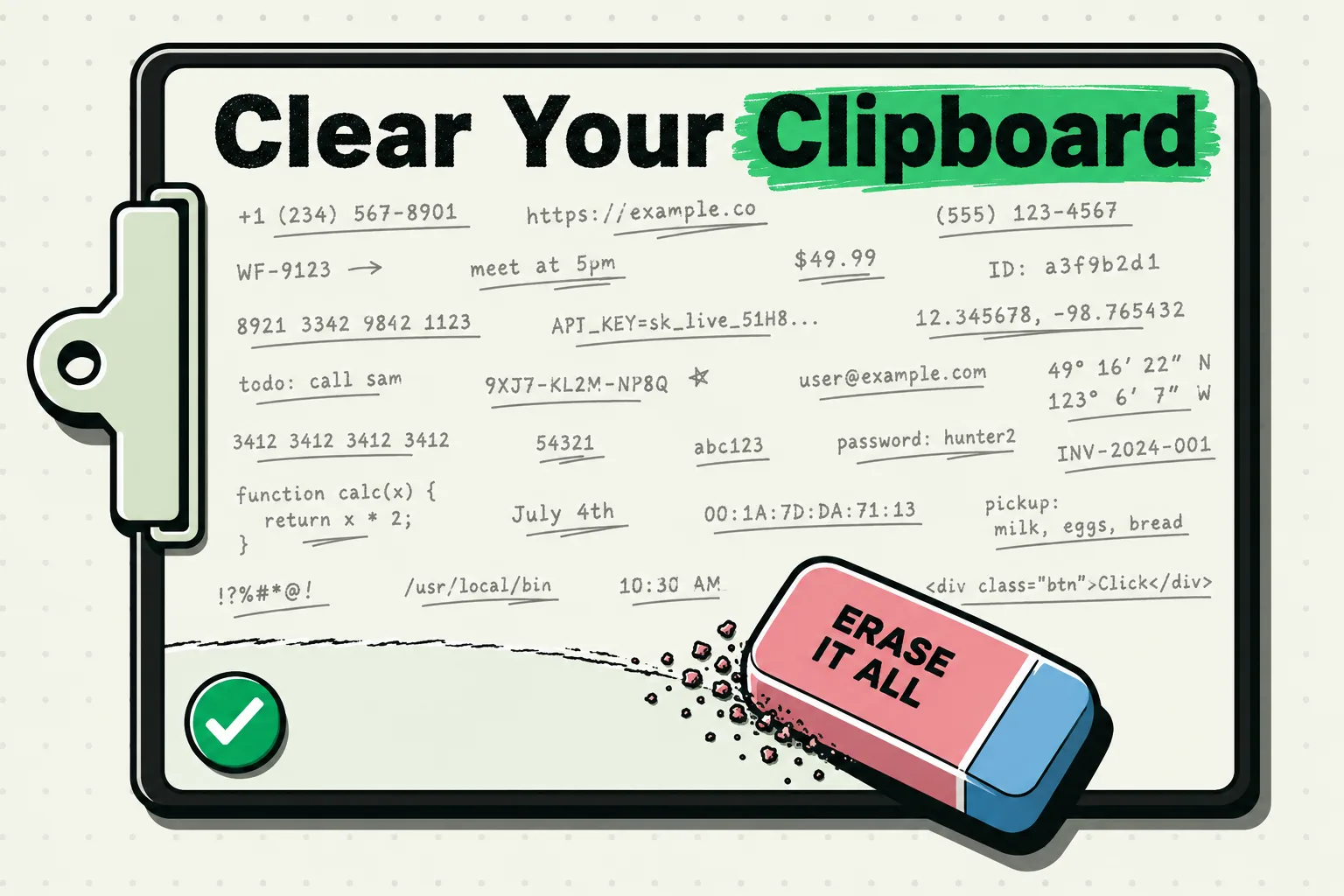
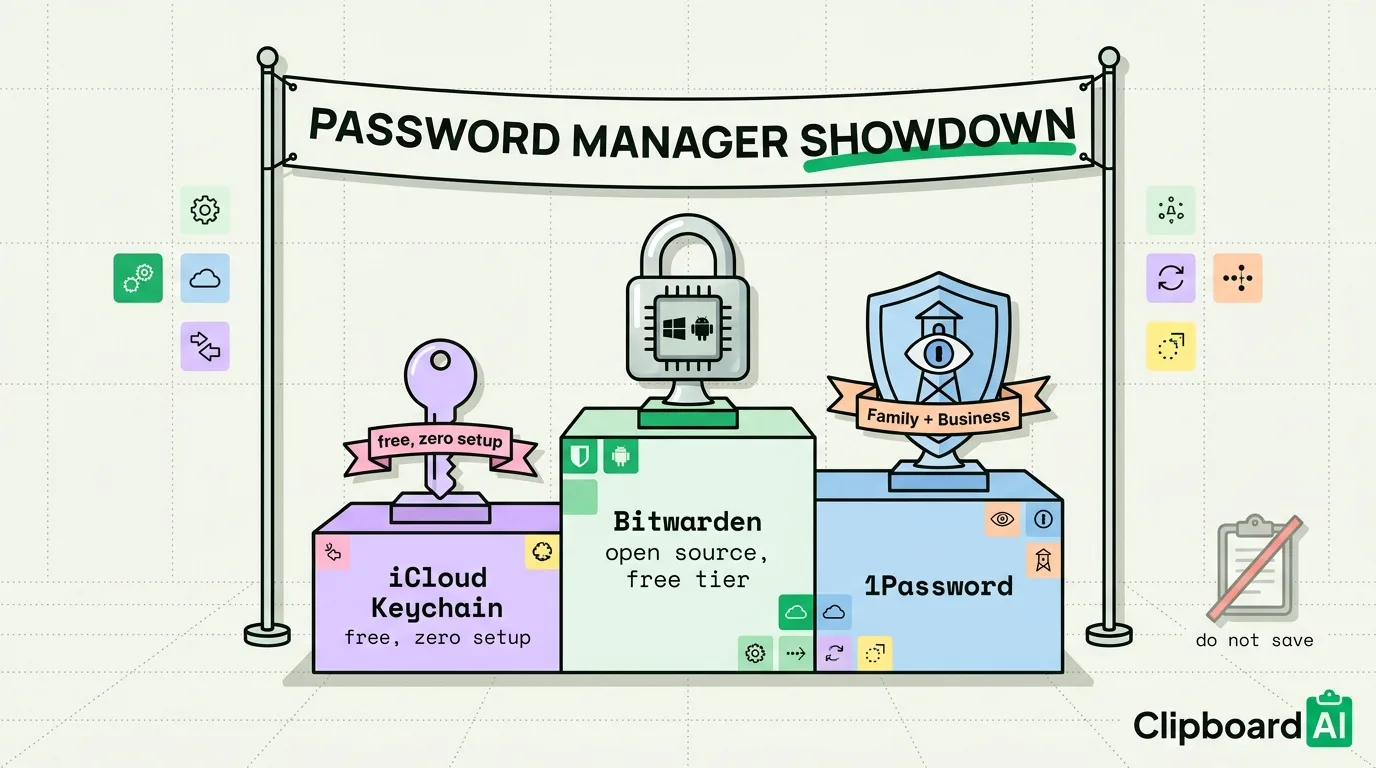
The system clipboard on iOS and macOS is not app-restricted: whatever you copy is readable by the next app you open, and by any clipboard history tool you have installed, unless the copying app specifically marks the content as sensitive using the "transient" or "concealed" pasteboard flags most password managers already set. Anything you would not want a random app to potentially read should not go through an ordinary copy-paste at all.
What Not to Copy, and What to Do Instead
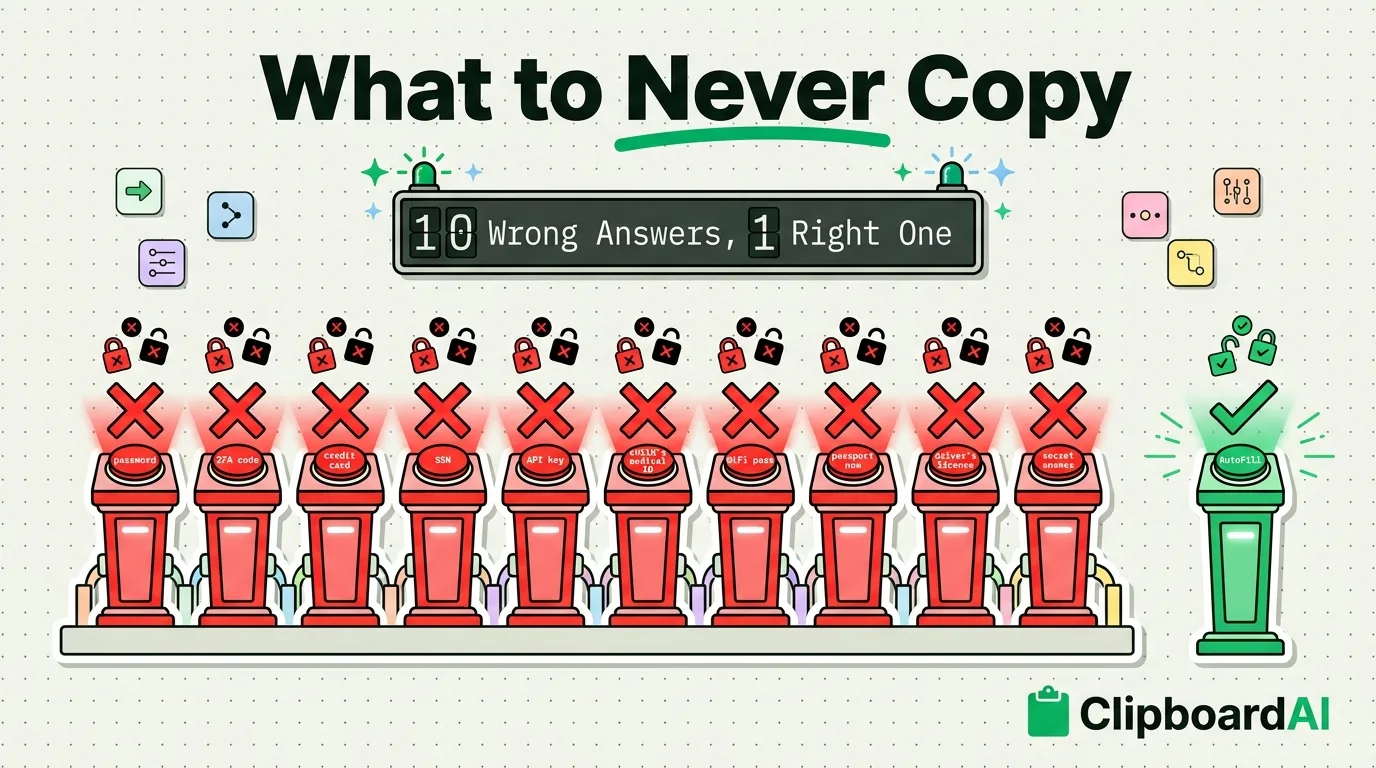
| Don't copy | Why | Do this instead |
|---|---|---|
| Passwords | Sits in plaintext in the clipboard until overwritten; readable by the next app opened | Use AutoFill from your password manager (Settings > General > AutoFill & Passwords), which fills fields directly without touching the clipboard |
| One-time passcodes / 2FA codes | Same exposure as passwords, plus they are time-sensitive so lingering in history is low-value anyway | Let iOS auto-suggest the code from Messages/Mail directly above the keyboard; it fills without a manual copy |
| Full credit card numbers | Readable by any app that reads the clipboard while the number sits there | Use Apple Pay or your card's AutoFill entry in Safari/Settings > General > AutoFill & Passwords > Payment Info |
| Social Security or national ID numbers | High-value target for identity theft if intercepted or accidentally left in a synced history | Type it directly into the specific form; if you must reuse it, delete it from clipboard history immediately after |
| Private encryption keys or API secrets | Developer tooling and CI systems increasingly scan clipboard content; a leaked key can compromise an entire account | Use your password manager's secure notes or a dedicated secrets manager, not clipboard-to-terminal |
| A child's full personal details (SSN, medical record numbers) | Same exposure as adult SSNs, with less oversight since parents often paste this into multiple forms | Keep in a secure notes app or the school's official portal directly, not copy-pasted repeatedly |
Why a Clipboard Manager Does Not Fix This on Its Own
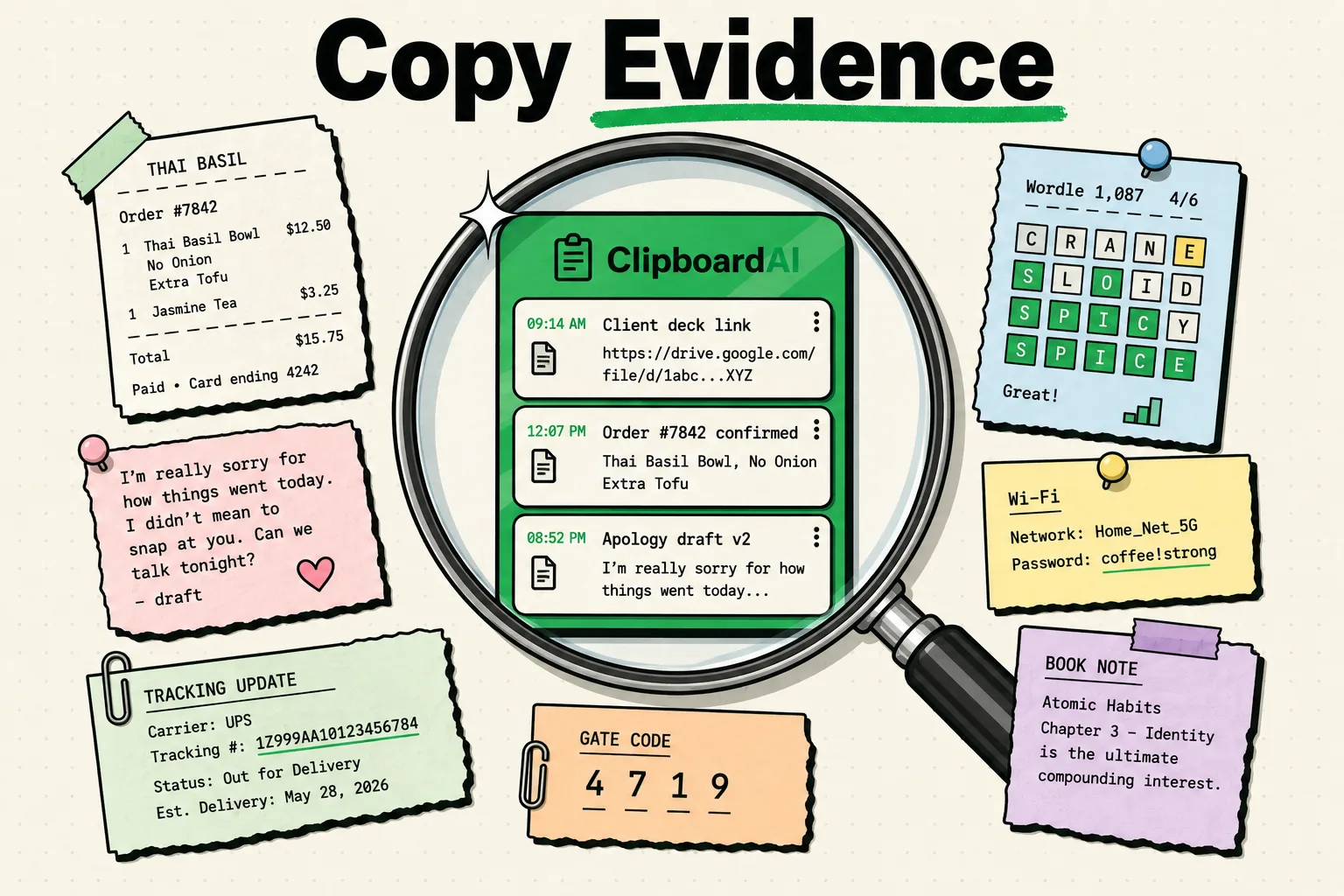
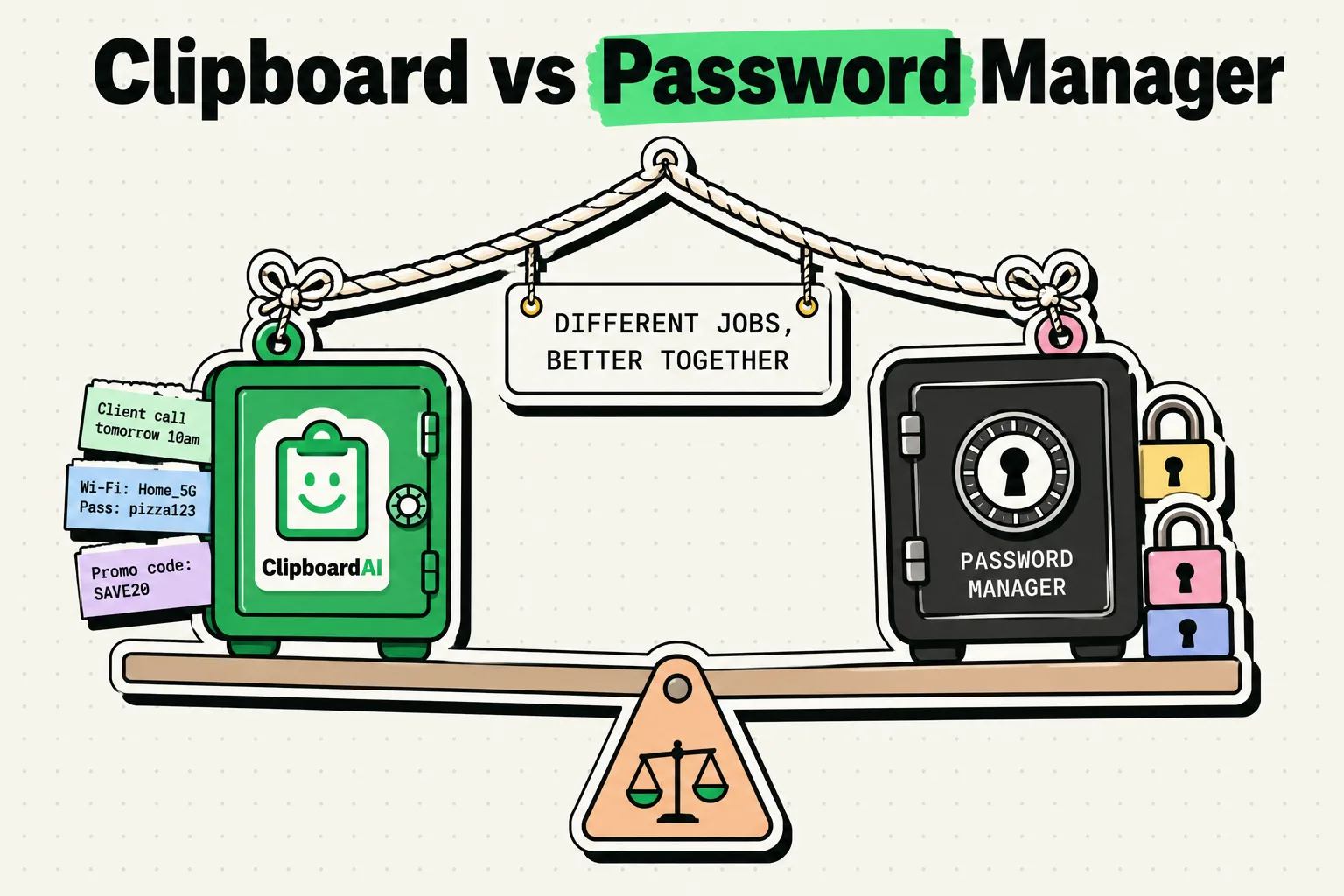
A clipboard history tool makes the underlying exposure worse in one specific way: it remembers things longer than the default single-item clipboard would. On Mac, ClipboardAI automatically recognizes the "transient" and "concealed" pasteboard markers (the nspasteboard.org standard already used by 1Password, Bitwarden, and similar apps) and skips saving that content, plus you can manually exclude specific apps in Settings. On iPhone and iPad, no equivalent automatic recognition exists, so anything you copy is fair game for any clipboard history app installed, which is exactly why the list above leans on AutoFill and native OS features instead of "just delete it from history after."
If You Already Copied Something Sensitive
- Copy something unrelated immediately afterward to overwrite the clipboard.
- If it landed in a clipboard history tool, delete that specific entry, and check whether the app has a security-exclusion setting you should enable going forward.
- Set Auto-Delete Old Clips (available in ClipboardAI on both iOS and Mac, options from 30 days up to 12 months) so anything you forget to manually delete does not linger indefinitely.
Frequently Asked Questions
Does ClipboardAI protect against all of this automatically?
Only partially, and only on Mac. The nspasteboard.org marker recognition and Ignored Apps list on Mac stop most password-manager copies from being saved. There is no iPhone/iPad equivalent, so on iOS the safer default is avoiding manual copy-paste for the items in the table above rather than relying on any app to filter them out after the fact.
Is copying a Wi-Fi password to share with a guest a similar risk?
Lower risk than a login password, since a Wi-Fi password alone rarely grants access to an account, but the same overwrite-it-after habit is still a reasonable precaution if you are cautious.