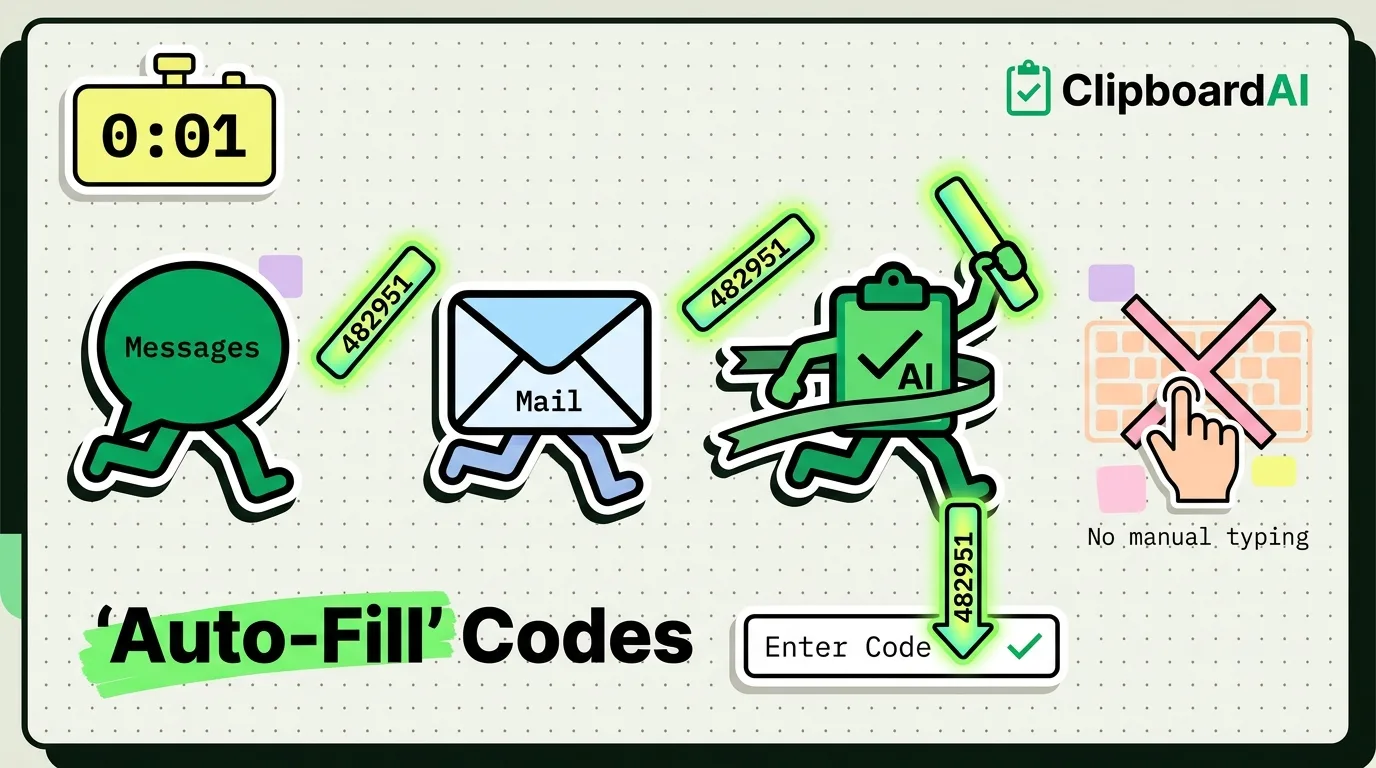
To autofill a verification code on iPhone, tap the code field and then tap the code that appears above Apple's keyboard, labeled with where it came from, such as From Messages. iPhone picks up one-time codes that arrive by text in the Messages app and, since iOS 17, by email in Apple's Mail app, so you never have to leave the app you are signing in to. To have each code's message deleted once it is used, turn on Delete After Use at Settings > General > AutoFill & Passwords.
Where iPhone finds the code
AutoFill looks for codes in three places:
- Messages. A text containing a one-time code is spotted as it arrives, so you do not need to open the conversation.
- Mail. Codes sent by email count too, as long as the account is set up in Apple's Mail app on that iPhone.
- The Passwords app. For sites that support an authenticator app, iPhone can generate the codes itself. Scan the site's setup QR code with the Camera, or open the account in Passwords, tap Edit, then Set Up Code, and paste the setup key. Those codes appear above the keyboard the same way, with no text message involved.
Using a code takes three steps, wherever it comes from:
- Sign in on the website or app and ask it to send a code.
- When the text or email arrives, tap the code field. You can ignore the notification.
- Tap the code above the keyboard to fill it in.
Delete codes automatically after you use them
Old codes pile up quickly in Messages and Mail, and since iOS 17 the iPhone can delete each one as soon as its code has been filled in. The switch moved in iOS 18, when the Passwords section of Settings became the separate Passwords app: it now sits under General in the Settings app, not inside Passwords, and it keeps the same name and place on iOS 26 and iOS 27. Turn it on once and it covers both Messages and Mail. The Mac has a matching switch for codes that reach its own Messages and Mail apps.
| Device | Where the switch is | Name |
|---|---|---|
| iPhone, iOS 18, 26 and 27 | Settings > General > AutoFill & Passwords, under Verification Codes | Delete After Use |
| iPhone, iOS 17 | Settings > Passwords > Password Options | Clean Up Automatically |
| Mac, macOS 15 or later | System Settings > General > AutoFill & Passwords, under Verification Codes | Delete After Use |
| Mac, macOS 14 | System Settings > Passwords > Password Options | Clean Up Automatically |
Guides that send you to Settings > Passwords describe iOS 17, so follow the first row on a current iPhone.
Why some apps do not offer the code
When the code has arrived but nothing shows above the keyboard, one of these is the usual cause:
- A third-party keyboard is open. The code suggestion is part of Apple's keyboard. Tap the globe key to switch back to it and the code appears. That includes clipboard keyboards such as Clipboard AI's.
- The code went to an app iOS does not read. Codes that land in WhatsApp, Slack, or the Gmail and Outlook apps are not offered, because AutoFill reads codes from Messages and Mail, not from other apps' inboxes.
- The field is not marked as a code field. App developers tag a code box with Apple's
oneTimeCodecontent type, and websites useautocomplete="one-time-code". A box without the tag may get no suggestion. - The app draws its own number pad. Apple's developer documentation warns that iOS cannot show the AutoFill suggestion when a code field uses a custom input view in place of the keyboard, which some banking apps do.
- The code is tied to a different website. Since iOS 14, a text can end with a line such as
@example.com #123456, and AutoFill then offers that code only on example.com and its apps. If a code refuses to fill, check the site's address before you type it in by hand. - AutoFill is switched off. Make sure AutoFill Passwords and Passkeys is on at Settings > General > AutoFill & Passwords. Guiding Tech lists this as a fix for missing codes, though Apple does not document a link between that switch and texted codes.
When no suggestion appears, copy the code instead. Touch and hold the message in Messages, tap Copy, switch back and paste. On iOS 27, the paste suggestion Apple added above its keyboard previews your latest copy along with the app it came from, so the code goes in with one tap. A code the Passwords app generates can be copied there: tap the account, tap the code, then tap Copy Verification Code.
Get a code from your iPhone to your Mac
Codes tend to arrive on the phone just as you are signing in on the Mac. There are four ways across:
- Text Message Forwarding. On the iPhone, go to Settings > Apps > Messages > Text Message Forwarding and turn on your Mac. Messages in iCloud has forwarding built in, so if that is on you can skip this. Texts then reach Messages on the Mac, and Safari on the Mac offers the code when a website asks for one.
- Mail on the Mac. If the email account is also set up in Mail on the Mac, Safari can fill codes from email on macOS Sonoma or later.
- Universal Clipboard. Copy the code on the iPhone and press Command-V on the Mac. Both devices need to be near each other, signed in to the same Apple Account, with Bluetooth, Wi-Fi and Handoff on, and only your latest copy goes across, for a short time.
- A synced clipboard history. With Clipboard AI Pro and iCloud sync, a code you save on the iPhone appears in the Mac app, where Command-Shift-V brings up your history. Saving it is one action, such as switching to the Clipboard AI keyboard after you copy, because iOS does not let any app read the clipboard in the background.
The phone-to-Mac code walkthrough shows the synced version, and sharing your clipboard between iPhone, Mac and Windows compares these options for everything else you copy.
Saving codes in a clipboard manager
A one-time code stops working after a single use or a short expiry window, so a saved code is worth little a few minutes later.
Saving one helps in narrower cases: the code arrived on the wrong device, you are juggling codes from two sites at once, or the "code" is a reference you will need again, like a booking number or a building's door code. Clipboard AI files verification codes and short keys under a Codes category, shows codes and passwords as a padlock in its keyboard until you tap them, and leaves codes out of iPhone search even when Find Clips in Spotlight is on. Deleting a clip erases it straight away, with no trash, and auto-delete can clear your history after a window you choose. Each save on iPhone is one action: switch to its keyboard with the globe key, open the app, use the Share sheet, or run the Save Clip To ClipboardAI shortcut from the Action Button or Back Tap.
Texted codes are also the easiest second factor to steal, because anyone who persuades a carrier to move your number to a new SIM card receives them too. Where a site offers a passkey or an authenticator app, use that, and let the Passwords app generate the codes so they still fill in with a tap. More ways to take repetitive taps off your plate are collected in the shortcuts and automation guides.
Frequently Asked Questions
Is there a setting to turn on SMS passcode AutoFill?
No. Apple's iPhone User Guide gives no setup step for it: iPhone detects the passcode in Messages and offers it above the keyboard by itself. The plumbing is old, too, since the one-time code field type that apps rely on arrived in iOS 12. The nearest switch, Delete After Use, only decides what happens to the message afterward.
Can iPhone autofill codes sent to Gmail or WhatsApp?
No, not from those apps. For email there is a workaround: add the account to Apple's Mail app at Settings > Apps > Mail > Mail Accounts > Add Account, where Gmail is on the list, and codes that reach Mail can then be filled like texted ones. A code sent through WhatsApp still has to be copied and pasted.
Can I get a code back after Delete After Use removes it?
Yes, for up to 30 days in Messages. In the conversation list, tap the filter button, choose Recently Deleted, select the conversation and tap Recover. Deleted emails go to Mail's Trash. Asking for a new code is usually faster, because the old one has often expired by then.
Does Delete After Use remove codes I type in by hand?
No. iPhone only deletes a text or email after you fill its code with AutoFill, since that tap is how it knows the code was used. A code you read and type yourself stays in Messages or Mail, and so does one in a format AutoFill does not recognize.
Sources
- Apple Support, “Automatically fill in SMS passcodes on iPhone”, iPhone User Guide, read October 5, 2026
- Apple Support, “Automatically fill in one-time verification codes on iPhone”, iPhone User Guide for iOS 27, 26, 18 and 17, read October 5, 2026
- Apple Support, “Use Messages on your iPhone or iPad”, read October 5, 2026
- Apple Support, “Secure your device, app, and website passwords”, Personal Safety User Guide, September 2026
- Apple Support, “Use the Passwords app to create, manage, and share passwords and passkeys across Apple devices”, read October 5, 2026
- Apple Support, “Forward text messages from your iPhone to other devices”, July 2, 2026
- Apple Support, “Autofill security codes from your iPhone in Safari on Mac”, read October 5, 2026
- Apple Support, “Use Universal Clipboard to copy and paste between your Apple devices”, February 18, 2026
- Apple Support, “Recover deleted messages in Messages on iPhone”, read October 5, 2026
- Apple Support, “Set up mail, contacts, and calendar accounts on iPhone”, read October 5, 2026
- Apple Developer Documentation, “Enabling Password AutoFill on a text input view”, read October 5, 2026
- Apple Developer Documentation, “oneTimeCode”, read October 5, 2026
- 9to5Mac, “iOS 14 adds domain-bound codes to make SMS one-time passcodes more secure”, August 4, 2020
- iDownloadBlog, “How to auto-delete OTP texts and emails on iPhone, iPad, Mac”, updated March 9, 2026
- OS X Daily, “How to Autofill Security Codes from Mail on Mac, iPhone, iPad”, February 14, 2024
- Guiding Tech, “4 Ways to Fix iPhone OTP Autofill Not Working”, updated September 3, 2024
- MacRumors, “iOS 27 Adds a Useful New Copy-and-Paste Feature to Your iPhone”, July 1, 2026