On this page
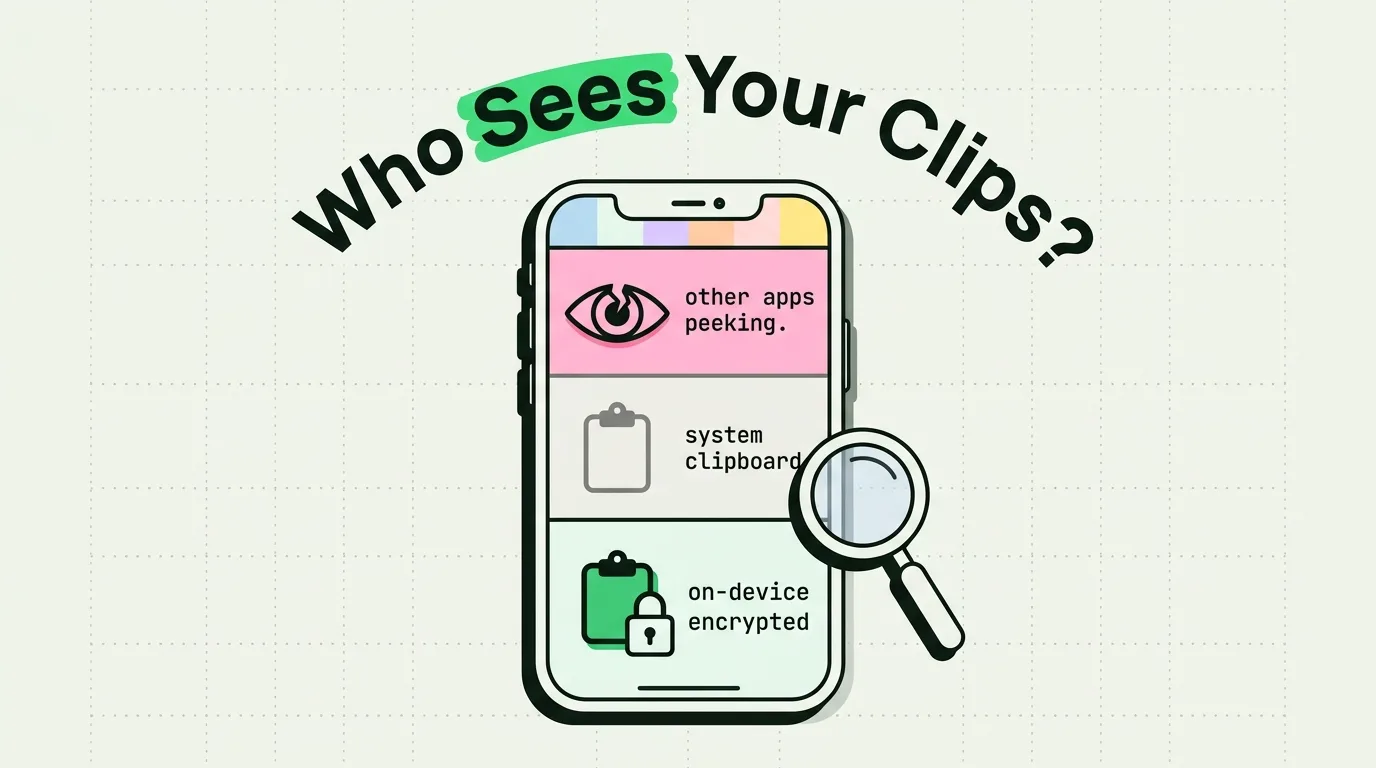
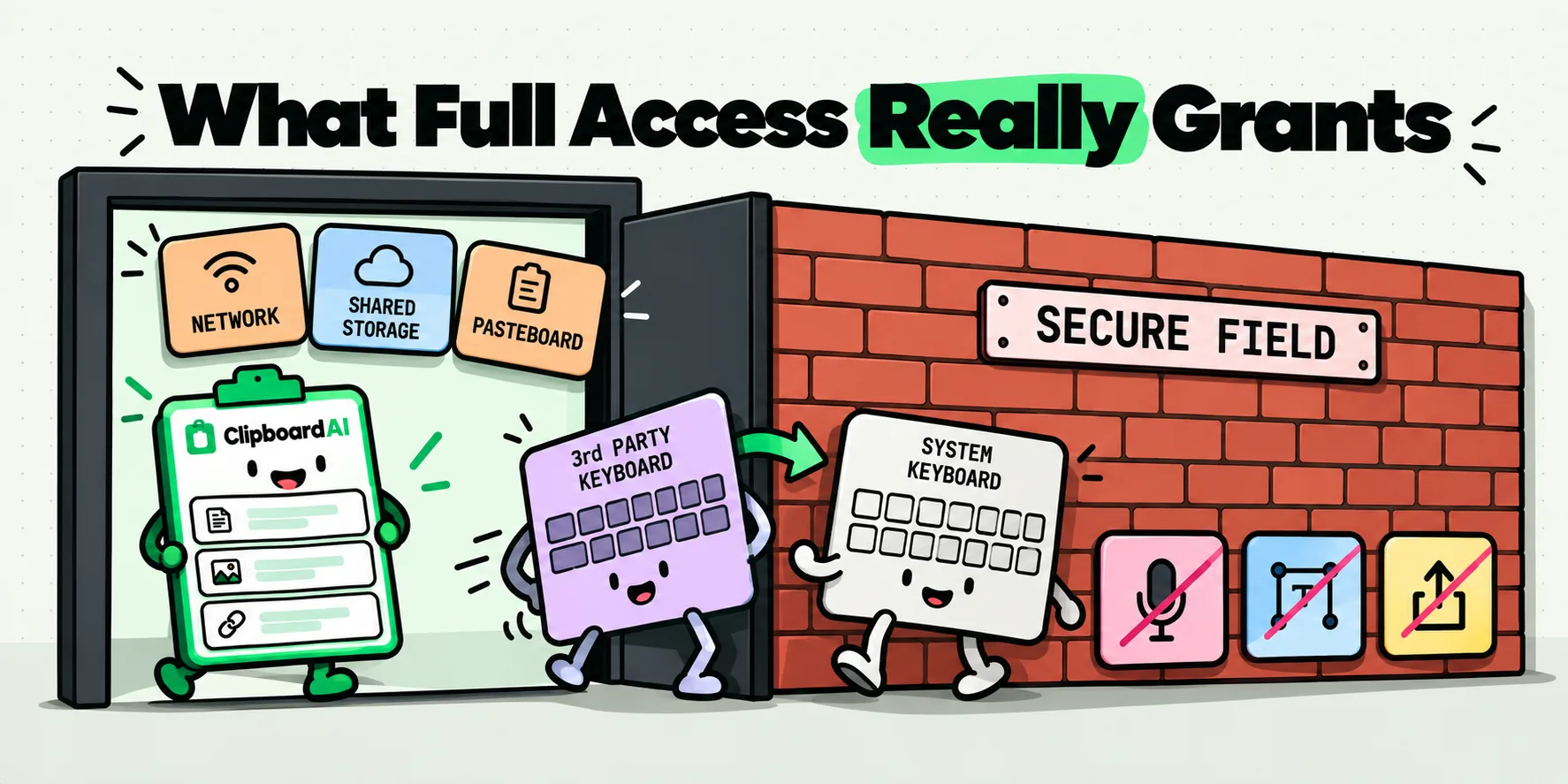
Full Access lets a keyboard extension use the network, share storage with its parent app, and read the pasteboard. It does not lift iOS's hard limits. Tap a secure text field and the system temporarily replaces your keyboard with Apple's own, so a third-party keyboard cannot see what you type into a password box. It also cannot use the microphone, select text, or draw above its own view.
So the question worth asking is not what iOS permits. It is what a particular developer does with what iOS permits, and unlike the OS boundaries, that part is on you to check.
That warning sheet, and why it reads like a legal notice
You add a keyboard, tap it, reach for the Allow Full Access switch, and iOS puts up a sheet warning you that everything you type can be transmitted. Most people put the phone down at that point. It is the single biggest reason clipboard keyboards, emoji keyboards and translation keyboards get installed and never used.
The sheet is doing its job. It is worded for the worst case, because iOS cannot tell the difference between a keyboard that needs a shared container to show you your own saved snippets and one that wants to ship your keystrokes somewhere. What it does not tell you is where the hard walls are, and there are more of them than the wording suggests.
What the switch actually changes
Apple's App Extension Programming Guide sets out the two capability sets. This is the whole list, not a summary of it. Apple's reference for the RequestsOpenAccess key puts the headline in one line: it is a Boolean for whether the keyboard uses a shared container and accesses the network. The capabilities arrive together, so a developer cannot request one and you cannot grant a subset.
| Capability | Without Full Access | With Full Access |
|---|---|---|
| Insert text into the field you are typing in | Yes | Yes |
| Autocorrect and suggestions from a common-words lexicon | Yes | Yes |
| Your text replacement shortcuts from Settings | Yes | Yes |
| Make network requests | No | Permitted |
| Share a container with its containing app | No | Permitted |
Read or write the system pasteboard (UIPasteboard) | No | Permitted |
| Location Services and Contacts | No | Permitted, and still needs your separate permission |
| Camera Roll | No | Permitted, and still needs your separate permission |
| Play audio, including the key click sound | No | Permitted |
| iCloud, Game Center and in-app purchases via the containing app | No | Permitted |
| Managed app support through MDM | No | Permitted |
Notice what the left column still contains. A keyboard without Full Access is a working keyboard. It types, it corrects, it expands your shortcuts. What it cannot do is reach anything outside itself, which is why a clipboard keyboard with the switch off opens empty: your clips live in the containing app's shared container, and the extension is walled off from it.
The list that does not change, whatever you grant
These are the ones people never hear about, and they matter more than the switch does. A keyboard extension can never do any of the following, with Full Access on or off:
- Type into, or appear in, a secure text field. Apple's guide is explicit that when you tap a secure input field, the system "temporarily replaces your custom keyboard with the system keyboard", and your keyboard resumes when you tap a normal field again. The same happens for phone pad fields.
- Access the microphone. Dictation from a third-party keyboard is not possible on iOS at all.
- Select text. A keyboard can insert and delete around the insertion point. It cannot reach out and grab what is already on screen.
- Draw above the top edge of its own view. No overlays over the app you are using.
- Change Auto-Capitalization, Caps Lock or dictionary-reset settings.
- Offer inline autocorrection controls at the insertion point.
- Run at all in an app that refuses custom keyboards. An app can decline that extension point outright, and banking apps commonly do.
The secure field rule is stronger than "the keyboard is blocked from reading the password". The keyboard is not on screen. Apple's keyboard has taken over the space. There is no running third-party code at the moment you type your password, so there is nothing to intercept.
The 60-second check anyone can run
You do not have to take any of this on faith, and it costs nothing.
Open any app with a login screen. Switch to your third-party keyboard by holding the globe key. Now tap the password field and watch the bottom of the screen. The keyboard changes. That is the system swapping in Apple's own keyboard because the field is marked secure. Tap the email field above it and your keyboard comes straight back.
One more thing the test shows: a keyboard runs only when you select it in a real text field. iOS does not launch a keyboard extension until then, so one you enabled in Settings but never typed with has run none of its own code, and granting Full Access changes nothing until the first time you switch to it. That first switch is a better moment to pay attention than the one in Settings.
While you are there, the switch itself lives in Settings, General, Keyboard, Keyboards, then tap the keyboard's name. Turning Full Access off is instant and reversible: the keyboard stays installed and keeps typing, the saved clips stop appearing, and nothing is deleted. If you want to see what a given keyboard is like without it, you can find out in about ten seconds and turn it back on. Our own keyboard setup guide walks the same path with screenshots.
Your whole history inside any app, and not one network call
ClipboardAI's keyboard makes no network requests. None at all. There is no networking code in the extension, and our analytics SDK is deliberately not linked into any extension either, so there is nothing in there that could call out even by accident. Grant Full Access and what you get is your own clip history, inside whatever app you are typing in, from a keyboard that talks to nothing.
It is also free. The keyboard is not a Pro feature and never has been. Switch it on and every clip you saved is one globe tap away in Messages, Mail, Safari, a job portal, a support chat, any text field on the phone.
Most people cannot inspect the app they are trusting, so here is what inspection looked like for ours. On September 8, 2026, the keyboard extension in the shipped source was 2,440 lines of Swift across 2 files. Searching both for URLSession, URLRequest, NWConnection and any http literal returned 0 matches. Its imports were Foundation, UIKit, SwiftUI and ImageIO, and its entitlements file declared an App Group and an iCloud key-value store identifier, with no networking entitlement.
Here is the specific list of what the extension's code does, rather than a policy statement about it.
- No networking code, so no network requests. Usage counts from the keyboard are appended to a file in the shared container, and the main app sends those later.
- It reads and writes the shared App Group container. This is the point of the switch. It is how the keyboard sees the clips you saved in the app.
- It reads and writes the system pasteboard, gated on Full Access. With the switch off, that code does not run.
- It uses iCloud key-value storage, which is not gated on Full Access. That is how a copy made on your Mac can reach the keyboard without opening the iPhone app first. It is the system's iCloud daemon doing the transfer, not the extension making a network call.
- Text insertion works without Full Access. The keyboard degrades rather than refusing to run. It just has no clips to show you.
The shape of it, so you know what to expect. The keyboard keeps your 200 most recent clips ready to tap, with the full history and full text search a magnifier tap away in the main app. Filter chips narrow the list to All, Saved, Images, a collection or a category, which in a keyboard-sized list gets you there faster than typing a query would. Images go to the pasteboard with a Copied confirmation and you paste them into the thread, since no keyboard on iOS can insert an image directly. The paste keyboard feature page and the everyday pasting guide show the flow.
The effect, once it is on, is that the thing you copied on the Mac an hour ago goes into the message you are writing on the sofa without you leaving the conversation.
How to decide, keyboard by keyboard
Turning it down is a legitimate answer, and for some keyboards it is the right one.
Decline if the developer publishes nothing about what leaves the device. Not a marketing sentence about caring for your privacy, but a specific statement of what is sent, to whom, and why. The App Store privacy label is the fastest first look, and there is a repeatable version of that audit in how to work out what a clipboard app stores.
Three questions can be answered from outside the app:
- Does the app declare any data collection? The privacy label is a declaration the developer can be held to, and an app that declares no data collected and no tracking has made a statement it can be held to.
- Where does processing happen? Anything that analyzes your text should say, explicitly, whether that happens on the device.
- Is the developer identifiable and current? Look for a real name, a working support address and an update history that did not stop two years ago. A keyboard is the wrong place for an abandoned app.
Two limits remain whatever you check. Apple does not show which capabilities a given keyboard uses after you grant Full Access, so the switch tells you what became possible, not what is happening. And a keyboard can change in an update you accept automatically, so a check you did in March describes March. Both are reasons to grant the permission to fewer keyboards.
Be realistic about the trade, though. For a keyboard whose entire purpose is showing you data that lives in its parent app, declining does not give you a limited version. It gives you an empty one. The right framing is not "grant it partially" but "decide whether you trust this developer, then use it or delete it". The keyboards in this category, and how each one handles the permission, are compared in every iPhone keyboard that pastes from history.
Also worth separating in your head: Full Access is about the keyboard. It is not the same permission model as the iOS clipboard prompt you see when an app reads something you copied elsewhere, which is a much less well documented area than most articles admit. And nothing about Full Access changes where your clips live: on your device, and with sync on, in your own private iCloud database, TLS in transit and encrypted at rest by Apple, never on a server we operate, because we operate none.
Sources
- Apple, "App Extension Programming Guide: Custom Keyboard", read October 21, 2026
- Apple, "RequestsOpenAccess", read September 8, 2026
- Apple, "Configuring open access for a custom keyboard", read September 8, 2026
Frequently Asked Questions
Is Allow Full Access safe on an iPhone keyboard?
The risk is not unlimited, because iOS keeps hard boundaries in place either way. A keyboard cannot appear in a secure password field, cannot use the microphone, cannot select text and cannot run in an app that refuses custom keyboards. What Full Access adds is network capability and a shared container with the parent app. So the real question is whether you trust that developer, and the App Store privacy label is the fastest place to start.
Can a third-party keyboard see my passwords?
Not in a secure text field. Apple's App Extension Programming Guide states that when you tap a secure input object, the system temporarily replaces your custom keyboard with the system keyboard, and yours resumes when you tap a normal field. Your keyboard is not merely blocked from reading, it is not on screen. You can watch this happen: tap a password field with a third-party keyboard active and it swaps out in front of you.
What can a keyboard do without Full Access?
Everything a keyboard normally does. It types into the current field, offers autocorrect and suggestions from a common-words lexicon, and expands the text replacement shortcuts stored in your Settings. What it loses is anything outside itself: no network access, no shared container with its parent app, no pasteboard access, no Contacts, Location or Camera Roll. A clipboard keyboard without Full Access therefore opens with nothing in it.
Why does a clipboard keyboard need Full Access?
Because your saved clips live in the containing app's shared App Group container, and without Full Access an extension cannot read that container at all. Pasteboard access is gated the same way. There is no partial version of this: with the switch off the keyboard runs and types normally, it just has no clips to show. That is why these keyboards look broken rather than limited when the switch is off.
Why does my third-party keyboard disappear in my banking app?
The app has almost certainly declined custom keyboards outright. iOS lets an app refuse that extension point, and banking and finance apps commonly do. It is a deliberate choice by the app's developer, not a bug in your keyboard or a setting you can change on your phone. The same thing happens more narrowly in any secure password field and in phone pad fields, in every app.
If I revoke Full Access, are my saved clips deleted?
No. Turning the switch off leaves the keyboard installed and typing normally, and your saved clips stay where the app keeps them. They stop appearing in the keyboard while the switch is off and come back the moment you turn it on again. The switch is under Settings, General, Keyboard, Keyboards, then the keyboard's name, so you can test the difference in seconds.