
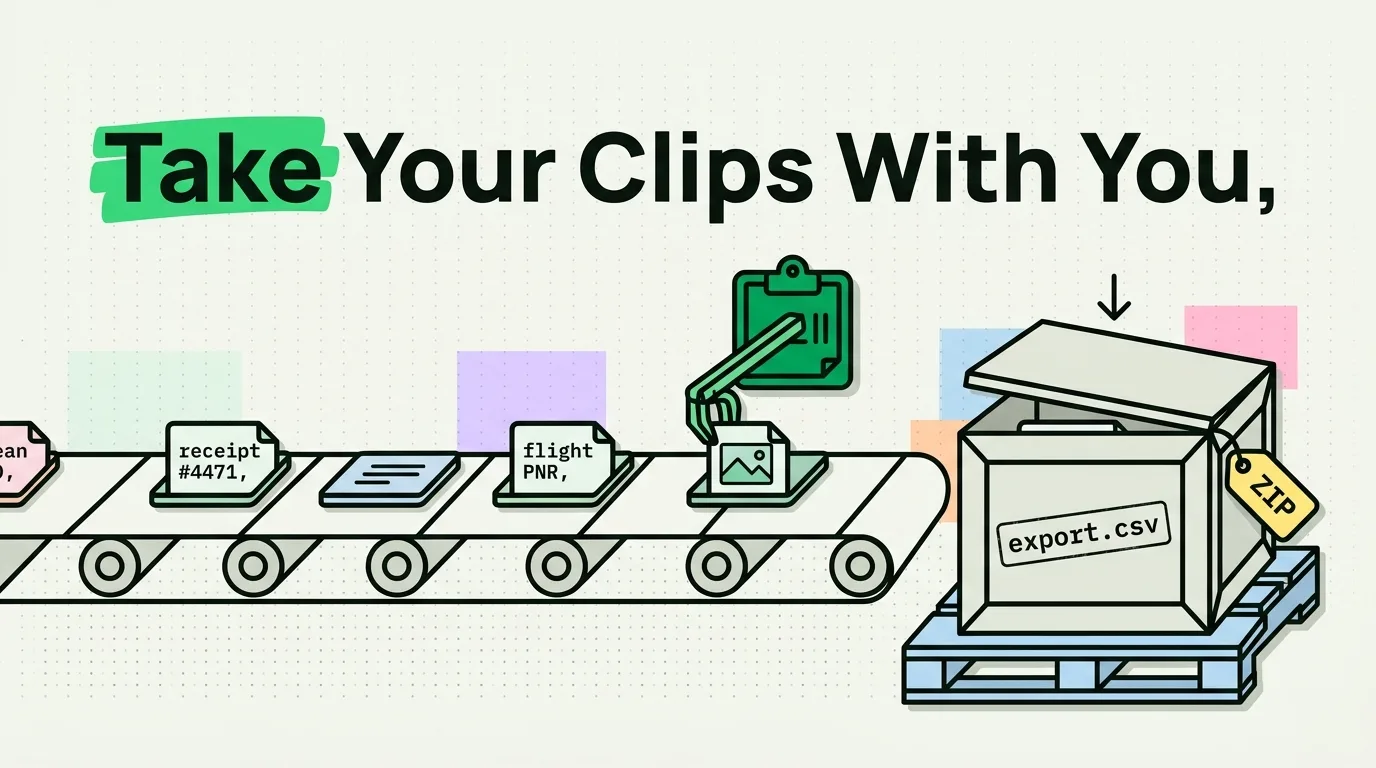
iOS itself has no export function for clipboard data, because it has no clipboard history to begin with: the system pasteboard holds one item and forgets it the moment you copy something new. To actually export or back up what you have copied, you need a clipboard manager that keeps history first. With ClipboardAI, you export clips through the share sheet (AirDrop, Mail, Messages, Files) individually or in a filtered batch, and your history syncs automatically through iCloud so it survives a device upgrade. Here is exactly how, plus what "backup" does and doesn't mean here.
Why iPhone can't export clipboard data natively
- The iOS pasteboard stores exactly one item at a time.
- Copying something new permanently overwrites the previous item.
- There is no built-in clipboard history in iOS.
- Apple provides no export or backup mechanism for pasteboard contents, because there's nothing persistent to export.
To get an export, you first need something that has been capturing your copies all along. That's what a clipboard manager is for.
Method 1: Export from ClipboardAI's share sheet
Export a single clip:
- Open ClipboardAI and find the clip.
- Swipe left on it, or tap to open it.
- Tap Share.
- Choose a destination: AirDrop, Mail, Messages, Files, or any other app in the share sheet.
Export several clips at once:
- Filter by category if you only want one type (Links, Addresses, Codes, etc.).
- Select multiple clips.
- Tap Share and choose your destination.
Filtering before you export keeps the output clean - "just the links from this week" is a lot more useful than a dump of everything.
Method 2: iCloud sync as your ongoing backup
If your real goal is "don't lose this if I get a new phone," sync does that job continuously, without a manual export step:
- Every clip you save syncs to iCloud automatically once sync is turned on.
- Your history becomes available on any device signed into the same Apple ID.
- Move to a new iPhone, install ClipboardAI, sign in, and your clipboard history reappears.
How your synced clips stay private: ClipboardAI's sync moves through your own private iCloud account using Apple's CloudKit and iCloud Key-Value Store, encrypted in transit and at rest, the same protection your Photos and Notes already rely on. No clip content is ever transmitted to or stored on a ClipboardAI server, there is no ClipboardAI account, and there is no third-party backend. And you can leave sync off entirely for a fully local, on-device-only setup where nothing ever leaves your iPhone.
To check sync is on: iPhone Settings → [Your Name] → iCloud, confirm ClipboardAI has iCloud access, then open the app and verify sync is active in its settings.
Method 3: iOS Shortcuts for a manual export log
For a rough, DIY logging approach:
- Open the Shortcuts app and create a new shortcut.
- Add an action to get the current clipboard content.
- Add an action to append that text to a file in iCloud Drive or Files.
- Run it manually, or trigger it with an automation.
This only captures whatever is on the clipboard at the moment you run it - it is not a substitute for a real clipboard history, just a lightweight log for specific, deliberate saves.
Method 4: Manual copy into Notes
The simplest and least efficient option: paste each item you want to keep into a dedicated Notes page as you go, with a timestamp for context. It works, but only for what you remember to paste, and it takes constant manual effort.
When you actually need to export clipboard data
| Situation | What to do |
|---|---|
| Moving to a new iPhone | Keep iCloud sync on before you switch - history reappears automatically after sign-in on the new device. No manual export needed. |
| Sharing research with a collaborator | Filter to the relevant clips (or date range), select, and share via Mail or Messages. |
| Clearing history but want a backup first | Export everything to Files or email yourself a copy, verify it opened correctly, then clear. |
| Keeping a project archive | Filter by category and export before archiving or deleting the project's working clips. |
| Record-keeping for compliance-sensitive work | Export with timestamps, but treat this as a supplementary record, not a substitute for your organization's actual compliance tooling - ClipboardAI is not a compliance product. |
Honest caveats and security notes
- Sync stays inside your own iCloud. It's protected the same way Apple protects your Photos and Notes, encrypted in transit and at rest, and no clip content ever reaches a ClipboardAI server. You can also turn sync off entirely for a local-only setup.
- Review before sharing. Clipboard history can contain things you forgot were sensitive - check an export before you AirDrop or email it to someone else.
- Delete sensitive clips before bulk export. If you know you copied a password or financial detail at some point, remove it from history first rather than relying on remembering to skip it during selection.
- Email is not a secure transport. If the content is sensitive, prefer AirDrop (which is encrypted in transit) over emailing yourself an export.
- Exported files aren't automatically encrypted at rest in Files. If you save an export locally, treat that file with the same care you'd give any plaintext document containing personal data.
Frequently Asked Questions
Can I export my clipboard history from iPhone?
Not with built-in iOS tools - there's no history to export. A clipboard manager like ClipboardAI keeps that history and lets you export it as plain text via the share sheet, individually or filtered by category.
How do I back up my clipboard on iPhone?
Turn on iCloud sync in ClipboardAI. It backs up your history continuously and makes it available on any device signed into the same Apple ID. You can also do manual exports for one-off sharing or archiving.
How is my synced clipboard kept private?
Sync runs through your own private iCloud account, encrypted in transit and at rest by Apple, the same protection level as iCloud Photos or Notes. No clip content is ever sent to or stored on a ClipboardAI server, and there is no ClipboardAI account. You can also turn sync off entirely and keep everything on-device.
Can I transfer clipboard history to a new iPhone?
Yes, if iCloud sync was on before the switch. Install ClipboardAI on the new device, sign in with the same Apple ID, and your history syncs back down.
What format does ClipboardAI export in?
Plain text, shared through the standard iOS share sheet - AirDrop, Mail, Messages, or Files.