
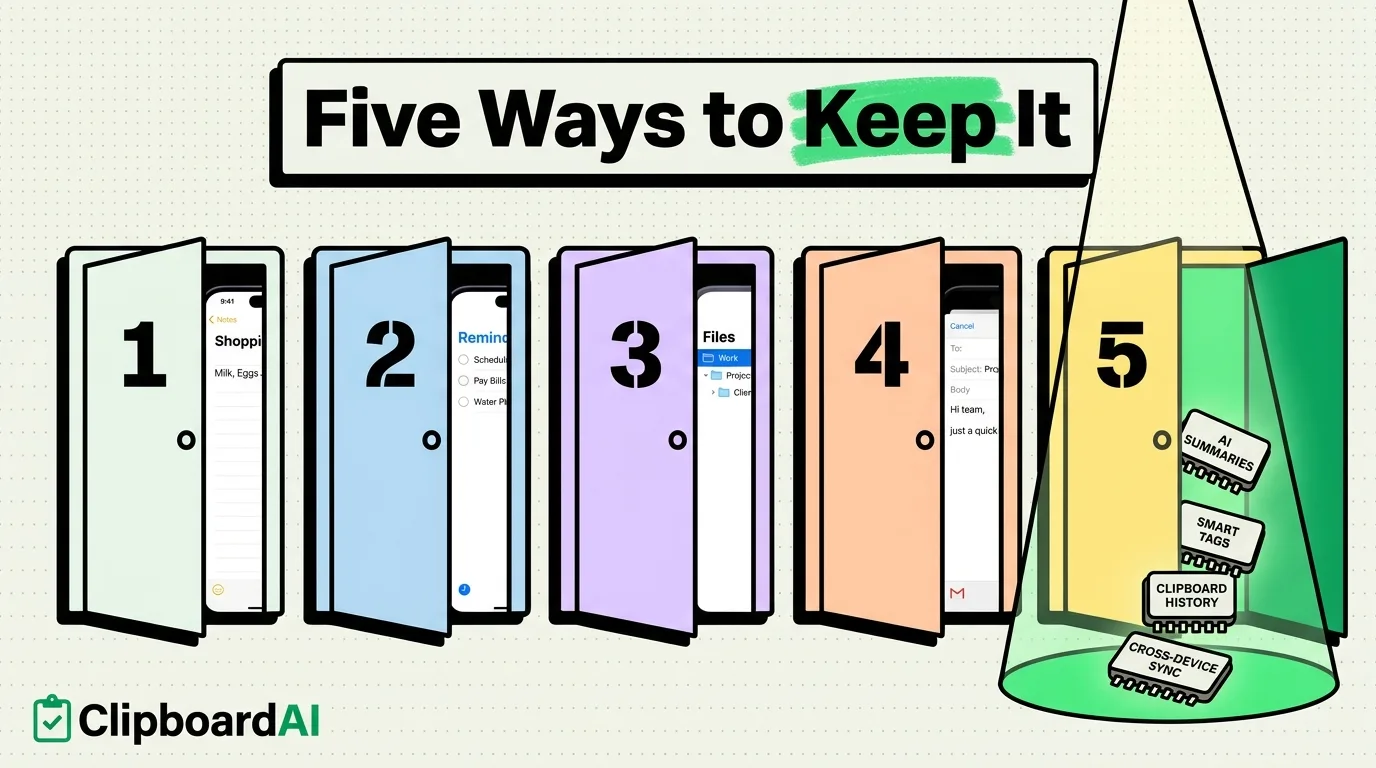
You found the perfect quote in an article, copied it, then switched to a different app and copied something else. The quote is gone, with no way to get it back. The iPhone clipboard (technically called UIPasteboard) is a single-slot buffer: it holds exactly one item, and every new copy operation immediately and permanently overwrites the previous one. There is no history, no recycle bin, and no undo for an overwritten clip. This guide covers five ways to actually keep copied text on iPhone, from manual habits to automatic capture. Plenty of apps fix this for nothing, and we ranked the best free clipboard apps for iPhone.
Understanding the iPhone Clipboard
Before the fixes, here's what's actually happening when you copy text on iPhone:
- One item at a time. The clipboard holds only the most recently copied item. Copying anything new immediately overwrites the previous content.
- No history. iOS keeps no record of previously copied items and has no built-in way to scroll back through past clips.
- No expiration timer. Copied text stays on the clipboard until you copy something else; it does not clear automatically after a set time.
- System-wide. You can copy in one app and paste in another; the clipboard isn't app-specific.
The core limitation is simple: one slot, no memory. If you want to keep something past your next copy, you need one of the methods below.
Method 1: Paste Into Notes Immediately (Free, Manual)
The simplest fix: paste into Notes before you copy anything else.
- Copy the text you want to keep.
- Open Notes (or switch to it via the app switcher).
- Open a dedicated note (create one called "Saved Clips").
- Tap to place your cursor and paste.
- Add a line break between items.
- Go back to what you were doing.
The catch: you have to remember to do this before your next copy, every single time, and everything ends up as an unstructured wall of text in one note.
Method 2: A Shortcut to Auto-Save to a Note
Apple's Shortcuts app can save clipboard contents to a note with one tap or a Back Tap gesture.
- Open Shortcuts, tap + to create a new shortcut.
- Add the action Get Clipboard.
- Add the action Append to Note, and select your designated note.
- Optionally add Show Notification to confirm the save.
- Name it "Save Clip."
- Assign it to Back Tap (Settings > Accessibility > Touch > Back Tap) or add it as a home screen widget.
The catch: this still requires you to actively trigger the shortcut. Forget to tap it (or tap the back of your phone), and the clip is gone the moment you copy something else.
Method 3: A Clipboard Manager App (No Manual Step Required)
The only method that removes the "remember to save it" step entirely is a clipboard manager that captures everything automatically.
ClipboardAI saves text, links, email addresses, phone numbers, addresses, and codes as you copy them, with no manual save step.
How it works:
- Install ClipboardAI from the App Store.
- Grant clipboard access when prompted.
- Use your iPhone normally; copy as you always do.
- Open ClipboardAI anytime to browse your history.
- Tap any saved clip to copy it back to the clipboard.
Key features for saving copied text:
- Automatic capture, even if you copy something else right after
- Auto-categorization into links, emails, phone numbers, addresses, codes, and text
- Search across your history by keyword
- Pin frequently used items (your email, home address, standard replies) to keep them at the top
- iCloud sync between iPhone and iPad, when enabled
The free tier covers up to 10 saved clips. Beyond that, premium plans unlock unlimited history and iCloud sync, starting at $4.99/month, $19.99/year, or a one-time $34.99 lifetime purchase.
Method 4: Text Yourself in Messages
A common workaround: text the copied content to yourself.
- Open Messages, start a new message to your own number or name.
- Paste your copied text into the body.
- Send it.
This works and syncs via iMessage, but creates a cluttered self-conversation with no organization. Finding a specific clip later means scrolling through what could be hundreds of messages.
Method 5: Email Yourself
Similar to texting, but subject lines give you a basic label.
- Open Mail, compose a message to your own address.
- Add a descriptive subject line.
- Paste the text and send.
Email search makes retrieval slightly better than the Messages method, but it's still a manual, multi-step process, and you're effectively building a worse clipboard manager inside your inbox.
Comparing All 5 Methods
| Method | Automatic | Organized | Searchable | Cost | Reliable |
|---|---|---|---|---|---|
| Notes app | No | Minimal | Basic | Free | Depends on you remembering |
| Shortcuts | Semi (still requires a trigger) | Minimal | Basic | Free | Depends on you remembering |
| ClipboardAI | Yes | Auto-categorized | Full-text search | Free tier + paid plans | Fully automatic |
| Text yourself | No | None | Basic | Free | Depends on you remembering |
| Email yourself | No | Some (subject lines) | Good | Free | Depends on you remembering |
Every manual method shares the same failure point: it depends on you taking an action before your next copy. Only an always-on clipboard manager removes that dependency.
When You'll Actually Notice This Problem
- Research and writing: gathering quotes, statistics, and source URLs across multiple articles, where each new copy erases the last.
- Online shopping: a coupon code from one tab disappears the moment you copy a product name from another.
- Filling out forms: repeatedly needing the same address, phone number, or reference number across a long application.
- Sharing information: looking up an address, a link, and a phone number for someone, only to lose the first two by the time you've found the third.
- Confirmation numbers: a booking or purchase confirmation code you meant to save somewhere permanent, forgotten the moment you copy something else.
Note: Regardless of which method you use, be deliberate about what you copy. Passwords and other credentials are better handled by a dedicated password manager with AutoFill, not by copying them into any clipboard history.
Syncing Saved Clips Across Devices
If you use both an iPhone and an iPad, ClipboardAI's iCloud sync keeps your clipboard history consistent across both. Copy something on your iPhone and it's available on your iPad. This sync moves through your own private iCloud account using Apple's CloudKit and iCloud Key-Value Store, encrypted in transit and at rest, the same protection your Photos and Notes rely on. No clip content is ever sent to a ClipboardAI-owned server, there is no ClipboardAI account, and you can turn sync off entirely to keep everything on-device.
This is also more durable than Apple's own Universal Clipboard, which only transfers the single most recent item and expires after about two minutes.
Frequently Asked Questions
Where does copied text go on iPhone?
It goes to the system clipboard (UIPasteboard), a temporary single-item buffer. There's no built-in way to view clipboard history; the text stays until you copy something else or restart the device.
Can I see my clipboard history on iPhone?
Not natively. iOS only shows the most recently copied item, and only by pasting it. A clipboard manager like ClipboardAI is required to maintain a searchable history.
How do I keep copied text from disappearing on iPhone?
Paste it somewhere permanent immediately, build a Shortcut that appends it to a note, or use a clipboard manager that saves automatically. The clipboard manager is the only option that doesn't rely on you remembering to act.
Does the iPhone clipboard clear when you restart the phone?
It may or may not survive a restart depending on iOS version and circumstances; it isn't guaranteed. Save anything important before turning off your device.
How is my synced clipboard kept private?
Sync runs through your own private iCloud account, encrypted in transit and at rest by Apple, the same protection level as most iCloud data. No clip content is ever sent to or stored on a ClipboardAI server, and you can turn sync off entirely to keep everything on your device.