
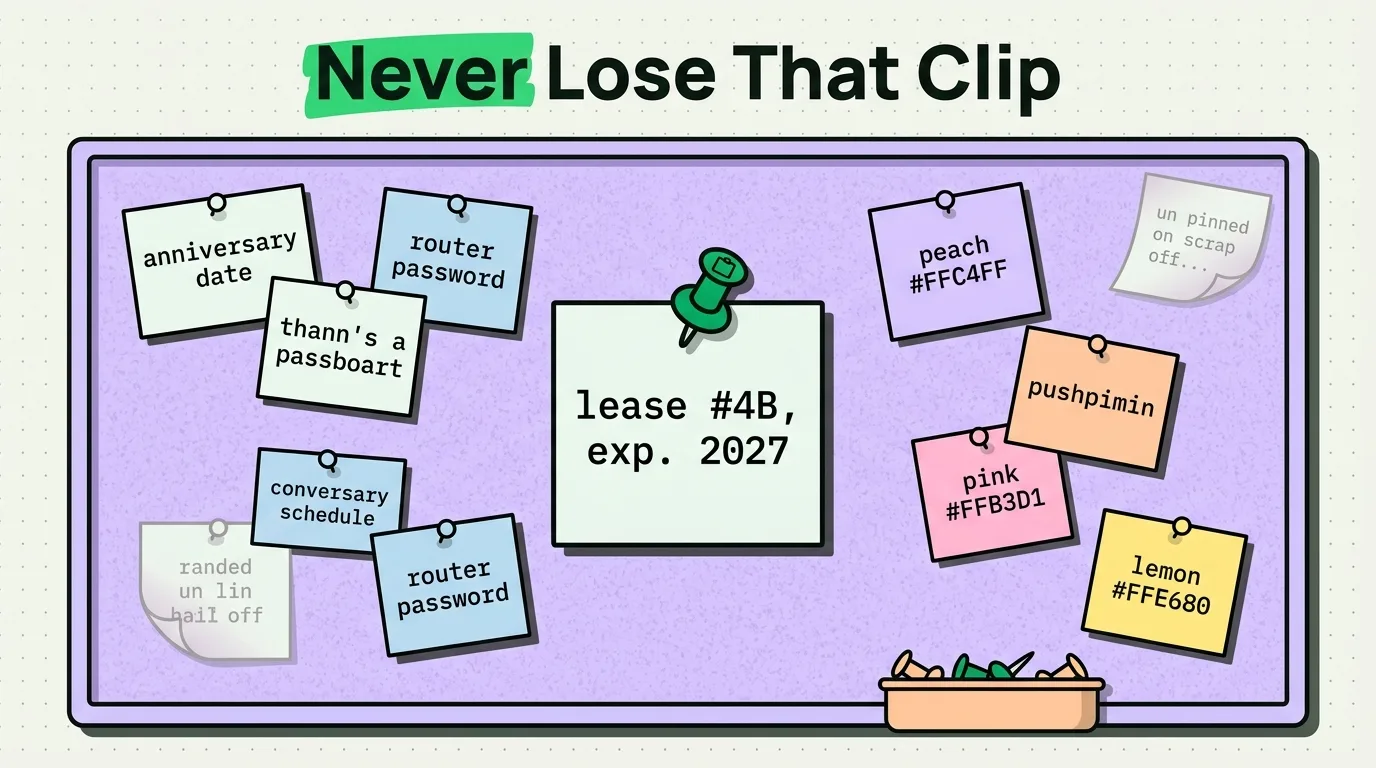
To pin a clipboard item on iPhone, you need a third-party clipboard manager like ClipboardAI, since iOS has no native way to bookmark or save a copied item. Install the app, copy something as you normally would, open ClipboardAI (or its keyboard) to find that clip in your history, and tap the pin icon next to it. Pinned clips stay anchored at the top of your list regardless of how many new things you copy afterward.
Here is how pinning actually works, where it breaks down, and what to do instead when it does not fit.
The Human Scenario: The Vanishing Wi-Fi Password
You copy your guest Wi-Fi password to send to a visitor. Before you paste it, a text message arrives with a verification code, and iOS auto-copies that code onto your clipboard. Your Wi-Fi password is gone. You did not do anything wrong, this is just how a single-slot clipboard works. The next visitor asks the same question, and you retype the 16-character password from memory (badly).
Pinning solves the exact failure mode here: once a clip is pinned, a new copy elsewhere on the phone cannot bump it out of reach.
Why iPhone Has Nothing Like This Built In
The iOS clipboard (UIPasteboard) is a single-item buffer by design, not an oversight. Apple's own Settings app has no "Clipboard" section at all; the only way to see what is on the clipboard is to paste it somewhere. There is no favorites list, no history, and no way to mark anything as "keep this."
That means pinning is entirely a third-party feature. ClipboardAI adds a persistent on-device history layer next to the native pasteboard, and pinning is a flag on individual entries in that history, not a change to how iOS itself handles copy and paste.
Setting Up Pinning: Step by Step
- Install ClipboardAI from the App Store.
- Go to Settings > General > Keyboard > Keyboards > Add New Keyboard, choose ClipboardAI, then tap it again and enable Allow Full Access (required for the keyboard to read your saved history - without it, the keyboard cannot show anything you copied outside the keyboard itself).
- Copy something normally, anywhere in iOS.
- Open the ClipboardAI app or switch to its keyboard (tap the globe icon 🌐 while typing) and find the item in your history.
- Tap the pin icon on that entry. It now stays at the top, separate from the chronological feed.
What's Actually Worth Pinning (Decision Checklist)
Not everything belongs in your pinned list, use this to decide:
Should I pin this clip?
├── Will I need it again within the next 30 days? ──No──> Let it live in regular history
│         │
│        Yes
│         ▼
├── Is it something I currently retype from memory? ──Yes──> Pin it
│         │
│         No
│         ▼
└── Does it change often (e.g. a code that rotates)? ──Yes──> Don't pin; it'll go stale
          │
          No
          ▼
     Pin it
Good pin candidates: your home address, a Wi-Fi password you give out often, a standard email sign-off, a meeting link you reuse weekly, an insurance member ID. Bad pin candidates: one-time verification codes, tracking numbers for a single package, anything with an expiration date.
Pinning vs. Other Ways to Save Text on iPhone
| Method | Setup effort | Retrieval speed | Handles non-text (links, numbers)? | Survives new copies? |
|---|---|---|---|---|
| Notes app | Manual (open note, paste) | Slow (open app, find note, scroll) | Yes | Yes |
| Text Replacement (Settings > Keyboard) | Manual, one shortcut at a time | Fast (type trigger phrase) | No, plain text only | Yes |
| Contacts app | Manual entry per contact | Medium | Only phone/address fields | Yes |
| Screenshot | Instant | Slow, not searchable, can't paste directly | Visual only | Yes, but unusable as text |
| ClipboardAI pin | One tap after normal copy | Fast (top of list, one tap to copy) | Yes - text, links, numbers, addresses | Yes |
Honest Caveats
- Pinning does not sync by default. Cross-device availability of pinned clips requires iCloud sync to be turned on in ClipboardAI settings; without it, pins stay local to the device where you created them.
- Full Access is a real permission, not a formality. iOS shows a standard warning that a keyboard with Full Access could technically transmit what you type. Only grant it to a keyboard from a developer you trust, and know that this warning applies to any third-party keyboard, not something specific to ClipboardAI.
- Corporate/managed iPhones may block third-party keyboards entirely under an MDM profile. If your work phone is managed, check with IT before relying on this workflow for anything work-related.
- Pinning is not a password vault. Do not pin plaintext passwords. ClipboardAI's automatic exclusion of recognized password-manager apps is a Mac-only feature (it reads pasteboard flags that 1Password, KeePassXC, and similar apps set); there is no equivalent automatic protection on iPhone, so treat anything you manually copy from a password field as something to paste immediately and never pin.
Frequently Asked Questions
Can I pin clipboard items on iPhone without an app?
No. iOS has no native pinning, bookmarking, or history feature for the clipboard. It holds exactly one item, and there is no built-in way to mark anything as a favorite.
Does pinning sync between my iPhone and iPad?
Only if you turn on iCloud sync inside ClipboardAI. Pinning itself is a local flag on your saved history; sync is a separate setting.
What happens to a pinned clip if I copy something new?
Nothing. New copies are added to your chronological history like normal, but pinned items stay in their own section and are not affected.
Is there a limit to how many items I can pin?
No hard limit inside the app, but treat your pinned list like a favorites bar, not a second inbox. If you pin more than 15-20 items, searching becomes faster than scrolling pins anyway.