
Clipboard AI quietly saves everything you copy, sorts it into neat categories, and puts it one tap away from any app. Here is the fastest path from a fresh install to a clipboard that actually remembers things.
Enable the keyboard, allow paste from other apps, and start copying. Everything else just works.
What Clipboard AI does
Every time you copy something, Clipboard AI keeps a copy for you. Open the app and your recent copies are right there, sorted into Links, Phone, Email, Address, Codes, Text, and Images. Pin the ones you reuse, name them so they are easy to spot, and paste any of them into any app from the keyboard. Screenshots are read for their text, long clips get a one-line summary, and on an iPhone with Apple Intelligence you can simply ask for what you want in plain words.
Set it up in three steps
- Enable the keyboard. This is how you paste your saved clips inside other apps. The first-run guide walks you to the right screen in Settings and checks for itself that the keyboard is added and Full Access is on, so you are never told you are done when you are not. See Enable the Clipboard AI keyboard.
- Allow paste from other apps. One setting stops the repeating "Allow Paste" pop-up so your copies are saved instantly. See Skip the paste prompt.
- Start copying. Copy a phone number, a link, an address, anything. Open Clipboard AI and watch it appear, already sorted. See How to capture and save clips.
Your first wins
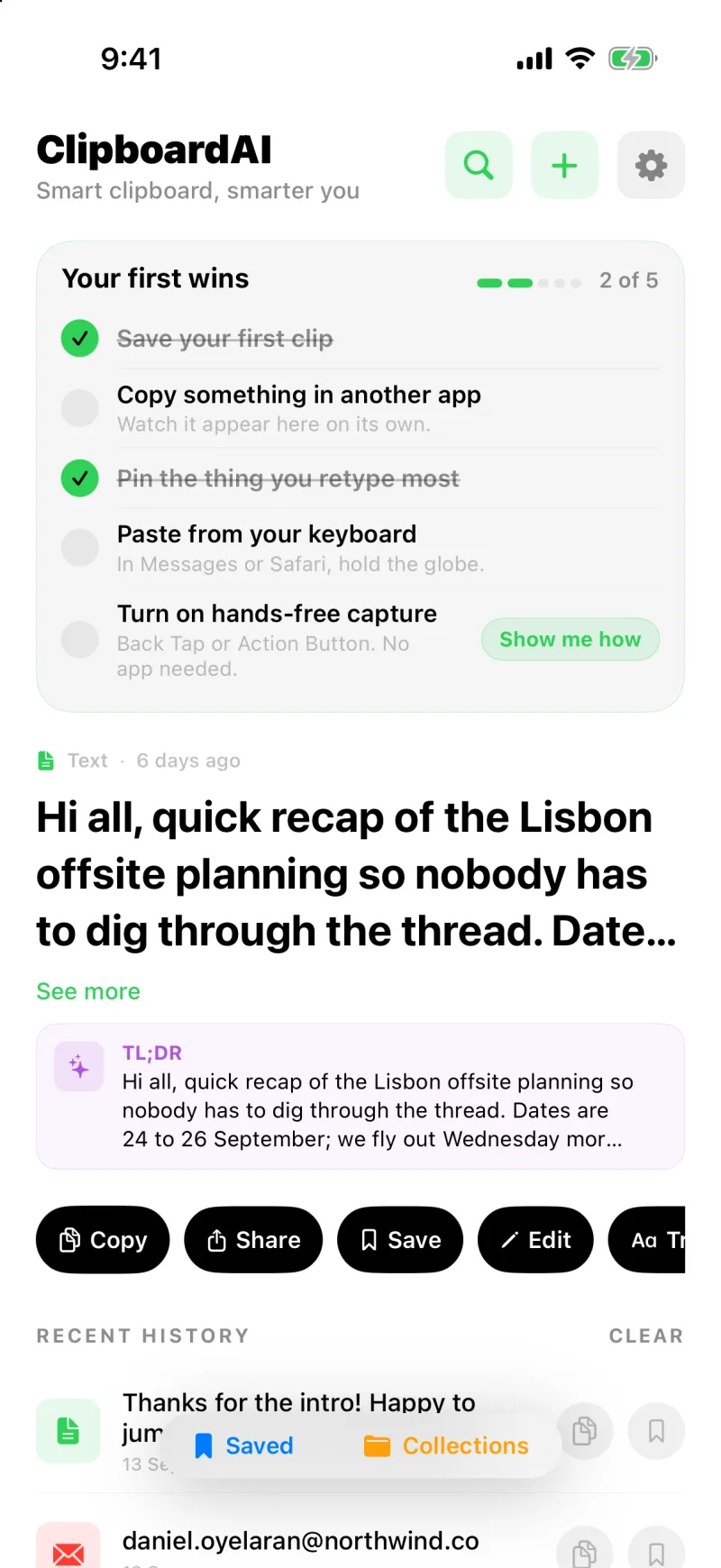
After setup, a small Your first wins card sits at the top of the home screen with the five things that make the app click: save your first clip, copy something in another app and watch it land, pin the thing you retype most, paste from the keyboard, and either name a clip or put Clipboard AI on your Mac. Each one ticks itself off as you do it, and the card goes away once you are through it, or the moment you dismiss it.
Clipboard AI may send a notification or two in your first days with the tip that most people miss, like saving from the Action Button. They stop on their own, sooner if you subscribe, and the Notifications switch at the bottom of Settings, General turns them off entirely.
With Clipboard AI Pro, the same clipboard follows you across iPhone, iPad, and Mac. See Sync across devices.
Where to go next
Once you are set up, these are the things people reach for most:
- Paste a saved clip from the keyboard
- Search your clipboard history
- Organise clips into Collections
- Save with the Action Button, Back Tap, and Siri
- Widgets, Control Center, and the Lock Screen
- Ask your clips a question
- Clean up and transform text