
Your clipboard is personal, so it is worth knowing where it lives and what controls you have. Here is the short, honest version.
What stays on your device
The work of understanding your clips happens on your iPhone. Clips are sorted into categories, text is read out of screenshots, the nine text transforms run, and search ranks your library right on the device, without sending your content off to be read. If you never turn on sync, your clips simply stay on your iPhone.
Ask, the rewrites, and TL;DR use Apple Intelligence on your device. On iOS 27, some requests can go to Apple's Private Cloud Compute, which processes them privately and never stores them; the footnote under each result says which happened. Your library is never uploaded to be searched, and nothing from these features is sent to Clipboard AI.
Your clips only appear in the iPhone's own search if you turn on Find Clips in Spotlight, and even then codes and sensitive clips are left out. The index stays on the device and is wiped when you turn the switch off. See Find your clips in Spotlight.
Verification codes, passwords, and anything Clipboard AI flags as sensitive show a padlock instead of their contents in the keyboard, and are never quoted in a delete prompt.
If you turn on iCloud Sync, your clips are stored in your own private iCloud database so they can reach your other devices. They are encrypted at rest there and travel over an encrypted connection, tied to your iCloud account.
Clean up automatically
Open Settings and use Auto-Delete Old Clips to have Clipboard AI clear out history after a window you choose, from off all the way to a year. Your pinned clips and anything in a Collection are always kept, so cleanup never touches the things you saved on purpose.
Export or clear everything
- Export Clips saves your clips to a file you can keep or move elsewhere, through the share sheet.
- Clear All History erases every clip in your history. Your saved clips and anything in a Collection are kept, the same as with auto-delete. Everything else is gone for good, so the app asks you to confirm first.
Deleting a single clip
The full picture of what each way of deleting erases, and what it keeps, is in Deleting clips: what is erased, what is kept.
Delete a clip and its content is erased straight away. There is no trash and no undo, on purpose: a deleted clip should not linger anywhere. Because of that, the app asks you to confirm each delete. If you would rather it did not, tick Don't ask again in the prompt, or use the Ask Before Deleting switch in Settings to turn the check off or back on. The prompt never shows the contents of a sensitive clip.
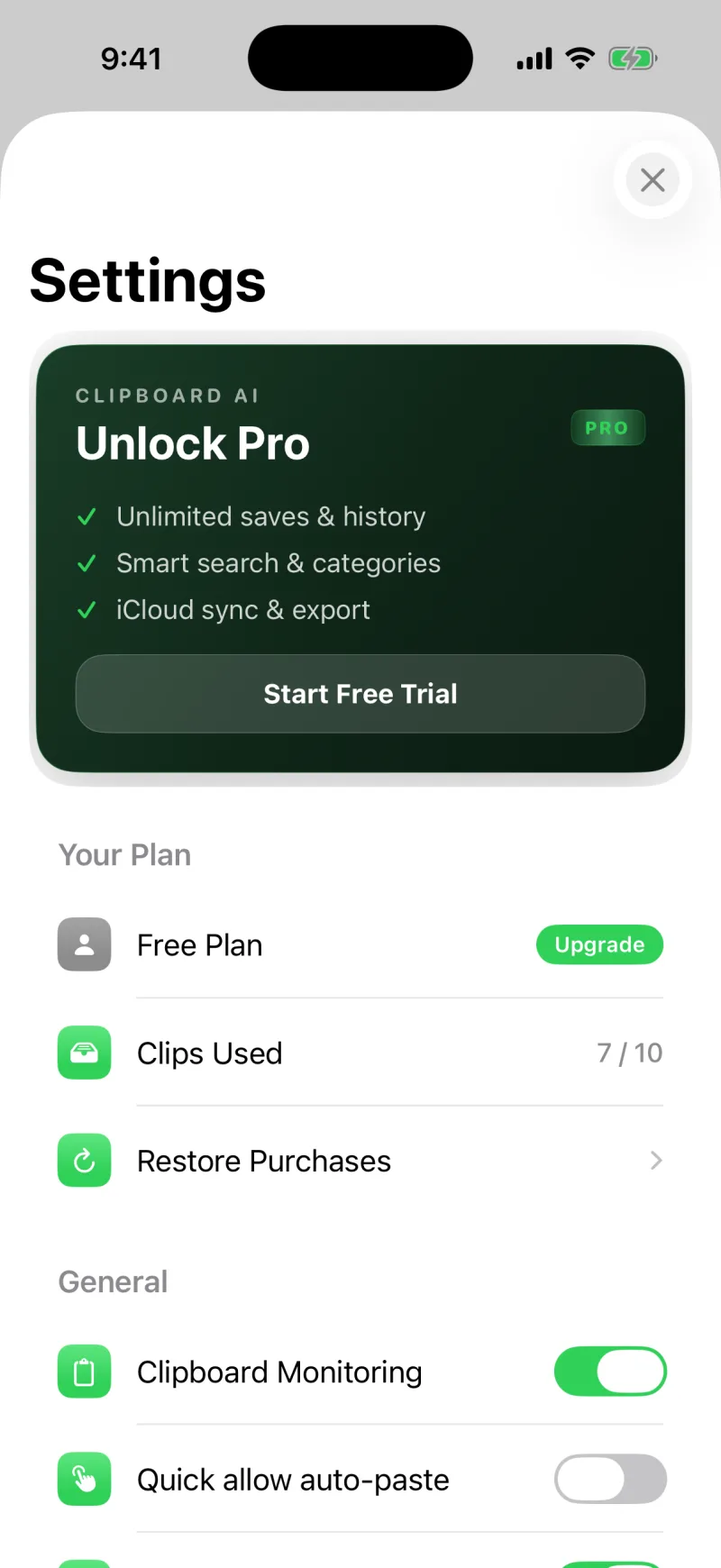
Turn off Clipboard Monitoring in Settings and Clipboard AI stops saving new copies until you switch it back on.