
Your clips can show up in your device's own search, the one you get by pulling down on the iPhone Home Screen or pressing ⌘Space on a Mac. Type a few letters of something you copied and it is there, without opening Clipboard AI first.
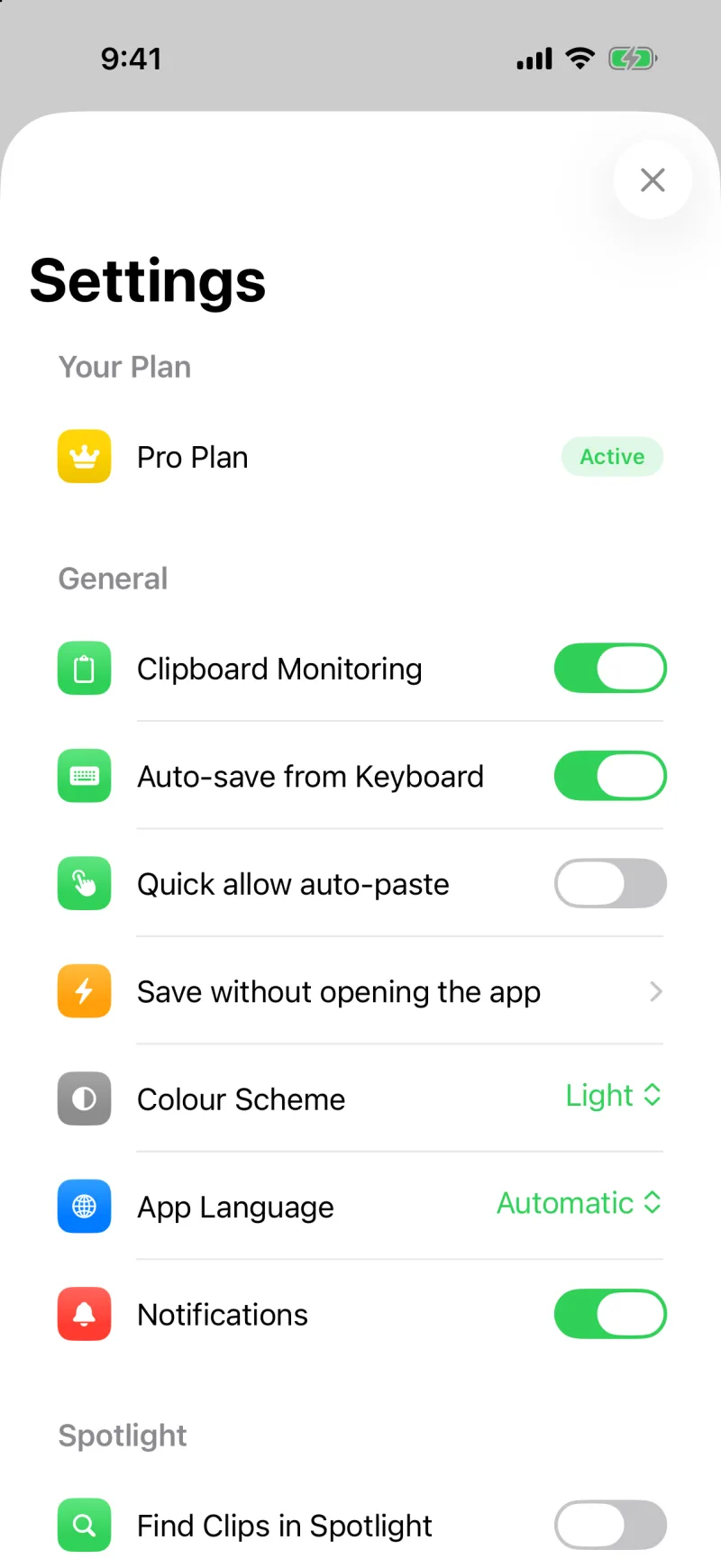
It is off until you turn it on: Settings then Find Clips in Spotlight, on each device you want it on. Codes and sensitive clips are never included, and the index never leaves the device.
Turn it on
- On iPhone or iPad, open Clipboard AI, go to Settings, and turn on Find Clips in Spotlight under Spotlight. On Mac, it is in Settings under the Privacy tab.
- Give it a moment. Your existing clips are added to the index, and every clip you copy from then on joins them as it is saved.
- Search the way you always do: pull down on the Home Screen, or press ⌘space on the Mac, and type part of a clip.
What happens when you pick a result
On iPhone and iPad, the result opens Clipboard AI on that clip, ready to copy, paste from the keyboard, or share. On Mac it opens All Clips with the clip revealed. Spotlight itself is only the doorway; the clip stays in Clipboard AI.
A clip named "Guest WiFi" is one word away in Spotlight, and the name is what shows as the result's title. See Give your clips custom names.
What is indexed, and what never is
- Text clips, links, named clips, and images with recognised text in them are indexed, along with the name of the collection each one is in, so a collection's name finds its clips.
- Verification codes, one-time passwords, and anything Clipboard AI flags as sensitive are never added, on purpose. A code should not be a search away for anyone holding your phone.
- The index lives on that device only. Turning the switch on for your iPhone does nothing for your Mac, and turning it off wipes the index on that device.
Spotlight's index is built and kept by the system on your own device. Clipboard AI does not send it anywhere, and neither does Apple. Ask does not depend on it either: Ask searches its own copy of your library inside the app.
If clips are not showing up
- Check the switch is on for this device. It is per device.
- The clip is a code or was flagged sensitive; those are left out by design.
- Spotlight indexing is turned off for Clipboard AI in the Settings app. On iPhone, open Settings, tap Clipboard AI, then Siri & Search, and make sure Show Content in Search is on.
- Right after turning it on with a large library, give the index a minute to fill.