
On this page
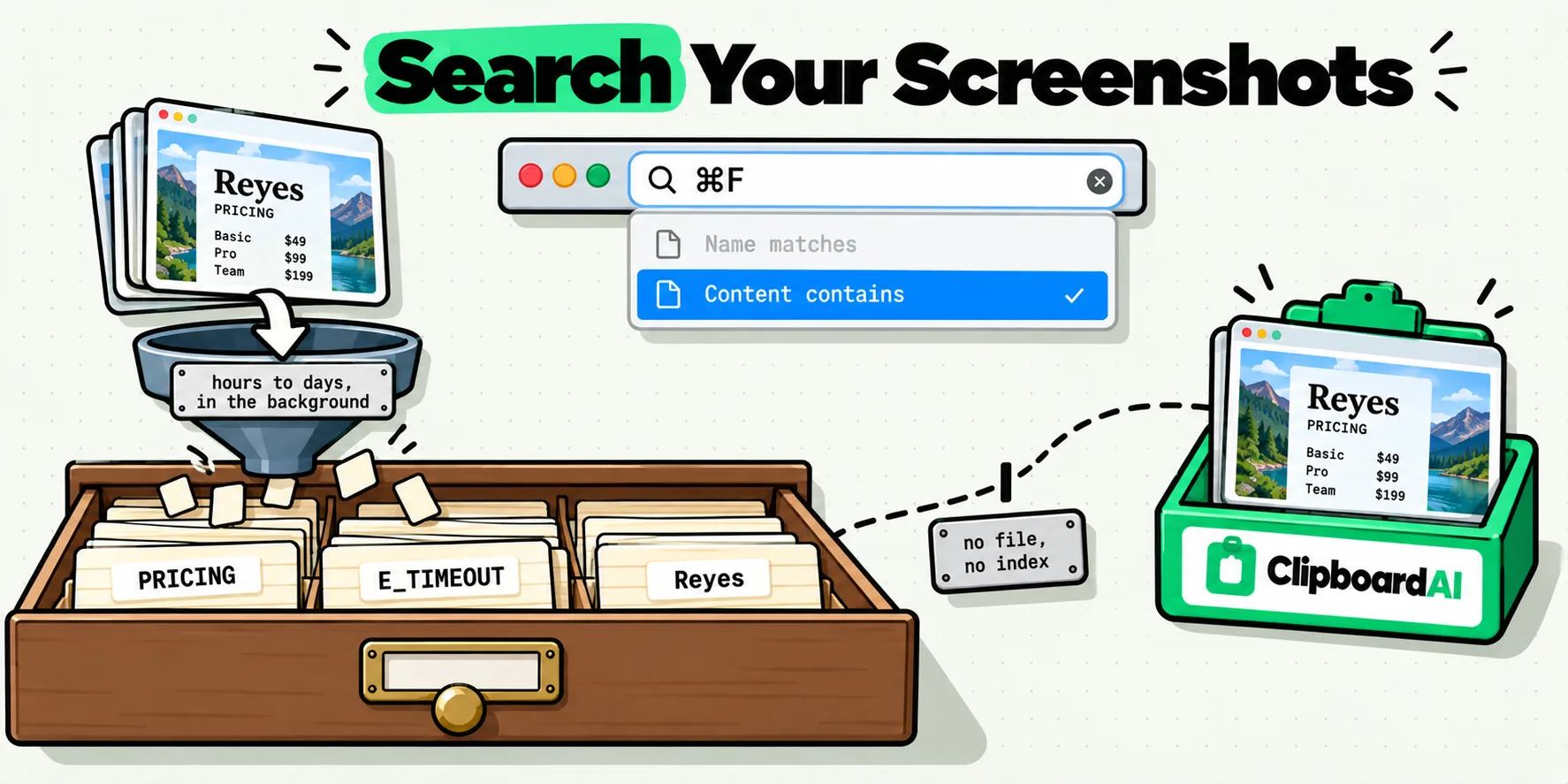
macOS can find image files by words printed inside them. Open a Finder window, press Command-F, type a word from the picture, and choose Content contains from the list that drops down. It works because macOS runs text recognition over image files in the background. The catch is timing: that recognition can trail the screenshot by hours or days, and it never touches an image you only copied, because a clipboard image never becomes a file.
Which is why this feels broken more often than it feels magic. Here is what reaches what.
The screenshot you know exists
Someone sent a Wi-Fi password as a photo of a router label. A colleague screenshotted an error rather than pasting the text. You grabbed a slide with a pricing table on it during a call. Three weeks later you need one of them, and you know for certain you have it, because you remember taking it.
So you scroll. Desktop, then Downloads, then the Messages thread, then the Photos library, squinting at thumbnails that all look like a rectangle of gray text. The information you need to search by is right there in the picture, visible to you, and apparently invisible to the machine. It is not invisible. It is just indexed somewhere you have never been shown.
The Finder search almost nobody uses
Sixty seconds, free, nothing to install. Try it before you decide macOS cannot do this.
- Open a Finder window at the folder you want to search, or at your home folder for everything.
- Press Command-F. The window becomes a search window.
- Type one distinctive word you remember seeing in the image. Not "invoice". Something like a surname, a product code, an error string.
- In the menu that appears under the field, choose Content contains rather than Name matches.
- Widen the scope to This Mac if the folder search comes back empty.
On a machine that has had time to do its background work, a screenshot containing that word turns up in the results alongside your documents. When it does not, the reason is usually one of the three below rather than a broken index.
What is actually doing the reading
Apple documents almost nothing about this. There is no support page describing image text search in Spotlight, no setting named for it, and no published statement about how long it takes or which files qualify.
The clearest public account comes from Howard Oakley of The Eclectic Light Company, writing on 13 August 2025. His description: a background service called mediaanalysisd performs the Live Text and object analysis separately from ordinary Spotlight indexing, and the results are added to the Spotlight indexes on the volume afterwards. Three consequences he spells out, and they explain most of the confusion:
Oakley notes you should not expect recovered text to be findable for "several hours or days" after the image lands, that images inside PDF files are excluded because they "are not analysed by mediaanalysisd", and that the Finder gives full access to this only when the term is entered as Content contains.
So the feature is real, undocumented by Apple, asynchronous, and dependent on your Mac having had idle time. A screenshot you took this morning is very likely not findable this afternoon. That is not a bug you can fix, and it is the single most useful thing to know before you spend an hour convinced your Spotlight index is corrupt.
One more thing from the same source that almost nobody knows: the same background pass records recognized objects, not just recognized text. Search for a common noun and you can turn up photographs that contain that thing with no writing in them at all. Oakley separates the two with search predicates, noting that kMDItemTextContent returns only the Live Text matches while a wildcard attribute returns recognized objects too. In Terminal that gives you a precise version of the Finder search:
mdfind "kMDItemTextContent == 'invoice*'cdw"The cdw suffix makes the comparison case-insensitive, diacritic-insensitive and word-based. It is the same index the Finder queries, so it carries the same lag, but it lets you ask for recognized text specifically rather than getting object matches mixed in.
Every route, and what each one can reach
These are the ways to get from "words I remember" to "the image containing them" on a Mac. Last checked 29 July 2026.
| Route | Finds the image from words inside it | Reaches an image you only copied | How soon after capture | The catch |
|---|---|---|---|---|
| Live Text in Quick Look, Preview or Photos | No. You have to be looking at the image already | No | Instant, once you have found it | It extracts, it does not retrieve. This is the one people mistake for an answer |
| Spotlight menu, Command-Space | Yes. Oakley describes global Spotlight as having full access to both recognized text and recognized objects | No, there is no file to index | Hours to days | No setting, no documentation, no progress indicator. You cannot tell whether it has read your image yet |
| Finder Find, Content contains | Yes, but only if you pick Content contains from the popup | No | Hours to days | Name matches is the default, and it will never find text inside a picture |
Terminal, mdfind with kMDItemTextContent | Yes, and it isolates recognized text from recognized objects | No | Same index, same lag | Predicate syntax, and no way to preview the results without opening them |
| Recognized objects, the Visual Look Up side of the same pass | Finds pictures by what is in them rather than by what is written on them | No | Hours to days | Apple publishes no vocabulary, so you are guessing at the labels it used |
| Photos app search | Yes. Apple documents searching "text within photos" | No, only what is in the library | Apple documents no timing | Only reaches images you actually imported into Photos |
| Clipboard history with OCR | Yes, in the same box you already search | Yes, that is the whole point | Seconds after the copy | Reads text, not scenes. No object recognition |
The extraction side of Live Text is covered separately in copying text from a screenshot on a Mac and, for the phone, in extracting text from screenshots on iPhone.
The blind spot: pictures that never became files
Every native route above indexes files. That leaves a category of image completely unreachable, and it is a category that grows every week you work this way.
Press Control-Shift-Command-4 and macOS puts the capture straight on the clipboard without writing a file. Paste it into a chat window and it is gone from your machine the next time you copy anything. Drag an image out of a web page and copy it. Copy a photo from Messages to send it somewhere else. None of those ever gets a filename, a folder or an index entry, so no amount of Finder searching will ever surface them. If you have lost one that way, recovering a screenshot you copied and lost covers the rescue.
This is also why "just save everything to the Desktop" is not the fix people think it is. It converts an invisible problem into two thousand files named Screenshot 2026-07-29 at 14.22.11.png, which are technically findable and practically not.
Recognized at copy time, searchable at 2am
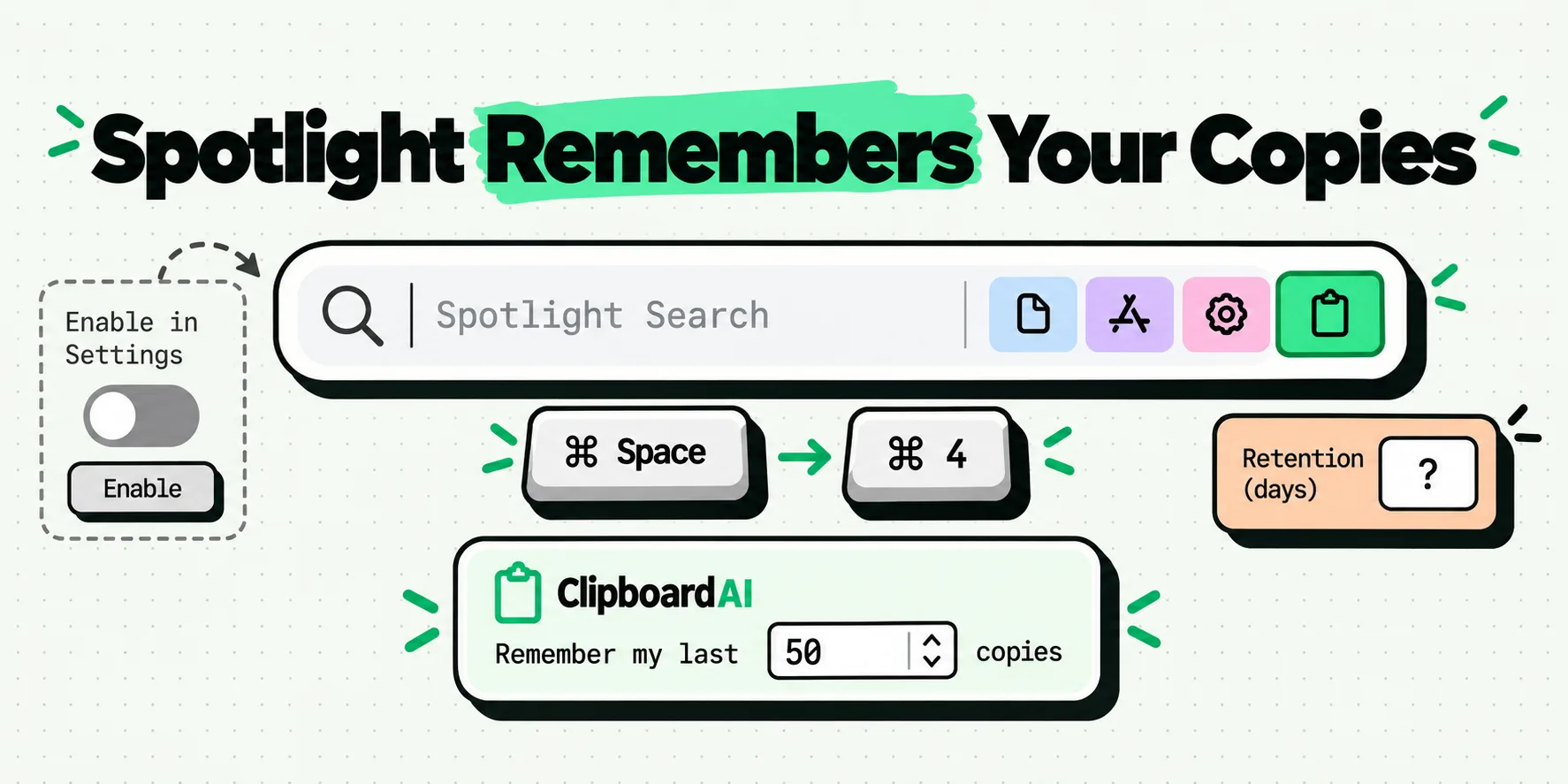
ClipboardAI closes the gap from the other end. Every image that lands in your clipboard history is queued for text recognition immediately, using Apple's Vision framework on your own machine, at its accurate setting, with the script detected per image so a receipt in one language and a code snippet in another both work. Images already in your history when you install get swept up in the same pass.
What that buys you is one search box. Open the floating panel with Command-Shift-V, or the All Clips window, type SSID or a surname or half an error message, and the screenshot containing it comes back with the matching line shown underneath the row so you can see why it matched. Recognized text is searchable in both places, not only in the big window. Same query, same box, whether the thing you are looking for was copied as text or photographed as a picture of text.
What a query actually matches
Worth knowing precisely, because it changes how you type. The search folds case and accents, matches on substrings rather than whole words, and requires every word you typed to appear somewhere.
| You type | What comes back | What does not | Why |
|---|---|---|---|
ssid | A screenshot showing SSID, ssid or MySSID-5G | Anything without those four letters in sequence | Case is folded away before the comparison |
cafe | Images reading café, Café or CAFÉ | Nothing that would otherwise match | Accents are folded too, so you never have to reproduce them |
pric | pricing, price, priced, repriced | Nothing containing none of those | Substring matching, so partial words work without a wildcard |
invoice 4471 | Only images containing both, in any order, anywhere in the picture | An image with invoice but no 4471 | Every whitespace-separated word has to hit. Two words narrow hard |
| A name you gave the clip | That clip, even when the picture contains different words | Unnamed clips with no matching text | Your own clip names and link titles are searched alongside the recognized text |
Three more details that matter more than they sound:
- Image rows get a real name. Rather than a list of clips all labeled "Image", each one is titled with the most visually prominent line the recognition found, picked by how large the text is rather than where it sits, so headline text wins over the menu bar clock.
- The recognized text stays on the device that did the recognizing. It is never synced. Each of your devices reads its own copy of the image, which means the feature adds precisely zero bytes to your iCloud sync.
- It is free. Recognition and search are not behind the Pro plan on either platform. The feature page is on-device text recognition, and the how-to is finding text in images.
Filter to Images in the sidebar first if you want to look only at pictures. General searching guidance is in searching your clips on the Mac, and if you are weighing apps rather than techniques, which clipboard managers read text in images has the comparison.
Where recognition falls down
Being specific here saves you from blaming the search box for a picture problem.
- It reads text, not scenes. You cannot search for "the photo of the whiteboard" unless words on the whiteboard were legible. There is no object recognition and no image description.
- Handwriting is unreliable. Printed and rendered text is what this is good at. A phone photo of scrawled notes will often come back with nothing.
- Resolution decides everything. A screenshot of a screenshot, or an image someone shrank before sending it, may genuinely have no recoverable text.
- Photographs of screens are hard. Moire, glare and angle cost you accuracy in a way a native screenshot never does. Take the screenshot rather than the photo of the screen whenever the choice exists.
- Language coverage is Apple's. Recognition uses the system framework, so the languages it handles are the ones Apple supports, not a list we control.
None of that changes the shape of the win. The screenshot from three weeks ago stops being something you scroll for and becomes something you type two words at, which is how you already find everything else.
Frequently Asked Questions
Can macOS search for text inside screenshots?
Yes, for image files, through a route Apple does not document. Open a Finder window, press Command-F, type a distinctive word and choose Content contains rather than Name matches. The Spotlight menu at Command-Space reaches the same index. Background analysis has to have read the image first, which can take hours or days after you take the shot, so a screenshot from this morning often will not appear. Images inside PDF files are excluded from that analysis entirely.
Why can I not find a screenshot by its text in Spotlight?
Usually one of three reasons. The background analysis has not reached that image yet, and Howard Oakley of The Eclectic Light Company notes it can lag by several hours or days. Or you searched by name rather than choosing Content contains in the Finder. Or the image never became a file at all, which is what happens when you capture with Control held or copy a picture straight out of a web page.
Does Live Text let me search my screenshots?
No. Live Text is extraction, not retrieval: it makes text inside an image you are already looking at selectable and copyable in Quick Look, Preview, Photos and the camera. It has no index and no search box of its own. Finding the right image in the first place is a separate job, handled by Finder content search for files, Photos search inside your library, or a clipboard history that runs its own recognition.
How does ClipboardAI make copied screenshots searchable?
Every image clip is queued for text recognition the moment it is captured, using Apple's Vision framework on your own device. The recognized text becomes that clip's searchable text, so typing a word from the picture into the floating panel or the All Clips window returns the image, with the matching line shown under the row. Matching folds case and accents and works on substrings, and every word you type has to appear. Images already in your history are swept up too.
Is the recognized text synced to my other devices?
No. Recognition results stay on the device that produced them. Each Mac, iPhone or iPad reads its own copy of the image and builds its own text, which means the feature adds nothing to what iCloud sync carries between your devices. It also means you do not have to wait for a sync round trip before a screenshot becomes searchable on the machine you are sitting at.
What kinds of images does OCR fail on?
Low resolution first: a screenshot of a screenshot, or an image compressed before it was sent, may have nothing recoverable. Handwriting is unreliable, since the recognition is tuned for printed and rendered text. Photographs of screens suffer from glare and angle in a way a native screenshot does not. And language coverage is whatever Apple's framework supports, since the recognition is Apple's rather than something we trained.