On this page
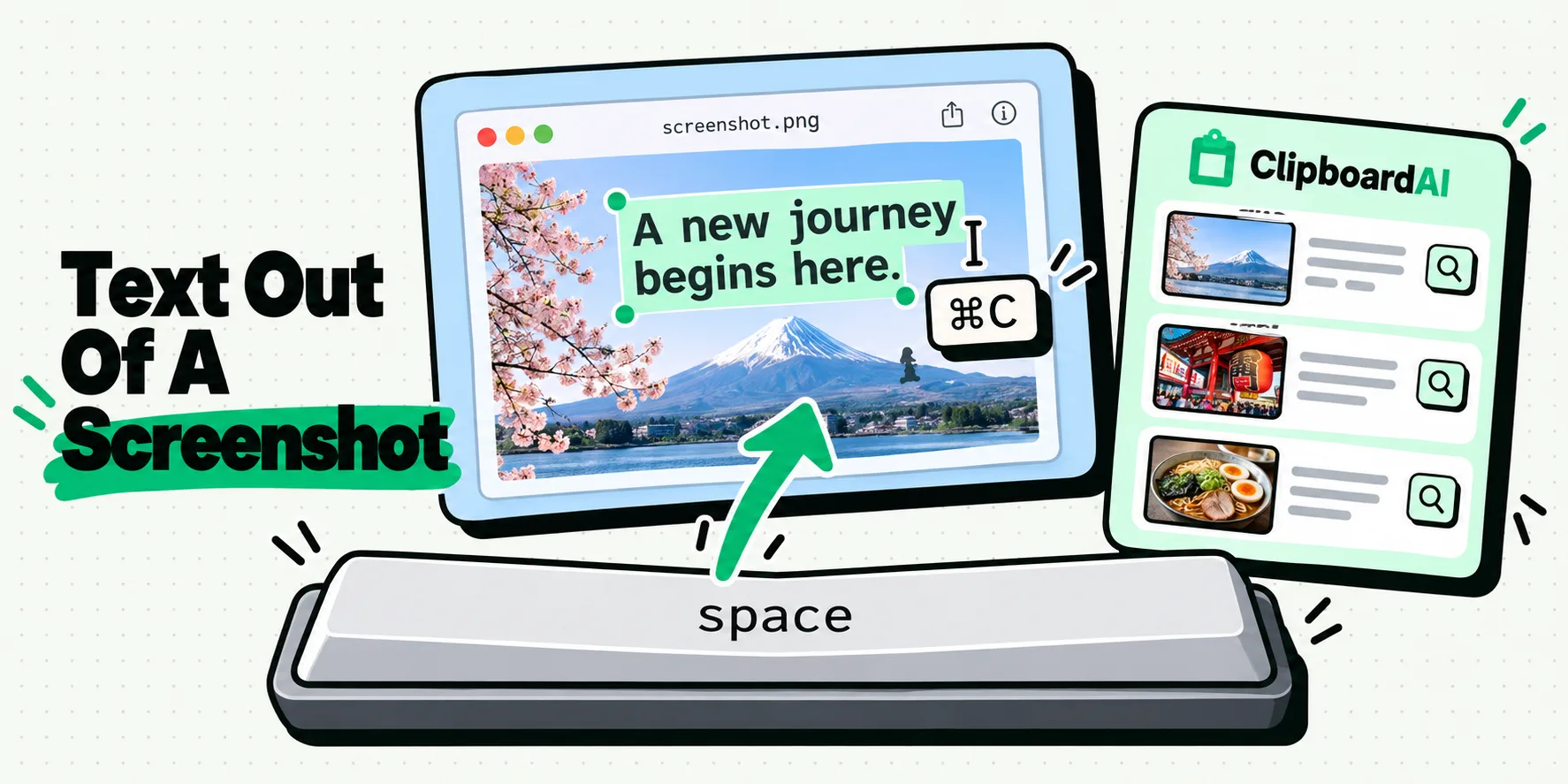
Select the screenshot in Finder, press Space to open Quick Look, drag across the words, then press Command C. Live Text runs inside Quick Look, so there is no need to open Preview and nothing to install. If the words refuse to highlight, the usual reasons are an image too low in resolution to recognize, or a language Apple does not list as supported.
That is the answer for the ordinary case. The interesting part of this question is the other one, the "Live Text is not working on my Mac" case, where nearly every page you will find tells you to flip a setting that Apple has never documented.
Start with Quick Look, not Preview
You almost certainly already have the screenshot sitting on your Desktop. Do not open Preview, do not open Photos, and definitely do not go looking for an app.
- Click the file once in Finder or on the Desktop.
- Press the Space bar. Quick Look opens the image full size.
- Move the pointer over the text. The cursor changes from an arrow to a text cursor, which is your confirmation that recognition has found words.
- Drag across what you want, or press Command A to take the lot, then Command C.
Quick Look is the fastest route because it needs no app launch and closes with another tap of the Space bar. Preview does the same job and is worth opening only when you want to keep the file open, mark it up, or work through several images in sequence.
Where this works on a Mac, and how to trigger it
Text recognition is not a single feature you turn on. It appears in specific places, with a different gesture in each. This is where to try it and what to expect. Last checked: July 28, 2026.
| Where | How to trigger it | What to expect |
|---|---|---|
| Quick Look (Space bar in Finder) | Hover, then drag across the text | The quickest route. Also works from the Desktop and from Finder's Gallery view. |
| Preview | Open the image, drag across the text, Command C | Same behavior, plus you can keep the window open while you paste elsewhere. |
| Photos | Open the image, then select the text directly | Useful for screenshots that came across from an iPhone through iCloud Photos. |
| Safari | Select text inside an image on a web page | Handy when the words on a page were never text to begin with, so ordinary selection does nothing. |
| The screenshot thumbnail | Click the thumbnail in the corner right after capturing, then select | Fastest of all if you catch it before it disappears. Miss it, and use Quick Look instead. |
| Mail and Messages attachments | Quick Look the attachment, then select | Saves downloading the file first. |
| A clipboard manager with recognition | Copy or capture as normal, then read or search the recognized text | The difference here is not extraction, it is that the text becomes searchable later. |
"Live Text is not working on my Mac"
Here is where we part company with most of the results for this query, so it is worth being precise about what is documented and what is not.
On iPhone and iPad, Apple documents everything. The hardware requirement is an iPhone XS or XR or later on iOS 15 or later, and a comparable iPad on iPadOS 15.1 or later. The switch is at Settings, General, Language and Region, Live Text, with a separate camera-only control at Settings, Camera, Show Detected Text. If a colleague's iPhone will not do this, that is where you send them.
On macOS, Apple documents none of it. There is no Apple page giving a macOS Settings path for Live Text, no Apple page stating a Mac hardware requirement, and no Apple explanation of why a control appears grayed out. Apple's feature availability page for macOS lists languages, and it lists them without any Apple silicon requirement attached.
If a page tells you that Live Text on Mac requires Apple silicon, or gives you an exact System Settings path for it, ask where that came from. We could not find an Apple source for either, so we are not going to print one.
What Apple does say is that support is not available in all regions or languages, and it publishes per-platform language lists. The macOS list is noticeably shorter than the iOS one. That single fact explains a large share of the "it works on my phone but not my Mac" reports, and almost nobody writing about this mentions it.
So the honest troubleshooting list for a Mac is short. Confirm the language in the image is one Apple lists for macOS. Confirm the Mac is on a current macOS version. Make the image bigger, since recognition on a downscaled or heavily compressed screenshot fails in ways that look like the feature being switched off. If the words are handwritten, expect very little. And if you need recognition for a language macOS does not cover, a dedicated tool is the answer rather than a setting.
Capturing straight to the clipboard
Half the friction in this job is the file. You take a screenshot, it lands on the Desktop, you open it, copy the text, then remember to delete the file. Skip the file entirely.
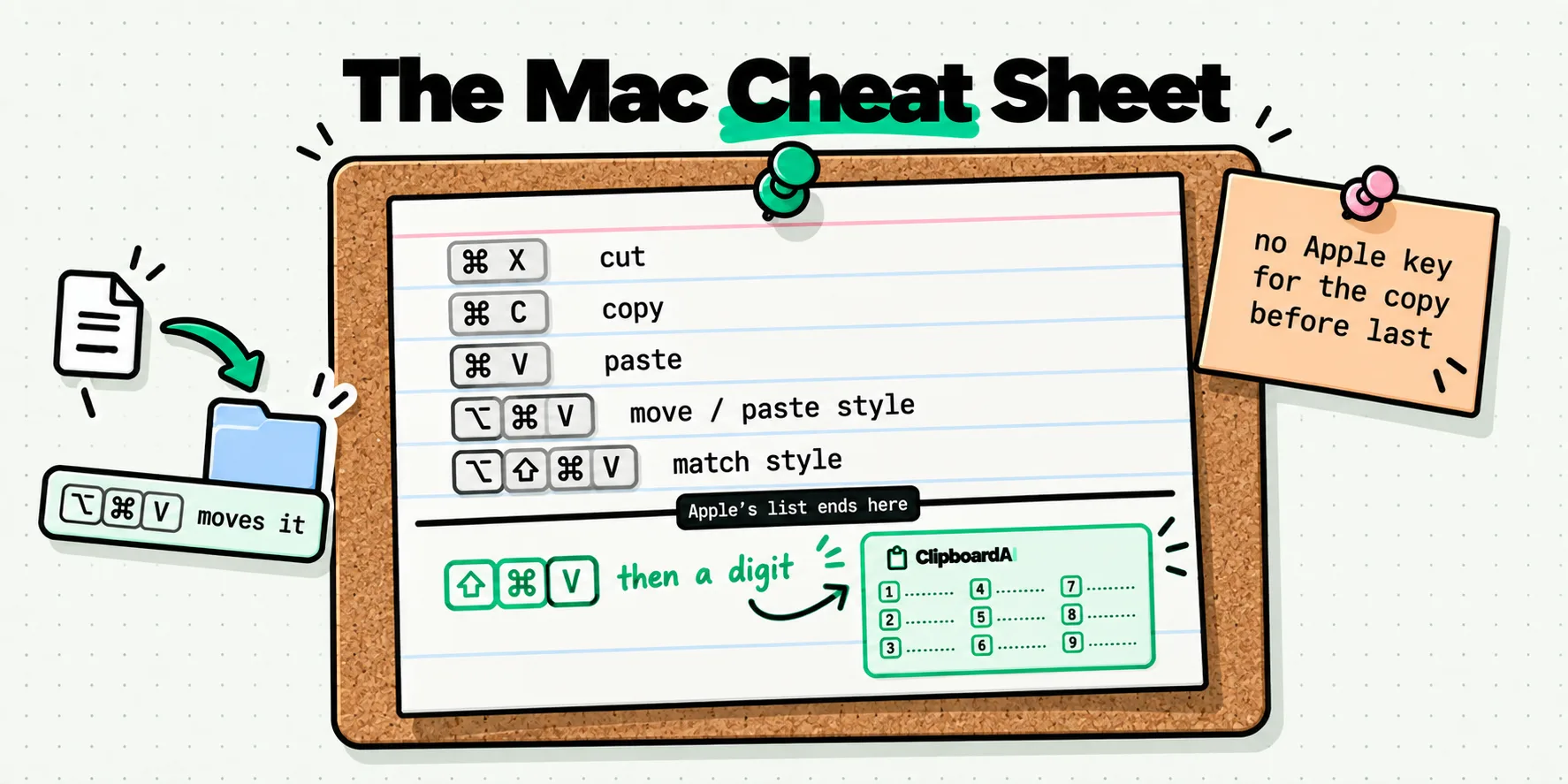
- Control Command Shift 4 captures a selected area straight to the clipboard instead of writing a PNG.
- Control Command Shift 3 does the same for the whole screen.
- Command Shift 5 opens the capture toolbar, where Options lets you set the destination to Clipboard permanently.
The trade-off is real and worth stating: an image on the clipboard is invisible. You cannot look at it, you cannot search it, and the next thing you copy destroys it. That is fine when you are pasting it into a message five seconds later, and genuinely annoying when you are collecting six of them.
What recognition gets wrong
Recognition reads words, not documents, and the gap between those two things causes most of the complaints.
- Layout is flattened. Two columns become one run of text. Table rows lose their alignment. Indented code loses its indentation, which matters more than people expect.
- Similar characters get swapped. Zero and capital O, one and lowercase L. In prose you never notice. In a serial number, an API key or an IBAN it is a silent error, so check identifiers character by character rather than trusting them.
- Handwriting is unreliable. Printed text is the job it is good at.
- Resolution decides accuracy. A screenshot of a screenshot, or an image someone sent through a chat app that recompressed it, is much harder to read than the original capture.
- Only what is on screen is captured. A long page needs several screenshots, and stitching them back together is on you.
If you are doing this on an iPhone rather than a Mac, the same limits apply and the gestures differ. We covered that in getting text out of screenshots on iPhone and, for the general case, recognizing text anywhere with Live Text.
Making the screenshot findable next month
Everything above is free and built in, and for occasional use it is all you need. What none of it leaves behind is a trace: Live Text reads an image while you are looking at it and remembers nothing afterwards. The reason to add anything is not extraction. It is finding it again.
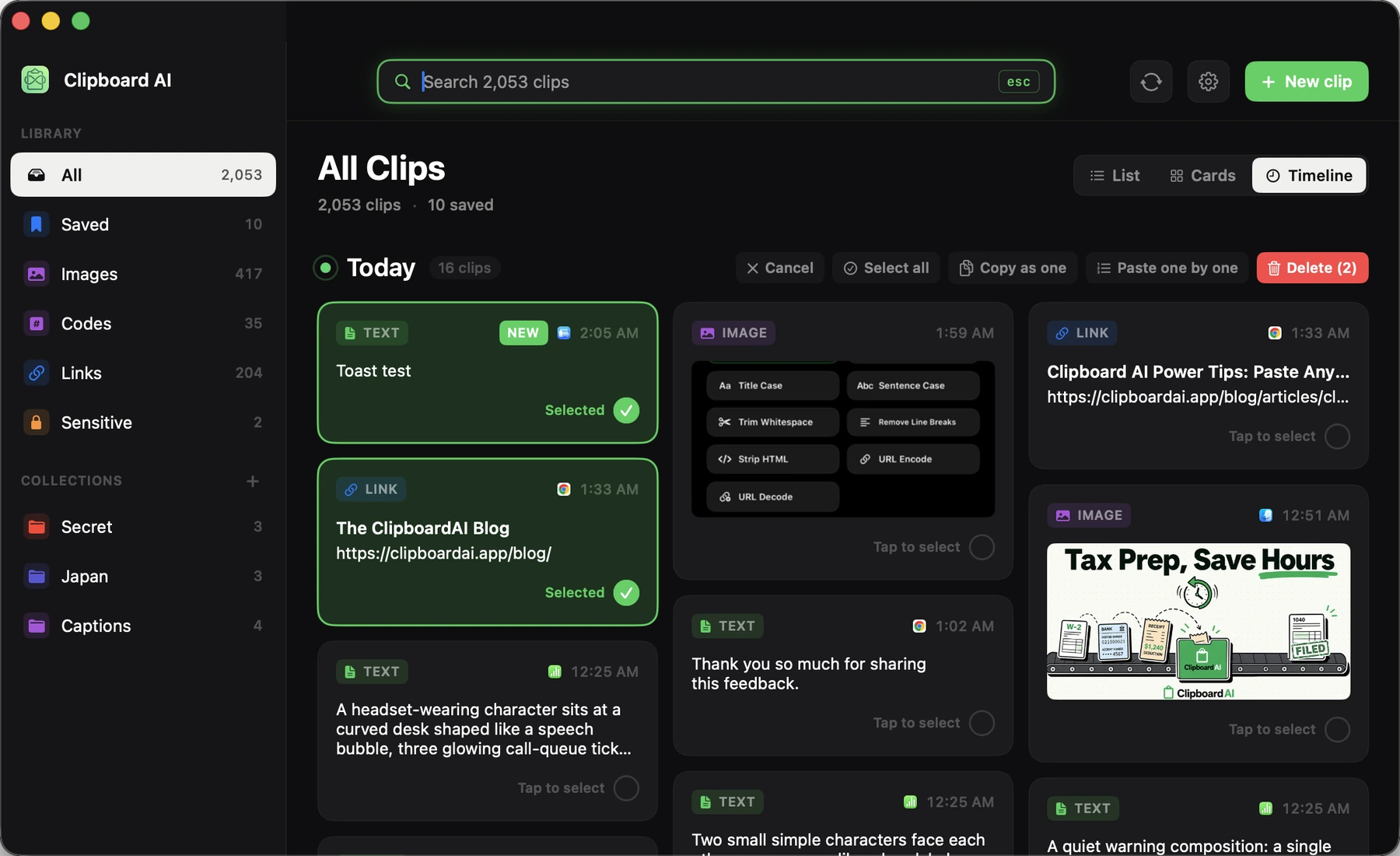
ClipboardAI reads the text inside image clips with Apple's Vision framework, on the device, with no network request involved, and stores what it finds as the thing that image is searchable by. Copy a screenshot of an error message today and three weeks later you find it by typing a phrase from the error, instead of scrolling a wall of identical gray thumbnails. On iPhone the same clip shows a Text in Image block with a Copy Text button, so you can lift the words out as text whenever you want them. Each device runs its own recognition pass and keeps the result locally, which is why an image-heavy history can sync without the sync getting heavy.
Two things worth knowing. Recognition uses the same on-device framework Apple ships, so accuracy is Apple's accuracy and the win is entirely in what happens next: the result is stored, searchable and still there next month. And you keep taking screenshots exactly as you do now, including Control Command Shift 4 straight to the clipboard, because on the Mac ClipboardAI catches whatever lands on the pasteboard automatically. That pairing is the one worth building a habit around, since it turns an image on the clipboard from something invisible and destructible into a clip you can look at, search and paste again a month later.
There is more on the text recognition feature page, in reading text inside images, and on the Mac app page. Recognition is free on both platforms, and syncing that history between your Mac and iPhone is a Pro feature running through your own iCloud account. Six screenshots grabbed across an afternoon stay six searchable clips instead of one survivor.
Frequently Asked Questions
Why is Live Text grayed out on my Mac?
Apple has never published an explanation, and it does not document a macOS Settings path for Live Text at all, so treat any page that gives you one with suspicion. What Apple does publish is a per-platform list of supported languages, and the macOS list is shorter than the iOS one. A language the Mac does not cover is the most likely cause, followed by an image too small or too compressed to recognize.
Which Macs support copying text from images?
Apple publishes hardware requirements for iPhone and iPad, an iPhone XS or XR or later on iOS 15 or later, but it does not publish an equivalent Mac hardware requirement. Its macOS feature availability page lists languages only, with no Apple silicon requirement attached. Pages telling you that you need an Apple silicon Mac are not citing Apple. Run a current macOS version and try Quick Look before assuming your Mac is too old.
Does copying text from a screenshot work offline?
Apple does not document whether Live Text processing happens on the device, so we will not claim it either way. What we can state about our own app is verifiable in its code: ClipboardAI recognizes text in image clips using Apple's Vision framework locally, with no network request involved, and the recognized text never leaves the device that produced it.
How do I take a screenshot straight to the clipboard on Mac?
Press Control Command Shift 4 to capture a selected area to the clipboard instead of saving a file, or Control Command Shift 3 for the whole screen. Command Shift 5 opens the capture toolbar, where Options lets you set Clipboard as the permanent destination. Remember that an image on the clipboard is invisible and is destroyed by the next thing you copy.
Why is the text I copied from a screenshot full of mistakes?
Accuracy tracks image quality closely. A screenshot of a screenshot, or an image a chat app recompressed, is much harder to read than an original capture. Layout is also flattened, so columns merge and indentation is lost. The errors that matter most are character swaps in identifiers, where zero and capital O look alike. Check keys, serial numbers and account numbers by eye before using them.
Can I search my old screenshots by the words inside them?
ClipboardAI does exactly this for image clips: the recognized text becomes what the image is searchable by, so a screenshot of an error message is findable weeks later by typing a phrase from the error rather than hunting through thumbnails. Live Text on its own will not, because it extracts text at the moment you look at an image and stores nothing afterwards. Searching old screenshots needs something that keeps the recognized text alongside the image.