On this page
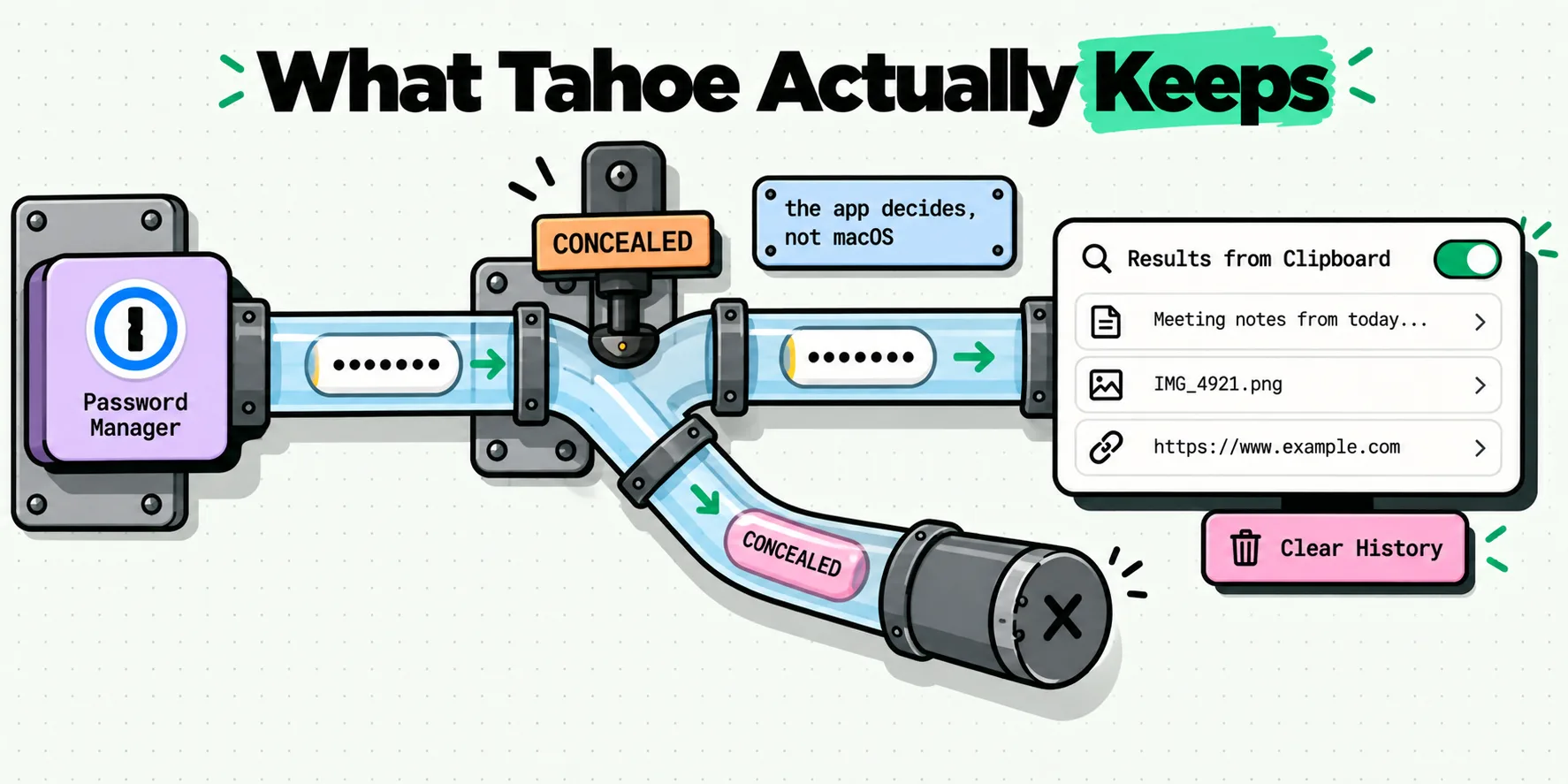
Spotlight's clipboard history in macOS Tahoe keeps what reaches the clipboard, and Apple documents no exclusion for secrets. Its support page carries one privacy line: sensitive information may appear on the Clipboard. Whether a given password is kept comes down to whether the app you copied it from flagged the write as concealed, which is the password manager's choice, not macOS's. Three settings and one habit decide the rest.
This is a configuration page, not an alarm. Here is what is documented, what is only observed, and what to change.
The moment this actually happens
You are signing into a router admin page, or an old intranet portal, or a desktop app that has never heard of AutoFill. The password field refuses to accept a filled value, so you open 1Password or Bitwarden, hit copy, click into the field and paste. Thirty seconds of work.
That copy is the whole story. Everything on this page is about what happened in the two seconds the password spent on the pasteboard, and about which of the three or four things watching the pasteboard wrote it down.
What Tahoe keeps, in Apple's own words
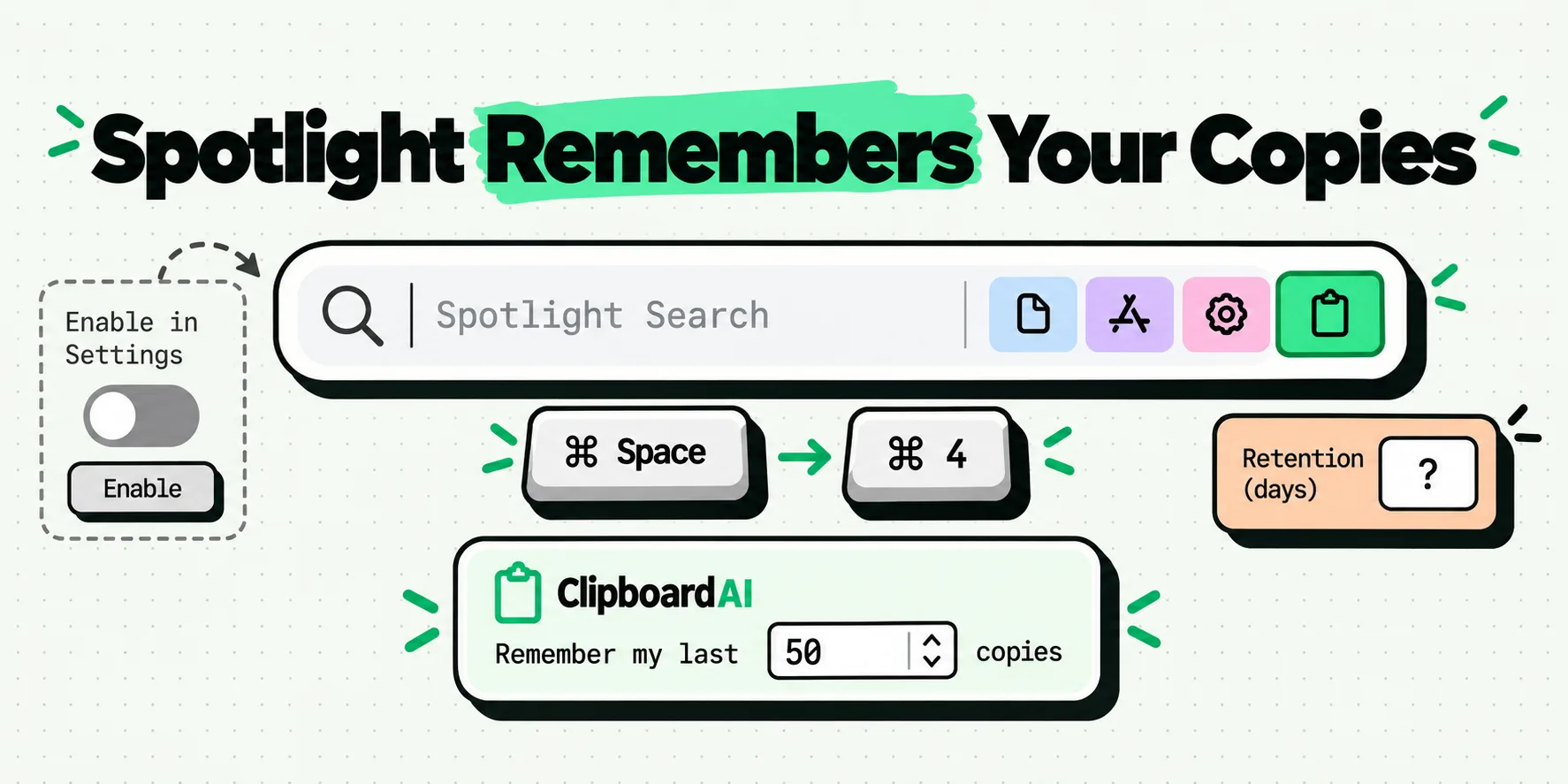
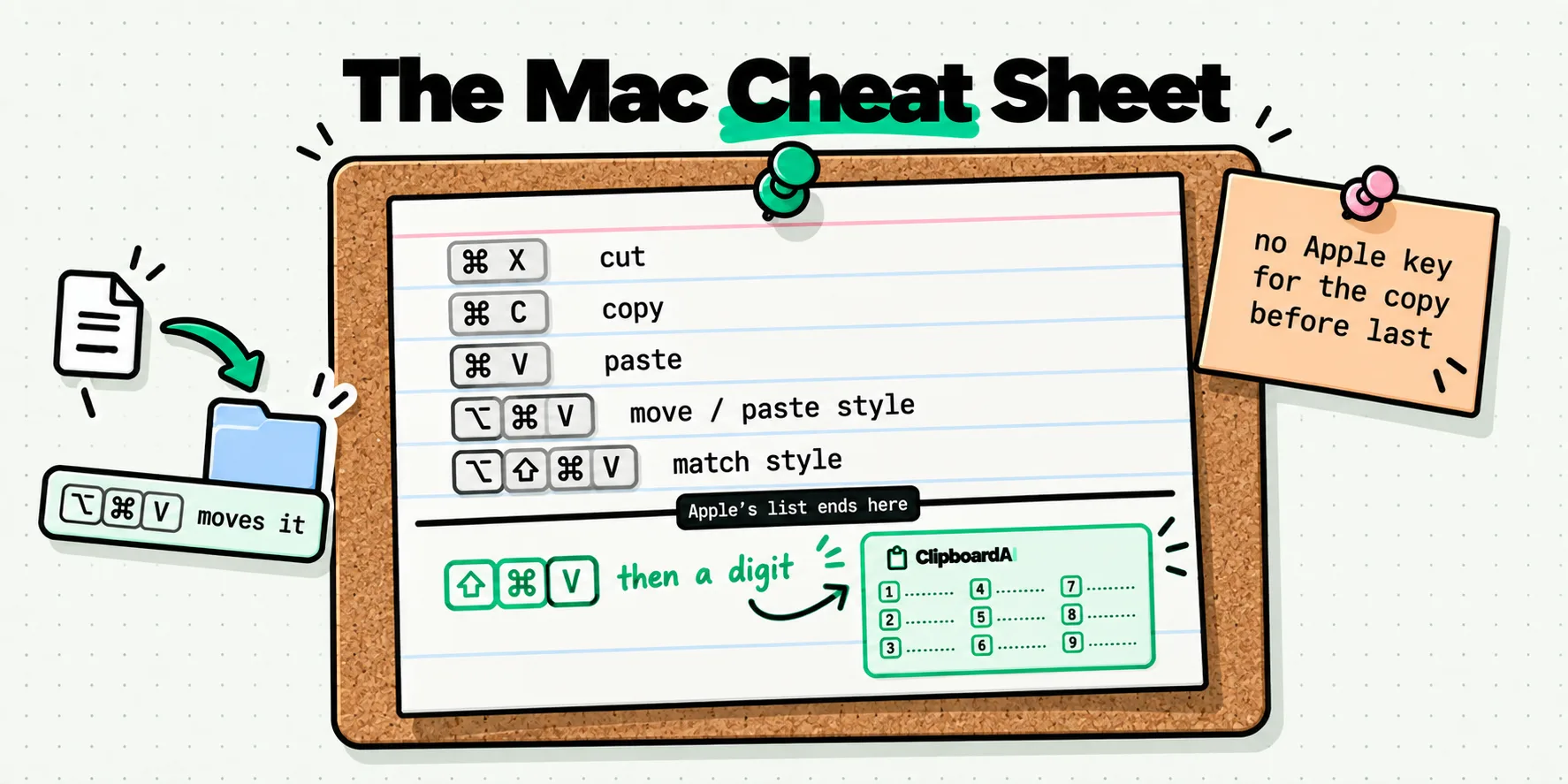
Apple's Mac User Guide page for the feature is short. It tells you to press Command-Space and then Command-4, notes that the first time you search your Clipboard you may be asked to click Enable, explains that the More button to the right of the search field has a Clear History option, and adds one sentence about privacy: sensitive information may appear on the Clipboard.
Read that sentence carefully, because it points the opposite way from the reassurance people expect. It is a caution that secrets can land in the history. It is not a promise that they are filtered out.
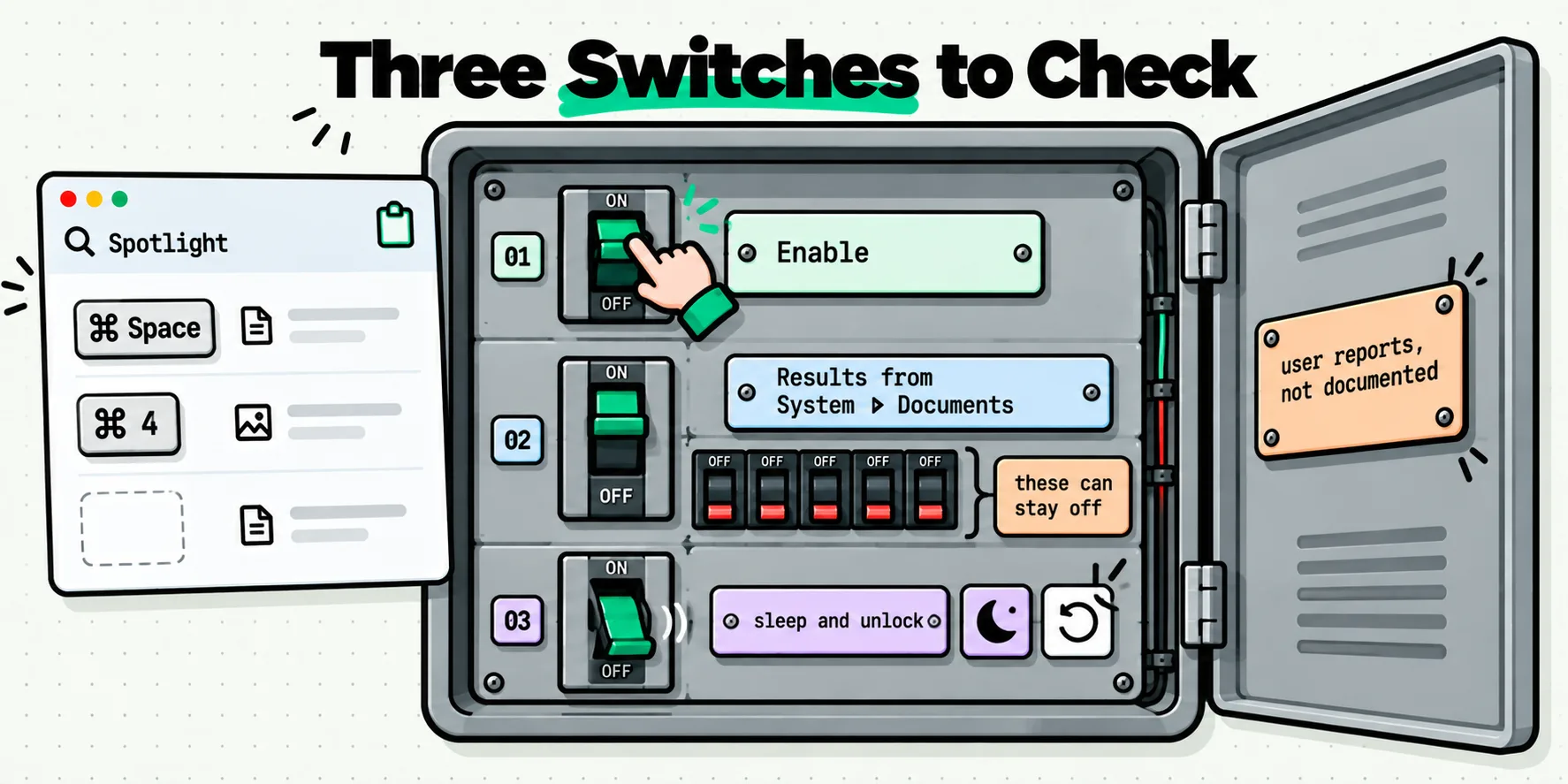
The wording in System Settings says the same thing more directly. On macOS 26.2, checked on 29 July 2026, the Spotlight pane carries a switch labeled Results from Clipboard with this explanation underneath: Allow Spotlight to search and display items you have copied to your clipboard. Personal and sensitive information may appear in search results. Below it sits a Clear Clipboard History button, separate from the one that clears your Spotlight search history.
Apple publishes no retention period for this feature. MacRumors and 9to5Mac both reported on 4 November 2025 that macOS 26.1 added a picker with 30 minutes, 8 hours and 7 days, and that 8 hours had been the fixed behavior before that. Both were describing what they saw in the settings pane. Apple did not mention it in the release notes and still documents no number, so if you see 8 hours quoted with Apple's name attached, that attribution is wrong.
Sixty seconds, right now, free
Do these two things before reading any further. They cost nothing and they close most of the gap.
- Open System Settings, go to Spotlight, and turn the clipboard history timeout down to its shortest option. If you mostly use the feature to recover the thing you overwrote a minute ago, thirty minutes covers you completely and a week does not buy you anything you will use.
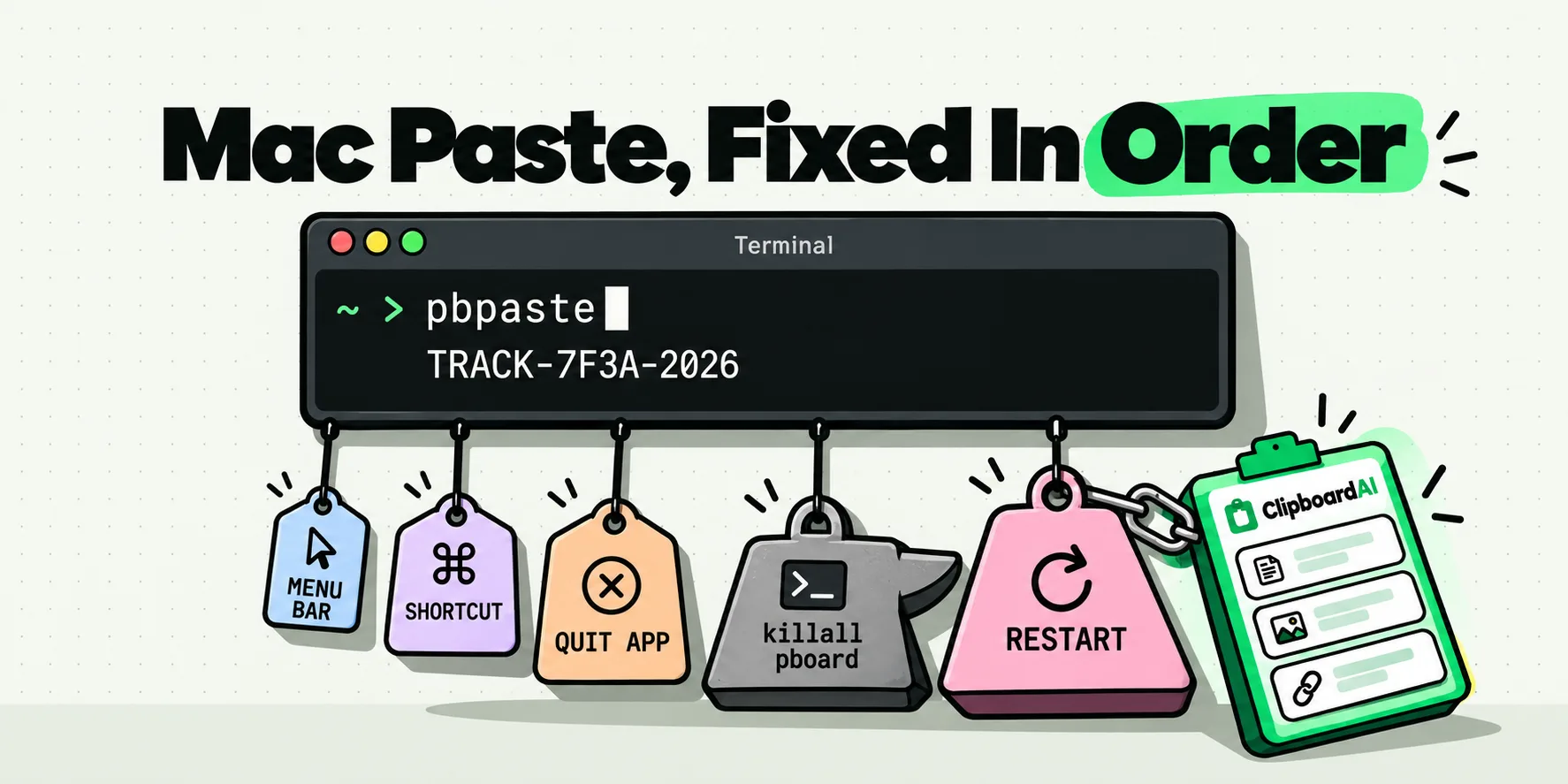
- Copy something harmless immediately after any password. A single word. It costs one keystroke and it means the secret stops being the most recent item on the pasteboard, which is the item most likely to be pasted by accident into the wrong window.
If you want a third, turn on your password manager's clipboard auto-clear. 1Password ships this on by default as Remove copied information and authentication codes after 90 seconds. Bitwarden ships a Clear clipboard setting per client, and its own documentation tells you to set it to a value other than Never, which strongly implies it arrives switched off. Bitwarden does not publish the default, so go and look rather than assuming.
The marker that decides everything
There is a long-standing community convention for this, hosted at nspasteboard.org, and it is the mechanism the rest of this page hangs on. An app writing to the clipboard can attach an extra type alongside the text to say what kind of write it is. Three matter:
org.nspasteboard.ConcealedType: content that should be treated as confidential. If displayed on screen it should be visually obfuscated. Avoid recording it to a file, or consider encrypting it.org.nspasteboard.TransientType: content that will be on the pasteboard only momentarily.org.nspasteboard.AutoGeneratedType: content an app generated, that the user never intended to copy.
It is a convention, not an Apple standard, and that distinction is doing real work here. Apple has never documented whether Spotlight's clipboard history honors it. In an Apple Developer Forums thread opened in July 2025 asking exactly this question, the poster reported that a string copied with the concealed and transient markers did not show up in Tahoe's clipboard history while an unmarked one did. Every reply came from another developer. No Apple engineer answered, and the practical advice in the thread was to treat the pasteboard as unsuitable for confidential data in the first place.
The convention is at least known to the system: the three marker identifiers, along with 1Password's older private pasteboard type, are present in macOS 26.2's own pasteboard code. That tells you the system recognizes the vocabulary. It does not tell you what Spotlight does with it, and it is not something Apple has committed to in writing, so the honest reading is that marked clips currently appear to be skipped and that this could change in any point release.
Where your secret came from decides where it ends up
This is the table to keep. The column that surprises people is the second one, because the same password manager behaves differently depending on whether you copied from its app or its browser extension. Last checked: July 29, 2026.
| You copied from | Marked as concealed? | Likely kept by Spotlight history | Do this |
|---|---|---|---|
| 1Password desktop app | Listed by nspasteboard.org as a supporting app. 1Password does not document it | Reported not kept, unconfirmed by Apple | Leave the 90 second auto-clear on. It is on by default |
| 1Password browser extension | Community reports say extension copies were not marked | Assume kept | Prefer the desktop app when you have to copy a real secret |
| Bitwarden desktop app | Community reports say it sets the concealed marker | Reported not kept, unconfirmed by Apple | Set Clear clipboard in Settings, Preferences to something other than Never |
| Bitwarden browser extension | An open feature request asks for exactly this. No commitment from Bitwarden | Assume kept | Set Clear clipboard in Settings, Autofill, and use the desktop app for high-value secrets |
| Passwords app or iCloud Keychain, via AutoFill | Nothing is copied at all | Not kept, because nothing reached the clipboard | Nothing. This is the safest path and it is free |
| A password you typed into a note, then copied | No | Kept | Clear the history afterwards, and stop keeping it in a note |
Terminal, including pbcopy | No | Kept | Add Terminal to an ignored-apps list in your clipboard manager |
| A Copy button on a bank or 2FA website | No. Browsers have no equivalent API | Kept | Paste it, then clear that single item straight away |
The pattern is simple enough to remember without the table. Native Mac apps can opt out of clipboard history. Browser extensions and websites cannot. Anything that reaches the clipboard through a web page is unmarked, which is why the browser is where most accidental retention happens.
Configuring it properly, in about three minutes
- Decide whether you want the feature at all. System Settings, Spotlight, then the Results from Clipboard switch. Off means no clipboard history is recorded. It is a real option, and if you already run a clipboard manager it is arguably the tidier setup, because two histories means two things to clear on the day it matters.
- If you keep it on, shorten the timeout. The picker sits next to the switch.
- Learn where the clear button is before you need it. Two places: the More button inside Spotlight's clipboard scope, and Clear Clipboard History in System Settings. Neither clears the current clipboard, so follow either one with a throwaway copy.
- Check your password manager's auto-clear. 1Password: Settings, Security. Bitwarden desktop: Settings, Preferences, Clear clipboard. Bitwarden extension: Settings, Autofill, Clear clipboard.
- Prefer AutoFill every time it is offered. A password that never touches the pasteboard cannot be recorded by anything.
If Spotlight's clipboard history is not appearing at all while you do this, that is a separate and surprisingly common problem, and we cover the fixes in Spotlight clipboard history not working. The feature's mechanics, including how to enable it in the first place, are in how macOS clipboard history works inside Spotlight.
The setup that takes this off your mind
The reason to run a proper clipboard manager here is control. You get to decide what is never recorded, instead of hoping something upstream marked it correctly.
ClipboardAI on the Mac skips any write flagged with the nspasteboard.org transient, concealed or auto-generated markers, automatically, with nothing to configure. That is the section called Auto-honored privacy markers in Settings, Privacy, and it is there because honoring the marker is the difference between a clipboard manager and a credential-leak vector. On top of it sits Ignored Apps, where you add an app by name and nothing copied while it is frontmost is ever saved. Terminal, iTerm2, your password manager, your banking app: name them once and they are permanently out of scope.
Then there is the case the markers cannot help with, which is the code or key you copied from a website. Open the panel with Command-Shift-V, hold Shift, and pick the clip: it pastes and deletes itself from your history in the same gesture, and because deletions travel through sync as tombstones, it goes from your other signed-in devices too. Hold Control instead and the clip is deleted without being pasted, for the moment you realize something is in there that should not be. Both are free, and both are listed in Settings, Shortcuts, under Paste Modifiers.
None of that encrypts your clipboard, and no clipboard manager's does, ours included. What it does is make the answer to is that still sitting somewhere a thing you configured rather than a thing you hope about. More detail lives on the Mac app page and in privacy and data. For the wider habit set, keeping passwords out of clipboard history and password manager clipboard timeouts are the two worth reading next.
Spend five minutes on the settings above and the next time you have to copy a password out of a manager, the only thing that happens is that it gets pasted.
Frequently Asked Questions
Does macOS Tahoe save copied passwords?
It saves whatever reaches the clipboard, and Apple documents no exclusion for secrets. The only privacy line on Apple's support page is that sensitive information may appear on the Clipboard, which is a warning rather than a filter. Whether a specific password is kept depends on whether the app you copied it from marked the write as concealed, and that is a decision the password manager makes, not macOS.
Does Spotlight clipboard history respect the concealed flag?
Apple has never said. In a July 2025 Apple Developer Forums thread, a developer reported that a string copied with the org.nspasteboard concealed and transient markers did not appear in Tahoe's clipboard history while an unmarked string did. No Apple engineer answered the thread, and no Apple documentation mentions the convention. Treat it as observed behavior that could change in a point release, not a guarantee.
How do I clear Spotlight clipboard history on a Mac?
Two routes. In Spotlight, press Command-Space, then Command-4, then click the More button to the right of the search field and choose Clear History. Or open System Settings, go to Spotlight, and use the Clear Clipboard History button in the clipboard section. Neither one clears the current clipboard itself, so copy a harmless word afterwards if you want the last item gone as well.
How long does macOS keep clipboard history?
Apple publishes no retention period on its support page, and never has. MacRumors and 9to5Mac both reported on 4 November 2025 that macOS 26.1 added a picker offering 30 minutes, 8 hours or 7 days, and that 8 hours had been the fixed value before that. Those figures come from their observation of the settings pane, not from Apple documentation, so quote them that way.
Is a third-party clipboard manager safer than Spotlight?
It is more controllable, which is a different thing. A manager that honors the nspasteboard.org markers skips flagged writes automatically, and one with an ignored-apps list lets you name the apps whose copies should never be recorded at all. Spotlight offers a single on-off switch, a timeout and a clear button. Neither approach encrypts the clipboard, so the habits below still matter with both.
Does using AutoFill keep passwords out of clipboard history entirely?
Yes, and it is the only method that does so with certainty. AutoFill hands the value straight to the field, so nothing is ever written to the pasteboard and there is nothing for any history, Apple's or otherwise, to record. Copying is the step that creates the exposure. When a site or app refuses AutoFill and you have to copy, that is exactly the moment the settings and markers on this page start mattering.