On this page
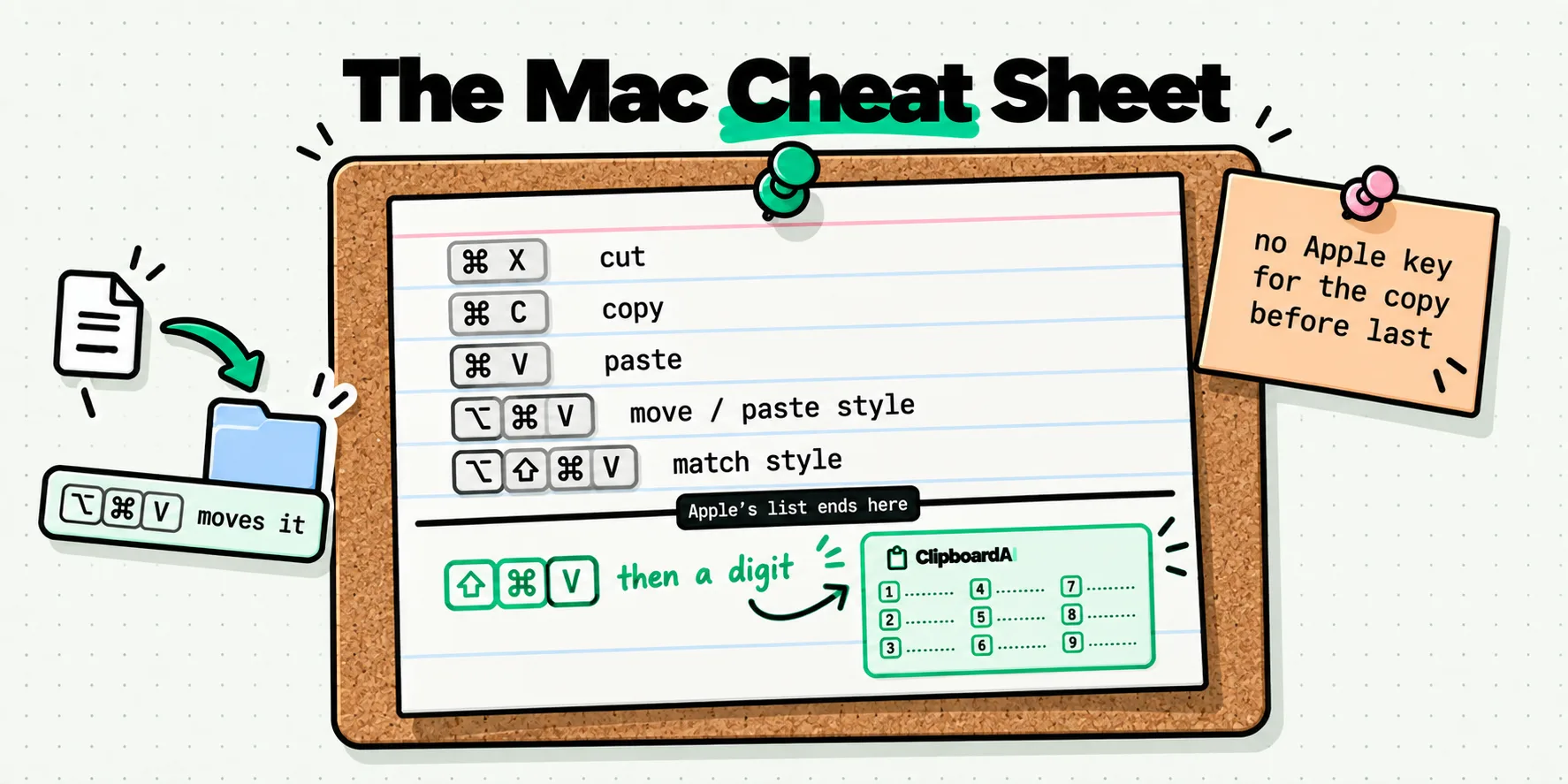
macOS documents five clipboard shortcuts and no history: Command-X to cut, Command-C to copy, Command-V to paste, Option-Command-V for Paste Style (or Move, in the Finder), and Option-Shift-Command-V for Paste and Match Style. There is no Apple key combination that pastes the copy before the last one. That layer comes from a clipboard manager: one global hotkey, then a digit.
Below is the full set worth memorizing, split into what Apple gives you and what has to be added, with the exact keys for each. All of it is macOS: on an iPhone driven by VoiceOver and touch, the same task runs through the Edit rotor rather than a key combination.
The five Apple documents, verbatim
These are Apple's own descriptions from its Mac keyboard shortcuts page. Last checked: July 29, 2026.
| Keys | Apple's wording | Where it bites |
|---|---|---|
⌘X | Cut the selected item and copy it to the Clipboard. | Does not cut files in the Finder. Files use Command-C then Option-Command-V. |
⌘C | Copy the selected item to the Clipboard. This also works for files in the Finder. | Every copy destroys the previous one. |
⌘V | Paste the contents of the Clipboard into the current document or app. | Carries formatting with it unless the destination refuses it. |
⌥⌘V | Move the files in the Clipboard from their original location to the current location. In text: Paste Style. | Two different jobs on the same keys, decided by what you copied. |
⌥⇧⌘V | Paste and Match Style: Apply the style of the surrounding content to the item pasted within that content. | Four keys. This is the one people give up on and use a text editor for instead. |
Two things are worth pulling out of that table. Command-Shift-V does not appear anywhere in Apple's list. It is a Windows and Chrome habit that people bring across, which is why it sometimes works in a browser tab and never in TextEdit. And Option-Command-V has a split personality that almost nobody exploits.
Sixty seconds: stop dragging files between windows
Try this now, because it is free and it is the highest-value thing on this page for most people.
- In the Finder, click a file once and press
⌘C. - Open the folder you actually want it in.
- Press
⌥⌘V.
The file moves rather than copies. No dragging between two windows, no copy-then-delete-the-original, no duplicate left behind for you to clean up later. Apple has documented this for years and it is still the shortcut Mac users are most surprised to learn. If you hold Option while opening the Edit menu in the Finder, you can watch Paste Item change to Move Item Here, which is a useful way to confirm you have it right.
Why the list stops there
The Mac pasteboard, NSPasteboard, holds one thing per data type. Writing to it replaces what was there. A counter called changeCount ticks up so apps can notice something new arrived, but the previous value is not kept anywhere. There is nothing behind Command-V to page back through, so Apple has never had a shortcut to offer.
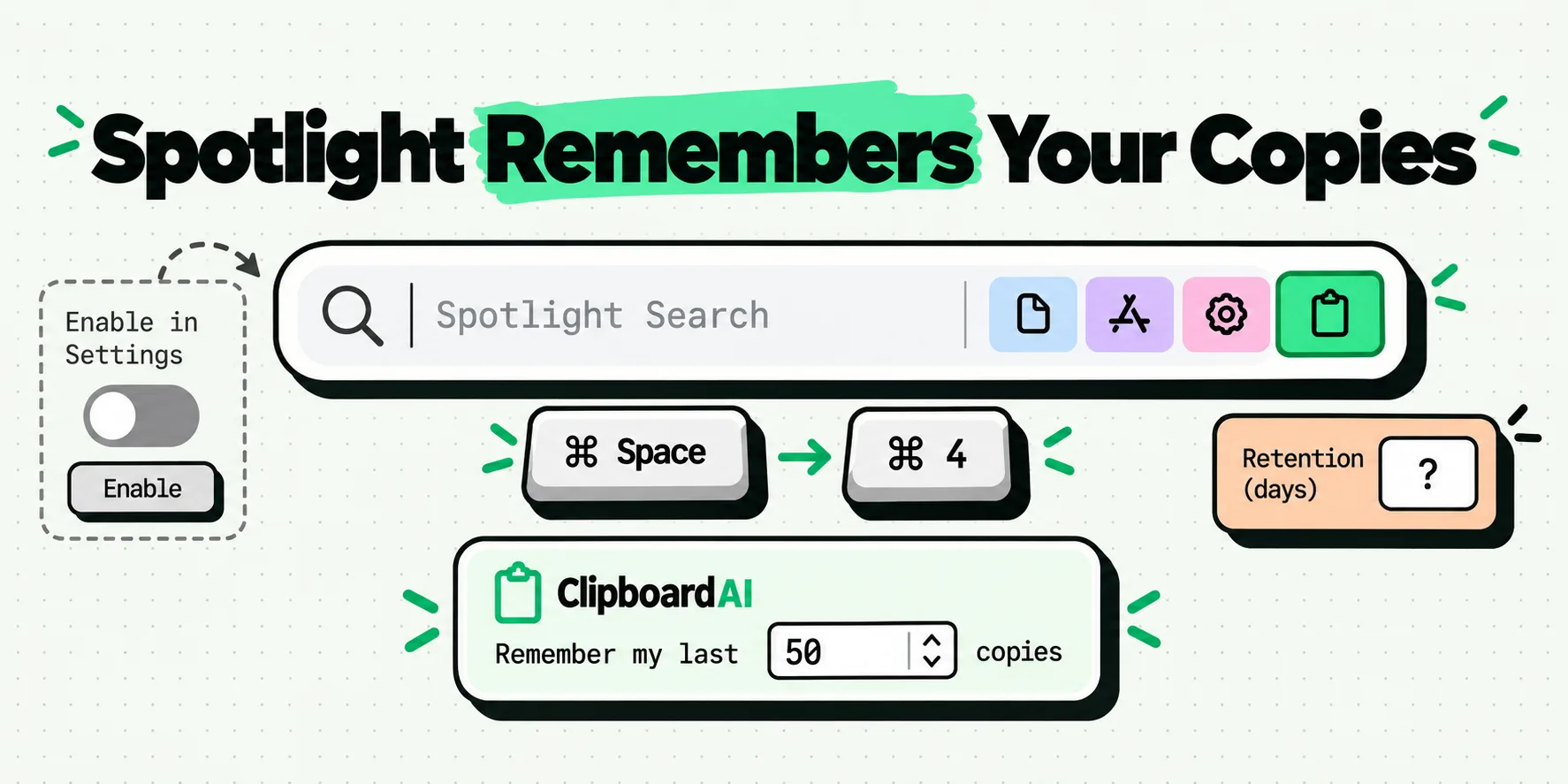
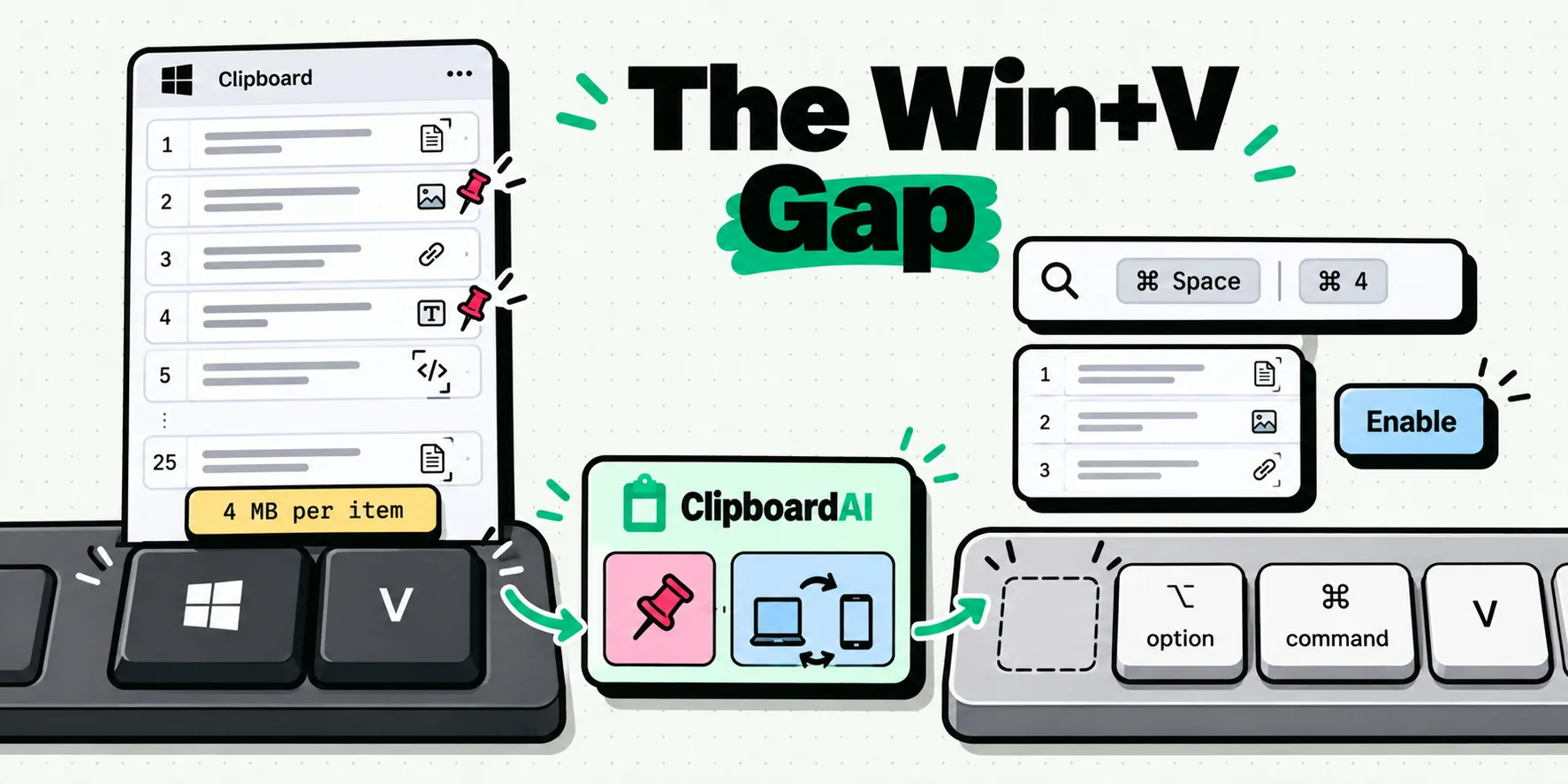
macOS 26 added a clipboard history inside Spotlight, reached with Command-Space and then Command-4. That is a genuine improvement and it is worth knowing about, covered in detail in our piece on how macOS clipboard history works inside Spotlight. It is also a search field rather than a paste gesture: you open Spotlight, you look, you choose, and you are back in your document with an extra context switch behind you.
The distinction that matters for a shortcut sheet is where the list appears. A menu bar list means your eyes go to the top of the screen. A Spotlight scope means a full-screen overlay. A panel at the insertion point means neither.
The panel layer, key by key
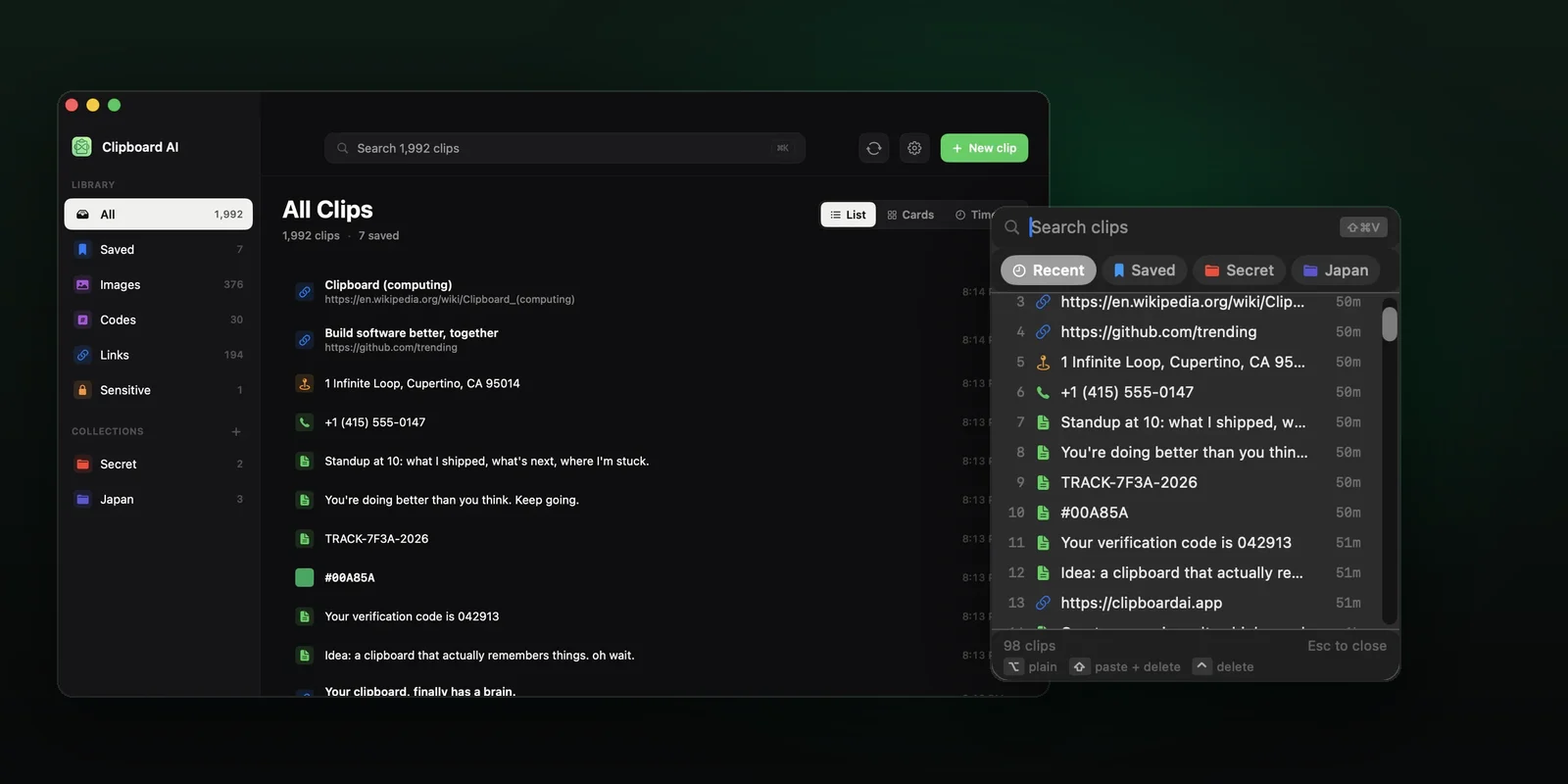
This is the part you print. These are the keys ClipboardAI's floating panel responds to, taken from the app's own Shortcuts settings tab and its panel code rather than from memory.
| Keys | What happens | Notes |
|---|---|---|
⌘⇧V | Opens the clip list at your cursor, over whatever app you are in | The default. Remappable, and there is a reset button next to it |
| Just start typing | Searches your whole history, not only what is on screen | No field to click into first |
↑ ↓ | Moves the selection through the list | Works while a search is running |
↩ | Pastes the selected clip into the app you came from | The panel closes on its own |
⌘1 … ⌘9 | Pastes rows one to nine directly | No arrow keys needed. This is the fast path |
⌘0 | Pastes row ten | Zero stands in for the tenth slot |
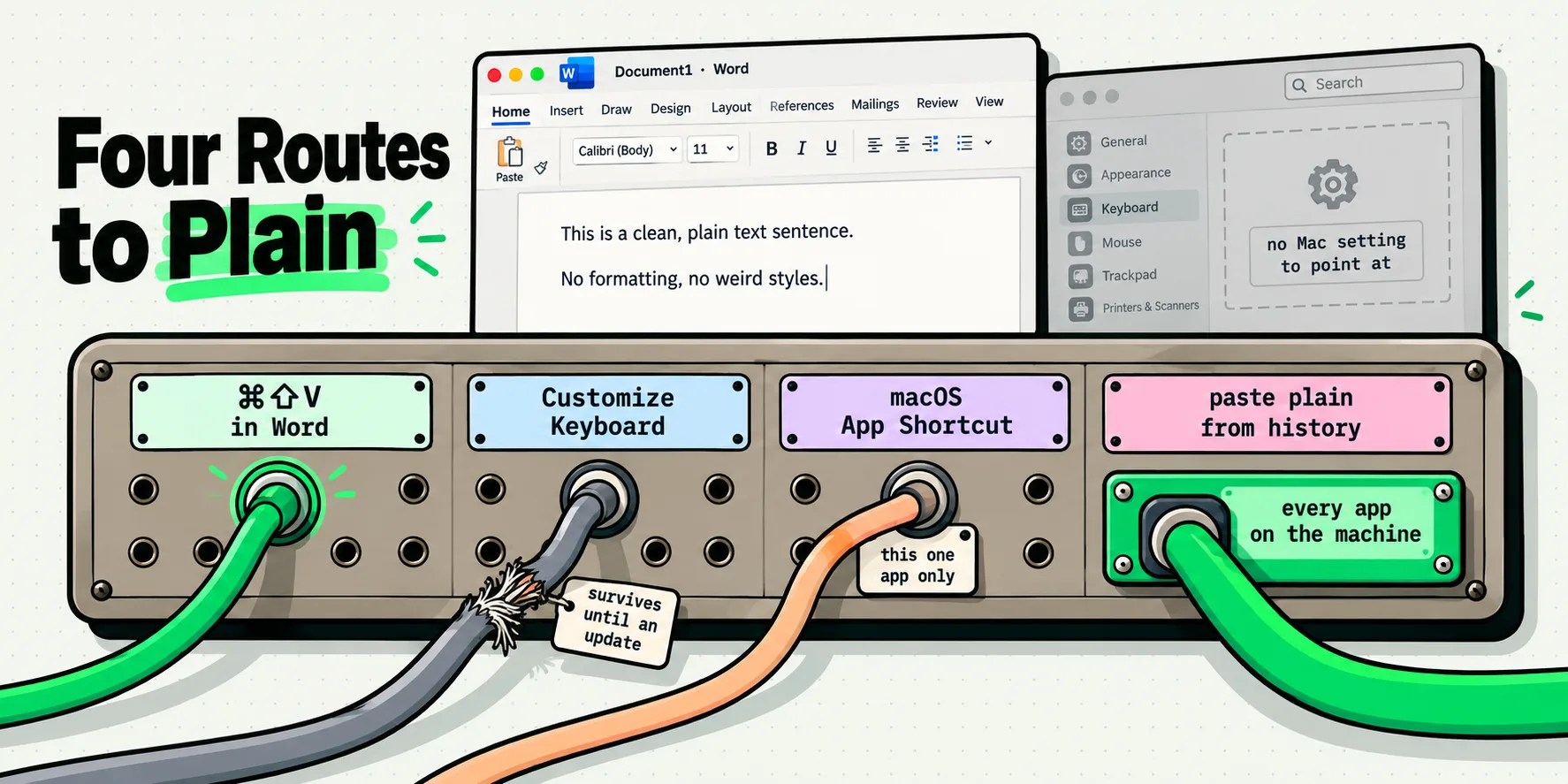
⌥ + click, digit or ↩ | Pastes as plain text, stripping RTF, HTML and PDF formatting | Inverts if you have Always paste as plain text switched on |
⇧ + click or ↩ | Pastes, then deletes the clip from your history | Built for one-time codes and temporary credentials |
⌃ + click or ↩ | Deletes the clip without pasting anything | Your current clipboard is left alone |
⌘ + click | Adds the clip to a batch, in the order you click | The footer turns into a selection counter |
↩ with a batch active | Pastes the whole batch in click order | One paste per clip, automatically |
⌘↩ with a batch active | Arms the batch so your own ⌘V pastes the next one each time | You control the pace across fields |
Tab / ⌘] ⌘[ | Cycles the tabs across the top of the panel | Shift-Tab goes backwards |
Hold Space | Previews the selected image, Quick Look style | Release to hide. Empty search field only |
Esc | Closes the panel, or clears a batch selection first | Never pastes anything |
⌘K | Jumps to the search field in the All Clips window | The big-window equivalent of type-to-search |
Three sequences worth drilling
Shortcut tables are easy to read and hard to absorb. These three are the ones that actually change how a day feels, so run each of them twice and they will stick.
- The one you overwrote.
⌘⇧V, then⌘2. Two gestures, and the copy you destroyed thirty seconds ago is in the field. Nothing to read, nothing to aim at. - The clean paste.
⌘⇧V, then⌥1. Same speed, and the text lands without the source document's fonts, colors and link styling riding along with it. If you always want that, turn on Always paste as plain text in Settings, General, Behavior and Option becomes the escape hatch that keeps formatting for one paste. There is more on that in pasting without formatting on a Mac. - The code you do not want kept.
⌘⇧V, type two characters of the code, then⇧↩. It pastes and removes itself from your history in the same motion.
When Command-Shift-V is already taken
Because macOS itself never claims Command-Shift-V, most collisions come from cross-platform apps that carried the Windows binding over. Editors, chat clients and browser-based tools are the usual suspects, and the behavior is inconsistent enough that guessing is a waste of time. Test it instead, in about twenty seconds:
- Open the app you suspect and click into a text field.
- Press
⌘⇧Vwith the clipboard holding some throwaway text. - If the app pastes, opens a dialog, or does anything at all, it owns the combination there.
If it does, you have two clean options. Remap the app, which is usually available in its own preferences. Or remap the panel, which takes ten seconds: Settings, Shortcuts, Global Hotkey, click the field, press the new combination. Good alternates are combinations no app tends to want: ⌃⌥V, ⌃⌘V, or a double-modifier on a letter you never use, like ⌃⌥⌘C. Avoid anything containing F-keys if you use an external keyboard, and avoid Command-Space for obvious reasons.
One more failure mode is not a conflict at all. If picking a clip opens the panel and closes it without anything appearing in your document, the app has copied the clip but has not been allowed to press Command-V for you. That is the Accessibility permission, and it is a one-time grant in System Settings, Privacy and Security. Our guide to Mac copy and paste failures walks through the rest of that family of symptoms.
Where this leaves your hands
The reason to learn a clipboard hotkey rather than a menu is that it removes the trip. Your cursor is already in the field. The list appears at the cursor. A digit picks the clip. Nothing about that sequence requires you to look at the top of the screen, aim at a menu bar icon, or leave the sentence you were writing halfway through.
ClipboardAI keeps every copy you make on the Mac automatically, in the background, without a gesture. That includes copies from scripts and Terminal, screenshots taken straight to the clipboard, and text that arrives from your iPhone through Universal Clipboard, because the app watches the pasteboard itself rather than listening for a Command-C keypress. So the list behind that hotkey is genuinely everything, and the digits above are the whole interface to it. The Mac app page shows the panel in place, and the Mac keyboard shortcuts help article is the version to keep open while you build the habit. For long sequences, pasting several clipboard items in a row covers the batch modes in more depth.
Give it a week. The tell that it has landed is when you catch yourself pressing Command-Shift-V on a machine that does not have it installed.
Frequently Asked Questions
What is the Mac equivalent of Ctrl+Shift+V?
On a Mac the paste-without-formatting shortcut Apple documents is Option-Shift-Command-V, described as Paste and Match Style. Command-Shift-V is the Windows habit, and it is not assigned by macOS at all. That is why plenty of Mac apps quietly ignore it, and also why it makes a good default for a clipboard manager hotkey: nothing in Apple's own shortcut list is competing for it.
Does macOS have a keyboard shortcut for clipboard history?
There is no Apple key combination that pastes your previous copy directly. macOS 26 added a clipboard history inside Spotlight, which you reach with Command-Space and then Command-4, but that opens a search field rather than pasting an item. If you want a single keystroke that shows recent copies where your cursor already is, that layer has to come from a clipboard manager with its own global hotkey.
What does Option-Command-V do on a Mac?
It depends where you press it, and Apple documents both meanings. In the Finder, after you copy a file with Command-C, Option-Command-V moves the file from its original location to the current one instead of duplicating it. In a text context it is Paste Style, applying formatting you copied with Option-Command-C. Same keys, two jobs, decided by what you copied.
How do I change the clipboard manager hotkey on a Mac?
In ClipboardAI, open Settings, then the Shortcuts tab, then Global Hotkey. Click the shortcut field and press the combination you want, and it registers immediately. The circular arrow next to it resets you to Command-Shift-V. Change it when another app already claims your combination, and pick something with three modifiers if you want to be certain nothing else on the system will fight you for it.
Why does nothing paste when I pick a clip from the floating panel?
Pasting into another app means posting a synthetic Command-V into it, and macOS only lets an app do that once you have granted Accessibility permission in System Settings, Privacy and Security, Accessibility. Until that is granted, picking a clip still copies it to the clipboard, so a manual Command-V works. Grant the permission once and the pick and the paste become the same keystroke.
Can I paste several clips one after another with the keyboard?
Yes. In the floating panel, hold Command and click the clips you want in the order you want them, which turns the footer into a selection counter. Return then pastes the whole batch in that order, one after another. Command-Return arms them instead, so each of your own Command-V presses drops the next clip and you control the pace across fields and apps.