
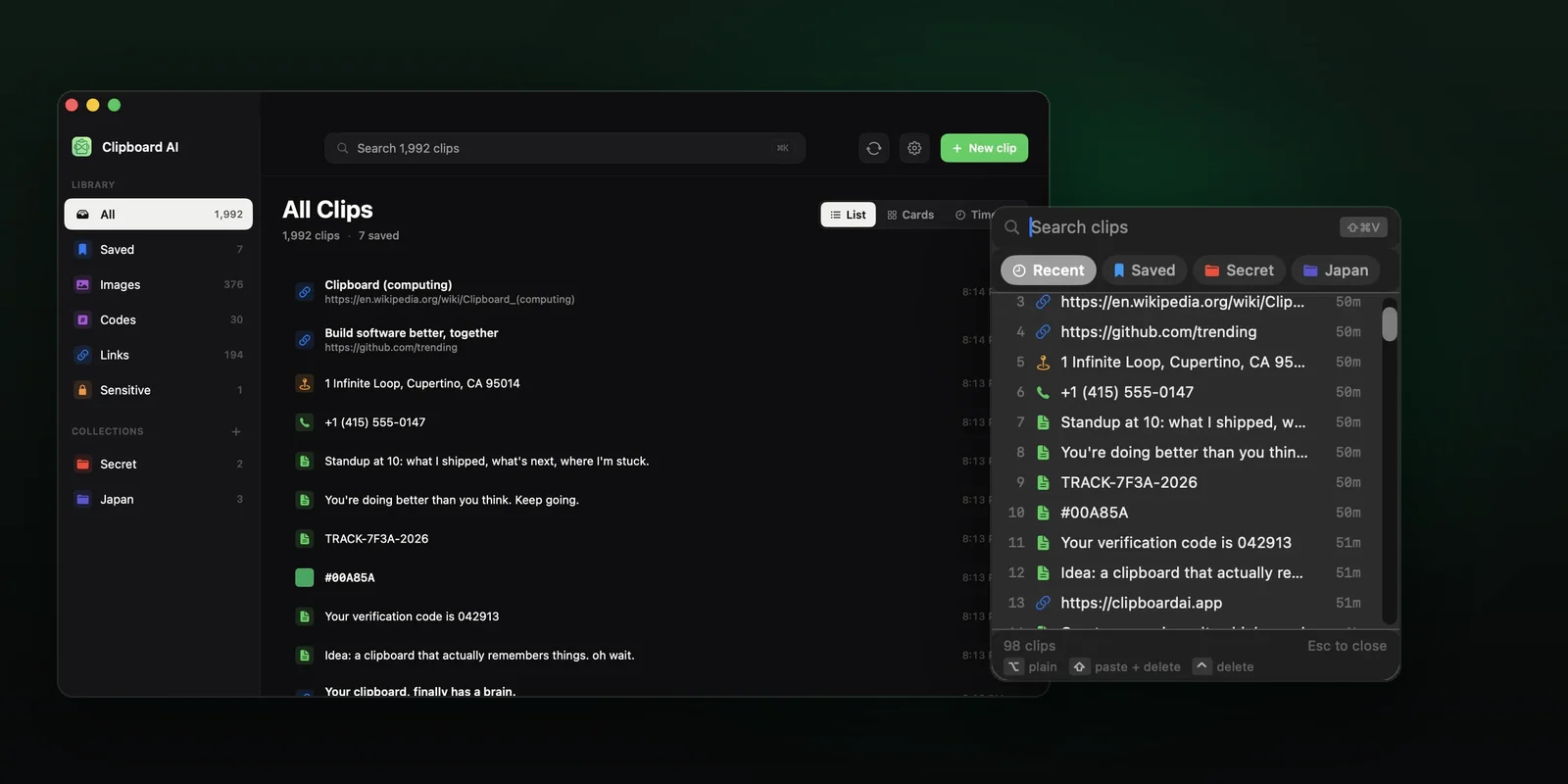
ClipboardAI stores everything you copy and makes it retrievable from any Apple device. But most users discover only the first two features - history and search - and miss the ones that actually save serious time. This guide covers the specific features most users skip, with exact steps for iPhone, iPad, and Mac.
The Features Hidden in Plain Sight
1. The ClipboardAI Keyboard (iPhone and iPad)
The keyboard extension is the fastest way to paste on mobile. Instead of switching apps to find what you copied, you pull up your history inside any text field.
How to enable it:
- Open Settings → General → Keyboard → Keyboards
- Tap Add New Keyboard → ClipboardAI
- Toggle Allow Full Access on (required for clipboard reading)
- To use it: tap the 🌐 globe key while typing to switch to ClipboardAI keyboard
Once active, you see your full clipboard history inside the keyboard. Tap any item to paste it instantly. Swipe up to see pinned snippets.
Best use cases: Filling out forms with repeated info (your address, email, company name), pasting code snippets into developer tools, inserting email templates into Mail or Spark.
2. Pinned Snippets: Your Personal Text Shortcuts
Pinning is not just about keeping something at the top of your history. Pinned snippets behave like persistent text shortcuts - they are always available regardless of how many things you copy afterward.
What deserves a pin:
- Your email signature (all variants: short, full, with phone)
- Your home and work addresses
- Your company's standard support reply blocks
- Your billing address for online checkout
- Recurring Slack messages or status updates
How to pin: On iPhone, long-press any item in your history → tap Pin. On Mac, right-click → Pin to Top.
3. Sequential Paste on Mac
This is the feature power users love most. Sequential Paste lets you copy several items - say, five lines from a spreadsheet - and paste them one at a time into separate fields using a keyboard shortcut, without returning to the clipboard UI between each paste.
Setup on Mac:
- Open ClipboardAI preferences → Shortcuts
- Set a shortcut for "Paste Next Item" (e.g., ⌘⇧V)
- Copy your items in order (item 1, item 2, item 3...)
- In your target fields, press ⌘⇧V for each paste - each press pastes the next item in sequence
Where this shines: Filling out multi-field web forms, migrating data between apps, updating CRM records with info copied from emails.
4. Universal Clipboard Sync Between Devices
When you copy on your iPhone, it syncs to ClipboardAI on your Mac (and vice versa) over iCloud. This is different from Apple's Universal Clipboard, which only preserves the single most recent item for a few minutes.
ClipboardAI's sync keeps your full history in sync across devices, searchable and retrievable from either side.
Requirements:
- Same Apple ID signed into ClipboardAI on both devices
- iCloud sync enabled in ClipboardAI settings
- Both devices on Wi-Fi or cellular
Latency expectation: 2-5 seconds on a good connection. Not instant, but consistent.
5. Search That Actually Works
ClipboardAI indexes the full text of every item in your history - not just the first line, but the entire string. This means you can search for a URL fragment, a partial email address, a snippet of code, or a product SKU from weeks ago and find it immediately.
Search tips:
- Use partial strings: searching "invoic" finds "invoice", "invoicing", "Invoice_March_2026.pdf"
- Search by type: prefix with
url:,email:, orphone:to filter by content category - Search by date: scroll to the date picker in the search screen to narrow by when you copied something
The ClipboardAI Mac Menubar: Your Command Center
On Mac, ClipboardAI lives in the menubar. One click opens your full history. But the keyboard shortcut is faster: set a global hotkey (ClipboardAI Preferences → Shortcuts → Open Clipboard Viewer) and you can pull up your history from any app without touching the mouse.
Recommended global shortcut: ⌘⇧C (Cmd + Shift + C) - close to the native Copy shortcut and easy to remember.
Privacy Controls Worth Configuring
Exclude apps from history: ClipboardAI can be set to ignore copies made inside specific apps. Go to Settings → Privacy → Excluded Apps. Add your password manager (1Password, Bitwarden, Apple Passwords) so credentials are never written to history.
Auto-delete old items: Go to Settings → History → Retention Period. Set a maximum history length (e.g., 30 days) so your clipboard does not become an indefinitely growing archive of sensitive text.
Local-only mode: If you do not want any sync at all, disable iCloud in ClipboardAI settings. All history stays on-device and is never transmitted.