On this page
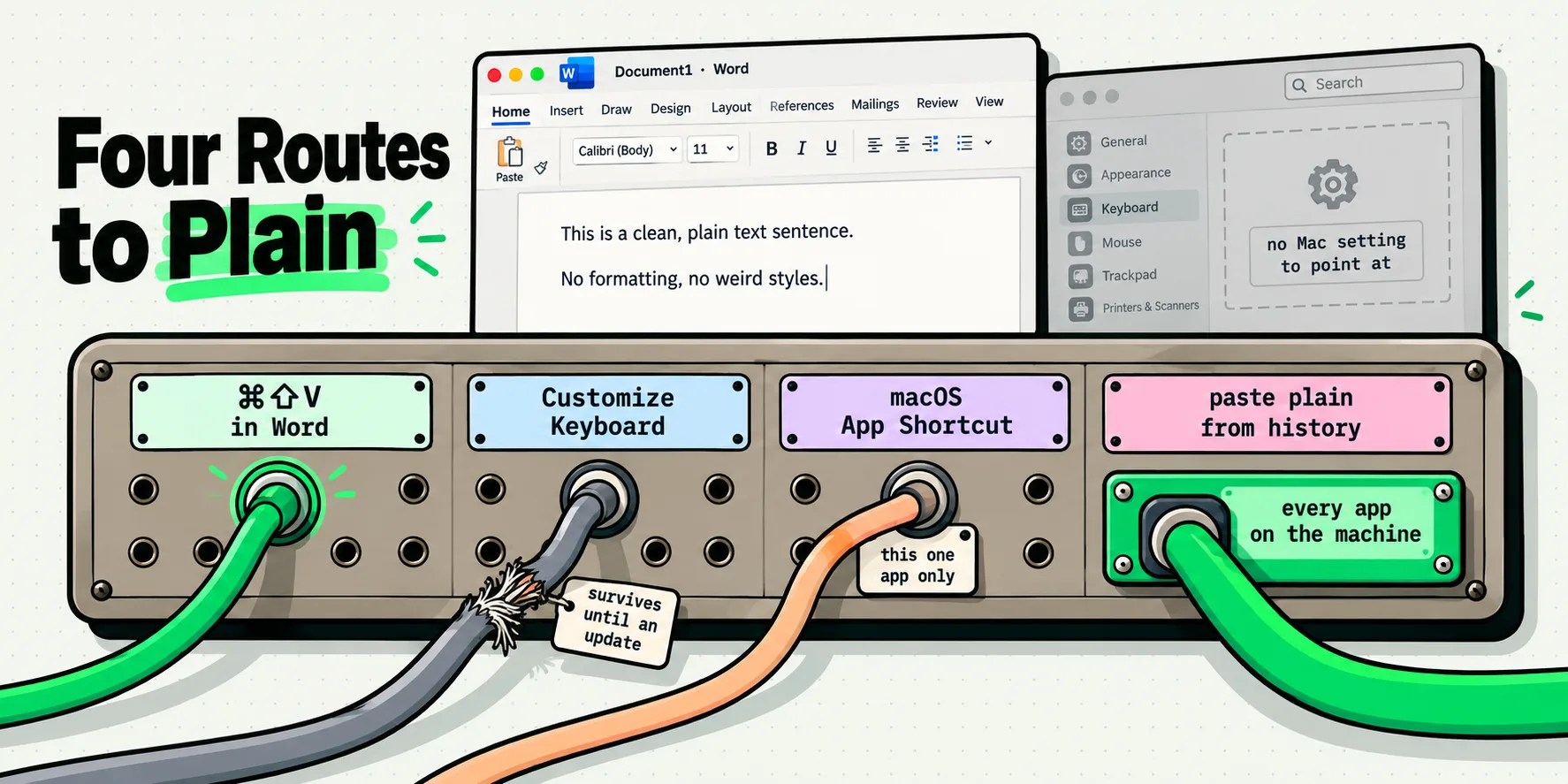
Word for Mac has no setting that makes plain text the default paste. Microsoft's paste-options support article applies to Windows only, and the Set default paste options path it gives, File then Options then Advanced, has no Mac counterpart. What Word for Mac does have is a dedicated key: Command-Shift-V pastes text only. To change what a bare Command-V does you have to remap it, in Word's Customize Keyboard dialog or with a macOS App Shortcut. A fourth route skips Word entirely and pastes from a clipboard that is already set to plain text.
The four are not equivalent. One quietly stops working after an update, one covers a single app, one has been in Word since 2024 and most people have still not heard about it, and one gives you a clean paste in every application on the machine.
What Microsoft actually says
A Microsoft Q&A thread from 14 November 2025 puts the answer in its own title: "Word for Mac does not have a simple setting to change the default paste behavior to plain text, unlike the Windows version." A volunteer moderator replied the same afternoon with a Customize Keyboard recipe rather than a preference, because there is no preference to point at. Meanwhile the support article people find first, "Control the formatting when you paste text", carries an Applies To list naming Word for Microsoft 365, Word 2024, Word 2021, Word 2019 and Word 2016. No Mac entry.
This is not a bug and there is no hidden preference. Word for Mac follows macOS conventions rather than Windows ones, and macOS has never had a per-app default paste setting. What it has instead is a system-wide way to rebind menu commands, which is where route B comes from.
Route 0: the shortcut Microsoft already gave you
Before remapping anything, try Command-Shift-V in Word. Microsoft's keyboard shortcuts reference lists it plainly in the Mac column: "Paste text only." Command-Shift-V. The same page moves the old Format Painter pair out of the way to Command-Option-C to copy the selected text formatting and Command-Option-V to paste it.
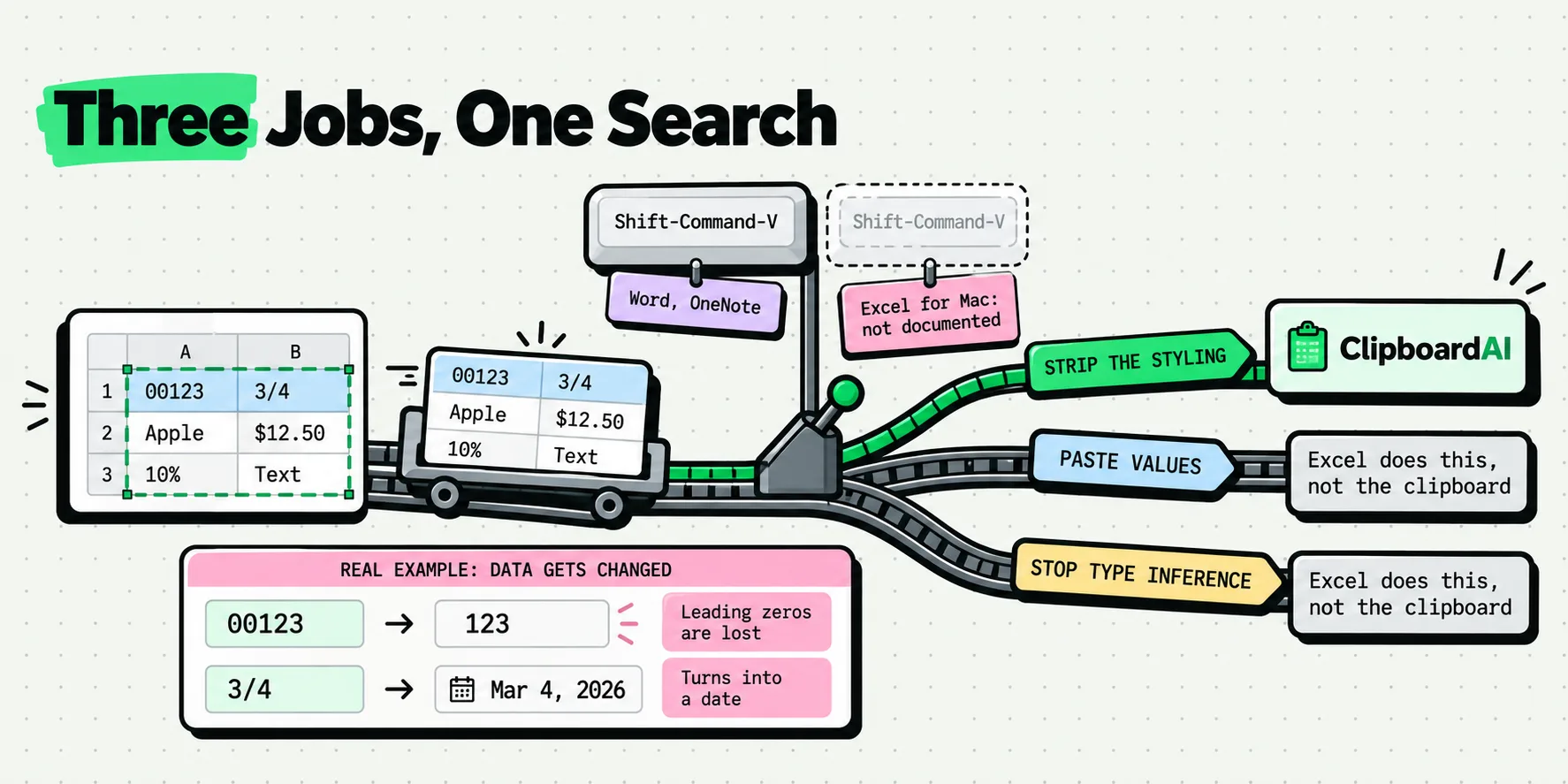
This landed in the 2024 wave that gave Windows Word its Ctrl-Shift-V, aligning Word with what Google Docs, Gmail, Slack and Teams had done for years. Two consequences matter. Older builds do not have it, so if the key does nothing, check Word, About Word before you go hunting for a broken setting. And the rollout was not uniform: Excel and PowerPoint for Mac never got an equivalent key, which is why the keystroke that cleans a Word paste does nothing at all one app over. It is a per-paste shortcut, not a default. A bare Command-V still pastes with formatting.
Route A: rebind Command-V inside Word
Word carries the paste variants as named commands and will let you attach any key to any of them, including a key that is already taken. Open Tools, choose Customize Keyboard, and in the Categories list pick Edit. The order matters more than most write-ups admit. Select EditPaste first, highlight Command-V in the Current keys box, and click Remove. Only then select PasteTextOnly, click into the "Press new keyboard shortcut" box, press Command-V, and click Assign. Freeing the key before reassigning it is the sequence Microsoft's own moderators give, and it sidesteps the currently-assigned-to prompt. Save to Normal.dotm and it applies to every document.
The catch is where that change lives. Normal.dotm is Word's global template, and it is a file that gets replaced, reset or repaired. Reinstall Office, move to a new Mac, or follow the wrong troubleshooting suggestion, and the remap goes with it. Plenty of the frustration in those Q&A threads is people rediscovering this the second time.
Route B: a macOS App Shortcut
macOS can bind a key to any menu bar item in any app, by name. Open System Settings, go to Keyboard, click Keyboard Shortcuts, choose App Shortcuts, click plus, pick the application, type the menu item's title, set your key. This is not a workaround someone invented: Microsoft's own page on custom shortcuts for Office for Mac says in-app customizing exists in Word and Excel only, and sends PowerPoint, Outlook and OneNote users to System Settings instead. For three of the five Office apps, route B is the documented answer.
Two details decide whether it works, and between them they explain almost every report that it is broken.
- The title must match the menu item character for character, including capitalisation and any trailing ellipsis. Get it wrong and nothing happens, with no warning. Microsoft's advice when you are unsure: "click Help in that app and search for what you want, which will then show you the exact menu name."
- Only menu bar items can be bound. Ribbon buttons are invisible to this mechanism, so read the Edit menu, not the Home tab.
Word makes the first trap easy to fall into, because it calls one paste option two different things: the Home tab dropdown says Match Formatting, and the button at the end of a pasted block says Match Destination Formatting. The clearest reported example of the route working is PowerPoint, where readers on Microsoft's Q&A site bind the menu title Paste and Match Formatting to Command-Shift-V to fill the gap PowerPoint was left with.
Route C: one better paste, in every app at once
Routes 0, A and B all end in the same place: a keystroke that pastes clean in one named application, which you then set up again for the next one. Route C changes the shape of the problem. Put the decision one layer up, in the thing that holds the text before Word ever sees it, and every app on the Mac inherits it at the same moment.
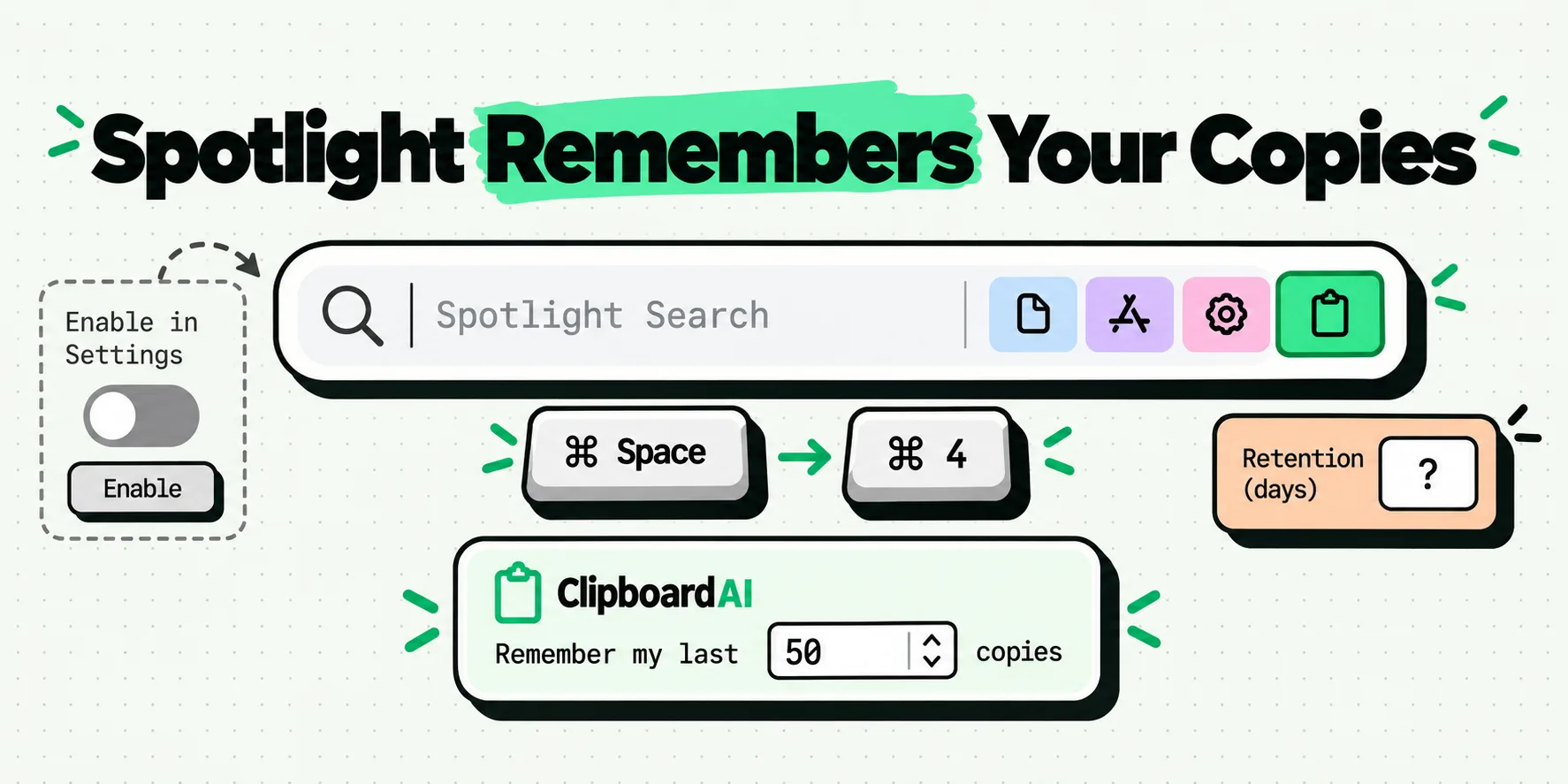
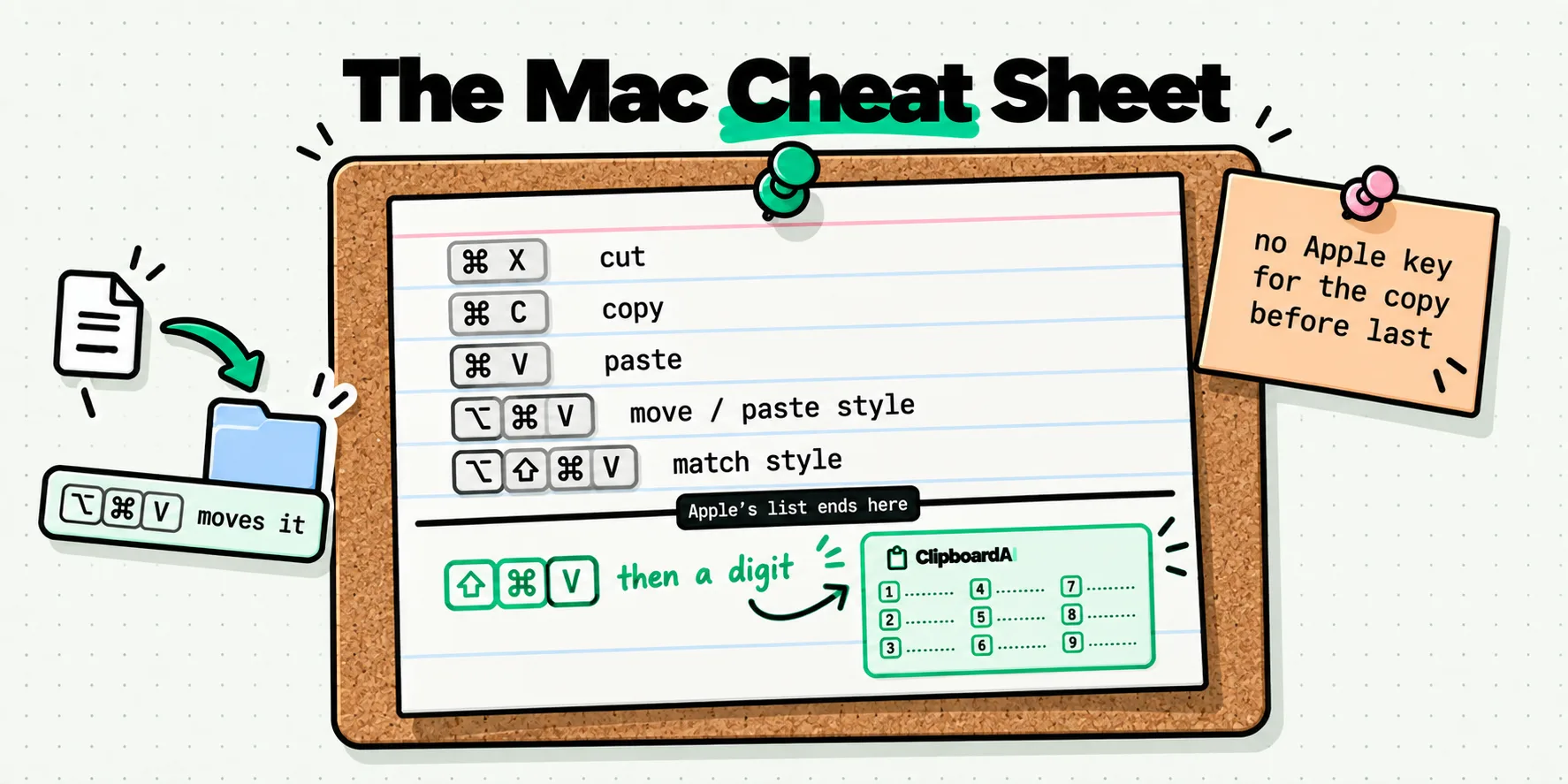
ClipboardAI has the default Word does not. Open Settings, stay on the General tab, and turn on Always paste as plain text under Behavior. From then on your paste is Command-Shift-V to bring up the floating panel, then a click or a digit, 1 to 9 for the first nine clips and 0 for the tenth. It lands as characters. In Word, in Outlook, in PowerPoint, Excel, Slack, Jira and the browser address bar, without configuring a single one of them. It is free, and no Office update can undo it, because Office is not involved.
Here is what makes it more than a formatting fix. That keystroke does not just clean the last thing you copied, it opens everything you have copied. Start typing to filter, arrow through the results, Escape to back out. The gesture that gives you a clean paste also ends the copy, switch, copy again, switch back loop that document work is mostly made of. Capture on the Mac is completely hands off: every copy is saved the moment you make it, from any app, any script, even a Universal Clipboard hand-off from your iPhone. Want the source formatting for one paste? Hold Option as you pick the clip and you get the opposite of your default, for that clip only. The plain-text paste guide covers both directions, the Mac settings reference shows where the switch lives, and the shortcut reference lists the panel keys.
One collision worth pre-empting: the panel hotkey is also Command-Shift-V by default, and a system hotkey wins over an app's own binding, so it opens the panel rather than triggering Word's Paste text only. If you want both, change one. The panel key is a recorder field in Settings, Shortcuts, Global Hotkey, with a reset button back to the default.
The four routes, compared
These are the questions that actually decide which route you should use. Last checked July 2026.
| 0. Word's built-in key | A. Word Customize Keyboard | B. macOS App Shortcut | C. Clipboard-side default | |
|---|---|---|---|---|
| What you press | Command-Shift-V | Command-V, once remapped | Whatever you assign | Command-Shift-V, then a click or a digit |
| Where the setting lives | Nowhere. It ships bound | Normal.dotm, inside Word | System Settings, in macOS | Your clipboard manager |
| Setup time | None | 2 minutes | 3 minutes per app | Under a minute, once |
| Changes what a bare Command-V does? | No | Yes, that is the whole remap | Yes, if you bind Command-V to the match-style item | No. You paste with Command-Shift-V and a digit instead |
| Survives a Word update? | Yes | Not dependably. Normal.dotm gets reset | Yes | Yes |
| Comes with you to a new Mac? | Yes | No, unless you carry Normal.dotm across | No, unless you re-add it | One toggle after you install. On Pro, the history comes too |
| Works in Outlook for Mac? | Microsoft documents no paste shortcut for it | No. Microsoft lists in-app customizing for Word and Excel only | Yes, this is the route Microsoft points at | Yes |
| Works in Excel and PowerPoint for Mac? | No. Neither app got the key | Excel yes, PowerPoint no | Only if you add each separately | Yes |
| Works outside Office, in Slack or a browser? | No | No | Only per app, per menu title | Yes, every app at once |
| Needs an exact menu title? | No | No | Yes, and it fails silently if wrong | No |
| Keep source formatting for one paste? | Use plain Command-V | Use Word's Command-Shift-V | Use plain Command-V | Hold Option |
| Reaches anything older than your last copy? | No | No | No | Yes. The panel is your whole history, searchable |
| Cost | Included with Office | Free | Free | Free |
Read the fourth row, then the last but one. Routes A and B rewrite what your existing Command-V does inside one named application. Route 0 adds a clean key inside Word and only Word. Route C leaves Command-V alone and gives you a second paste that behaves the way you want everywhere, with your entire history behind it. If Word is genuinely the only place you paste, route 0 is free and you are done in zero seconds. If your day runs across Word, Outlook, a browser and a chat window, the per-app routes mean doing the same job four times in four places, and route C stops being an alternative and starts being the obvious one.
What each Word paste option actually keeps
Word offers more than two ways to paste and the names are not self-explanatory. This is what Microsoft's documentation says each one does, in Microsoft's own wording, and where to find it in the Mac app. Last checked July 2026.
| Paste option | Fonts, sizes, colors | Bold and italic | Pictures and tables | Where it is in Word for Mac |
|---|---|---|---|---|
| Keep Source Formatting, which "retains formatting that was applied to the copied text" | Kept | Kept | Kept | The Paste Options button at the end of a pasted block, or the Paste dropdown on the Home tab |
| Merge Formatting, which "discards most formatting ... but it retains formatting that is considered emphasis, such as bold and italic" | Dropped | Kept | Microsoft's description does not say | Same two places, but labeled Match Formatting in the ribbon dropdown and Match Destination Formatting on the post-paste button |
| Keep Text Only, which "discards all formatting and nontext elements such as pictures or tables" | Dropped | Dropped | Dropped | Command-Shift-V, or PasteTextOnly in Customize Keyboard, or the Paste Options button |
| Picture, which "converts text into an image and pastes that" | Frozen into the image | Frozen into the image | Frozen into the image | Paste dropdown on the Home tab, Microsoft 365 builds |
| Unformatted Text, the Paste Special equivalent of Keep Text Only | Dropped | Dropped | Dropped | Edit menu, Paste Special |
One practical note about the Paste Options button, because it catches people: it is transient. Type a character or press Return after pasting and it vanishes, taking the chance to change your mind with it. The keyboard options do not have that problem, which is a large part of why they are worth setting up.
When each route will not help
Route 0 depends on your build, and it stops at Word's edge. Routes A and B are per app by design: neither reaches Excel from Word, and PowerPoint needs its own App Shortcut with its own menu title. If you want one behavior across Office, you are choosing between doing the setup four times and moving the decision out of Office.
Route C covers every clip you paste out of the panel, which is exactly why it works everywhere, and it is also in force on the days you genuinely wanted Keep Source Formatting: pulling a styled table between Word documents, or moving a formatted quote between chapters. Hold Option for the occasional case, or turn the preference off for an afternoon that is mostly document to document. And to be plain about something the category sometimes blurs: no clipboard tool adds a menu item to Word, and none reaches inside a Command-V that Word handles by itself. What is on offer is a different paste, one that comes out of your history in the state you chose.
The version of this that just stops bothering you
Set once, the rest of the day looks like this. A paragraph from a research PDF arrives in your document's own body style. A name out of an email does not bring the email's font. A figure from a web page has no gray highlight riding behind it. The quote you pasted on page two is still one keystroke away when you need it again on page nine, and pasting several clips in sequence fills out a template in one pass. Nobody sends the file back asking why page four is in a different typeface.
If your pasting problems extend past Word, the same mechanism shows up elsewhere: making plain text the default in Outlook for Mac, pasting AI output without the markdown mess, and for the PDF that arrives hard wrapped, the line-break repair walkthrough.
Frequently Asked Questions
Why is there no default paste setting in Word for Mac?
Because the Mac app follows macOS conventions rather than Windows ones, and macOS has never offered a per-app default paste preference. Microsoft's support article on controlling paste formatting lists only Windows versions in its Applies To section, and the Set default paste options path it gives, File then Options then Advanced, does not exist in Word for Mac. Moderators on Microsoft's own Q&A site have confirmed the absence rather than pointing at a hidden preference.
Does Command-Shift-V paste text only in Word for Mac?
Yes, in current builds. Microsoft's keyboard shortcuts reference lists Command-Shift-V as Paste text only for Word for Mac. It arrived in the same 2024 wave that gave Windows Word Ctrl-Shift-V, so older copies of Word will not have it. It is a per-paste shortcut rather than a default, and it did not reach every Office app: Excel and PowerPoint for Mac still have no equivalent key.
How do I assign Command-V to Keep Text Only in Word for Mac?
Open Tools, choose Customize Keyboard, and pick Edit in the Categories list. Select EditPaste, highlight Command-V in the Current keys box and click Remove. Then select PasteTextOnly, click into the new shortcut box, press Command-V and click Assign. Removing the old binding first is the sequence Microsoft's Q&A moderators give, and it avoids the reassignment prompt. Save to Normal.dotm so it applies to every document.
Will a global plain-text paste setting break Excel or PowerPoint?
It changes what they receive when the paste comes out of your clip history, and leaves an ordinary Command-V alone. Into Excel, plain text is generally an improvement, since styling is what drags a web page's fonts into your sheet. In PowerPoint it means pasted content adopts the slide's own theme rather than the source's. When you specifically want the source styling, hold Option as you pick the clip to invert the preference for that one paste.
Does the Customize Keyboard change survive a Word update?
Not dependably. Keyboard customisations save into Normal.dotm, Word's global template, and that file gets reset by reinstalls, repairs and some troubleshooting steps, which quietly takes your remap with it. It also does not travel to a second Mac. If you want a setting that outlives Word, put it somewhere Word cannot reach: a macOS App Shortcut lives in System Settings, and a clipboard-side plain-text default lives outside every application entirely.
Why does my macOS App Shortcut for pasting do nothing?
Almost always because the menu title does not match. App Shortcuts bind to menu bar items by their exact text, including capitalisation and any trailing ellipsis, and macOS gives no warning when the string is wrong. Ribbon buttons cannot be bound at all, only menu bar entries, so open the app's Edit menu and copy the wording from there. Word also labels the same paste option differently in the ribbon dropdown and the post-paste button, which is a common source of the mismatch.