On this page
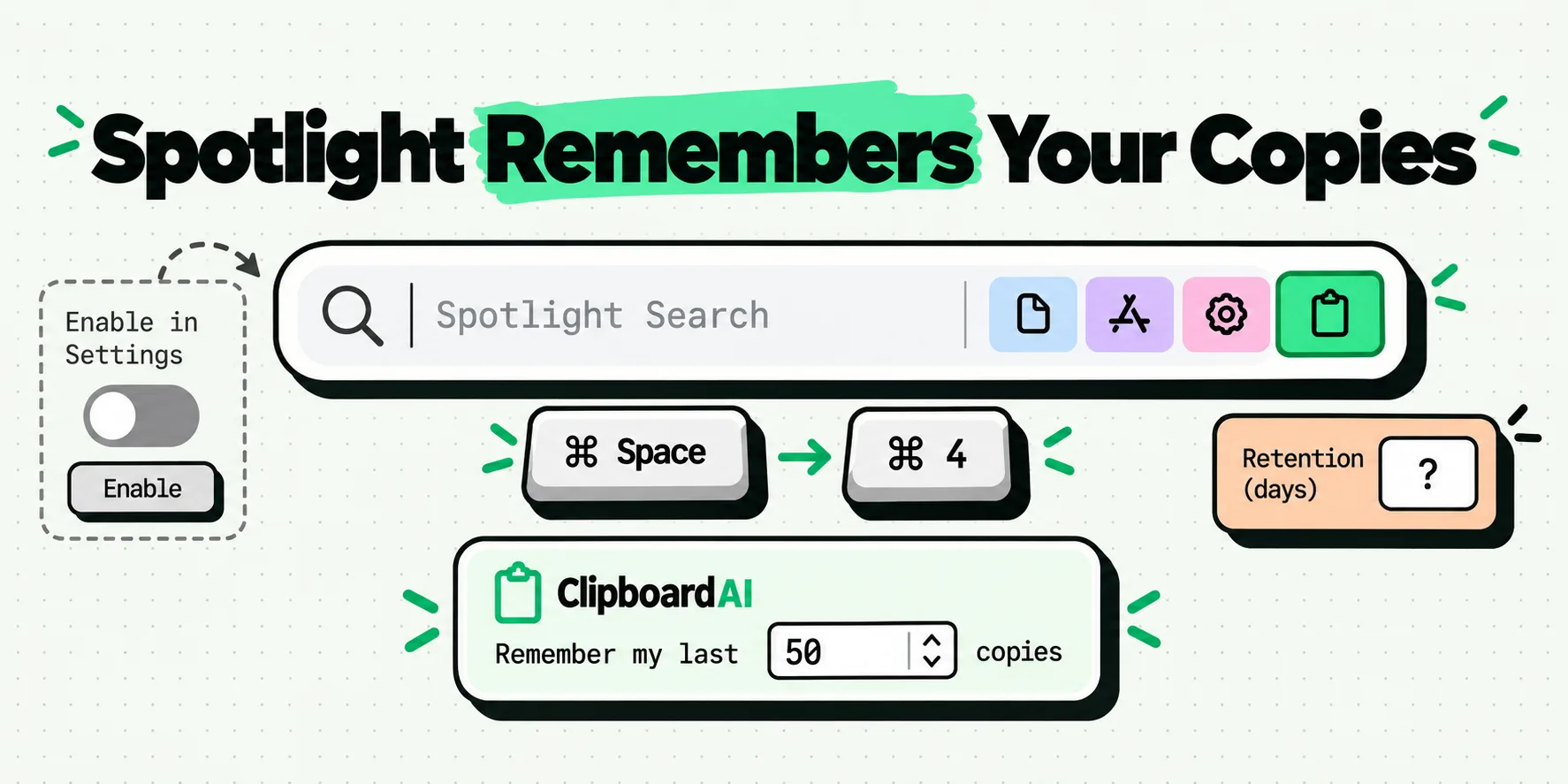
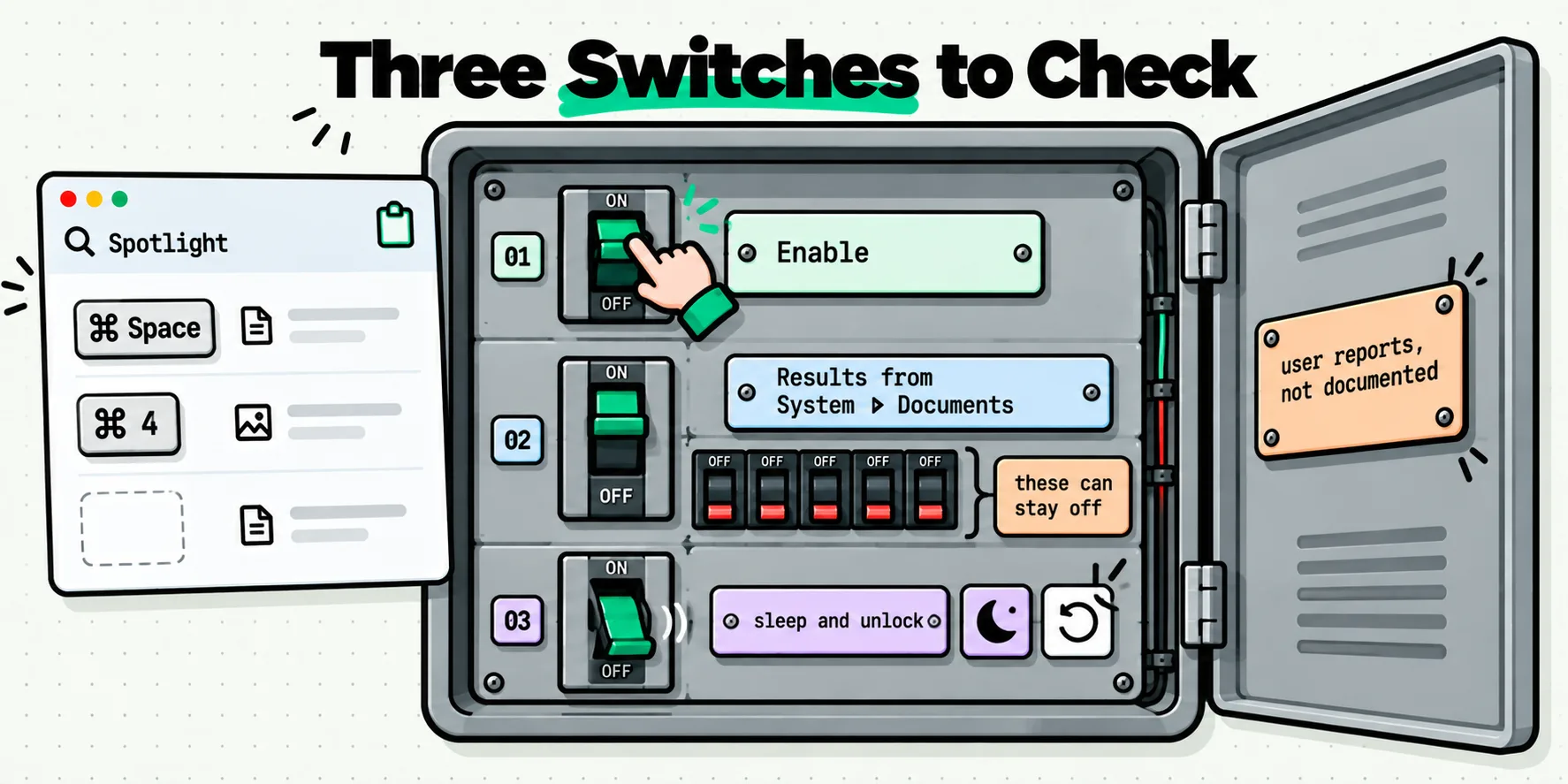
Start by proving it is switched on. Spotlight's clipboard history is off until you enable it: press Command-Space, then Command-4, and Apple's page says you may be asked to click Enable. If it is on and still empty, the two failures Mac users report most are that history stops after a sleep and unlock, and that turning off Spotlight's system results kills clipboard results with them. Both come from user reports, not from Apple.
That distinction runs through this whole page, so it is worth stating once: Apple documents the feature in about six sentences and documents no troubleshooting for it at all.
Prove it is switched on, in twenty seconds
Free, immediate, and it resolves more of these than anything else:
- Press Command-Space to open Spotlight.
- Press Command-4, or click the clipboard button to the right of the search field.
- If you are asked to click Enable, click it. That prompt is the feature being switched on for the first time.
- Copy two different pieces of text from anywhere, then repeat steps one and two.
Two fresh copies should be sitting there. If they are, it works and whatever you saw earlier was an empty history rather than a broken feature. If the panel is still blank with two known-good copies behind you, carry on down the page. Setup and normal use are covered in how macOS clipboard history in Spotlight works, so this page stays on things going wrong.
The three failures people actually report
The most-read source on this is a single Apple Community thread, number 256139237, posted 18 September 2025 against macOS 26.0. It is worth reading the thread rather than the many articles that summarize it, because the summaries tend to convert user experience into fact. These are user reports. Treat them as leads to test on your own machine.
One. It dies after sleep and an unlock. Several people in the thread describe clipboard history working, then becoming inaccessible after the Mac sleeps and is unlocked, with Touch ID or an Apple Watch unlock named specifically. Some report that Spotlight also stops finding files and shortcuts at the same time, which points at the wider Spotlight machinery rather than at the clipboard feature alone. Restarting restored it for people, and for several of them it came back.
Two. Spotlight's own result categories switch it off by accident. The reply the thread marked as most useful came from a user who found that enabling Settings, Spotlight, Results from System, Documents restored clipboard results, and that the individual document type filters underneath did not need to be on. If you are the sort of person who turns off every Spotlight category except Apps to make it fast, this is very likely you.
Three. Another clipboard manager gets in the way. One contributor reported that a third-party clipboard tool prevented Spotlight's own clipboard history from working, and suggested other managers might do the same. That is a single report about one app, not a general rule, but it is a five-second test: quit the other tool, copy something, look again.
Work through it in this order
Symptom, the cause that usually explains it, what to do, and whether it comes back. Sourced where it is sourced, marked as unknown where Apple has published nothing.
| Symptom | Likely cause | What to do | Recurs? |
|---|---|---|---|
| Command-4 shows "no results found" from day one | Never enabled | Search your Clipboard once and click Enable when asked | No |
| Panel opens but is always empty, even after copying | Spotlight system results switched off | Turn on Settings, Spotlight, Results from System, Documents (user-reported fix, September 2025) | No, once set |
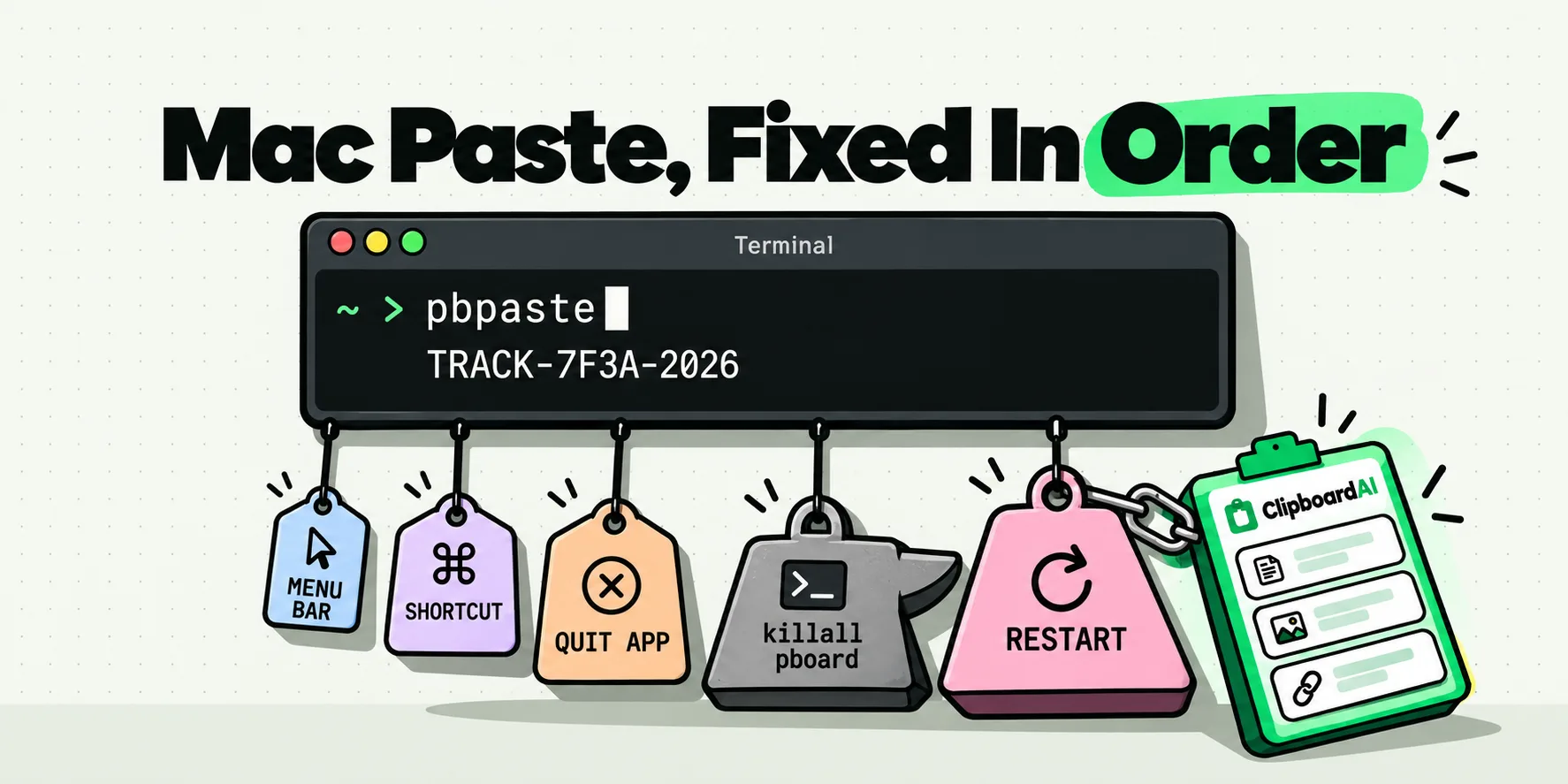
| Worked earlier, dead after sleep and unlock | Undetermined. Reported with Touch ID and Apple Watch unlock | Restart. Some users report logging in with a password instead as a workaround | Yes, for several reporters |
| Items vanish after a while on their own | The retention setting | Open System Settings, Spotlight, and check the clipboard section added in macOS 26.1 | By design |
| Spotlight is also failing on files and apps | Index problem, not a clipboard problem | Check Settings, Spotlight, Search Privacy for folders you excluded, then rebuild the index | Sometimes |
| Clipboard results disappear while another clipboard app runs | Reported interference from a third-party manager | Quit the other app, copy something, check again | Depends on the app |
| No clipboard button next to the search field at all | Older macOS | The feature arrived in macOS 26. Nothing to fix on macOS 15 or earlier | No |
The setting that looks unrelated and is not
Row two deserves its own paragraph because it is genuinely counter-intuitive. Spotlight's settings screen presents result categories as a way to reduce noise: turn off Documents, Mail, Fonts, whatever you never search for, and get a shorter list. Nothing in that screen suggests the clipboard rides along with those categories. According to the thread's most-endorsed reply, it does, and switching Documents back on is what brought clipboard results back.
Apple has not confirmed this behavior anywhere we could find, so test it rather than accepting it. Note what you had switched off before you change anything, turn Documents on, copy something, and check. If it works, you have your answer in under a minute. If it does not, put your settings back.
What Apple has said, which is very little
Apple's support page for the feature covers four things: that you may be asked to click Enable the first time, that Command-Space then Command-4 opens it, that the More button offers Clear History, and one privacy line reading "Sensitive information may appear on the Clipboard."
What it does not contain: any retention period, any item limit, any statement about which Spotlight settings the clipboard depends on, any acknowledgement of the sleep and unlock behavior, and any troubleshooting steps. MacRumors reported on 4 November 2025 that macOS 26.1 added clipboard controls to System Settings under Spotlight, including a Clear Clipboard History button and a choice of how long copied items stay available. Apple's user guide still does not describe them, so if your history seems to empty itself, that section is where to look even though no Apple page will send you there.
Keep the machine current before you spend an hour on this. macOS Tahoe 26.6 shipped on 27 July 2026. Several people in the Apple thread reported early 26.0 builds behaving worse than later ones, though no Apple release note we could find names this issue specifically.
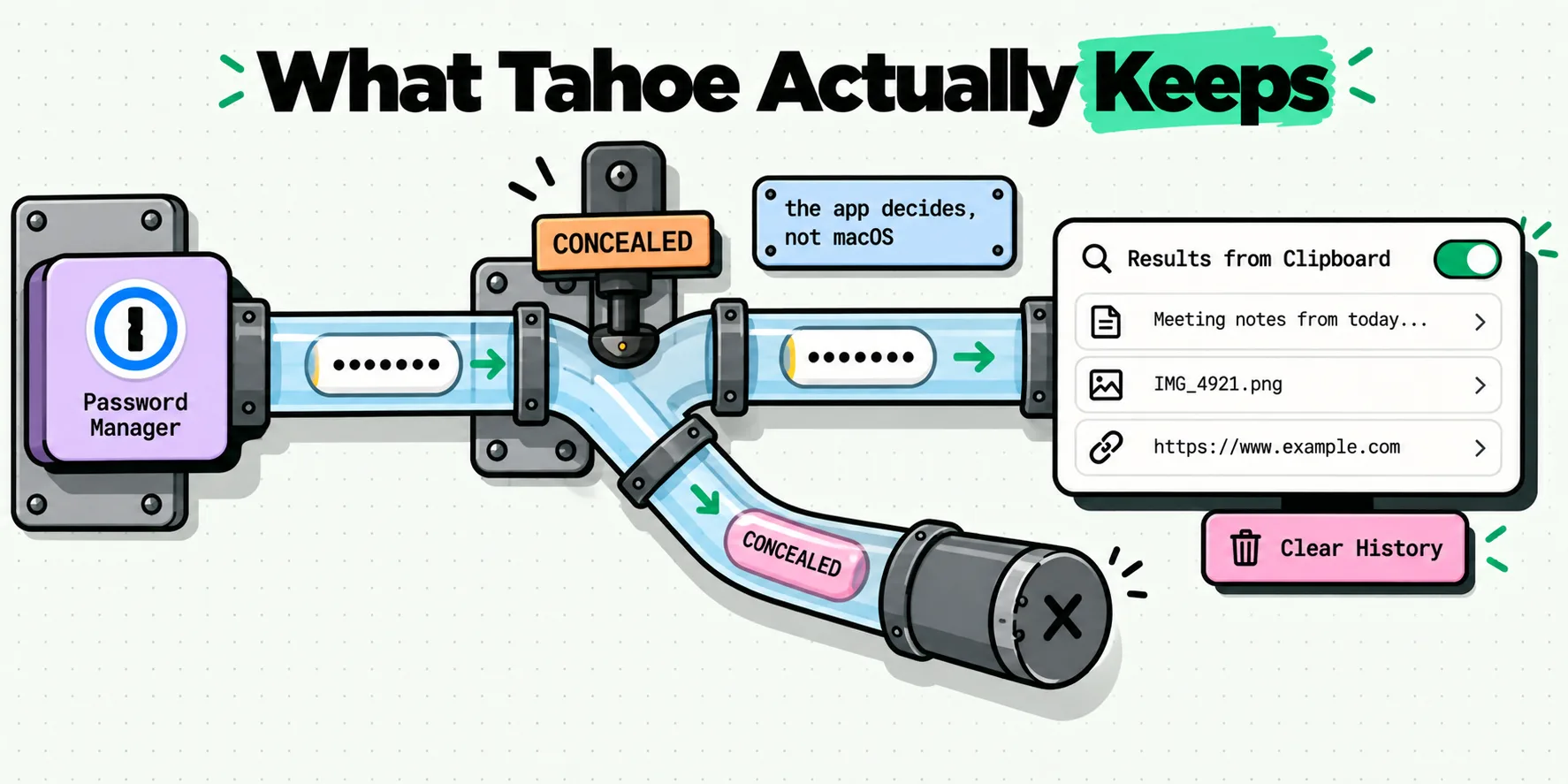
If your interest in all this is about what the history holds rather than whether it works, what Tahoe's clipboard history keeps when you copy a password covers that side, and Spotlight clipboard versus a clipboard manager is the head-to-head comparison of the two approaches.
A history that does not depend on Spotlight's mood
There is a structural reason this feature has an unusual failure profile. It is not a clipboard app. It is a result category inside a search index, sharing plumbing with files, apps and shortcuts, which is why an unrelated Spotlight setting can switch it off and why an indexing problem takes it down as collateral damage.
A dedicated clipboard history is a different piece of machinery. ClipboardAI on the Mac captures continuously in the background, and it does not depend on a keypress or on Spotlight: it asks the macOS pasteboard server whether the clipboard changed, so a Command-C, a script writing with pbcopy, a Shortcuts action, a screenshot copied straight to the clipboard and a clip arriving from your iPhone through Universal Clipboard all land in the same list. Sleeping and unlocking the Mac does not enter into it.
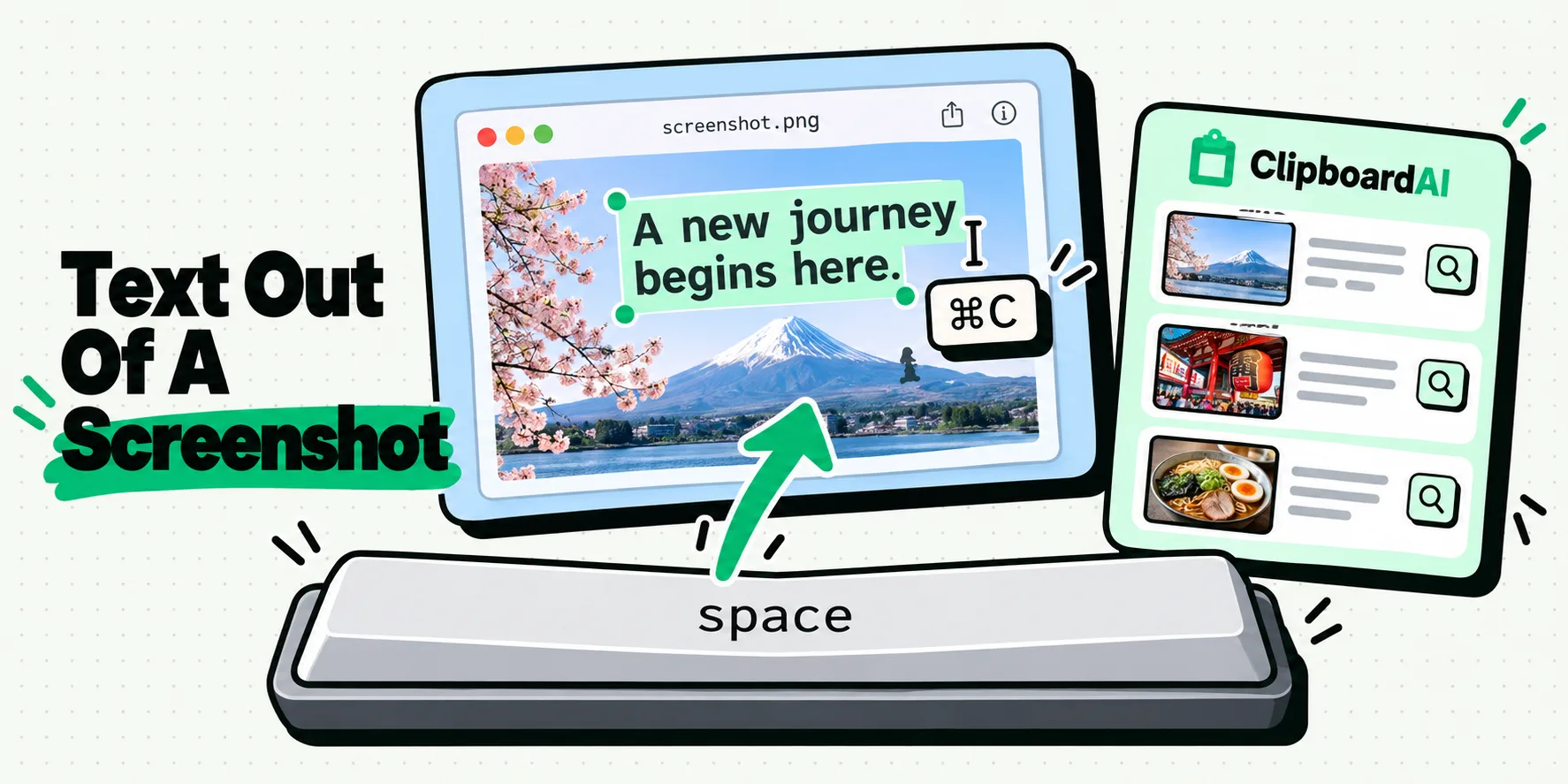
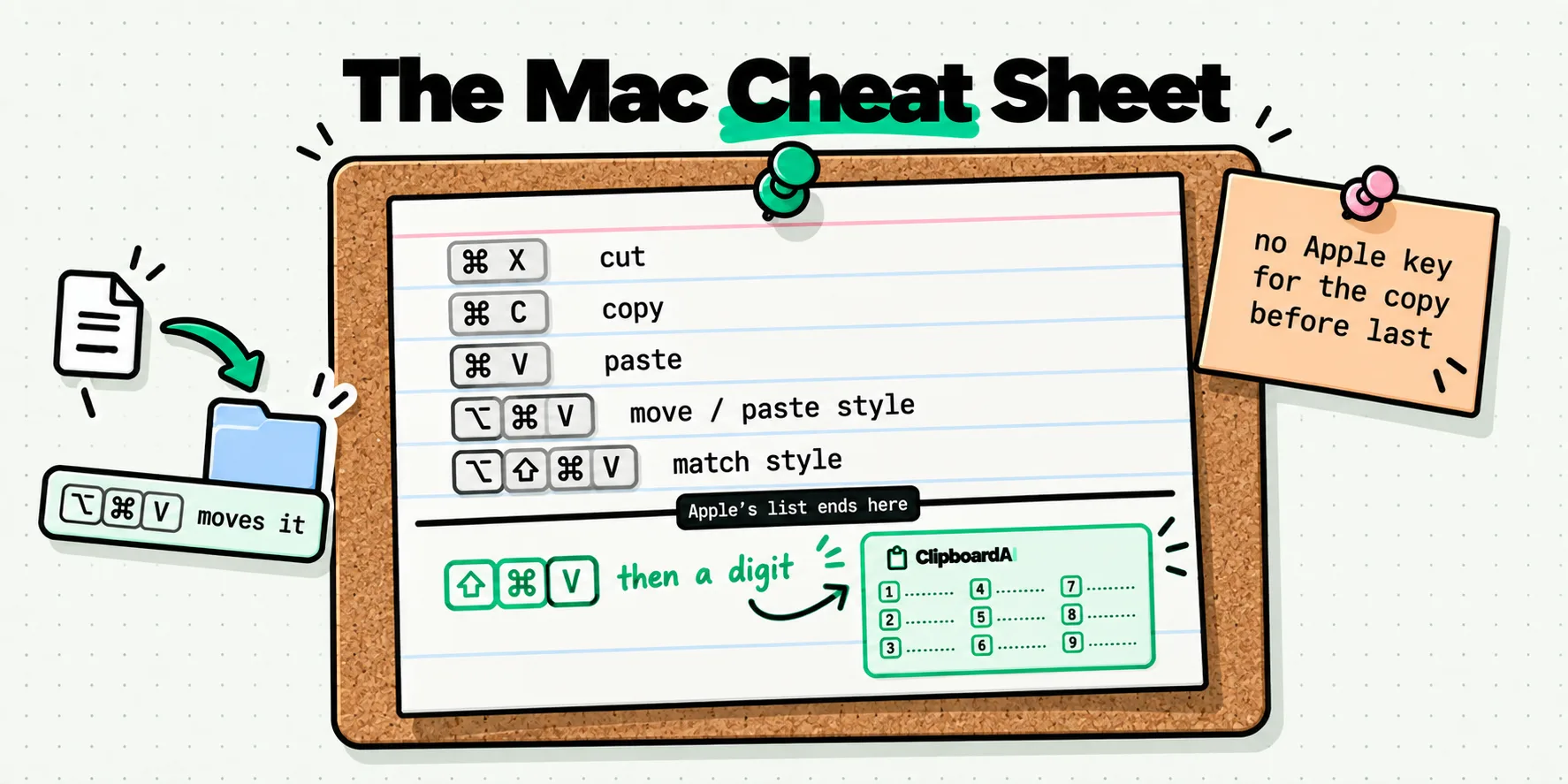
The rest follows from having a real store rather than an index entry. You choose how much history to keep, in Settings, General, Clipboard History, instead of guessing. You pin the five things you use daily so they never age out. You search by typing, including words printed inside screenshots, since image clips are read on device. And the panel comes up at your cursor on Command-Shift-V wherever you are, so picking a clip is a hotkey and a digit rather than a trip through Spotlight. The search side is written up in searching your clips on the Mac, and the whole desktop app is on the Mac page.
Turn Spotlight's version on anyway. It is free, it costs you nothing to have both, and the day it quietly stops working you will already have the copy you needed sitting in another list.
Frequently Asked Questions
Why is my Mac clipboard history not showing anything?
First check that it was ever enabled: press Command-Space then Command-4, and click Enable if you are asked. Apple's page says the prompt appears the first time you search your Clipboard. If it is enabled and still empty after you copy two things, the most-endorsed community fix is to turn on Settings, Spotlight, Results from System, Documents, which one user in Apple's forum found restored clipboard results.
Why does Spotlight clipboard history stop working after sleep?
Nobody outside Apple knows, and Apple has published nothing about it. Users in Apple Community thread 256139237, opened on 18 September 2025 against macOS 26.0, report the history becoming inaccessible after the Mac sleeps and is unlocked, with Touch ID and Apple Watch unlock mentioned specifically. Restarting brought it back for them, and for several it returned later. Treat it as a reported behavior to test, not an established fact.
How long does macOS keep clipboard history?
Apple documents no retention period at all. Its support page for the feature covers enabling, opening, searching and clearing, and never states how long items are kept or how many. MacRumors reported in November 2025 that macOS 26.1 added a clipboard section to System Settings under Spotlight with a choice of how long items stay available, plus a Clear Clipboard History button, but Apple's own user guide still does not describe them.
Does a third-party clipboard manager break Spotlight clipboard history?
One contributor to the Apple Community thread reported that a specific third-party clipboard tool prevented Spotlight's clipboard history from working and suggested others might do the same. That is a single report about one app rather than a general rule. It is quick to test: quit the other manager, copy something, and check Command-4 again. ClipboardAI reads the pasteboard the same way any Mac app does and does not take exclusive ownership of it.
How do I clear Spotlight clipboard history?
Open Spotlight with Command-Space, go to the clipboard view with Command-4, then click the More button to the right of the search field and choose Clear History. That is Apple's documented route. Since macOS 26.1 there is also a Clear Clipboard History button in System Settings under Spotlight, according to MacRumors reporting from November 2025, which lets you wipe clipboard items without touching the rest of your Spotlight search history.
Is there a clipboard history that does not rely on Spotlight?
Yes, and that is the durable fix if this keeps failing. A dedicated app keeps its own store rather than a category inside the Spotlight index, so an indexing problem or a Spotlight settings change cannot take it down. ClipboardAI on the Mac captures continuously by asking the pasteboard server whether the clipboard changed, which also picks up script writes, screenshots copied to the clipboard, and clips arriving from your iPhone.