
Copied a screenshot, snapped a photo of a receipt, or saved a business card? Clipboard AI reads the words inside the picture, so you can grab the text without retyping a single character.
It happens on its own, on your device
Every image you save gets read automatically. There is no button to press and nothing to switch on. The moment a picture lands in Clipboard AI, it looks for text and pulls it out, all on your device using Apple's built-in text recognition. Nothing is sent anywhere to do it.
Text is recognised right on your iPhone, iPad, or Mac. Your images and the words in them never leave your device to be read.
Find the text under any image
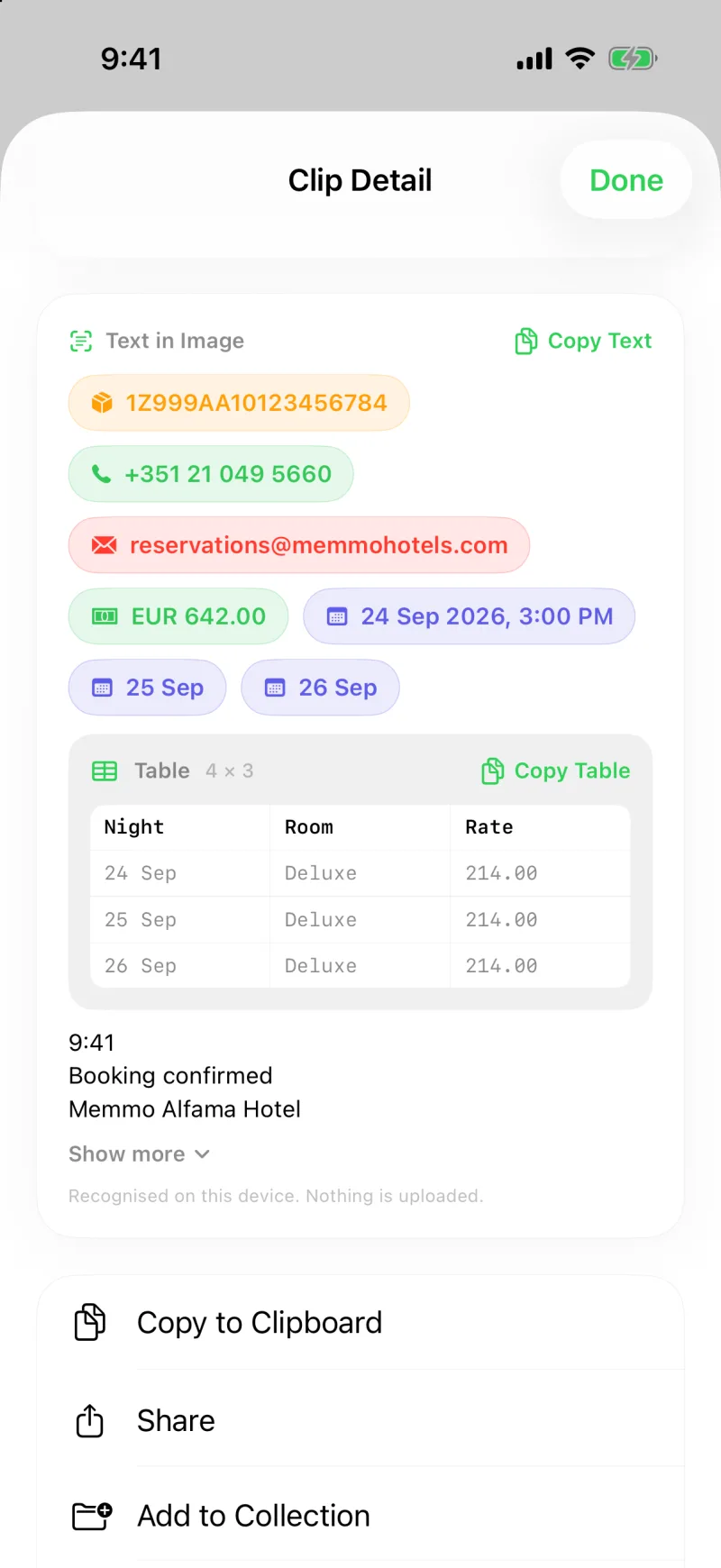
Open any image clip. Below the picture you will see a Text in Image section with everything Clipboard AI found. Tap Copy Text to put all of it on your clipboard, ready to paste wherever you need it. If there is a lot, the section keeps things tidy by showing the first few lines with a Show more to expand.
Grab just the part you need
You do not have to take all of it. Press and drag across the recognised text to highlight just a piece, one line of an address, an order number, a single phone number, then copy that. Clipboard AI saves your selection as its own clip, so the bit you actually wanted is ready to paste and easy to find again later.
Confirmation codes, tracking numbers, Wi-Fi passwords on a photo of a router, an address from a screenshot of a map. Pull out the one line you need and leave the rest.
The useful bits become chips
The phone numbers, addresses, links, email addresses, dates, amounts, tracking numbers, and flight numbers found in a screenshot sit in the same section as chips. Tap one to copy it, or press and hold to call, open, navigate, or track. A table in a screenshot comes out as a table, with a Copy Table button that pastes real cells into Numbers or Sheets. The full walkthrough is in Act on the numbers, links, and tables inside a screenshot.
Search reaches inside your images too
Because the text is read and indexed, search works right through your pictures. Type a word that only appears inside a screenshot and the image turns up in your results. Your whole clipboard becomes searchable, even the parts that are technically images.
New screenshots also get a short caption when they are saved, picked from the most prominent text in the image, so a row of images reads like a list of what they are. More on searching in Search your clipboard history, and on asking for a clip in plain words in Ask your clips a question.
Everywhere you use Clipboard AI
Text in Image works on iPhone, iPad, and Mac, and it is free. Save a screenshot on your phone, and with sync on the recognised text is waiting for you on your Mac too, ready to copy from the same tidy card. On the Mac, the Text in image chip appears on a clip the moment you copy it, and the clip you are looking at jumps the scanning queue, so the text is usually ready by the time you open it.