
The short answer
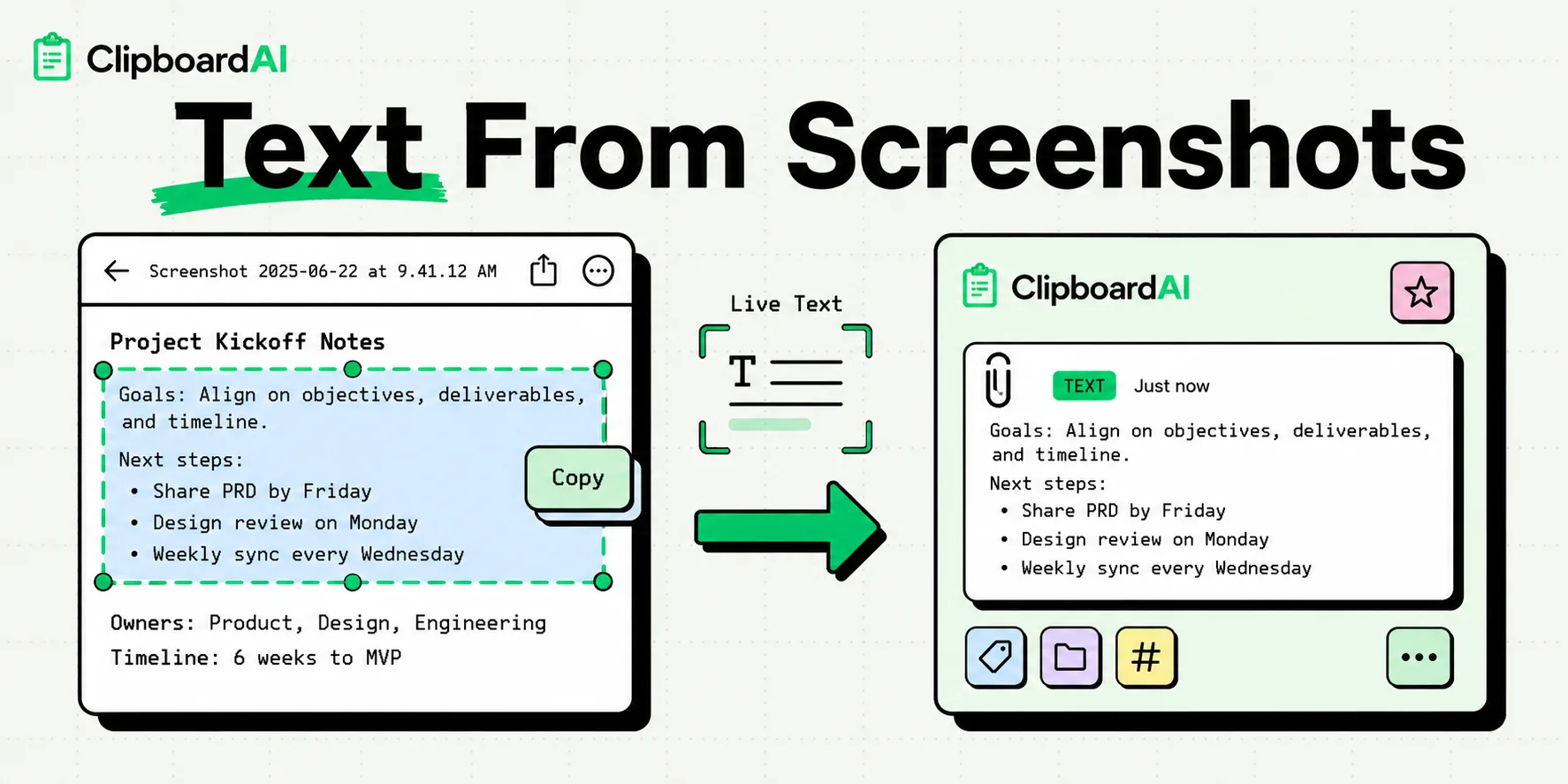
To copy text from a screenshot on iPhone, open the screenshot in Photos, tap the Live Text button in the bottom-right corner (the small square with three lines), select the words you want, and tap Copy. Live Text is built into iOS 15 and later, runs on your device, and works on any screenshot in your library, whether you took it this morning or three years ago.
Here is how to do it, how to grab just the part you need, and how to make sure the text does not vanish the moment you copy the next thing.
How your iPhone reads text in a screenshot
Live Text recognises words inside images right on your device. Nothing is uploaded, and it works offline. It arrived with iOS 15 and has quietly improved every year since, so if your iPhone is reasonably recent (iPhone XS, XR, or later, on iOS 15 or newer), you already have it, no download required.
It reads printed text in dozens of languages, and it is genuinely good at it: a menu, a receipt, a lecture slide, an error message, a phone number buried in someone's Instagram story. If a human can read the words in the picture, there is a good chance Live Text can too.
How do I copy text from a screenshot on iPhone?
The whole thing lives in the Photos app, and it is four taps.
- Open the Photos app and tap the screenshot you want.
- Find the Live Text button in the bottom-right corner: a small square with three lines inside it. Tap it.
- The text in the image lights up. Touch and drag to highlight the part you want, or press and hold and then choose Select All.
- Tap Copy. Done. The text is on your clipboard, ready to paste into a message, a note, an email, anywhere.
No Live Text button? The screenshot either has no text iOS can read, or your iPhone needs an update. We cover both fixes near the end.
Grab one line, or the whole thing
You do not have to take all of it. The selection handles you already know from editing text work here too. Drag the grab points to catch a single order number, one line of an address, or just the paragraph you care about. Double-tap a word to grab it on its own, or use Select All when you want the lot.
Live Text is also clever about what it finds. A detected phone number, email, link, or street address gets its own quick action, so you can tap to call, write, open, or map it without copying anything at all.
It works on screenshots from years ago
This is the part most people miss. Live Text is not something you switch on before you take a screenshot. It reads the image whenever you open it, which means every screenshot already sitting in your library is fair game. That folder of receipts, the conference slide you grabbed last spring, the booking confirmation from months ago: open any of them and the text is right there to copy.
When Live Text is not enough
Here is the catch. Live Text copies text once and forgets it. The built-in clipboard holds exactly one item, so the moment you copy anything else, the text you just lifted is gone. Work through a folder of screenshots and the early ones vanish as you go.
Clipboard AI closes that gap with on-device OCR: it keeps the extracted text in your clipboard history, lets you copy all of an image's text or just a selected part, and makes screenshots searchable by the words inside them. It reads screenshots, receipts, and photos automatically, on your device and never on our servers, so weeks later you can search a word that only appears inside a picture and the screenshot still turns up. See Copy the text out of any image for the full walkthrough.
Move the text to your Mac or iPad
Copied on your phone but you need it on your laptop? Apple's Universal Clipboard lets you copy on the iPhone and paste on a nearby Mac or iPad, as long as both are signed into the same Apple Account with Bluetooth and Wi-Fi on. If you use Clipboard AI with sync turned on, the text you lifted from a screenshot is simply waiting on your other devices, no split-second timing required.
When Live Text does not catch everything
A few things trip it up, and each has a quick fix.
- No Live Text button. Update to the latest iOS in Settings, General, Software Update. Anything older than iPhone XS does not support it.
- Blurry or tiny text. Recognition needs something to work with. Open the screenshot, pinch to zoom in, and try selecting again.
- Stylised or handwritten fonts. Live Text reads printed text best. Fancy display type and handwriting are hit and miss.
- An unsupported language. Check that the language is one Live Text supports under Settings, General, Language and Region.
For screenshots you want to keep working with, Clipboard AI's copy text from images (OCR) feature holds the extracted text in your history and makes every screenshot searchable by the words inside it.
Frequently Asked Questions
How do I copy text from a screenshot on iPhone?
Open the screenshot in Photos, tap the Live Text button in the bottom-right corner, highlight the text (or choose Select All), and tap Copy. The text is now on your clipboard, ready to paste.
Does Live Text work on old screenshots?
Yes. Live Text reads the image the moment you open it, so it works on any screenshot already in your library, no matter how long ago you took it.
Why is there no Live Text button on my screenshot?
Either the image has no text iOS can recognise, or your iPhone needs updating. Live Text needs iOS 15 or later and an iPhone XS or newer. Update under Settings, General, Software Update.
How do I keep the text so I do not lose it?
The iPhone clipboard only holds one item, so the next thing you copy replaces it. A clipboard manager like Clipboard AI saves everything you copy and even reads the text inside images automatically, so you can search for it and paste it again later.
Can I search screenshots by the text inside them?
Yes, with OCR. Clipboard AI reads the text inside every screenshot, receipt, or photo you save, on your device, and keeps it in your clipboard history, so you can find any image later by searching the words inside it.