
On this page
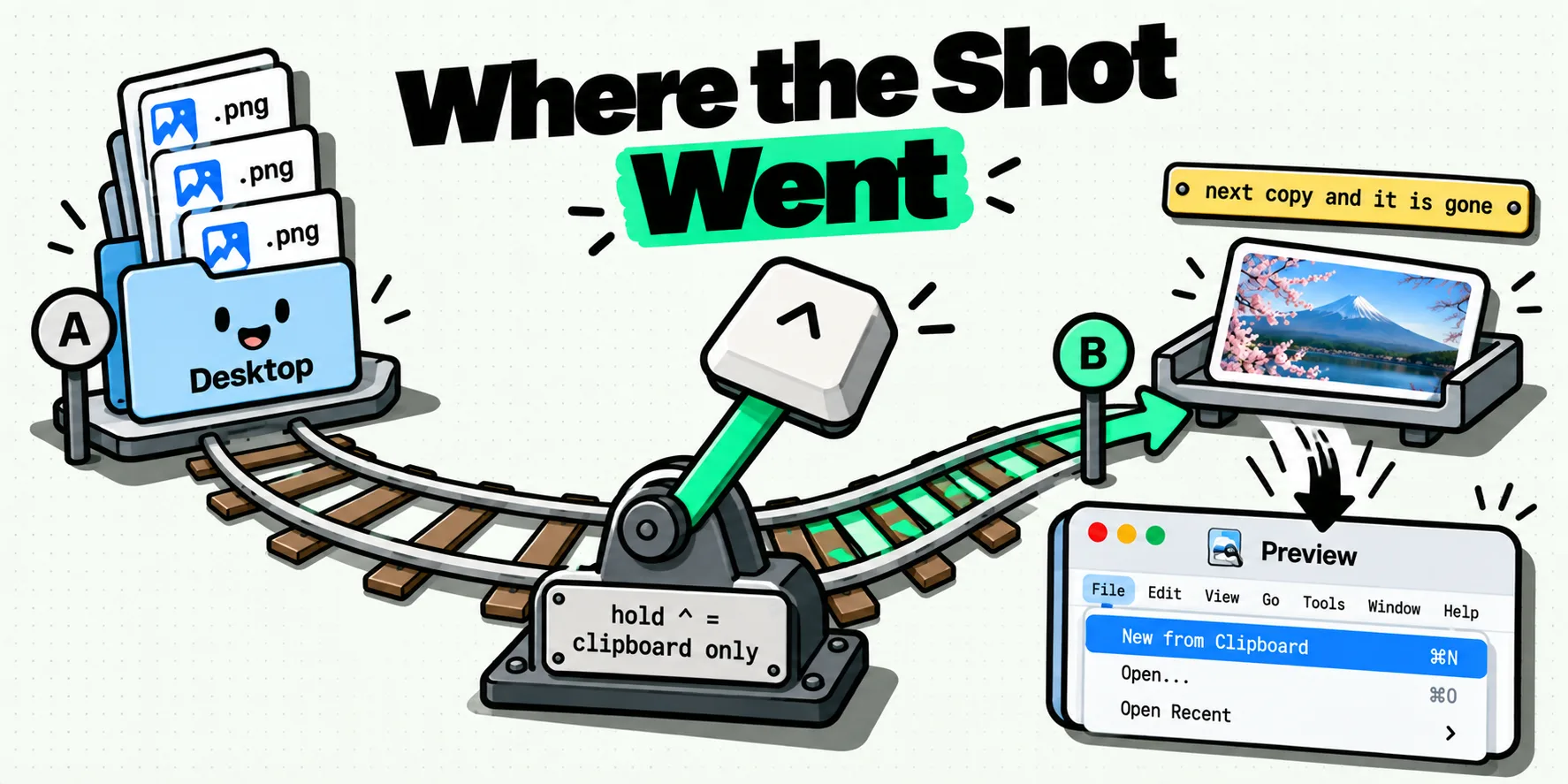
If you held Control while taking the screenshot, macOS put the image on the clipboard and never wrote a file. Nothing was saved to the Desktop because nothing was meant to be. You can still rescue it if you have not copied anything since: open Preview, choose File, then New from Clipboard, and save the window that appears. Once another copy lands on the clipboard, macOS keeps no second copy and the shot is gone.
Do the rescue first and read the rest afterwards, because the clock on this one is one copy long.
Check the clipboard before you touch anything else
Open any app that accepts an image and press Command-V. Mail, Messages, a Pages document, a Slack message box, anything. If the screenshot appears, it is still on the clipboard and you have not lost it. If a paste gives you nothing or gives you the last text you copied, the image has already been overwritten, and the rest of this page is about making sure that was the last time.
Resist the urge to open Finder and search first. Searching the Desktop puts you at risk of copying a filename or some text along the way, and the one thing that destroys a clipboard-only screenshot is the next copy.
Preview turns it back into a file, in four steps
This is the free rescue, and it needs nothing installed.
- Open Preview from Applications or Spotlight.
- Choose File, then New from Clipboard. If that item is grayed out, the clipboard holds no image and there is nothing to recover.
- An untitled window opens with your screenshot in it.
- Press Command-S and give it a name and a folder. Untitled Preview windows are discarded if you close them without saving, so do this before anything else.
Same trick, different destination: paste into a Mail draft to yourself, or into Messages, if you want it somewhere you can find later without thinking about folders.
Which key sent it where
Every "where did my screenshot go" question on a Mac resolves to one of the rows below. The Control key is the whole story: hold it and the capture goes to the clipboard instead of to a file. Apple documents this on its screenshot page, in one sentence: press and hold Control while you press the other keys.
| What you pressed | What it captures | Where it lands | Still there in an hour? |
|---|---|---|---|
| Shift-Command-3 | The whole screen | A file, by default on the Desktop | Yes |
| Control-Shift-Command-3 | The whole screen | The clipboard only | Only until your next copy |
| Shift-Command-4 | A selection you drag | A file, by default on the Desktop | Yes |
| Control-Shift-Command-4 | A selection you drag | The clipboard only | Only until your next copy |
| Shift-Command-4, then Space | A single window | A file, by default on the Desktop | Yes |
| Control-Shift-Command-4, then Space | A single window | The clipboard only | Only until your next copy |
| Shift-Command-5 | Whatever you choose in the toolbar | Wherever the Options menu says | Depends on the setting below |
The Terminal equivalent is screencapture -c, which man screencapture describes as "Force screen capture to go to the clipboard." Add -x to silence the shutter sound. It needs Screen Recording permission for whichever terminal you run it in; without it the command fails with could not create image from display, exit status 1, and writes no file.
The floating thumbnail confuses this further. Apple describes it as floating "in the bottom-right corner of the screen for a few seconds". While it is there you can drag it straight into a document or a Finder window, or Control-click it to pick a destination. Ignore it and it files itself according to the rule above. Blink and it is gone, which is exactly how a screenshot ends up feeling lost even when it was saved perfectly normally.
The Options menu that swallows every screenshot
Here is the version of this problem that lasts for weeks rather than one copy. Press Shift-Command-5 and the screenshot toolbar appears with an Options menu. Under Save to it offers Desktop, Documents, Clipboard, Mail, Messages, Preview and Other Location.
Pick Clipboard once, for one good reason, and it stays picked. From then on every plain Shift-Command-3 and Shift-Command-4 goes to the clipboard and no file is ever written. People arrive at this having concluded that macOS stopped saving screenshots, or that a system update broke something. It is a setting, it is two clicks from here, and it is the first thing to check when screenshots stop appearing on the Desktop.
Open Shift-Command-5, click Options, and look at which item under Save to has a checkmark. Set it back to Desktop, then take one test shot to confirm. Twenty seconds, and it explains most disappearing-screenshot reports.
A habit protects you better than any setting. Capture to a file by default, and use the Control variants only when you are pasting straight away, in the next couple of seconds, into an app that is already open. Control is a shortcut for a transfer, not for a save.
Why there is nothing to recover
The macOS clipboard holds one item at a time. Writing to it does not push the previous item into a stack, it replaces it, and the operating system keeps no copy of what was there before. A clipboard-only screenshot never becomes a file, never gets a name, never lands in a folder, and is therefore not something Time Machine, Finder or a disk recovery tool can find later. There is no temporary file to hunt for.
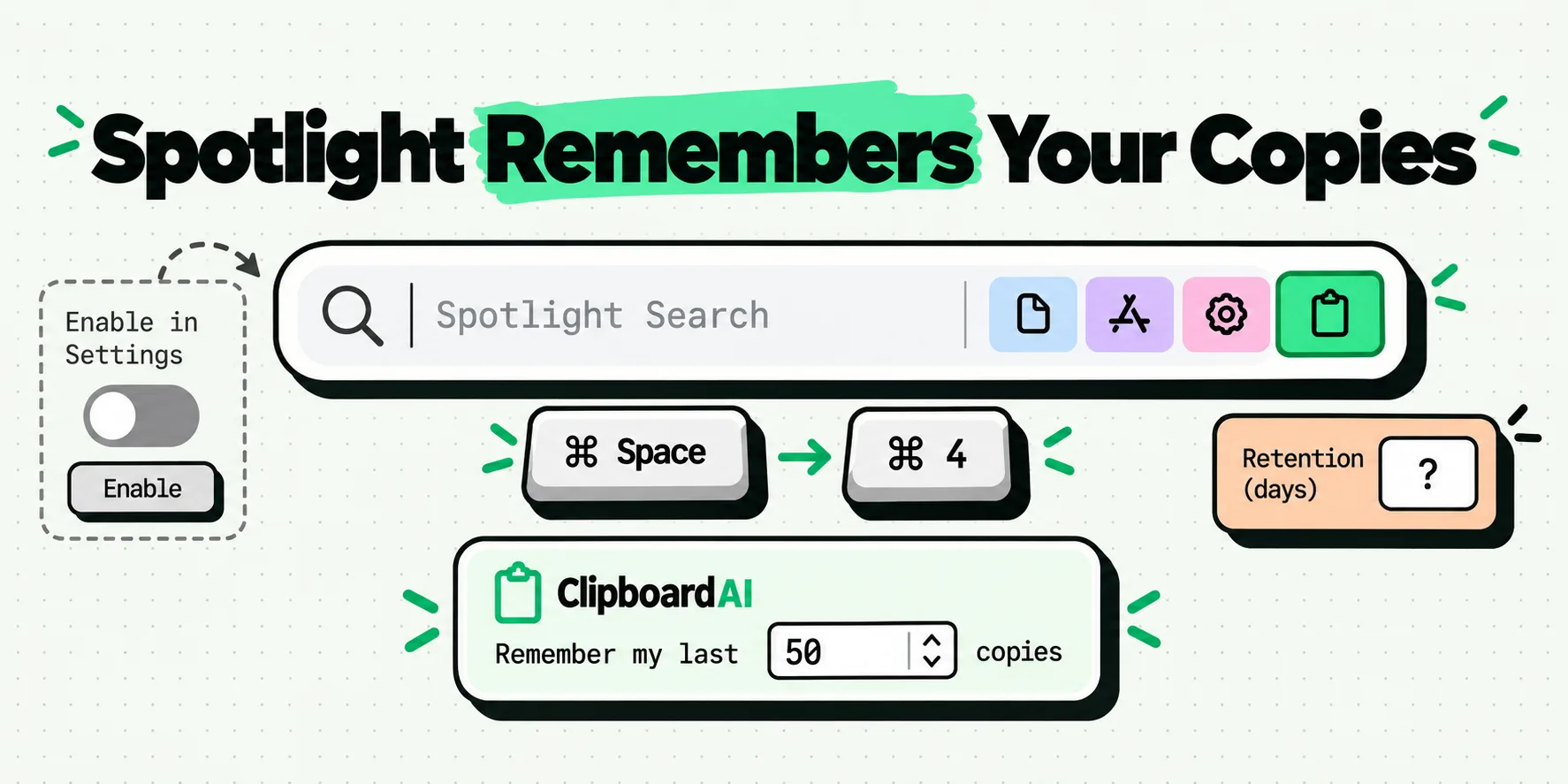
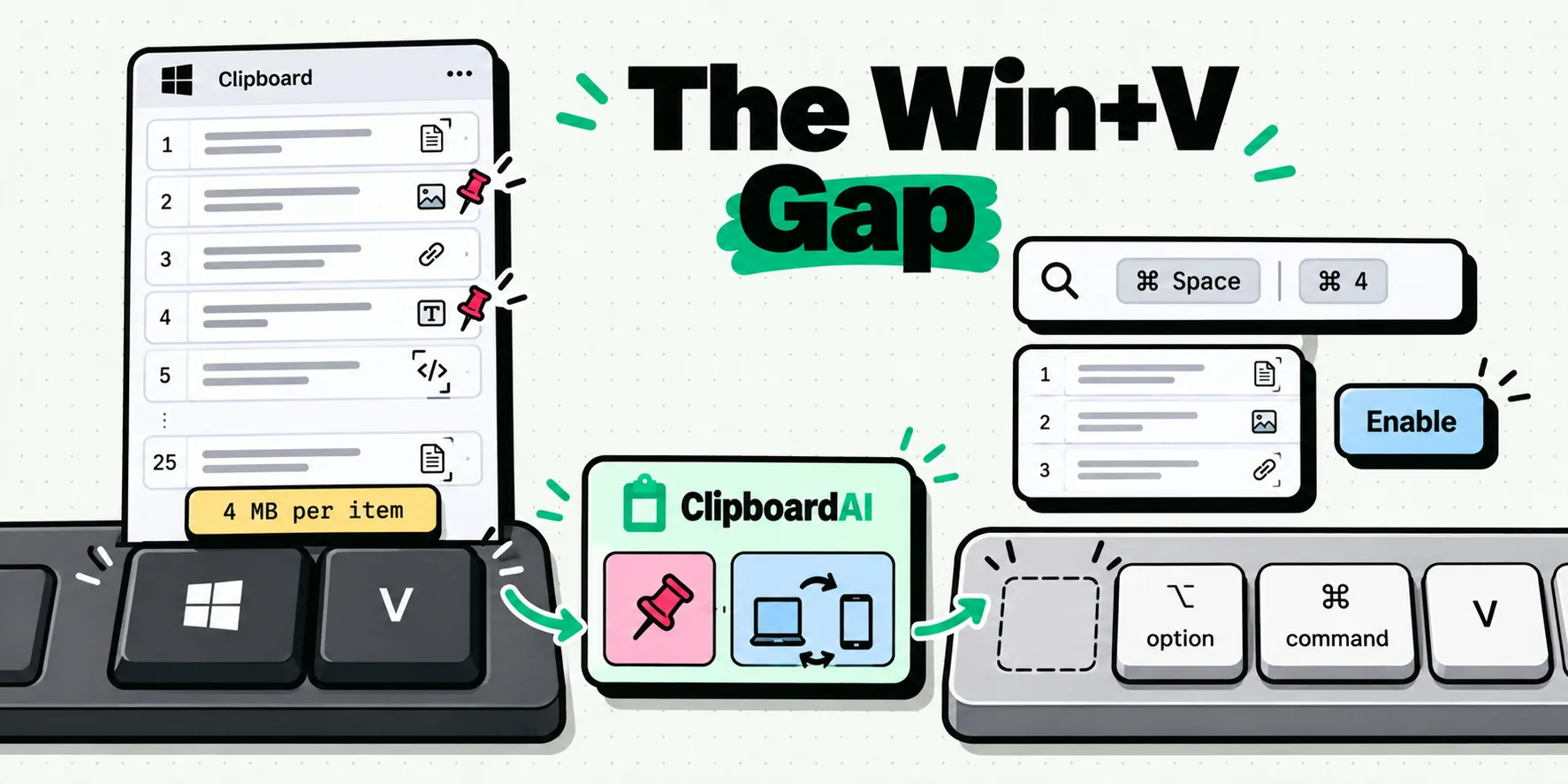
The clipboard history that macOS 26 added inside Spotlight is worth a look before you give up: press Command-Space, then Command-4. It costs two seconds, with one catch: it only holds what was copied after it was switched on, and it ships off. defaults read com.apple.Spotlight PasteboardHistoryEnabled returns 1 when it is on and 0 when it is not, and on macOS 26.2 I got 0 on September 8, 2026. Apple's support page says nothing about whether images are kept, but MacMost's hands-on found screenshots in the list, and items expire after eight hours by default (macOS 26.1 added a choice of 30 minutes, 8 hours or 7 days, per MacRumors). Treat a hit as luck rather than a plan. How that feature works, and does not, is covered in macOS clipboard history in Spotlight, and if it opens empty for you the diagnosis is in Spotlight clipboard history not working.
When the answer is "take it again"
First look at every place you already pasted it. A screenshot that went into a chat message, a draft email or a document before it was lost is a file there now, and dragging it back out to the Desktop is faster than reproducing the capture.
Otherwise some situations are genuinely unrecoverable, and knowing which saves you twenty minutes of searching:
- You took a Control screenshot, then copied a URL. The image is gone. Nothing on the machine has it.
- You pasted it into an app that only accepted text, so the paste did nothing, and then you copied something else. Also gone.
- You restarted or shut down with the image only on the clipboard. Gone.
- The content itself has changed since, a notification has cleared or a page has re-rendered, in which case retaking is the correct move anyway.
No Terminal command brings it back either. pbpaste returns text, rich text or PostScript, and with a PNG on the clipboard pbpaste | wc -c returned 0 on macOS 26.2 on September 8, 2026.
What is not gone: anything captured without Control. That is a file, and it is wherever the Save to setting points, which is the Desktop unless you changed it. Sort the Desktop by date modified before concluding otherwise.
A copied screenshot is far bigger than its file
The Control shortcuts have a hidden cost, and it shows up in any tool that keeps history. On macOS 26.2 (build 25C56), on September 9, 2026, I rendered a 2400 by 1600 screenshot, put it on a pasteboard declaring only public.png at 148,631 bytes, and then asked that same pasteboard for public.tiff:
declared by the writer: ["public.png"]
public.png  bytes: 148631
public.tiff bytes: 15364440   <- nobody wrote this
Nothing produced those fifteen megabytes except my asking for them. The pasteboard server converts between image types on demand, so a reader that wants TIFF gets a full uncompressed one built on the spot: 2400 times 1600 pixels at four bytes each is 15,360,000, and the remaining 4,440 bytes are the TIFF's own tags. That is 103 times the PNG, from one screenshot. An app copying an image usually declares one flavor and stops, and whatever asks for a second flavor triggers the work, so a history tool that archives every representation it can see pays for renderings the source never produced.
ClipboardAI's Mac code learned this on a real copy: reading TIFF off a PNG-only copy made the pasteboard server fabricate a full uncompressed TIFF, and a 13.7 MB photo copied out of Chrome had a 50 MB phantom TIFF archived next to it. The fix was to archive bitmap flavors only when the source app itself declared them. Images are also kept at full resolution: a capture is re-encoded as a JPEG only when it is over 2 MB, is a PNG or BMP, is fully opaque, and the JPEG comes in under 40 percent of the original size. Anything short of all four is kept byte for byte, which is why a text-heavy screenshot stays a crisp PNG. Whichever manager you choose, copy a screenshot now, open its history and look; thirty seconds spent on that answers a question you would otherwise ask at the worst possible moment.
Screenshots that are still there next Tuesday
The durable fix is to stop the clipboard being the only place the image lives. On a Mac, ClipboardAI captures automatically and continuously, and it does not watch for a Command-C keypress: it asks the macOS pasteboard server whether the clipboard changed. That means a Control-Shift-Command-4 screenshot is captured the moment it lands, exactly like a copied paragraph, along with images written by scripts, by Shortcuts, and by Universal Clipboard arriving from your iPhone.
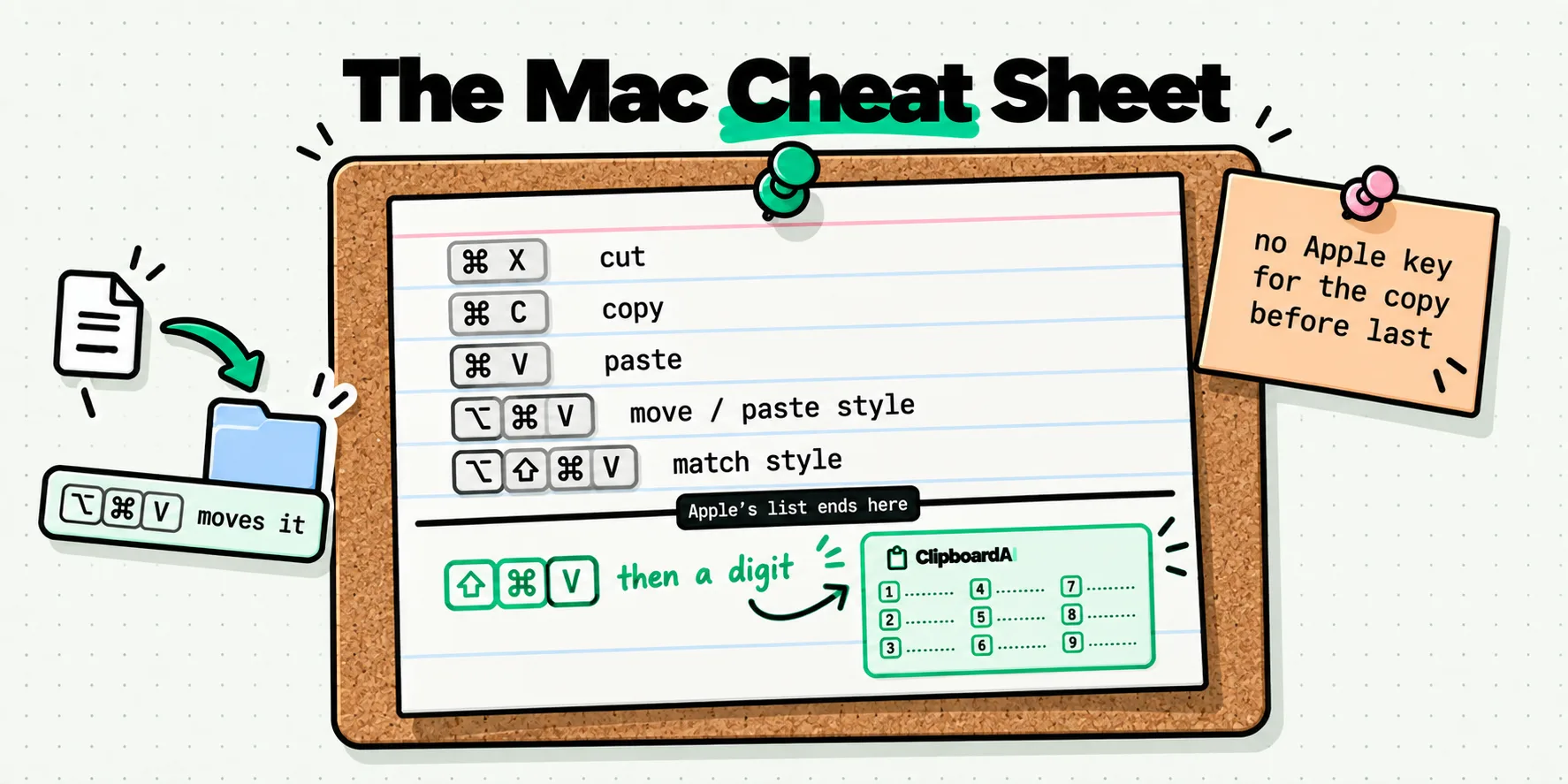
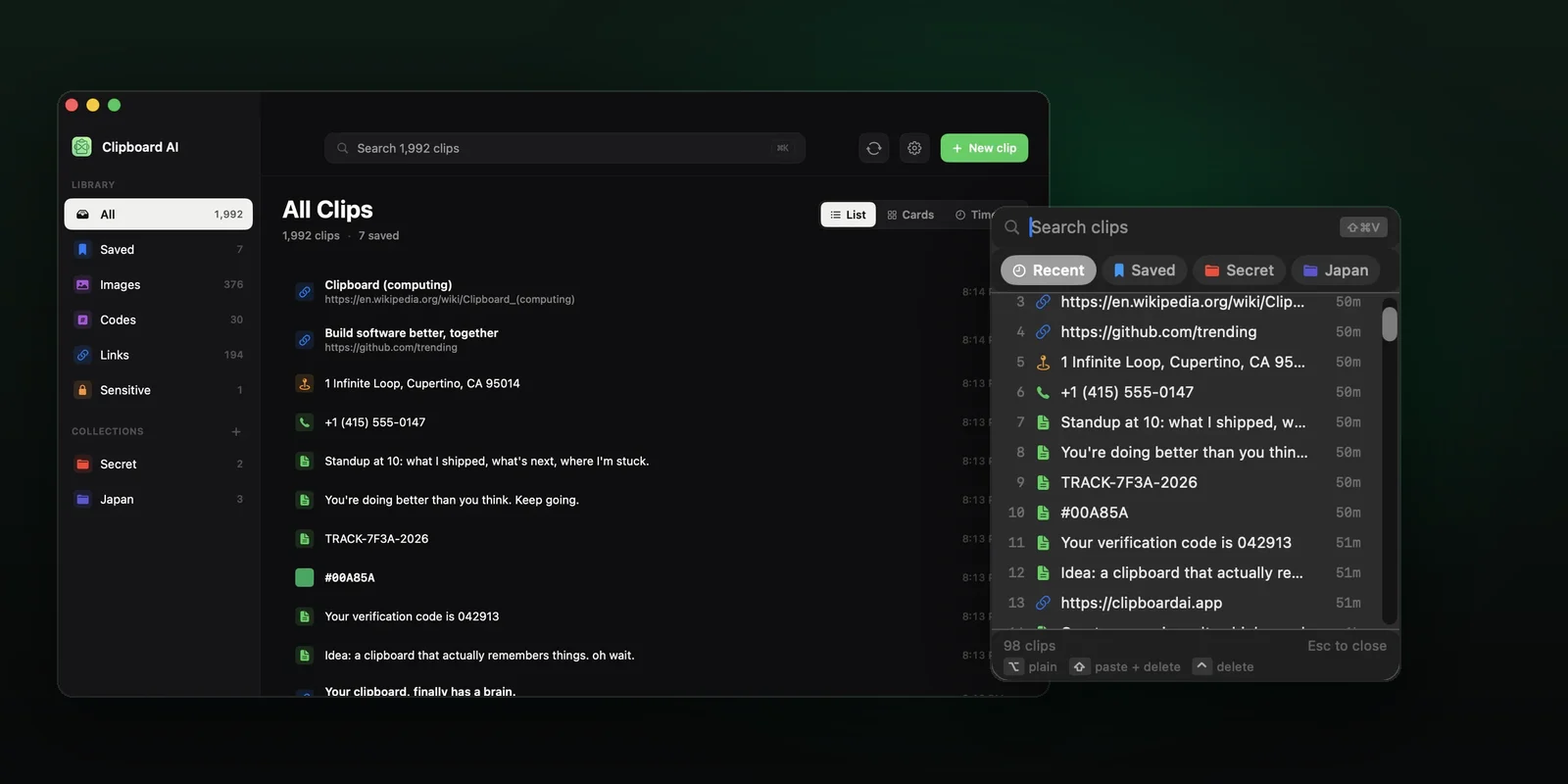
Practically, that changes the shape of the mistake. Copy over a screenshot and it is a row in your history rather than an incident. Open the panel with Command-Shift-V, hold Space to peek at an image before you commit to it, and pick it to put it back on the clipboard. Image clips show as thumbnails, sized in Settings, Menu, Images, so you recognize the one you want by looking rather than by remembering the order you took them in. The Mac app page has the rest of the panel.
There is a second thing that happens quietly. Text inside every image clip is recognized on your Mac using Apple's Vision framework, so a screenshot of an error dialog or a receipt is findable by typing words that appear inside it. That is what makes a screenshot from three weeks ago retrievable at all, and it is covered in searching your screenshots by what is in them and in the text in images help article. If what you actually want is the text out of the picture rather than the picture, copying text from a screenshot on a Mac is the shorter route, and the whole capture-once-reuse-everywhere pattern is in reusing one screenshot across several AI chats.
To turn a saved image clip back into a file, pick it so it goes on the clipboard, then Preview, File, New from Clipboard, Command-S. The same four steps as the rescue at the top of this page, except now you can do it whenever you like instead of within one copy.
Sources
- Apple, "Take screenshots or screen recordings on Mac"
- Apple, "NSPasteboard"
- MacMost, "How to use the Spotlight clipboard history in macOS Tahoe", September 22, 2025
- MacRumors, "Apple Expands Spotlight Clipboard Settings in macOS Tahoe 26.1", November 4, 2025
Pasteboard byte counts were measured on macOS 26.2 (build 25C56) on September 9, 2026, by writing a rendered 2400 by 1600 PNG to a private pasteboard and reading back each type. The screencapture wording is quoted from the man page on the same machine.
Frequently Asked Questions
Where do screenshots copied to the clipboard go on a Mac?
Nowhere on disk. Holding Control while you take a screenshot tells macOS to put the image on the clipboard instead of writing a file, so there is no Desktop file, no temporary file and nothing for Finder or Time Machine to find. It exists only in memory until the next thing you copy replaces it. To turn it into a file, open Preview and choose File, then New from Clipboard, then save.
How do I recover a screenshot I copied but did not save?
Immediately, and only if you have not copied anything since. Open Preview, choose File, then New from Clipboard, and press Command-S to save the window that appears. If that menu item is grayed out, the clipboard no longer holds an image. Pasting into Mail or Messages works just as well as a rescue. Once another copy has landed, macOS keeps no earlier version, so the shot has to be retaken.
Why did my Mac stop saving screenshots to the Desktop?
Almost always the Screenshot app's save destination. Press Shift-Command-5, click Options, and look at the Save to section: it offers Desktop, Documents, Clipboard, Mail, Messages, Preview and Other Location, and whichever you pick last stays picked. If Clipboard is checked, every screenshot goes to the clipboard and no file is written. Set it back to Desktop and take a test shot to confirm.
Does macOS keep a history of images I copied?
Apple documents no image history. The clipboard holds a single item and replacing it discards the previous one. The clipboard history added to Spotlight in macOS 26 is worth checking with Command-Space then Command-4: Apple's support page does not say whether images are retained, but MacMost found screenshots in the list, and items expire after eight hours by default. It is off until you switch it on, so it is not something to rely on. A clipboard manager keeps image clips deliberately, with thumbnails.
Can I take a screenshot to both a file and the clipboard at once?
Not with a single Apple shortcut. The Control key switches the destination rather than adding one, so you get a file or a clipboard image, not both. The practical workaround is to capture to a file as normal and let a clipboard manager pick up anything you copy afterwards, or to capture to the clipboard and rebuild the file in Preview with File, New from Clipboard whenever you decide you want to keep it.
Does a clipboard manager catch screenshots copied with Control-Shift-Command-4?
On a Mac, ClipboardAI does. Its change detection asks the macOS pasteboard server whether the clipboard changed rather than watching for a Command-C keypress, so an image written by the screenshot tool is captured the same way a copied paragraph is. The clip appears with a thumbnail, the text inside it is recognized on your device, and it stays in your history rather than surviving only until your next copy.