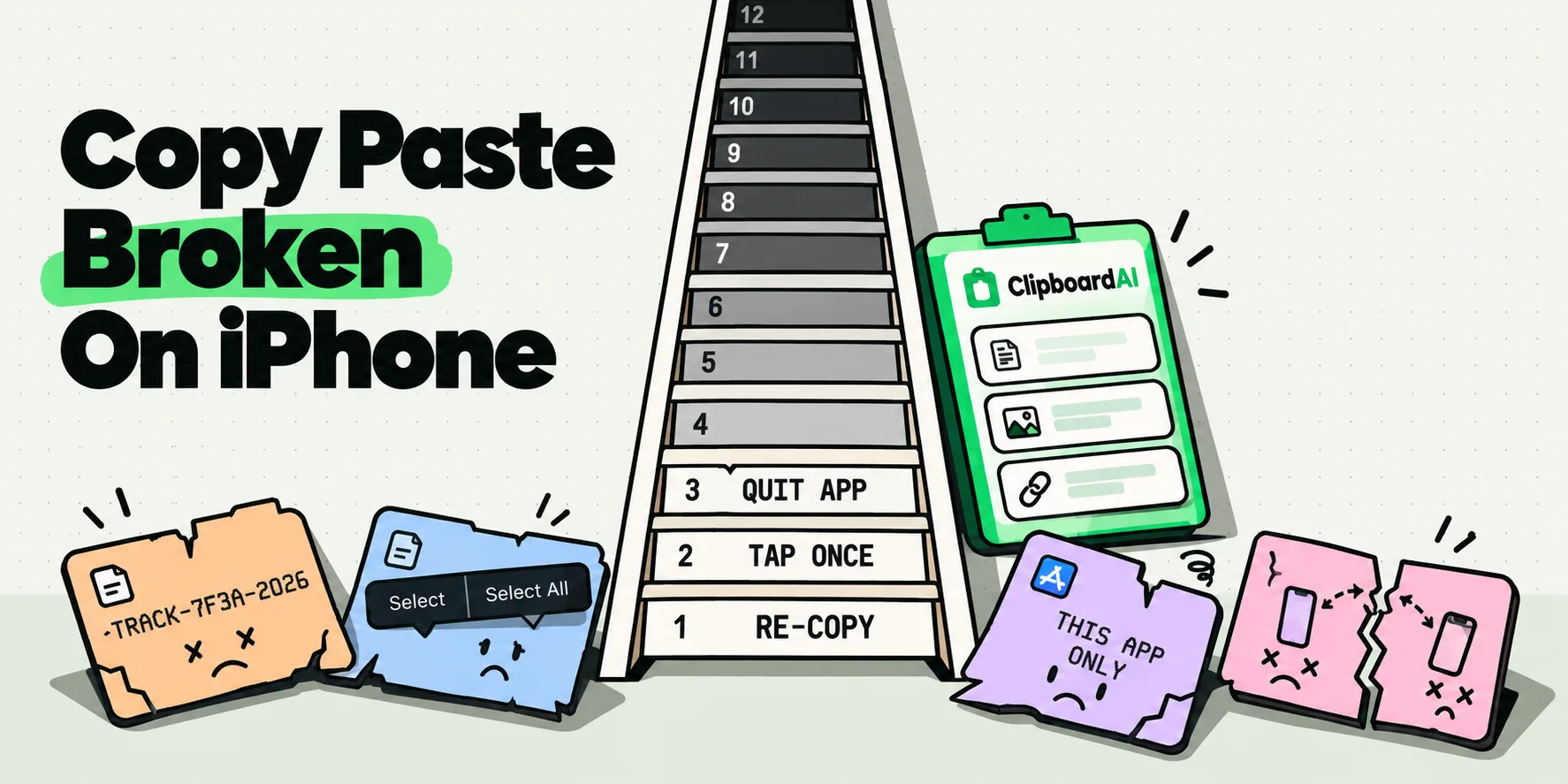
To copy and paste with formatting on iPhone, select the text, tap Copy, then touch and hold in a rich text app such as Notes, Mail or Pages and tap Paste. Bold, italics, links and lists usually come along, because iOS keeps a rich version of the copy next to the plain one and rich text apps pick it. To copy only the styling, Pages and Keynote offer Copy Style and Paste Style.
This page is about keeping the styling. If you want the opposite, text that takes on the look of the document you paste into, read how to paste without formatting on iPhone and iPad. The iPhone's edit menu has no Paste and Match Style command, so that job takes a different route, and the two pages are mirror images: use whichever matches what you want.
Why styling survives in one app and vanishes in another
A copy on iOS is not one piece of text. The app you copy from writes several versions of the same selection to the pasteboard: the plain characters, usually a rich text version with fonts, sizes, bold and links, and often an HTML version as well. Web browsers and email apps tend to offer HTML, and document editors offer rich text. The app you paste into then picks the richest version it understands.
That is why one copy can look right in Notes, plain in Messages and wrong in a third app. The clipboard is the same each time, and the destination decides. It also means formatting cannot be added afterward: if the source app handed over only plain text, no paste can invent the bold.
The iPhone clipboard holds one copy at a time, so the next thing you copy replaces the styled one (why iPhone only saves one copy explains the design).
How to copy and paste with formatting on iPhone
- Select the text. Double-tap a word, triple-tap a paragraph, or double-tap and hold the first word and drag the grab points. Apple lists these gestures for iOS 26 and iOS 27, and the text selection tips cover the rest.
- Tap Copy in the edit menu, or pinch closed with three fingers. Copy from the app that holds the styled text, not from a plain-text field.
- Open a rich text destination, touch and hold where the text should go, and tap Paste (or pinch open with three fingers).
- Check the result. If the styling came through, you are done. If it did not, the sections below explain why and what to do.
iOS 27 adds a paste suggestion to the bar above Apple's keyboard after you copy, labeled with the source app (for example Paste from Safari). MacRumors and 9to5Mac describe it as a one-tap paste and say nothing about formatting, so use the normal Paste when the styling matters and check the result.
What each kind of destination keeps
What a normal paste keeps depends on the kind of field it lands in:
| Kind of destination | Examples | What a normal paste keeps |
|---|---|---|
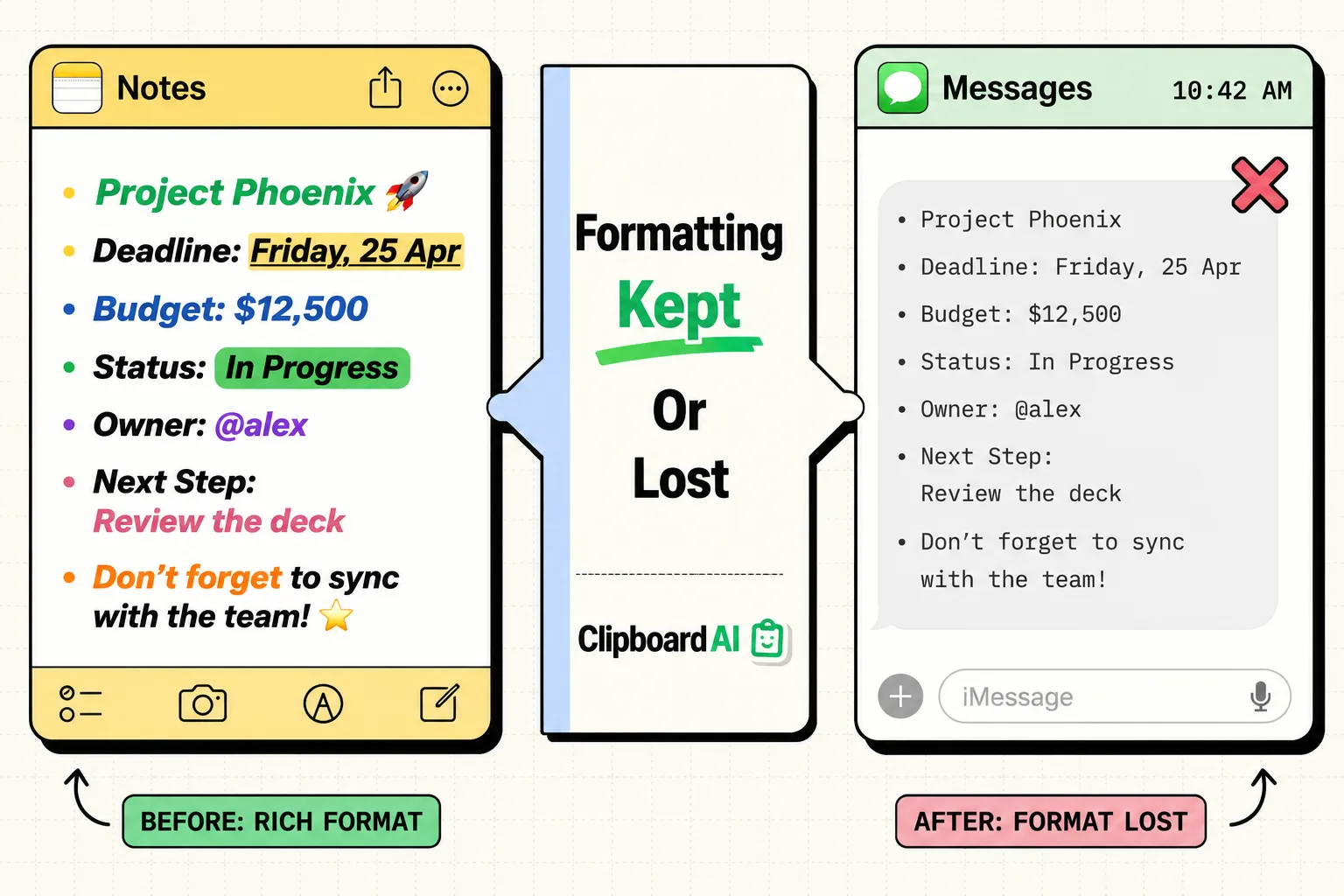
| Rich text editors | Notes, the compose field in Mail, Pages, Keynote | Bold, italics, links and lists. The app may swap the source font and size for its own |
| Chat and social apps | Messages, Instagram, X | The words. Fonts, colors, highlights and the link behind linked words are dropped |
| Single-line fields | Search bars, Safari's address bar, web form fields | Characters only |
| Keyboard extensions | Clipboard AI's keyboard on iPhone, other third-party keyboards | Characters only, because a keyboard can only type text into a field |
Even inside one app the field matters: Mail's compose field takes rich text, while its search field takes characters only. Text copied with Live Text from a photo, a screenshot or a PDF arrives as recognized characters, so there is no styling to keep in the first place.
Copy just the style in Pages and Keynote
Apple documents a way to copy a text style on its own, so one heading or caption can look like another without retyping anything. In Pages on iPhone:
- Select the text that has the style you want, or place the insertion point in it. The style of the first character in a selection is what gets copied.
- Tap the Format button, then tap Copy Style.
- Select the other text, or place the insertion point in it, tap the Format button again, then tap Paste Style.
Start the selection on a letter. Apple warns that if the first character is a space, the text you paste the style onto is replaced by white space. Keynote on iPad works the same way, with Paste Style under the Style button. With a hardware keyboard, Pages lists Option-Command-C and Option-Command-V for copying and pasting a paragraph or object style. Apple's Notes guide lists no equivalent command.
Keeping formatting between iPhone, iPad and Mac
Universal Clipboard moves your latest copy to a nearby device signed in to the same Apple Account, with Wi-Fi, Bluetooth and Handoff turned on. Apple says it behaves like ordinary copy and paste, and that the copy stays available for a short time. Apple's page does not say which versions of a copy cross over, so the app you paste into still picks again. Check the result, and see how to share your clipboard between devices if the paste never arrives.
Fixing a paste that came out wrong
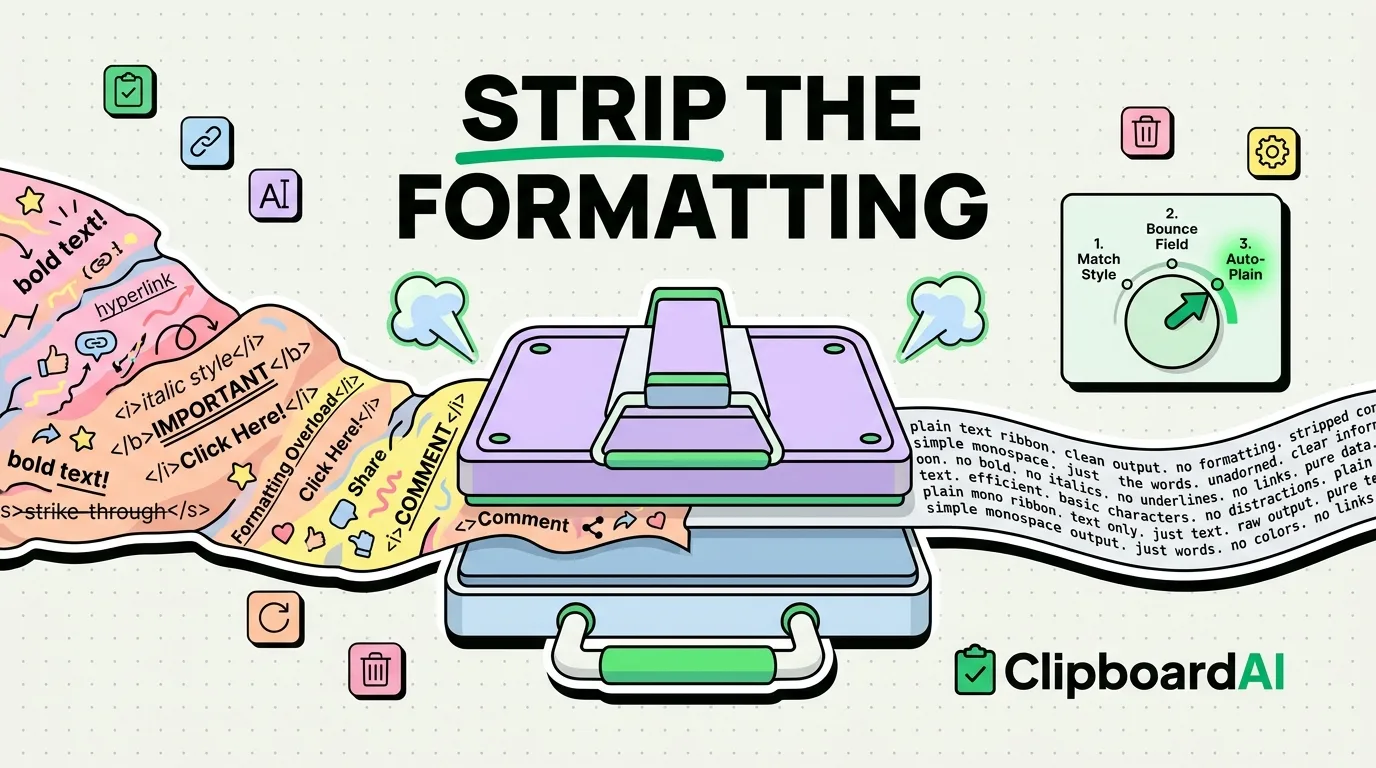
- The font or size is wrong. The destination chose the source's rich version, which carries its own font and size. In Notes, select the text, tap the Format button (Aa) and choose Body to reset a pasted heading style. Bold and links stay, so for a clean result use the plain text routes instead.
- A background color or highlight came along. It is part of the rich version, so the same fix applies: paste as plain text, or clear the color in an app that has formatting controls.
- Links stopped working. A plain paste keeps the words and drops the link behind them. Paste into a rich text field, or copy the link address separately and add it again.
- A list turned into a mess. Apps represent lists in different ways, with HTML lists, typed bullet characters or tab indents, so they are the least reliable thing to move. Paste into an app with strong list support and tidy it there.
- A table fell apart. Tables are the least reliable thing to copy from a web page, because the grid is built from markup that many apps ignore. See how to copy table data from websites on iPhone for the methods that keep the structure.
- The text is plain whatever you do. It was copied from a source that offers only characters, such as a plain text field or text recognized in a photo or screenshot. See how to extract text from screenshots for those.
If you would rather fix the text before you paste it, our free formatting remover strips the styling and tidies spacing and line breaks, right in Safari.
Formatted snippets and Clipboard AI
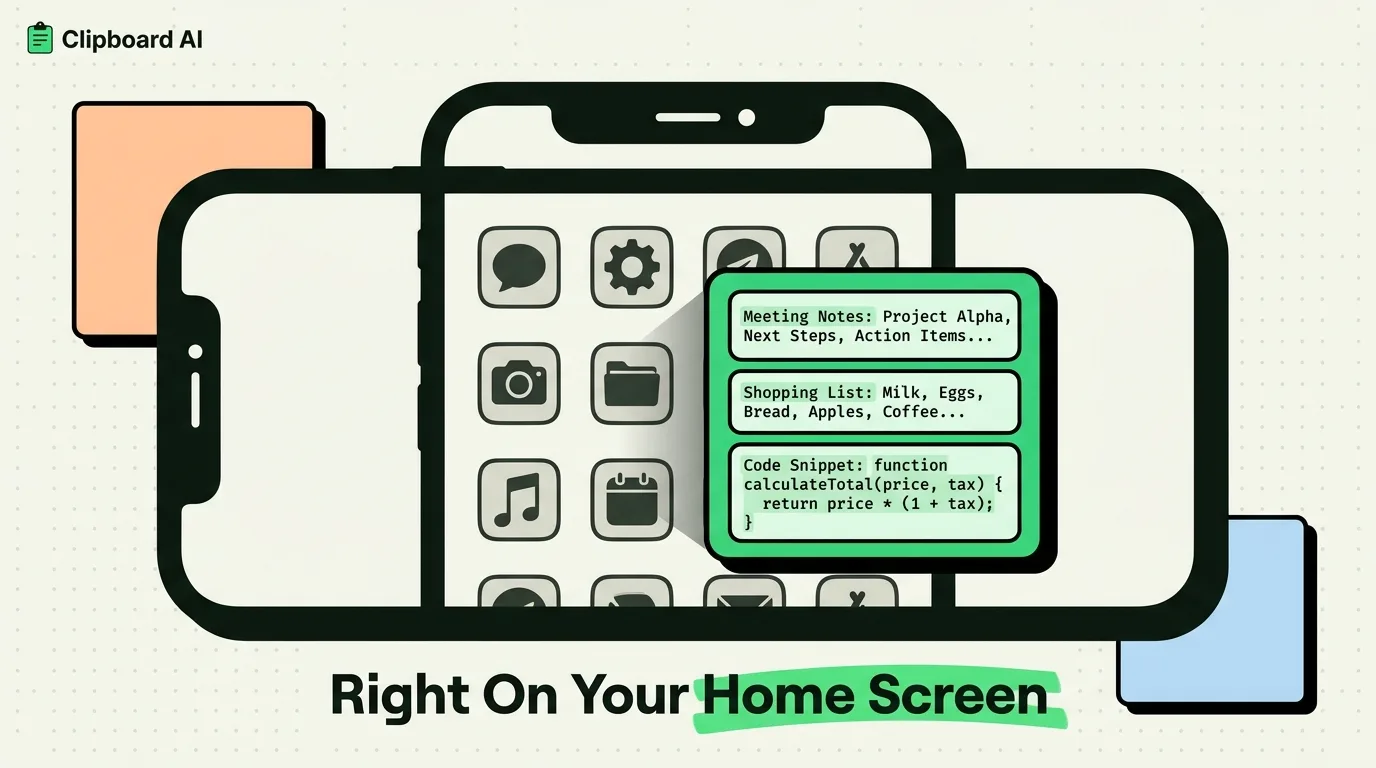
Clipboard AI is built for snippets, codes, links and images. On iPhone its keyboard types a clip into the field as plain characters, which suits addresses, codes and canned replies and is the reason a styled email signature will not stay styled when it comes from the paste keyboard. For a snippet that must keep its bold or links on iPhone, store it in Notes or Pages and use the system Paste.
On the Mac the picture is different. Clipboard AI keeps the styled versions of a copy and pastes them with formatting unless you hold Option as you pick the clip or turn on Always paste as plain text, as the Help Center's paste without formatting on Mac article explains. The clipboard keyboard guide shows how the iPhone side works, and the copy and paste guides collect the rest of the topic.
Frequently Asked Questions
Does Clipboard AI keep formatting when it pastes?
Yes on Mac, no on iPhone. On Mac, a normal paste keeps bold, links and lists, and holding Option or turning on Always paste as plain text strips them. On iPhone, the keyboard types each clip into the field as plain text, like any keyboard extension. For a snippet that must stay styled on iPhone, keep it in Notes or Pages and use the system Paste.
Can you copy only the formatting of text on iPhone?
Yes, in Pages and Keynote. Tap the Format button, choose Copy Style, select the other text, then choose Paste Style. Apple warns that a selection starting with a space replaces the target text with white space, so start on a letter. Apple's Notes guide lists no equivalent command.
Is formatting guaranteed to survive Universal Clipboard?
No. Apple says Universal Clipboard works like normal copy and paste between devices on the same Apple Account with Wi-Fi, Bluetooth and Handoff on, within 30 feet (10 meters), and that the copy stays available for a short time. It does not say which versions of a copy cross over, so check the result after pasting.
Can you remove formatting after you paste on iPhone?
Yes, but only in apps with formatting controls. In Notes, select the text, tap Aa and choose Body to reset a pasted heading style. Bold and links stay, so for a clean strip paste as plain text instead. The iPhone edit menu has no Paste and Match Style, so that takes a different route.
Sources
- Apple Support, “Select, edit, and move text on iPhone”, iPhone User Guide (titled “Select, cut, copy, and paste text on iPhone” in the iOS 26 version), read October 5, 2026
- Apple Support, “Copy and paste text styles in Pages on iPhone”, Pages User Guide for iPhone, read October 5, 2026
- Apple Support, “Copy and paste text in Keynote on iPad”, Keynote User Guide for iPad, read October 5, 2026
- Apple Support, “Keyboard shortcuts for Pages on iPad”, Pages User Guide for iPad, read October 5, 2026
- Apple Support, “Create and format notes on iPhone”, iPhone User Guide, read October 5, 2026
- Apple Support, “Copy and paste between your iPhone and other Apple devices”, iPhone User Guide, read October 5, 2026
- MacRumors, “iOS 27 Adds a Useful New Copy-and-Paste Feature to Your iPhone”, July 1, 2026
- 9to5Mac, “iOS 27 adds convenient new iPhone feature you’ll use all the time”, September 22, 2026