
The Bottom Line
iOS has no single system-wide "paste as plain text" shortcut. The reliable way to strip formatting is to paste into a plain-text field first (Notes' checklist mode does not help, but the Safari address bar or an iMessage draft does), copy it back out, then paste that clean version wherever you actually need it. If you do this often, a clipboard manager that stores plain text can skip the middle step entirely.
Why Formatting Follows Your Paste
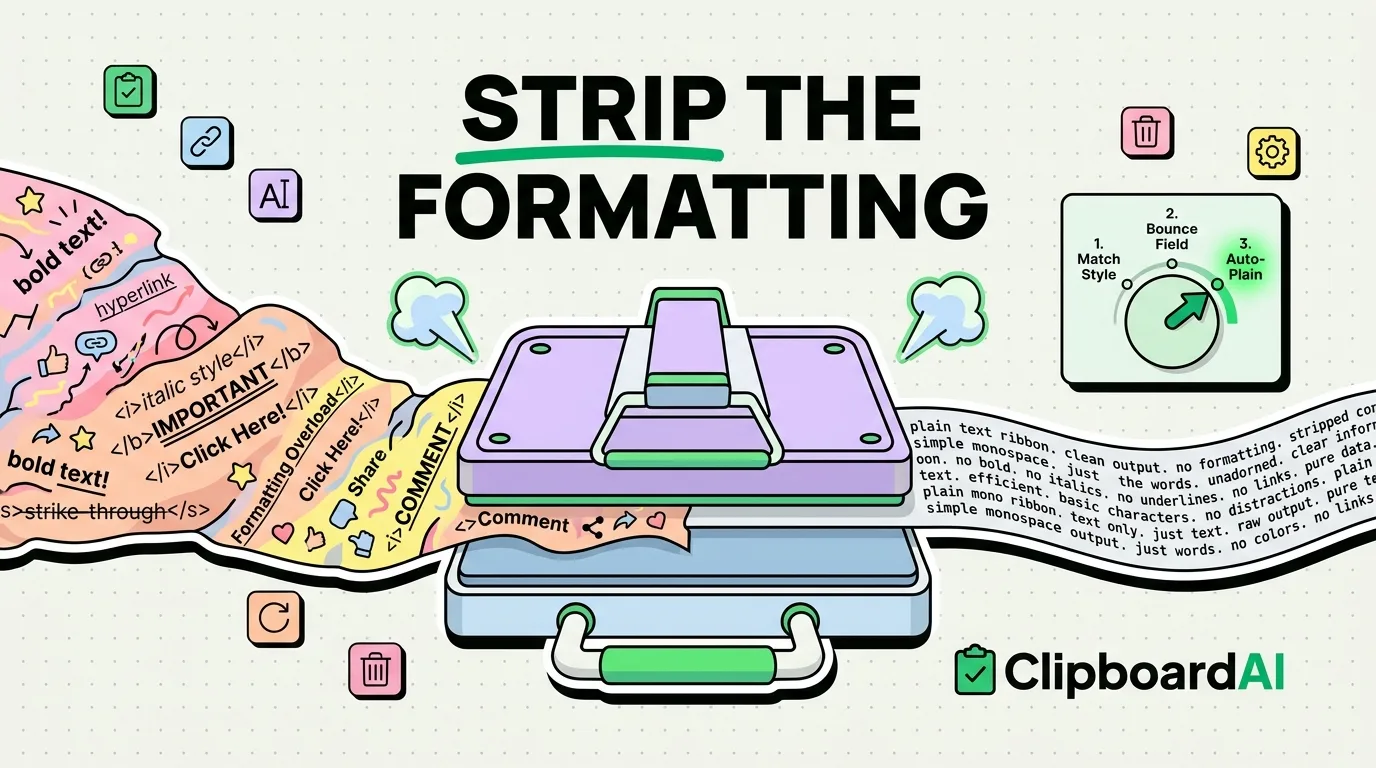
When you copy text from Safari, Mail, or a Word document, iOS does not just copy the characters, it copies rich text data (fonts, colors, links, sometimes an entire embedded HTML fragment) alongside a plain-text fallback. Most apps prefer the rich version when you paste, which is why a quote copied from a webpage shows up in your Notes app in the website's font and color instead of your own.
Method 1: Paste and Match Style (Built-In, iOS 16+)
Instead of a normal tap-to-paste, press and hold on the destination text field until the paste menu appears, then look for "Paste and Match Style" alongside the regular "Paste" option. This tells the receiving app to keep the text but drop the formatting, matching whatever style is already in that field. It is supported in Apple's own apps (Notes, Mail, Pages) and many third-party apps, but not universally, some apps only offer a plain "Paste."
Method 2: Bounce Through a Plain-Text Field
If "Paste and Match Style" is not available in the app you are using, paste into any field that cannot render rich text, the Safari address bar, the Spotlight search bar, or a fresh iMessage draft, then select and copy it back out. That round trip strips the formatting because those fields only store plain characters. Then paste the now-clean text into your actual destination.
Method 3: Store Plain Text From the Start
The workaround above works, but it is an extra two steps every time. ClipboardAI saves what you copy as plain text in its history, so when you paste from ClipboardAI's keyboard or app instead of the system clipboard directly, you are pasting clean text without needing a bounce step. This matters most for anyone regularly moving text out of formatted sources like emails, webpages, or PDFs into fields that render the original formatting oddly.
Which Method to Use
| Situation | Best method |
|---|---|
| Occasional one-off paste, app supports it | Paste and Match Style |
| Occasional one-off paste, app does not support it | Bounce through Safari address bar or Messages draft |
| Frequent formatted-to-plain pastes throughout the day | Clipboard manager with plain-text storage |
What Does Not Get Fixed
Stripping formatting removes fonts, colors, and embedded links as clickable objects, but it does not clean up leftover line breaks, extra spaces, or stray characters that sometimes come along with a copy from a PDF or a poorly formatted webpage. You may still need to manually tidy those up after pasting.
Frequently Asked Questions
Why doesn't "Paste and Match Style" show up in every app?
It depends on whether the app's developer implemented support for it using Apple's standard text editing APIs. Many third-party apps, especially ones with custom text editors, only offer the standard paste option.
Does copying from a PDF strip formatting automatically?
No. PDFs can carry font and layout data into your clipboard just like a webpage does, so the same stripping methods apply.