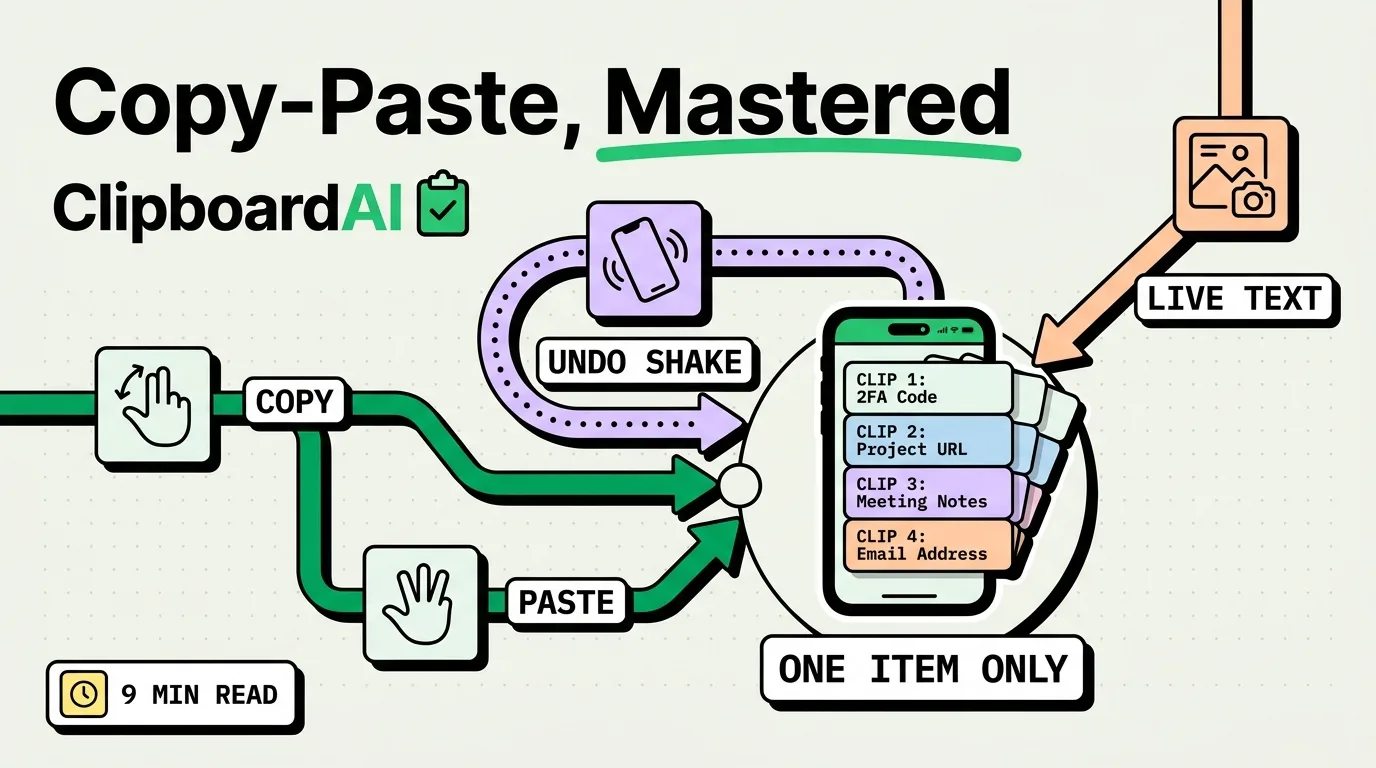
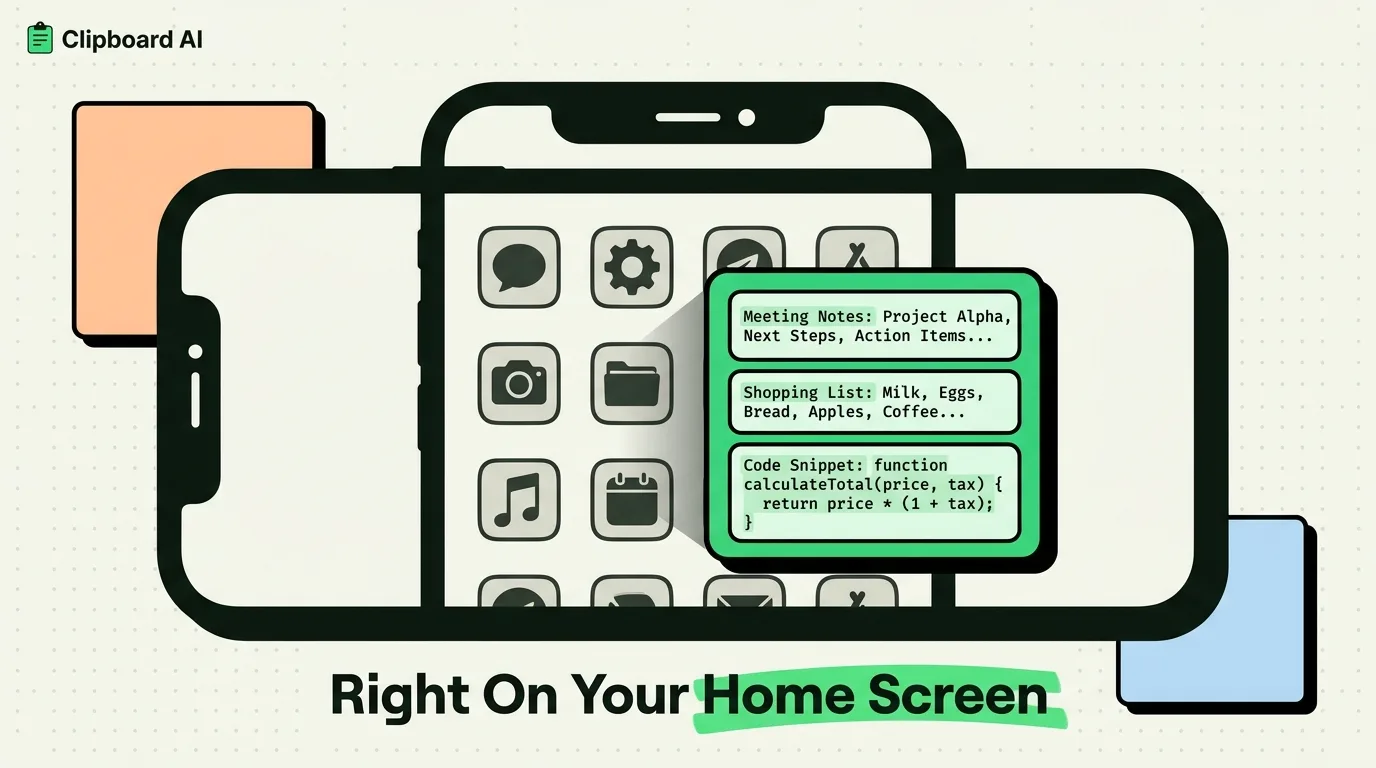
Yes, an iPhone clipboard widget exists: Clipboard AI's Collection widget shows your saved clips, or any one collection, on the Home Screen, and tapping a row copies that clip without opening the app. To add it, touch and hold the Home Screen, tap Edit, tap Add Widget, and search for Clipboard AI. No widget can show what you just copied, because iOS lets an app read the clipboard only while you are using it, so widgets show clips you have already saved.
The five Clipboard AI widgets
Clipboard AI has five widgets, and all of them are free. Only the Collection widget copies on a tap. The others open the app or save a clip.
| Widget | Sizes | What it shows | What a tap does |
|---|---|---|---|
| Collection | Medium, large | Your Saved clips, or any one collection | Copies that clip, and the row flashes Copied with a check mark |
| Recent Clips | Medium, large | Your latest copies | Opens the app |
| Pinned Clips | Medium, large | The clips you saved | Opens the app |
| Your Clipboard | Medium, large | Your collections and clip types, with counts | Opens that collection or category |
| Quick Capture | Small | A green Save Clipboard tile | Opens the app for a second, saves what you copied, and shows how many clips it has kept |
For one-tap reuse, pick Collection. For a glance at what you copied lately, pick Recent Clips, and for a map of your whole library, pick Your Clipboard. Quick Capture is a button, not a list.
Add the Collection widget
- Touch and hold an empty spot on the Home Screen until the icons jiggle, tap Edit in the top corner (it is a plus button on iOS 17), then tap Add Widget.
- Search for Clipboard AI, swipe to Collection, pick medium or large, and tap Add Widget.
- Touch and hold the new widget, tap Edit Widget, and choose Saved Clips or one of your collections.
Tap a row and that clip is on your clipboard; the row flashes Copied with a check mark to confirm it. Then paste it anywhere. A Trip collection makes a good first widget: the booking references, the hotel address and the taxi number, each one tap away while you stand at a counter. You build collections in the app, as the Collections guide explains. To change the size later, touch and hold the widget and choose another one.
Save Clipboard from Control Center
The widget reuses clips you have already saved. To save a new copy from anywhere, add the Save Clipboard control on iOS 18 or later:
- Open Control Center, touch and hold an empty area, and tap Add a Control.
- Search for Save Clipboard and tap it to add it.
- Drag it where you want it, then tap Done.
After you copy something, tap the control. Clipboard AI comes forward for a moment, reads your clipboard, saves it, and you are back where you were. The small Quick Capture widget does the same from the Home Screen. The app has to flash open because iOS only lets an app read the clipboard while you are using it, which is Apple's privacy rule and not a glitch.
The Help Center's widgets, Control Center and Lock Screen guide has screenshots of each control, and Save with the Action Button, Back Tap, and Siri covers the other one-action ways to save a copy.
Widget or keyboard?
A widget copies a clip, and then you paste it. The Clipboard AI keyboard skips the copy step: tap a clip in the keyboard and it drops straight into the text field. Use the keyboard when you are typing in an app, and the widget when a field will not show it. iOS always shows Apple's keyboard in password fields, so a third-party keyboard never appears there, but a clip you copied from the Collection widget can usually still be pasted with the standard Paste command.
A one-tap snippet without a clipboard app
For one or two fixed snippets, such as an address or a standard reply, Shortcuts can do the job alone. Create a shortcut with a Text action that holds the snippet and add Copy to Clipboard. Then open the shortcut's menu in the Shortcuts app, tap Details, and tap Add to Home Screen. Tapping that icon copies the snippet. Apple's Shortcuts widget can also run a shortcut straight from the Home Screen, and Apple says a shortcut opens the Shortcuts app if an action cannot finish inside the widget.
The limit is scale. Each snippet needs its own shortcut and icon, so a changing set of clips belongs in a Collection widget instead. Keep passwords and one-time codes out of snippet shortcuts and let AutoFill fill them.
Pasting is the other half of the job, and the Clipboard AI paste keyboard puts every saved clip one tap from any text field. For widgets that have nothing to do with the clipboard, see the best iPhone widgets of 2026.
More ways to copy and paste faster are collected in the copy and paste guides.
Frequently Asked Questions
Is there a clipboard widget for the Lock Screen?
No, not as a widget. On iOS 18 or later the Save Clipboard control can take one of the two bottom buttons instead: touch and hold the Lock Screen, tap Customize, choose Lock Screen, tap one of the bottom buttons, and pick Save Clipboard. Tapping it saves your latest copy, and the app flashes open for a second.
Are Clipboard AI's widgets free?
Yes, all five widgets and the Save Clipboard control are free. Collections are a Pro feature, so on the free plan the Collection widget shows your Saved clips, which hold up to 5. Pro is $19.99 a year with a 7-day free trial for new subscribers, or $34.99 once for Lifetime. Prices are as of October 2026.
Does a widget update when I copy something?
No. Widgets refresh when Clipboard AI saves something, so a clip you copied but never saved will not appear until you open the app or use Save Clipboard. An image copied on another device may open the app instead of copying the first time, while its full-size version is still on its way.
Does iOS 27 change clipboard widgets?
No. iOS 27 adds a paste suggestion above Apple's keyboard that previews your latest copy and keeps no list, so it does not replace a widget of saved clips. iOS 27 also adds extra-large Home Screen widgets, but Clipboard AI's widgets come in medium and large, and Quick Capture comes in small.
Sources
- Apple Support, "Add, edit, and remove widgets on iPhone", read October 5, 2026
- Apple Support, "What's new in iOS 27", read October 5, 2026
- Apple Support, "Add a shortcut to the Home Screen on iPhone or iPad", read October 5, 2026
- Apple Support, "Set up and run shortcuts from a widget on iPhone or iPad", read October 5, 2026
- MacRumors, "iOS 27 Adds a Useful New Copy-and-Paste Feature to Your iPhone", July 1, 2026
- 9to5Mac, "iOS 27 adds convenient new iPhone feature you'll use all the time", September 22, 2026