On this page
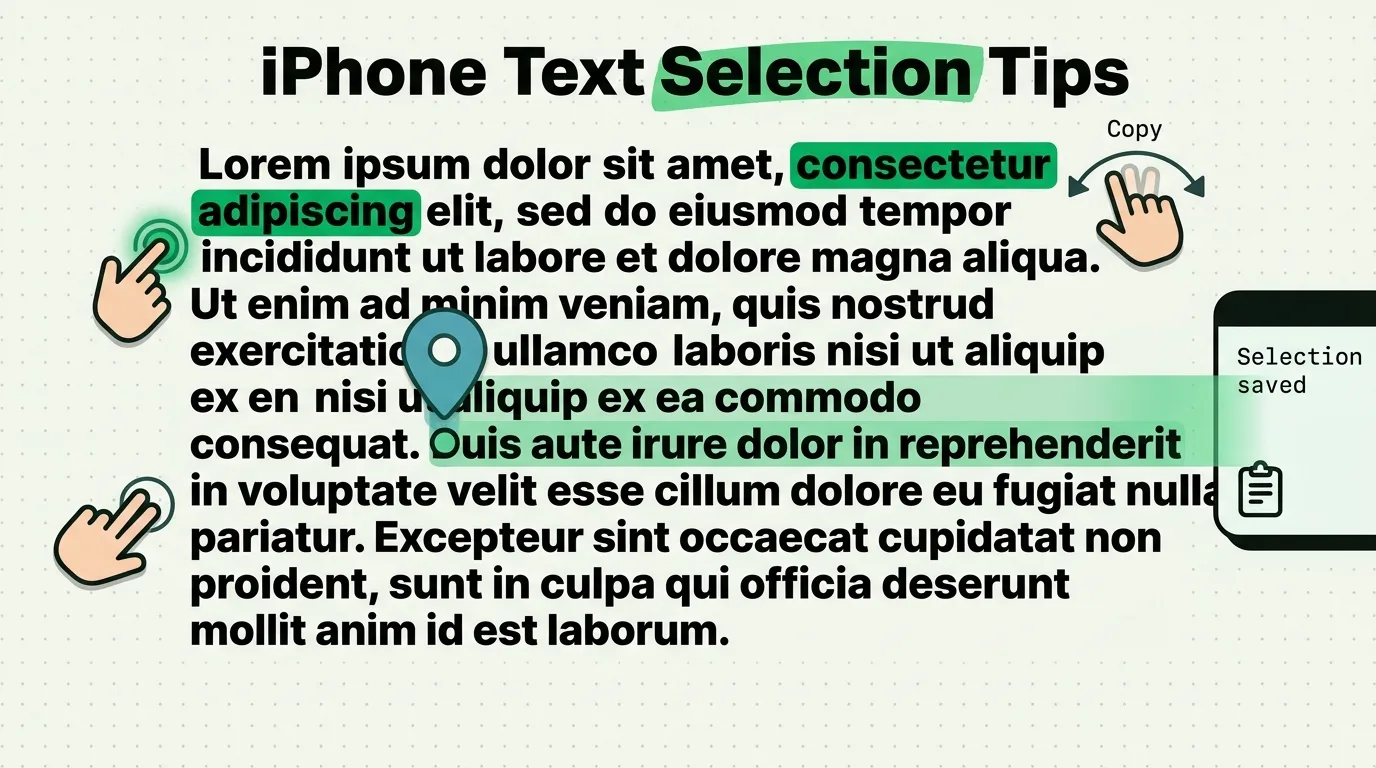
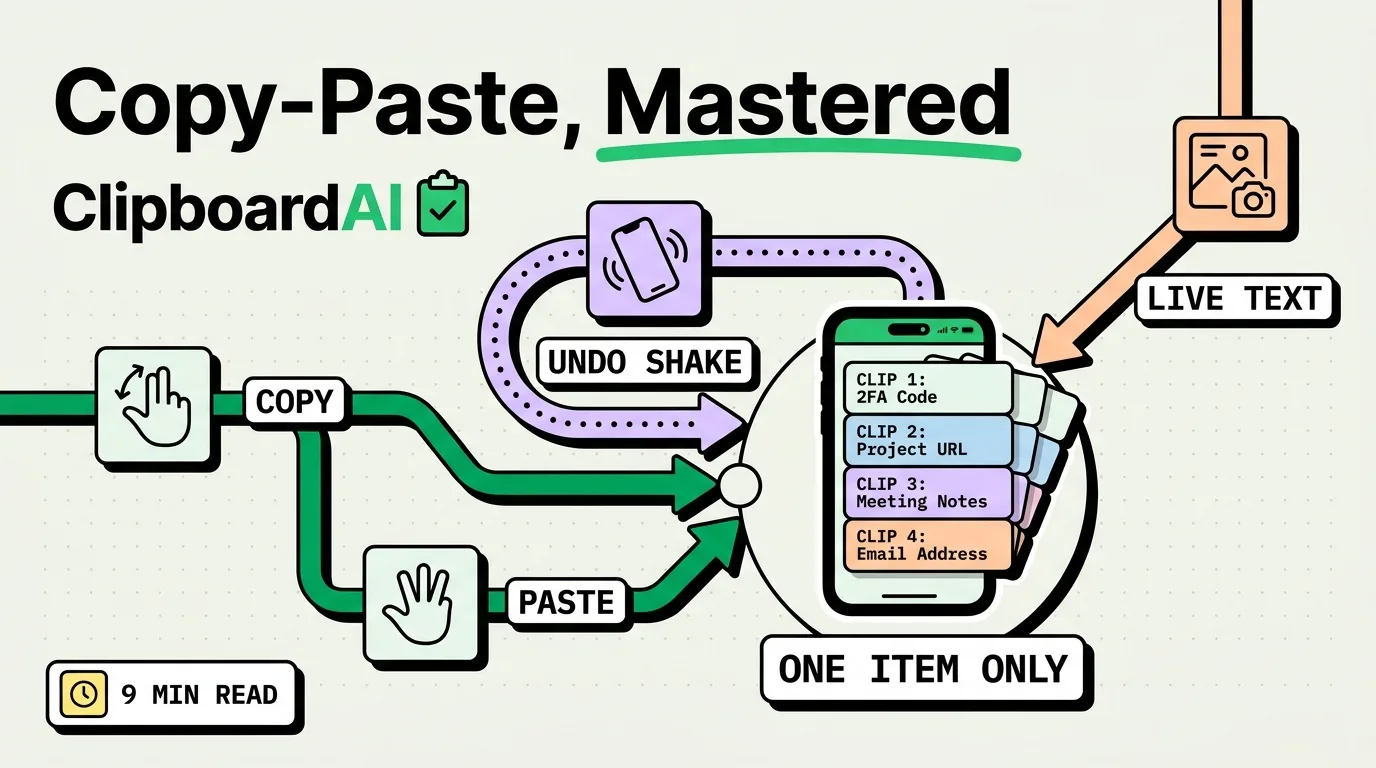
Copying and pasting on iPhone works through touch and hold, not right-click: touch and hold text or an image until a menu pops up, then tap Copy. To paste, touch and hold in the destination field and tap Paste. The gesture shortcuts (three-finger pinch to copy, three-finger spread to paste) do the same thing faster once they're muscle memory. The one limitation that trips people up: the built-in clipboard holds exactly one item, so copying a second thing erases the first before you've pasted it.
Every Copy/Paste Gesture, in One Table
| Action | How | Notes |
|---|---|---|
| Select a word | Double-tap the word | Drag the blue handles to extend the selection |
| Select a paragraph | Quadruple-tap (or double-tap and drag) | Works in Notes, Mail, Safari reader view |
| Copy selection | Tap Copy in the popup menu, or pinch inward with three fingers | The three-finger pinch works anywhere text is selected |
| Paste | Tap Paste in the popup menu, or spread three fingers apart | Pastes at the cursor position |
| Undo a paste | Shake the phone, or three-finger swipe left, or Cmd+Z with a hardware keyboard | Shake to undo can be turned off in Settings > Accessibility > Touch if you find it too sensitive |
| Redo | Three-finger swipe right | Reverses the last undo |
| Copy an image | Touch and hold the image, tap Copy | Copies the image data, not a link to it |
| Copy text from a photo | Open the photo, tap the Live Text icon (or just point the Camera app at printed text), select the text, tap Copy | Requires iOS 15+; works on printed text, handwriting is less reliable |
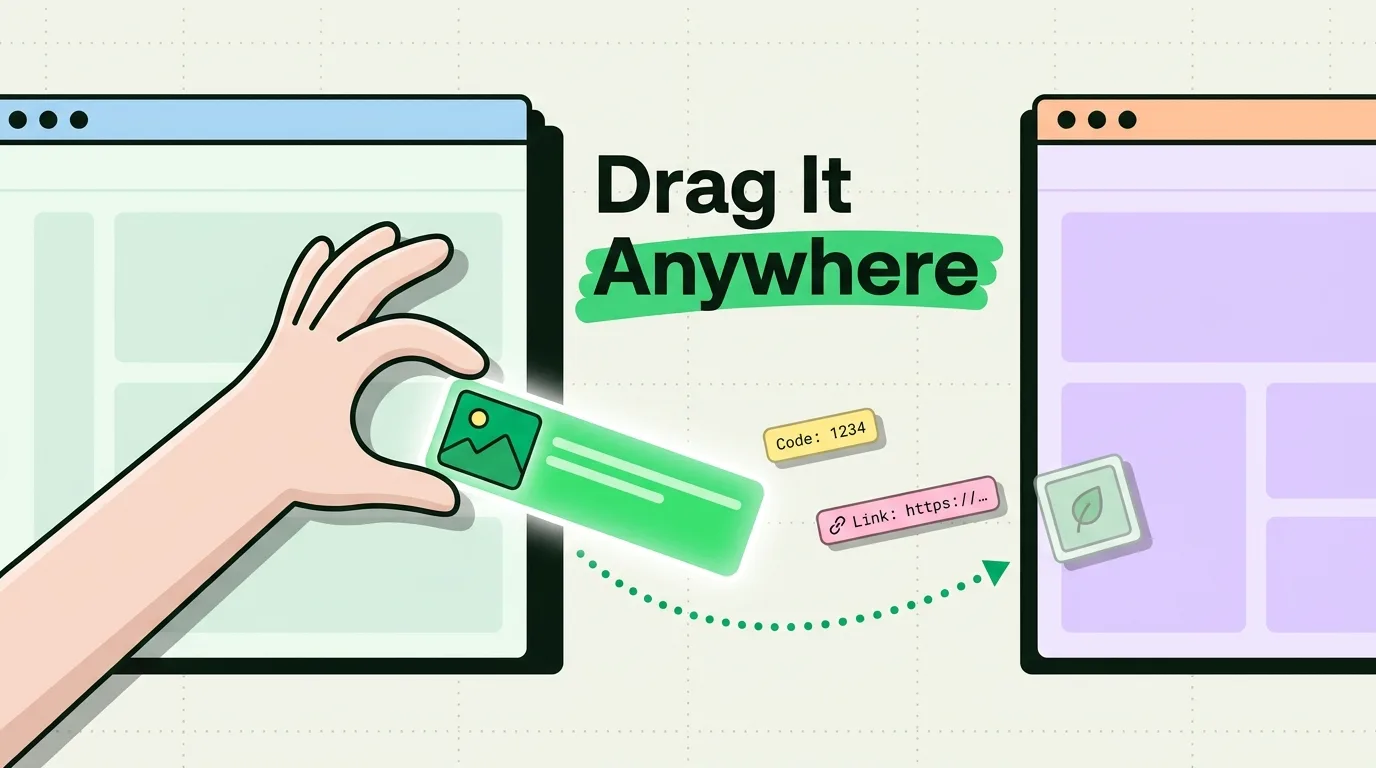
| Drag and drop between apps | Touch and hold content, use another finger to switch apps (or open Split View), drop it in place | Needs iOS 16+ and works best in Split View on iPad; on iPhone you switch apps mid-drag via the home indicator |
Why iPhone Only Remembers One Copy
This isn't a bug. iOS's UIPasteboard is designed to hold a single item at a time by default, the same way it worked on the first iPhone. Copying something new overwrites whatever was there. It's a reasonable design for "copy this, paste it right there," and a bad one for "copy four things while reading this email, then paste them one by one into a form." There's no Settings toggle to change this behavior. The only way past it is a clipboard manager that saves a running history alongside the system clipboard.
Getting Clipboard History on iPhone
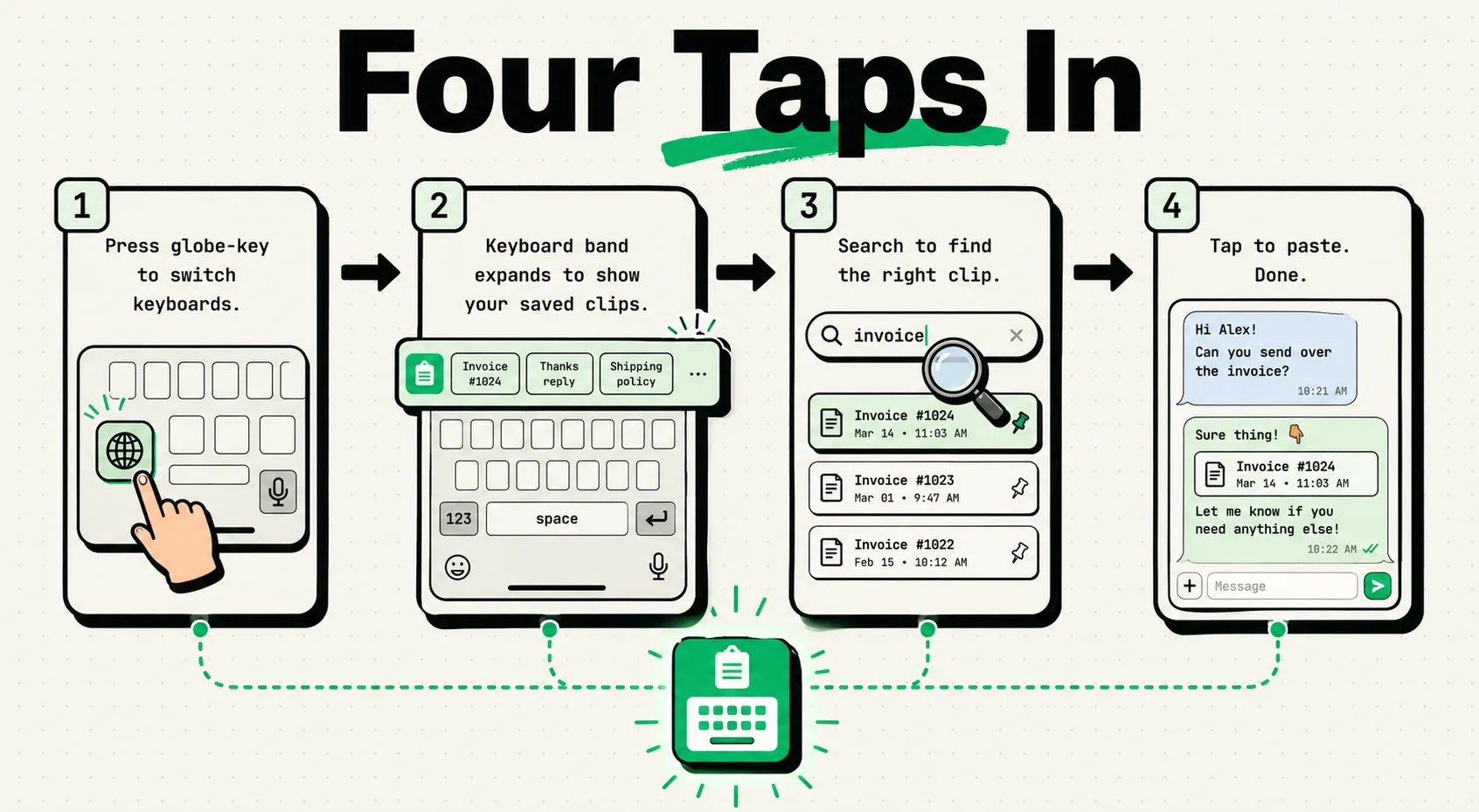
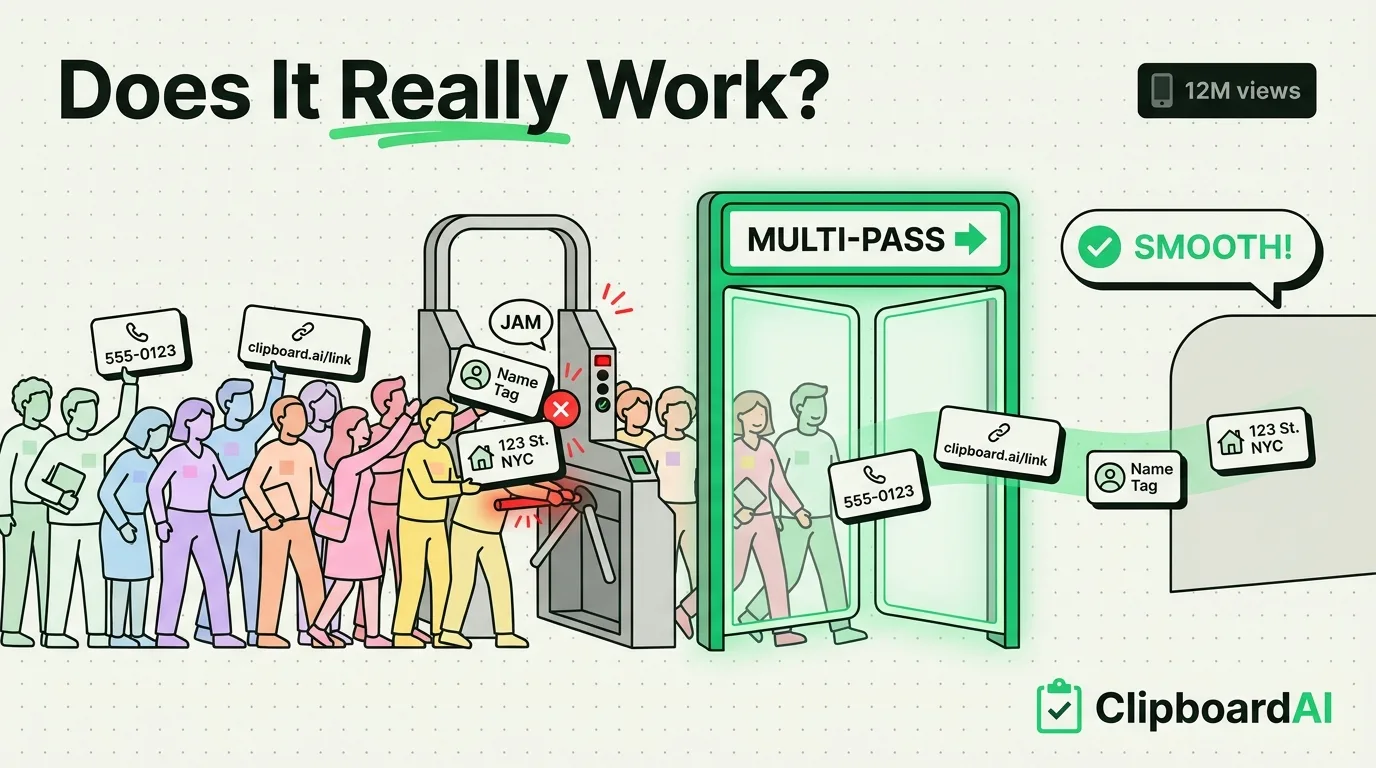
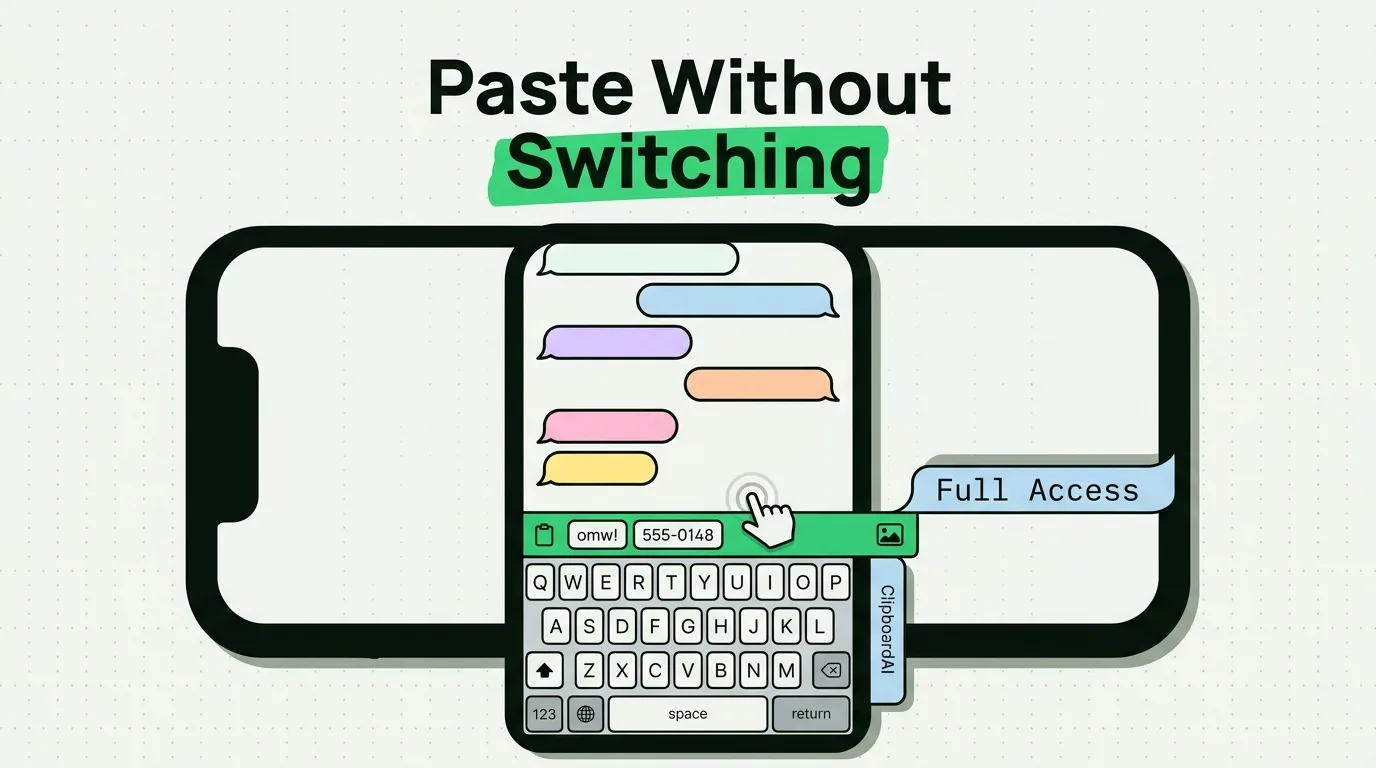
ClipboardAI adds what iOS doesn't: every item you copy is saved automatically (not just the last one), auto-sorted into categories like links, phone numbers, and addresses, and searchable later. It includes a custom keyboard extension (enable Full Access for it in Settings > General > Keyboard > Keyboards once installed) so you can reach your clipboard history from inside any app's text field, not just the ClipboardAI app itself. The free tier is a great way to try it, and a 7-day free trial lets you test unlimited history before deciding if it's worth keeping.
Troubleshooting Matrix
| Problem | Likely cause | Fix |
|---|---|---|
| Text won't select / no popup menu appears | The app or website has disabled text selection (common in some web views and DRM'd content) | Use Live Text: take a screenshot, open it, tap the Live Text icon, select and copy from the screenshot instead |
| Pasted text carries unwanted formatting (fonts, colors, links) | You copied rich text and pasted into a field that preserves formatting | Paste into a plain-text field first (like Notes in plain-text mode, or Spotlight search) to strip formatting, then copy again from there |
| Paste option is grayed out | Nothing is currently on the clipboard, or the destination field doesn't accept the copied data type (e.g., pasting an image into a phone number field) | Copy again, and confirm the field type matches what you copied |
| Shake to undo doesn't trigger | Turned off in Accessibility settings, or the shake gesture is too gentle | Check Settings > Accessibility > Touch > Shake to Undo, or use the three-finger swipe-left gesture instead |
| Copied item disappeared before I could paste it | The native clipboard only holds one item and something else (an autofill, a system action) overwrote it | Use a clipboard manager that keeps history instead of relying on the single-item system clipboard |
Caveats
The three-finger gestures (pinch to copy, spread to paste) are genuinely faster once learned, but they're also easy to trigger by accident while typing quickly, which can silently overwrite your clipboard. If you rely on the gesture, get in the habit of checking what you copied before pasting into something important. With ClipboardAI, the AI features that categorize and search your clips run on your device, and nothing is sent to ClipboardAI's servers. With sync on, your clips travel through your own private iCloud. If you turn on optional cross-device sync, it moves through your own private iCloud account using Apple's CloudKit, the same infrastructure that protects your Photos and Notes, encrypted in transit and at rest, and you can leave sync off entirely. For passwords specifically, a clipboard is the wrong tool on any device, so use your password manager's autofill for those instead.
Frequently Asked Questions
How do I copy and paste on iPhone without a mouse?
Touch and hold the text or image until the Copy/Paste menu appears, or use the three-finger pinch (copy) and three-finger spread (paste) gestures once you've selected content.
Why does my iPhone only remember one thing I copied?
iOS's built-in clipboard is designed to hold a single item at a time, and there's no setting to change that. A clipboard manager app adds history on top of the built-in clipboard.
Can I copy text out of a photo on iPhone?
Yes, with Live Text (iOS 15+). Open the photo, tap the Live Text icon in the corner, select the text you want, and tap Copy exactly like you would with any other selectable text.