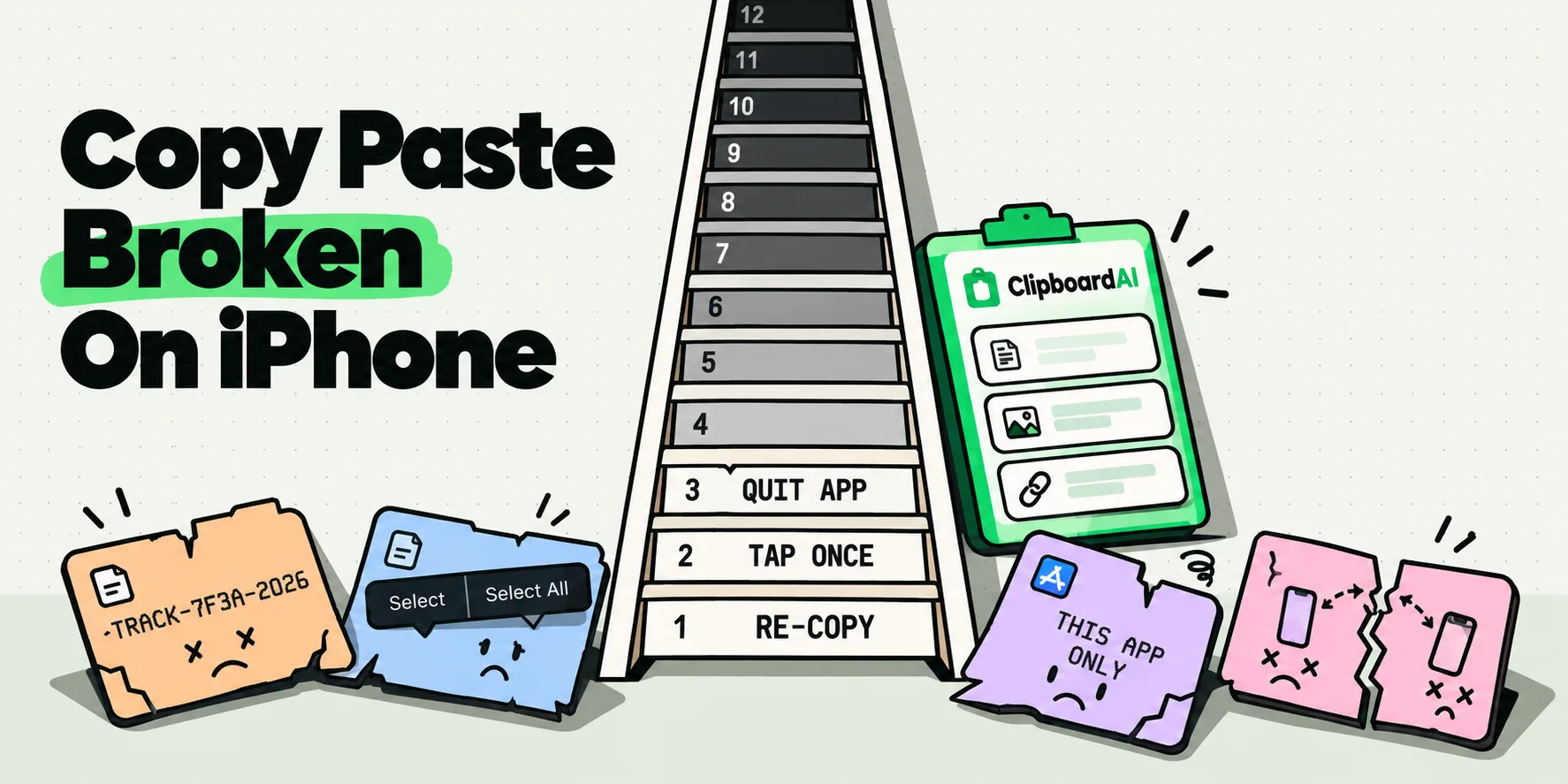
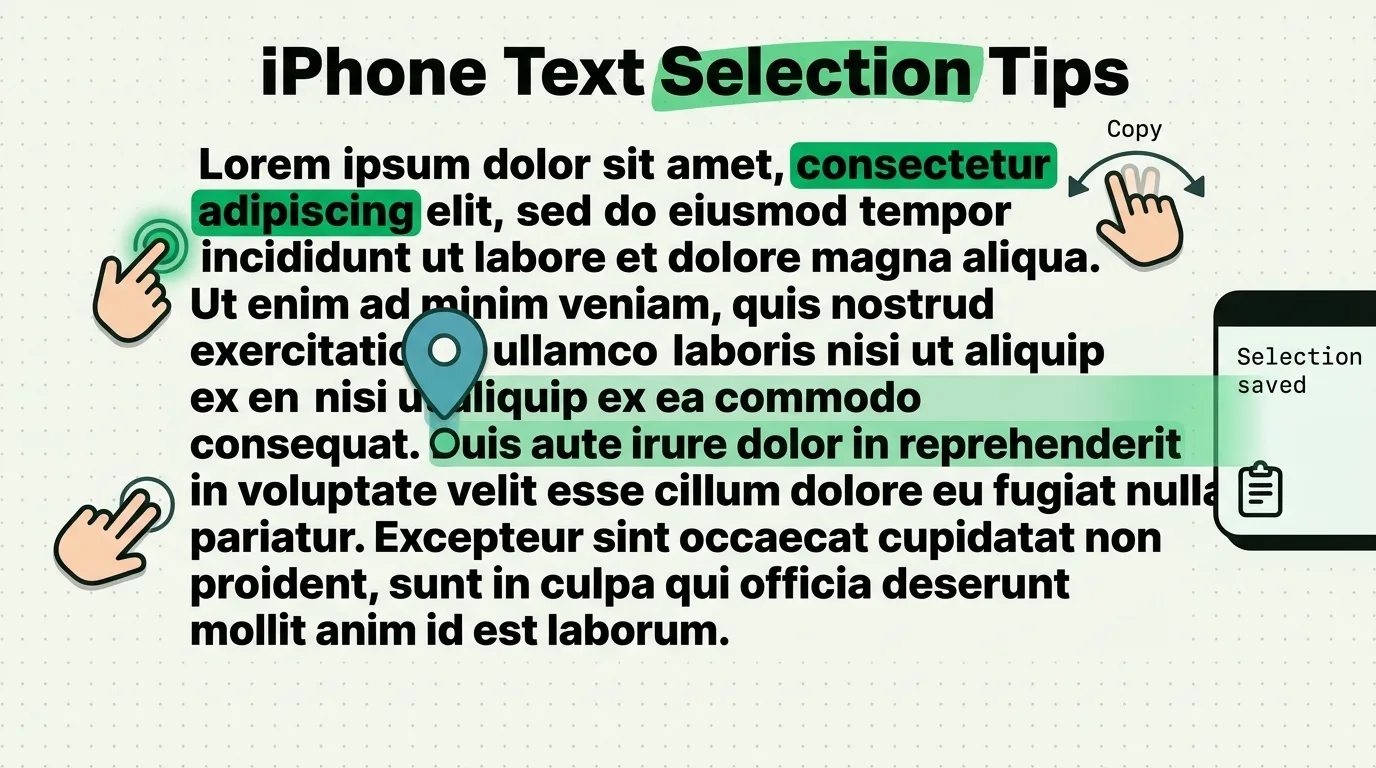
To select text on iPhone, double-tap a word, triple-tap a paragraph, or double-tap and hold the first word of a passage and drag the grab points to the last. To select everything in a note, email or text field, double-tap a word, then tap Select All in the menu. For fine control, touch and hold the Space bar until the keys go blank, then slide your finger to steer the cursor.
Those are the gestures Apple documents for iOS 26 and iOS 27, and Apple's what's-new page for iOS 27 lists no change to text selection. The sections below add the cases where the basics fail: web pages, links, small text, and text you cannot select at all.
The basic selection gestures
| To select | Do this | Good to know |
|---|---|---|
| A word | Double-tap it with one finger | On many web pages a double-tap zooms instead, so touch and hold the word |
| A paragraph | Triple-tap with one finger | Apple's guides say paragraph, not sentence |
| A block of text | Double-tap and hold the first word, then drag the grab points | Dragging a grab point to the screen edge scrolls the page |
| Everything in a field | Select a word, then tap Select All | Works in text fields and editors, not on web pages |
| Text in a photo or screenshot | Tap the Live Text button, then touch and hold | Needs Live Text turned on |
The grab points are the handles at each end of a selection. Drag either one to change that end, and the other stays put. If the menu disappears while you work, tap the selection to bring it back, then tap an editing option: Apple's iOS 26 guide lists Cut, Copy, Paste, Select All, Replace and Format, plus a button for more options. Apple's iOS 27 guide says to tap the selection and choose an editing option without listing them, so the menu may look a little different there.
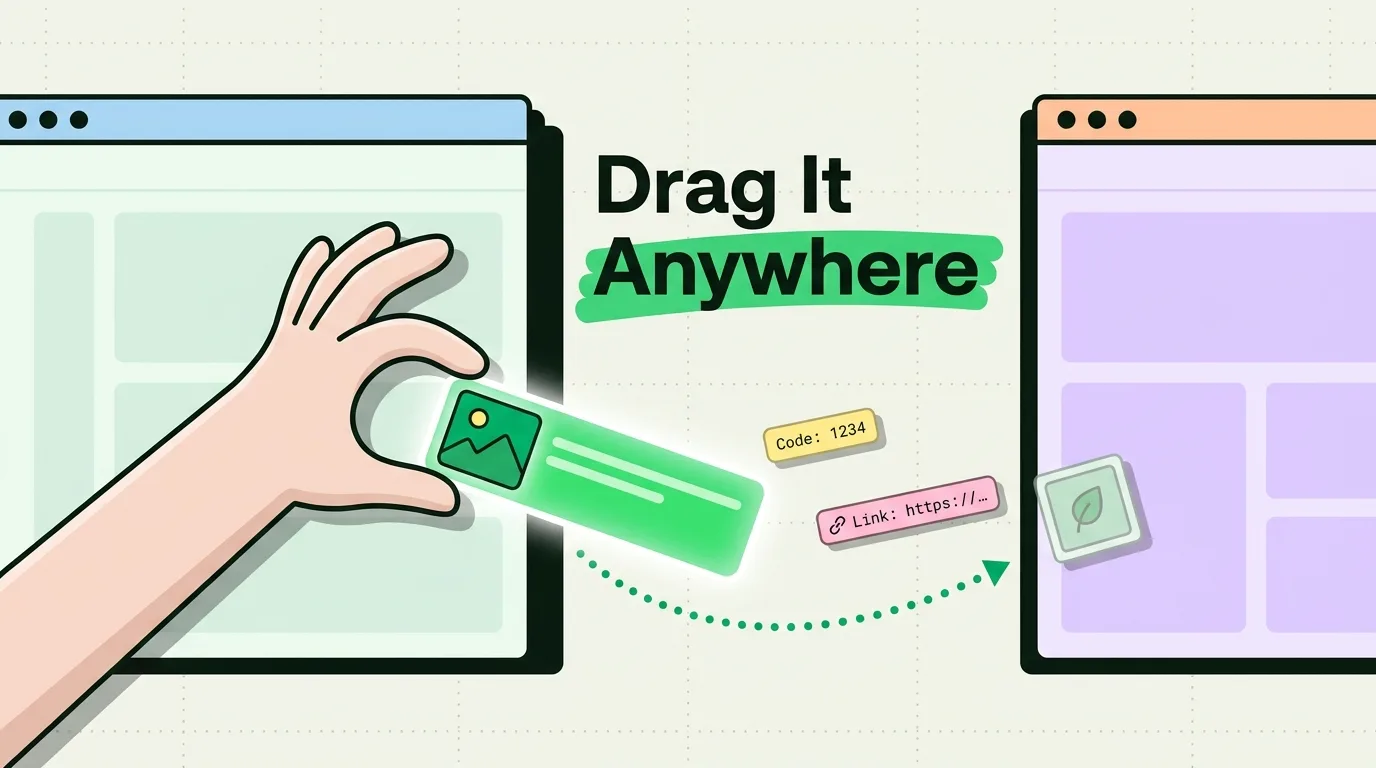
To move selected text instead of copying it, touch and hold the selection until it lifts up, then drag it somewhere else in the same app. Dragging between apps is covered in how to use drag and drop on iPhone.
How to select all text on iPhone
- In Notes, Mail, Messages and other editors: double-tap a word, then tap Select All in the menu. If the menu shows only a few options, tap the arrow at its right end to see the rest. Select All covers the whole note, email or field you are in.
- With a hardware keyboard: press Command-A. Apple lists it as Select all in its iPad keyboard shortcuts, next to Command-C, Command-X, Command-V and Command-Z.
- In a photo or the camera frame: Live Text has its own Select All, which selects all the text within the frame, as described below.
- On a web page in Safari: there is no Select All for page text. An Apple Community thread from November 2025 on iOS 26 reports that it appears only inside text fields. For the workarounds, see how to copy an entire webpage on iPhone.
Move the cursor and select with the Space bar trackpad
Apple's iOS 27 guide documents a trackpad hidden in the keyboard. It is the most precise way to put the cursor between two letters, and it works in any app that shows the keyboard.
- Touch and hold the Space bar with one finger until the keyboard turns light gray and the characters on the keys disappear.
- Slide your finger around to move the cursor. Lift to leave it where it is.
- To select instead, touch and hold the keyboard with a second finger, then move the first finger to extend the selection.
Apple's iPad guide words the second finger as a tap, so if holding does not start a selection on your device, try tapping. Without the trackpad, you can also touch and hold in the text to magnify the cursor and drag it, or tap where you want it.
Select, copy, paste and undo with three fingers
Apple documents these three-finger gestures:
| Gesture | Action |
|---|---|
| Pinch closed with three fingers | Copy |
| Pinch closed with three fingers, twice | Cut |
| Pinch open with three fingers | Paste |
| Swipe left with three fingers, then tap Undo | Undo the last edit |
| Swipe right with three fingers, then tap Redo | Redo the last edit |
Shaking the iPhone also offers Undo, and you can turn that off under Settings > Accessibility > Touch > Shake to Undo if you trigger it by accident.
Select text you cannot normally select
Live Text reads the words in a photo, a screenshot or the camera view, so it can select text that an app or a website refuses to hand over. Apple's guide describes it for Safari, Photos, Camera, Quick Look and more, and it must be on under Settings > General > Language & Region > Live Text. It is not available in every region or language.
- A photo or screenshot: open it in Photos (screenshots are under Collections > Media Types > Screenshots), tap the Live Text button, touch and hold the text, then drag the grab points. The menu offers Copy Text, Select All, Look Up, Translate, Search the web and Share.
- Text in the real world: open Camera and point it at the text. When the yellow frame appears around it, tap the Live Text button and select the words the same way. To switch this off, go to Settings > Camera and turn off Show Detected Text.
- An app that blocks selection: press the side button and volume up button together to take a screenshot, then use Live Text on it. The screenshot text guide and Live Text guide cover the details, and what to do when you can't copy text from a website covers the web case.
- A cluttered web page: in Safari, tap the Page Menu button and choose Show Reader, which Apple says shows just the relevant text and images. Reader is not offered on every site.
- Words inside a link: touching and holding a link opens its menu and preview instead of selecting. Start the selection on a word next to the link, then drag a grab point across the linked words.
Why selecting text on iPhone feels hard, and what fixes it
- Touch and hold fires too early or too late. Go to Settings > Accessibility > Touch > Haptic Touch and choose Fast or Slow. Apple's Touch Accommodations also include Hold Duration for people who need longer or shorter touches.
- The text is small. Pinch to zoom in first, or place the cursor with the Space bar trackpad and extend from there.
- The menu keeps vanishing. Tap the selection again to bring it back. If Paste itself is missing, see why the paste option is not showing on iPhone.
- The page keeps scrolling or zooming. Touch and hold a word instead of double-tapping, and drag the grab points slowly.
Keep what you select
The iPhone clipboard holds one copy at a time, so the next thing you copy replaces your carefully selected text (how to access clipboard history on iPhone covers the options). Clipboard AI keeps a copy: after you copy, switch to its keyboard with the globe key, which saves your latest copy as it opens, or open the app. To collect several selections in a row, see how to copy multiple items on iPhone, and the paste keyboard puts any saved selection back into a field in one tap. The copy and paste guides collect the rest of the topic.
Frequently Asked Questions
Is there a Select All button on iPhone?
Yes, in text fields. Double-tap a word, then tap Select All, using the arrow at the end of the menu if it is hidden. Safari has no Select All for page text, so on a web page copy a section by dragging the grab points, or run a Shortcut that copies the page text.
Is it normal that selecting text on iPhone feels hit or miss?
Yes, and it usually comes down to timing or an app rule. If touch and hold fires too early or too late, Settings > Accessibility > Touch > Haptic Touch has a Fast or Slow choice. Some apps and sites also block selection, and Live Text on a screenshot gets around that.
Does triple-tap select a paragraph or a sentence on iPhone?
Yes, a paragraph. Apple's guides for iOS 26 and iOS 27 say triple-tap selects a paragraph, not a sentence. Some tips online describe a sentence on triple-tap and a paragraph on four taps, but Apple documents no four-tap gesture. If a tap grabs too much or too little, drag the grab points to fix the selection.
Is text selection the same in iOS 27 as in iOS 26?
Yes, as far as Apple documents it. Its iOS 27 guide lists the same double-tap, triple-tap and grab point gestures, and its what's-new page lists no change. The visible difference is in the guide: the iOS 26 page names the edit menu options, the iOS 27 page does not.
Sources
- Apple Support, “Select, edit, and move text on iPhone”, iPhone User Guide (titled “Select, cut, copy, and paste text on iPhone” in the iOS 26 version), read October 5, 2026
- Apple Support, “What’s new in iOS 27”, iPhone User Guide, read October 5, 2026
- Apple Support, “Select, edit, and move text on iPad”, iPad User Guide, read October 5, 2026
- Apple Support, “Learn iPad keyboard shortcuts”, September 14, 2026
- Apple Support, “Interact with content in a photo or video on iPhone”, iPhone User Guide, read October 5, 2026
- Apple Support, “Use Live Text with your iPhone camera”, iPhone User Guide, read October 5, 2026
- Apple Support, “Take a screenshot on iPhone”, iPhone User Guide, read October 5, 2026
- Apple Support, “Hide distractions when reading articles in Safari on iPhone”, iPhone User Guide, read October 5, 2026
- Apple Support, “Adjust how iPhone responds to your touch”, iPhone User Guide, read October 5, 2026
- Apple Community, “Select all text on a webpage in Safari on iPhone”, November 16, 2025