
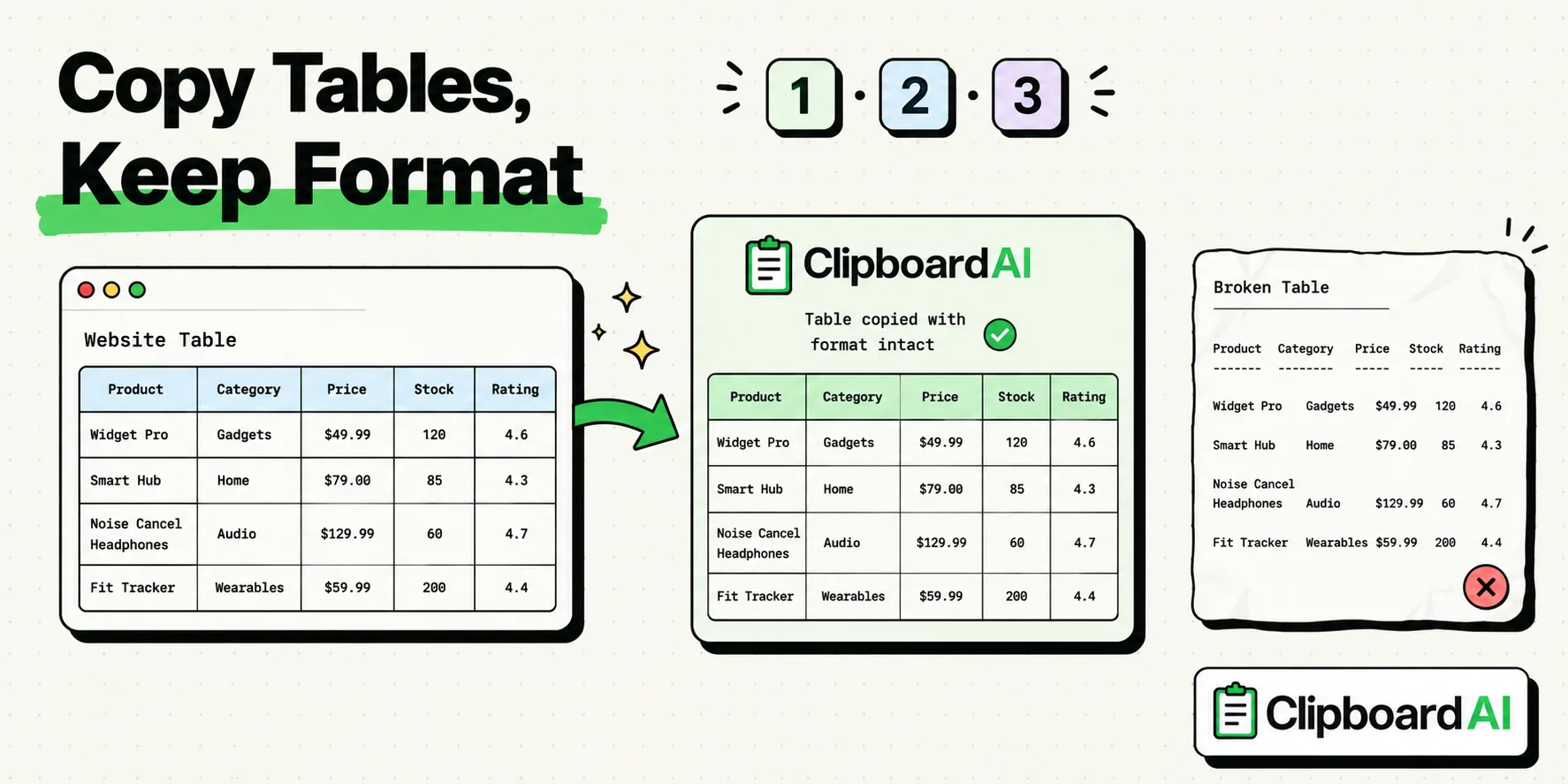
To copy table data from websites on your iPhone without losing formatting, tap and hold on the first cell of the table, drag the selection handles to cover the entire grid, and select Copy. Next, paste the table into a rich-text editor like Apple Pages, Microsoft Excel, or Google Sheets rather than plain-text notes. For stubborn websites that block selection, taking a screenshot and using Live Text or ClipboardAI's structure extraction is the most reliable workaround.
Websites present tabular data in HTML tables (<table>, <tr>, <td> tags). When you view these tables on a desktop browser, copying and pasting them into Excel or Google Sheets usually preserves the column and row structure.
On a mobile browser like Safari or Chrome on iOS, the story is very different. Due to mobile viewport rendering and touch selection constraints, copying a table often results in a jumbled list of text, where columns are flattened and merged into a single vertical column. Below, we discuss the best strategies for copying table data on your iPhone without losing its layout.
Method 1: The Native Safari-to-Spreadsheet Selection Flow
If the website uses standard, clean HTML markup, you can select and copy the table directly. However, the application you paste the data into determines whether the formatting is preserved.
Step-by-Step Instructions:
- Open Safari and navigate to the webpage containing the table.
- Zoom in on the table to make selection handles easier to control.
- Tap and hold a word in the very first cell (top-left) of the table until the text selection anchors appear.
- Drag the right anchor handle (the blue dot) slowly to the right and down until you reach the very last cell (bottom-right) of the table. Ensure the highlight covers the entire table grid.
- Tap Copy in the context menu.
- Open Apple Numbers, Microsoft Excel, or Google Sheets on your iPhone. Do not paste into Apple Notes or Messages, as they do not support advanced grid rendering.
- Tap an empty cell, select Paste, and watch the spreadsheet populate the text into individual rows and columns automatically.
Method 2: The Safari Reader Mode Workaround
Many modern websites overlay tables with ads, scripts, and CSS styling that block touch selection or break the cell borders. Switching Safari into Reader Mode strips away these active scripts, leaving a clean, standard table layout.
Step-by-Step Instructions:
- While viewing the webpage in Safari, tap the aA icon in the left-hand corner of the address bar.
- Select Show Reader (if the option is grayed out, the webpage does not support Reader Mode).
- The page will reload as a stripped-down document. Navigate to the table.
- Touch and hold the table's first cell and drag the selection handles. You will notice the highlight moves much more smoothly without jumping around the screen.
- Copy the selection and paste it directly into your spreadsheet application.
Method 3: Using ClipboardAI to Extract and Rebuild Tables
For tables that refuse to copy cleanly - such as dashboards that require horizontal scrolling or pages with selection block scripts - ClipboardAI provides a structured extraction tool.
Instead of fighting with selection handles, ClipboardAI's parser scans the web data and rebuilds the grid format.
Step-by-Step Instructions:
- Copy the webpage URL or take a screenshot of the table.
- Open ClipboardAI and paste the URL or import the screenshot.
- ClipboardAI's document parser reads the layout data, identifies the rows and columns, and extracts them into a clean CSV format or Markdown table.
- Tap Copy Grid.
- Paste the data directly into any database, spreadsheet, or notepad app. The columns and rows will remain intact.
Table Copying Methods Compared
The table below outlines the layout preservation rate and limitations of each method:
| Method | Formatting Retained | Layout Success Rate | Best Destination Apps | Key Limitation |
|---|---|---|---|---|
| Direct Safari Selection | Yes (HTML Grid) | 65% | Numbers, Excel, Pages | Touch selection handles are finicky on small viewports. |
| Safari Reader Mode | Yes (Clean Text Grid) | 80% | Google Sheets, Numbers | Not all websites support Reader Mode layouts. |
| Live Text Screenshot | No (Flattened Lines) | 25% | Notes, Drafts | Strips grid coordinates, leaving only vertical text lists. |
| ClipboardAI Parse | Yes (CSV/Markdown) | 95% | Excel, Google Sheets, Notion | Requires on-device OCR or extraction processing. |
Honest Caveats: What Doesn't Work
Even with the best tools, mobile browsers have physical and software limitations that can break table layouts:
1. Colspan and Rowspan Glitches
HTML tables that contain merged cells (cells that span multiple columns or rows) are notoriously difficult for mobile clipboard systems to parse. When you copy a merged cell, the iOS pasteboard often fails to calculate the column span offset. When pasted, the cells in subsequent rows shift to the left, corrupting the database.
2. CSS-Blocked Selection
Many business directories and financial dashboards use the CSS property user-select: none; to prevent users from copying their data. If you try to tap and hold on these tables, the selection handles will not appear. In these scenarios, the Safari copy method will fail entirely, leaving a screenshot and OCR extraction as your only option.
3. Horizontal Scroll Overflow
Many mobile-optimized websites place tables inside scrollable containers (overflow-x: scroll;). When selecting text in these containers, dragging the handles horizontally often causes the page to scroll rather than select the hidden columns. To select the entire table, you must zoom out until the entire table fits on your screen before selecting the cells.