
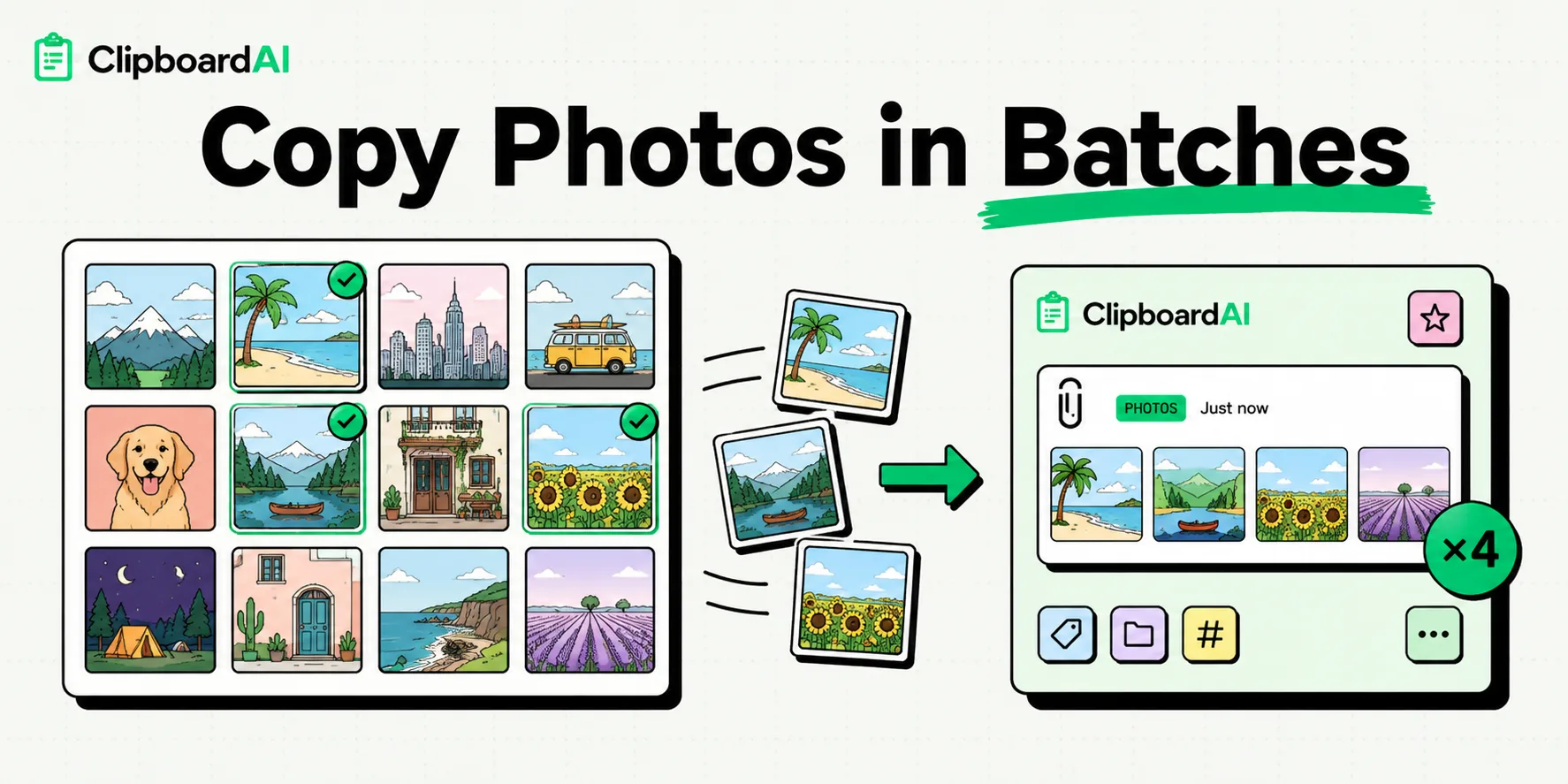
To copy multiple photos to your iPhone clipboard at once, open the Photos app, tap Select in the top-right corner, and select the images you want. Next, tap the Share button in the bottom-left corner and choose Copy Photos. You can now paste the entire batch into messages, emails, or notes. While the native clipboard only holds one batch at a time, a dedicated manager can store them for later use.
Managing photos on an iPhone often feels like a series of repetitive taps. Whether you are sending a batch of screenshots to a client, sharing vacation pictures with family, or moving design assets between productivity apps, moving images one by one is a major bottleneck.
iOS actually supports copying multiple images to your system pasteboard simultaneously. Below, we break down the two main native methods - the Share Sheet method and the advanced Drag-and-Drop gesture - and show how a clipboard manager solves the system's storage limitations.
Method 1: The Share Sheet Batch Copy (Fastest for General Sharing)
This is the standard approach for copying a bundle of pictures. It uses the system Share Sheet to write the files directly to the iOS pasteboard (UIPasteboard).
Step-by-Step Instructions:
- Open the Photos app on your iPhone.
- Navigate to your Library, Recents, or a specific album.
- Tap Select in the top-right corner of the screen.
- Tap each photo you want to copy. A blue checkmark will appear in the bottom-right corner of each selected thumbnail. You can also slide your finger across rows to select large blocks of images quickly.
- Tap the Share button (the square icon with an up arrow) located in the bottom-left corner.
- Scroll down the Share Sheet menu and select Copy Photos. The sheet will slide down, indicating that the images are written to your clipboard.
- Open the destination app (such as Apple Mail, Messages, or Notes).
- Tap and hold in the text input area, then select Paste from the popup menu.
Method 2: The Multi-Touch Drag-and-Drop Gesture (Best for Multitasking)
Apple introduced a system-wide drag-and-drop gesture that allows you to collect files, text, and photos into a floating stack, navigate between apps, and drop them exactly where you need them. It bypasses the Share Sheet entirely.
This gesture requires a small amount of finger coordination but is incredibly efficient once you build the muscle memory.
Step-by-Step Instructions:
- Open the Photos app and find the images you want to transfer.
- Tap and hold on the first photo until you feel a brief haptic vibration and the image thumbnail begins to float under your finger.
- Without letting go of the floating photo, drag your finger slightly away from its original position.
- Use your other hand to tap additional photos in your library. You will see the floating thumbnail stack up, with a badge showing the number of selected images (e.g., "2", "3", "5").
- While holding the stack with your primary finger, swipe up from the bottom of the screen with your second hand to go to the Home screen or open the App Switcher.
- Open your destination app (for example, dragging photos directly into a specific folder in the Files app or a message thread in Slack).
- Hover your floating stack over the input field or folder window. When you see a green "+" icon appear on the stack, release your finger to drop the photos.
Batch Sharing Methods Compared
Here is how the native copy-paste options compare to alternative sharing workflows:
| Method | Learning Curve | Max File Recommendations | Destination Compatibility | Primary Limitation |
|---|---|---|---|---|
| Share Sheet (Copy Photos) | Very Low | 10-15 images | High (Mail, Messages, Notes) | Overwrites your clipboard history immediately. |
| Multi-Touch Drag-and-Drop | Moderate | 5-10 images | Moderate (Slack, Files, Mail) | Requires two hands; easy to drop the stack accidentally. |
| Airdrop Batching | Low | Unlimited | Apple Devices Only | Requires receiver to be nearby with settings open. |
| ClipboardAI Asset Folders | Low | Unlimited | Universal | Requires third-party keyboard configuration. |
Honest Caveats: iOS Pasteboard Limitations
While batch copying is convenient, Apple's system clipboard has three critical limitations that you should keep in mind:
1. High RAM Consumption
Photos on modern iPhones are captured in high resolution (often 12MP to 48MP in HEIC or RAW formats). Copying 15 photos simultaneously can place upwards of 150MB of raw image data directly into your iPhone's active RAM. If your device runs low on memory while you are switching apps, iOS will silently purge the clipboard to prevent system instability, forcing you to go back and select the photos again.
2. Destination App Rejection
Just because you copied ten photos does not mean your destination app will accept them. While Apple Messages and Mail handles batches smoothly, many third-party apps (like Instagram DMs, Discord, or specific web forms in Safari) will only paste the first image in the clipboard queue and discard the rest.
3. The Single-Slot Clipboard
The native iOS clipboard has only one storage slot. The moment you copy a block of text, a URL, or another photo, your entire batch of copied photos is overwritten. If you spent five minutes selecting 20 images to copy, a single accidental copy command elsewhere will wipe out that selection entirely.
Using ClipboardAI to Store and Manage Image Batches
To bypass the single-slot limitation of the system clipboard, we designed ClipboardAI to capture and catalog image clips.
When you copy photos, ClipboardAI detects the media payload. If you are working on a presentation or blog post and need to collect images from multiple sources (Safari, Files, and Photos), you can copy them incrementally. ClipboardAI stores each image in your local history feed.
When you are ready to paste, you can switch to the ClipboardAI keyboard, review your visual clips, and select the exact ones you want to inject into your document without jumping back and forth between apps.
Quick Tip: Batch Formatting
If you are sending photos to a non-Apple user and want to avoid compatibility issues with the HEIC format, use the Files app instead of Photos. Copying images from the Files app and pasting them into cross-platform apps often auto-converts them to universally readable JPEGs, depending on the target app's ingestion pipeline.