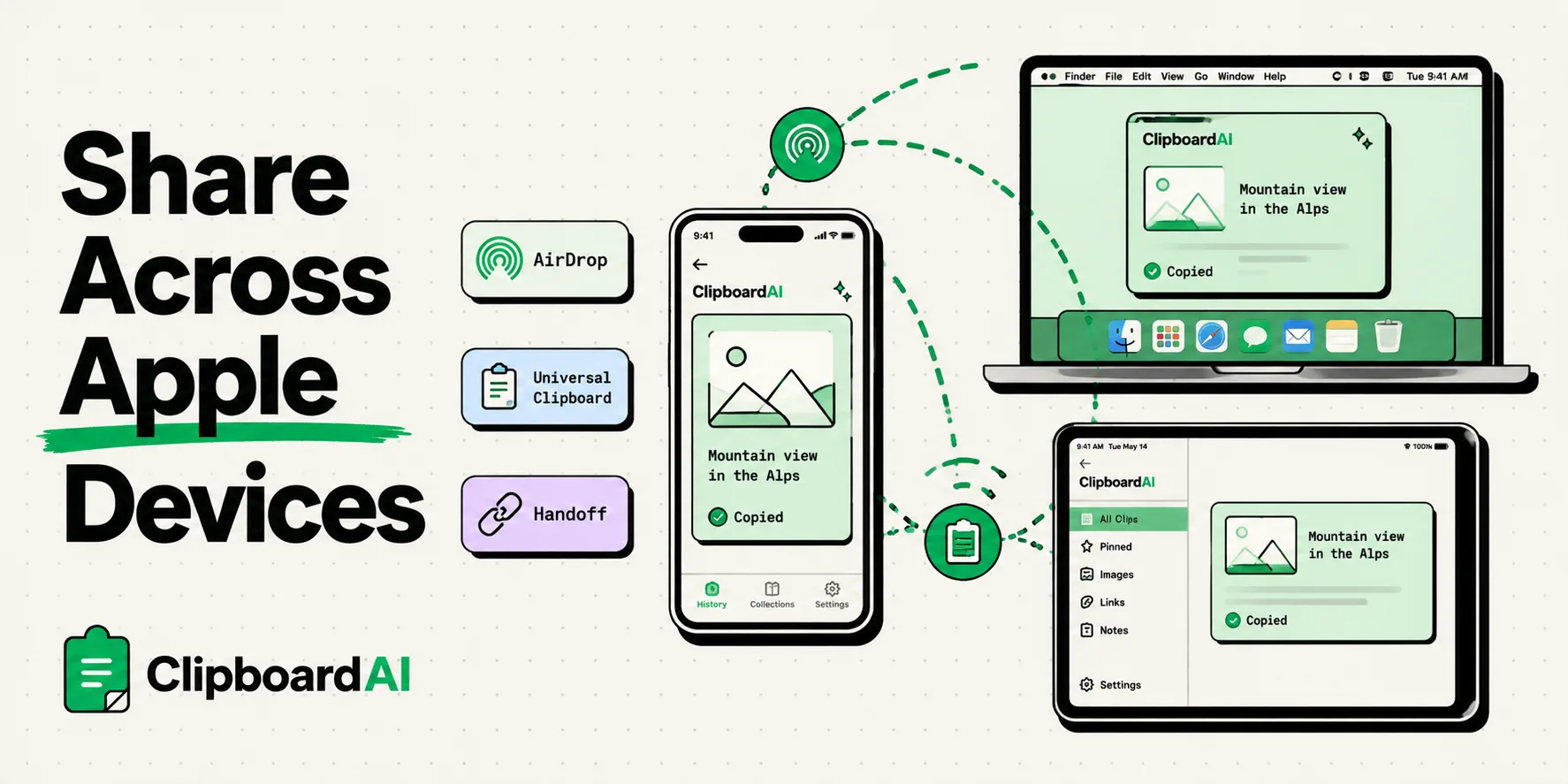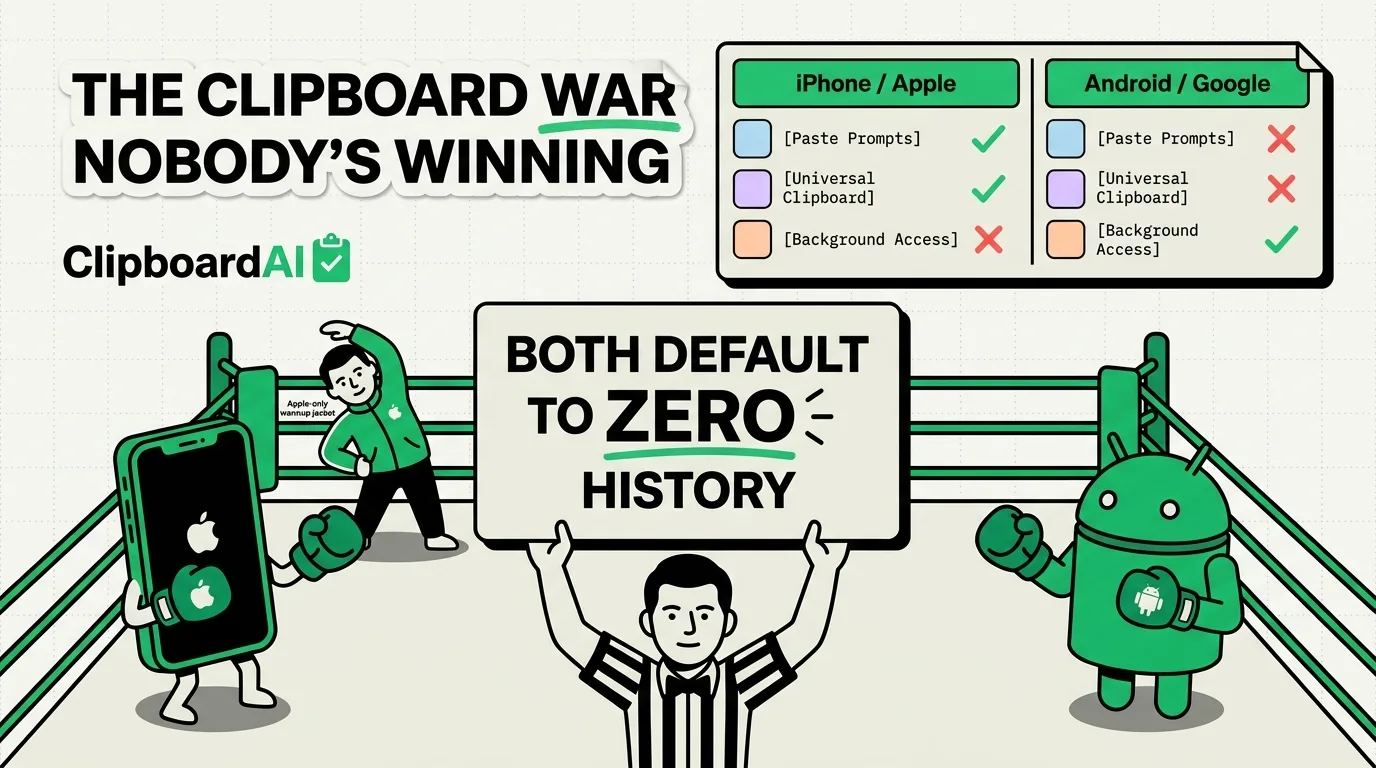
To share your clipboard between an iPhone, iPad and Mac, turn on Handoff on each one (Settings > General > AirPlay & Continuity on iPhone and iPad, System Settings > General > AirDrop & Continuity on a Mac), sign them in to the same Apple Account, and keep Wi-Fi and Bluetooth on. Universal Clipboard then lets you copy on one device and paste on another nearby, but it carries only your latest copy and keeps it briefly. For older copies, someone else's device, a Windows PC or an Android phone, use one of the other methods below.
The right method depends on the two devices in front of you and on whether you need the copy now or later.
Which method works for which devices
| Devices | Method | How you paste | Limit |
|---|---|---|---|
| iPhone, iPad and Mac, side by side | Universal Clipboard (built in) | Paste, or Command-V on a Mac | Latest copy only, kept briefly, within 30 feet (10 m) |
| iPhone, iPad and Mac, files and photos | AirDrop (built in) | Opens in Photos, Files or the Mac's Downloads folder | Sends an item and leaves the clipboard alone |
| iPhone, iPad and Mac, at any distance | Clipboard AI Pro with iCloud sync | Clipboard AI keyboard on iPhone and iPad, Command-Shift-V on a Mac | $19.99 a year; on iPhone each copy is saved with one action |
| Windows PC to Windows PC | Clipboard history sync (built in) | Windows key + V | 25 items per PC, same Microsoft account |
| Android phone to Windows PC | Phone Link (built in) | Ctrl+V | Surface Duo and select Samsung, HONOR, OPPO, ASUS, vivo and Xiaomi phones |
| iPhone to Windows PC or Android | No built-in option yet | Paste from a synced note, a chat or LocalSend | One manual step for each item |
Universal Clipboard: copy on one Apple device, paste on another
Universal Clipboard is part of Apple's Continuity features and has worked since iOS 10 and macOS Sierra. There is no app to open and no button to press. You copy text, an image, a photo or a video as usual, Apple adds it to the clipboard of your other devices nearby, and an ordinary paste on the second device drops it in.
What it needs
- The same Apple Account on every device. A device signed in to someone else's account never receives your copies.
- Both radios switched on. Every device needs Wi-Fi and Bluetooth on, and mobile data on its own does not count.
- Handoff turned on. It is on by default. On iPhone and iPad it lives in Settings > General > AirPlay & Continuity (AirPlay & Handoff on iOS 17 and earlier). On a Mac it is the "Allow Handoff between this Mac and your iCloud devices" switch in System Settings > General > AirDrop & Continuity on macOS 26 Tahoe and later, or AirDrop & Handoff on macOS 13 to 15.
- Devices within 30 feet (10 meters) of each other.
- Supported hardware: an iPhone 5 or later with iOS 10 or later, any iPad with iPadOS, a Mac from 2012 or later (Mac Pro from 2013) with macOS Sierra or later, or Apple Vision Pro.
If you use a VPN, Apple says its configuration must not block local networking, or Continuity features may stop working.
How to copy and paste with it
- On the first device, copy as usual: touch and hold, then tap Copy on an iPhone or iPad, or press Command-C on a Mac.
- Leave that device awake and unlocked, and pick up the second one.
- Paste as usual: tap Paste, or press Command-V. Do it soon, before the copy expires.
To test the setup, copy a link from Safari's address bar on your iPhone, then press Command-V in any text field on your Mac.
What it can't do
Universal Clipboard carries one item, your latest copy, and only for a short time. Apple's wording is that the copy stays on the other device "briefly, or until you replace it by copying something else on either device." Apple gives no figure, and Macworld put the window at about two minutes. You get no list of earlier copies, no search, and no sign that anything arrived until you paste. Apple also calls it best for small selections of text and copied images, so a batch of photos or a whole file is a job for AirDrop.
One quirk catches people out: 9to5Mac found that copying on an iPhone and then locking it stopped the paste on an iPad, while leaving the iPhone unlocked worked. If a paste brings up something old or nothing at all, work through the Universal Clipboard fixes in order. The iPhone's own clipboard follows the same one-item rule, even with the paste suggestion iOS 27 added above Apple's keyboard; how to see clipboard history on iPhone explains what that bar shows and how to keep more than one copy.
AirDrop: send it instead of pasting it
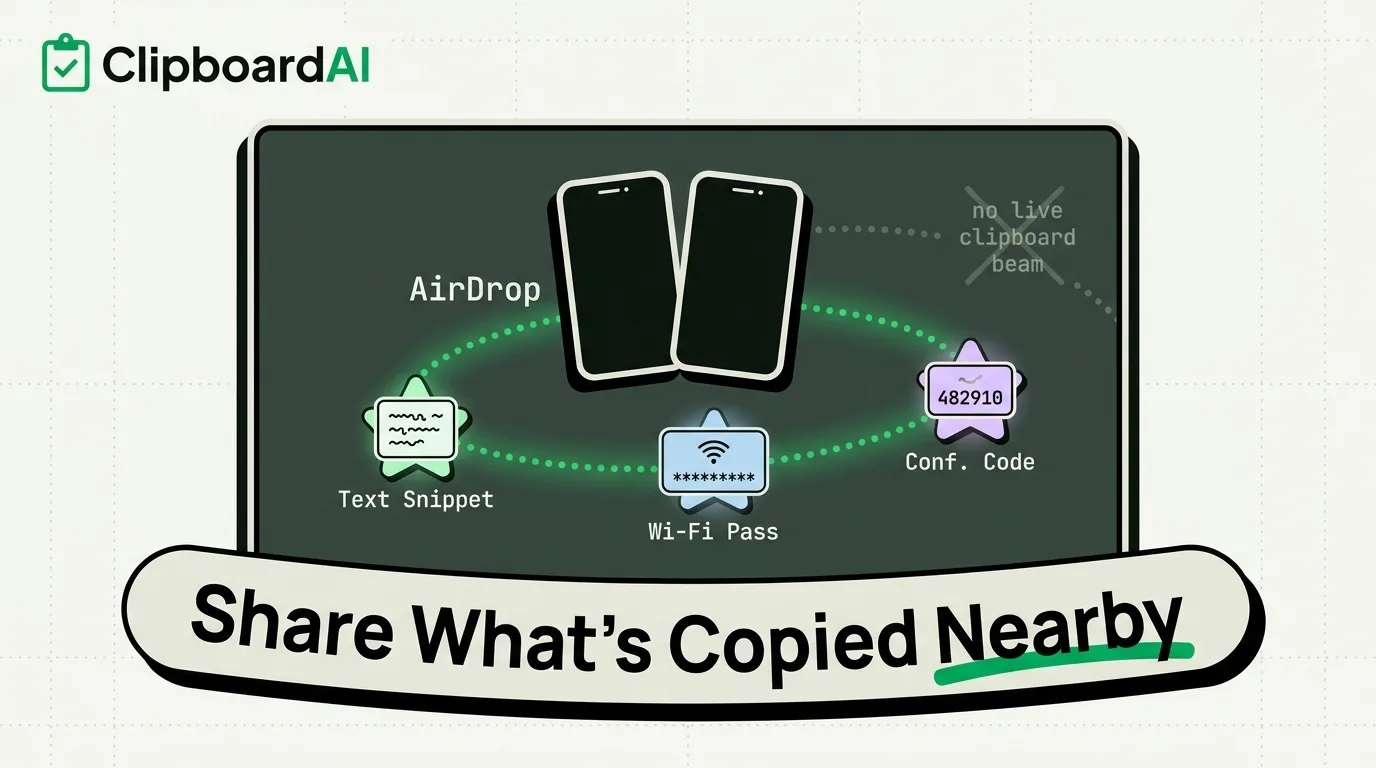
AirDrop sends photos, videos, documents, links and more to a nearby iPhone, iPad or Mac. Like Universal Clipboard, it needs Wi-Fi and Bluetooth on and the devices within 30 feet, but it leaves a saved item behind instead of filling the clipboard. Between your own devices signed in to the same Apple Account there is nothing to accept: the item is accepted and saved for you.
- In the app that holds the item, tap Share, then tap AirDrop.
- Tap your other device. On a Mac, click the Share button in the toolbar and choose AirDrop, or drag the file onto a device in Finder's AirDrop window.
- Find it on the other side. Most items open in the app they came from, such as Photos; some land in Files on an iPhone or iPad, and a Mac often saves them to Downloads.
If your device does not appear, Apple's checklist is short: Wi-Fi and Bluetooth on, receiving set to Contacts Only or Everyone for 10 Minutes, and Personal Hotspot disconnected on both. A transfer that has started keeps going over the internet if you walk out of range, which can use mobile data unless you turn off Use Cellular Data in Settings > General > AirDrop. How to use AirDrop on iPhone covers receiving settings and NameDrop, and AirDrop vs. clipboard sync compares the two for each kind of content.
Keep your clipboard history on every Apple device
Universal Clipboard and AirDrop both handle the one thing you are moving right now. When the link you need is the one you copied on your phone this morning, you need a history that syncs, and Apple does not offer one. The Spotlight clipboard history added in macOS 26 Tahoe (Command-Space, then Command-4) records copies on that Mac only, kept for 30 minutes, 8 hours or 7 days since macOS 26.1. iOS keeps no history at all.
Clipboard AI Pro adds that history across iPhone, iPad and Mac through iCloud. Your clips, saved clips, custom names and Collections appear on every device signed in to the same Apple Account, with no distance limit, and nothing expires until you delete it or auto-delete clears it. When two of your devices are on the same Wi-Fi, Clipboard AI hands clips between them directly instead of waiting on iCloud. The history is searchable and sorted into categories such as links, addresses and codes, and it works alongside Universal Clipboard: keep using that for the copy you need this second, and reach for the history for anything older.
How copies get into the history
On a Mac, Clipboard AI records each copy as you make it. iOS only lets an app read the clipboard while you are using it, so on iPhone and iPad each copy is saved with one action: switch to the Clipboard AI keyboard with the globe key, which saves your latest copy as it opens; open the app; use the Share sheet; or run the Save Clip To ClipboardAI shortcut from the Action Button, Back Tap or Siri. Once a clip is saved, sync carries it to your other devices without another tap.
Set up sync
- Install Clipboard AI on each iPhone and iPad from the App Store, and Clipboard AI for Mac on your Mac. Sign every device in to the same Apple Account.
- On iPhone or iPad, open Settings inside the app and turn on iCloud Sync. On the free plan, that switch is where you upgrade to Pro.
- On the Mac, open Settings from the menu bar and turn on iCloud sync.
- Tap Sync now to bring a device up to date in both directions. The sync status panel shows which paths are active, including Wi-Fi direct between nearby devices.
Pro costs $19.99 a year, with a 7-day free trial for new subscribers, or $34.99 once for Lifetime. The free plan keeps your last 10 copies and 5 saved clips on one device, and the paste keyboard is free. The help article on turning on iCloud Sync goes through each step.
What it looks like day to day
- Read on the phone, write at the desk. Save quotes and links on your iPhone during the day, then paste them on your Mac from the Command-Shift-V menu, or on your iPad from the Clipboard AI keyboard.
- Fill a form from a list. On the Mac, Paste All drops several clips in order and Paste One by One feeds them to one field after another, so details you saved on the phone can fill a form on the computer.
- Codes and addresses. A delivery address or a reference number saved on the phone is waiting in the Mac menu when you sit down. In the iPhone keyboard, codes and passwords show as a padlock until you tap them.
If clips stop appearing on one device, check that it uses the same iCloud account and has sync on, then tap Sync now. If it still looks behind, force-quit and reopen the app, and update every device to Clipboard AI 3.1 or later on iPhone and iPad, or 2.5 or later on the Mac, since one device on an older version can slow sync for the rest.
Sync runs through your own private iCloud database, encrypted in transit and at rest, and no clip passes through a Clipboard AI server; there is no Clipboard AI account to create. Leave sync off and your clips stay on the device. Sync is also personal: Clipboard AI has no shared team clipboard, so a snippet meant for a coworker still goes in a message or a shared doc.
Windows PCs and Android phones
Windows and Android each have clipboard sharing of their own, and each stops at the edge of its own platform.
Between Windows PCs
Windows keeps a clipboard history of your last 25 copies, opened with Windows key + V. Turn on Clipboard history across your devices in Start > Settings > System > Clipboard and the text you copy syncs to your other PCs signed in to the same Microsoft account. The history clears when you restart, except for items you pin.
Between an Android phone and a Windows PC
Phone Link's cross-device copy and paste works with Surface Duo and select Samsung, HONOR, OPPO, ASUS, vivo and Xiaomi phones: copy on one device and paste on the other with the usual shortcuts. It carries text and images, resizing images over 1 MB, and you turn it on in Phone Link under Settings > Features > Cross-device copy and paste. On any Android phone, the Microsoft SwiftKey keyboard can also sync your last copied text to Windows through a personal Microsoft account, and each synced clip stays available for an hour.
Between an iPhone and Windows or Android
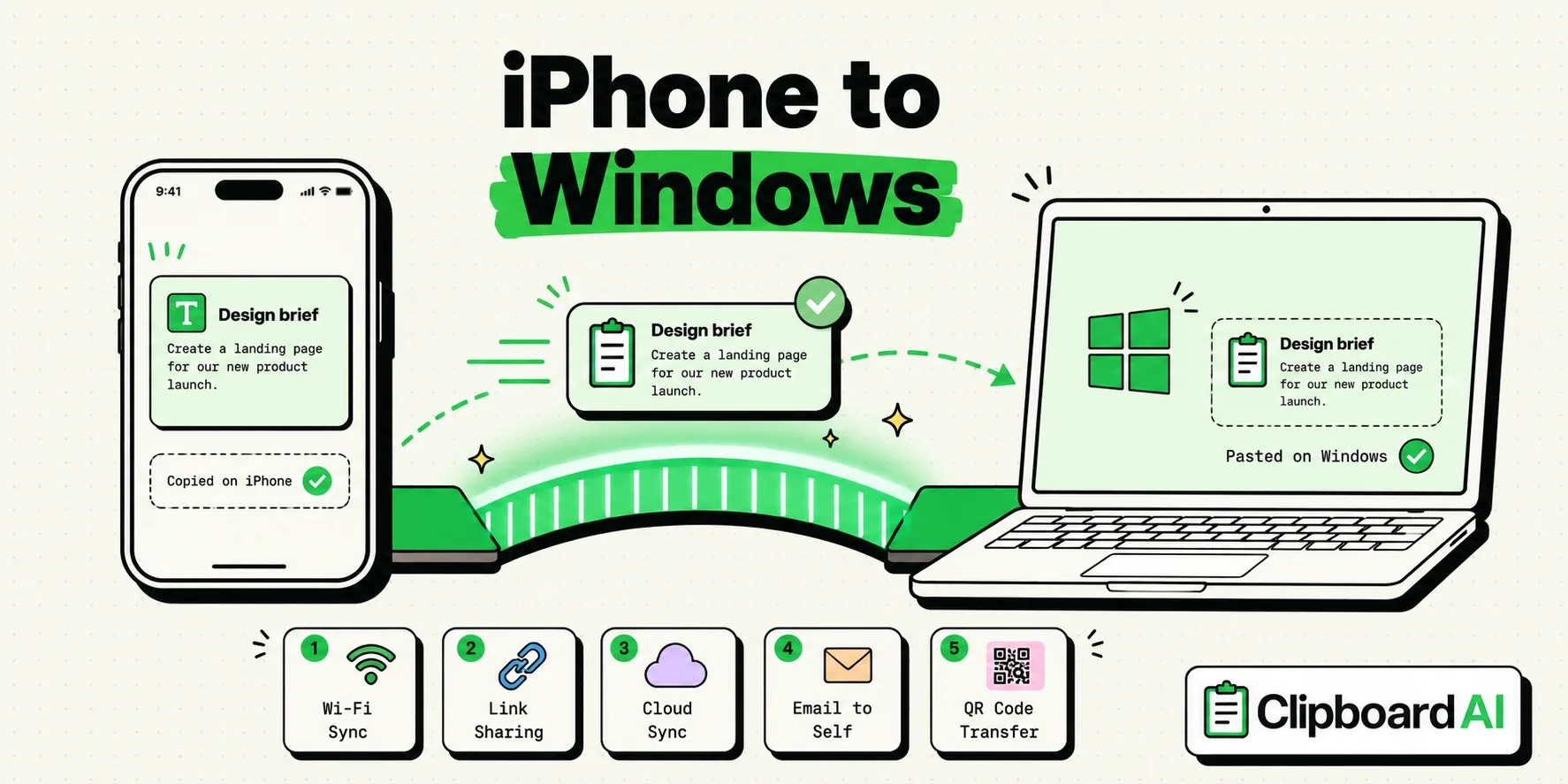
Nothing built in does this yet. Phone Link on an iPhone handles calls, texts and notifications but not the clipboard, and Microsoft says SwiftKey's Cloud Clipboard cannot sync clips to iOS. Apple has agreed to build iPhone-to-PC clipboard sharing for the EU after a request from Microsoft, with no release date. Copying and pasting between an iPhone and a Windows PC goes through what Apple announced and the methods that work now, and sharing a clipboard between iPhone and Android covers the phone-to-phone case.
Workarounds that cross any platform
- LocalSend. A free, open-source app for iPhone, Android, Windows, Mac and Linux that sends text or files to another device on the same Wi-Fi, with no internet connection needed. Copy what arrives on the other side. It cannot connect when the router keeps devices apart, a setting called AP isolation that some routers use, especially on guest Wi-Fi.
- A note that syncs. Paste into Apple Notes and open it at iCloud.com in Edge, Chrome or Firefox on a PC, or use Microsoft Sticky Notes, which shows up inside OneNote on an iPhone and in the Sticky Notes app on Windows.
- A chat with yourself. Send the text or photo to yourself in WhatsApp, Telegram or Signal, then open that chat in the app's desktop or web version.
- Email. The slowest route, and the one every device already has.
Whatever you send this way sits in that service's storage, so keep passwords and one-time codes out of it. More guides on moving copies between devices are collected under clipboard sync and Universal Clipboard.
Frequently Asked Questions
Can I share my clipboard with someone else's iPhone?
No. Universal Clipboard only links devices signed in to the same Apple Account. To hand something to another person, AirDrop it. With iOS 26.2 or later, if you are not in their contacts, their iPhone shows an AirDrop code for you to enter, and after that the two of you can swap items for 30 days without a new code.
Does Universal Clipboard work with Apple Watch?
No. Apple's Universal Clipboard requirements cover iPhone, iPad, Mac and Apple Vision Pro, and Apple Watch is not on the list. The watch does support Handoff, which passes an open task from some apps to your iPhone, but that moves the task, not a copied item.
Can I copy a file on one Mac and paste it on another?
Yes. Universal Clipboard copies whole files between Macs when both run macOS High Sierra 10.13 or later. Copy the file in Finder on one Mac, then paste it into a folder on the other. From an iPhone or iPad, Apple lists text, images, photos and videos, so send files from those with AirDrop.
Will Apple bring Universal Clipboard to Windows?
Not soon. Apple's page of EU interoperability requests shows that on June 26, 2026 it agreed to build a way for an iPhone to share clipboard items with a paired Windows PC, after Microsoft asked for one. Apple expects the work to be finished by fall 2027, and MacRumors expects the feature to be limited to the EU, though Apple could release it worldwide.
Does Clipboard AI work on Windows or Android?
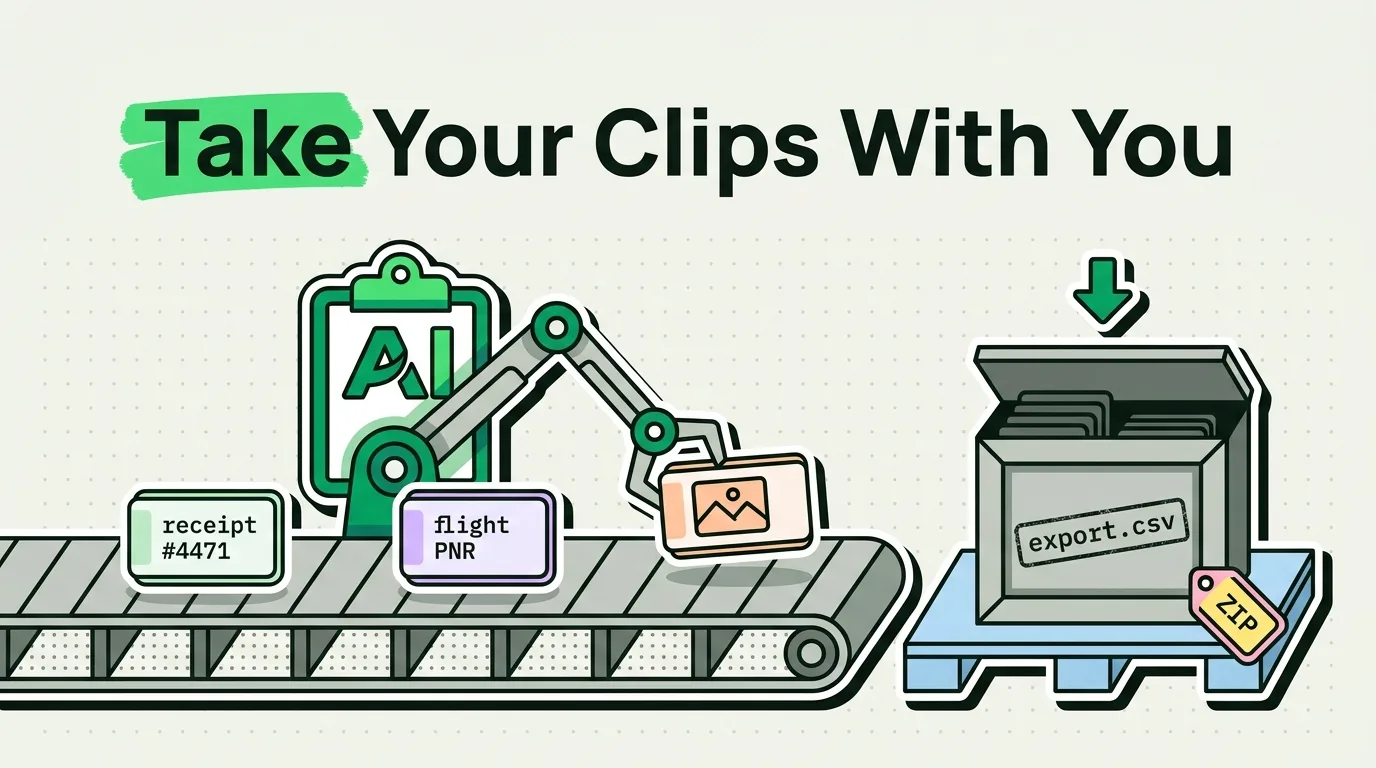
No. Clipboard AI runs on iPhone, iPad and Mac only. To take your clips to another platform, Export Clips in the app's Settings saves them to a file that you can send anywhere through the Share sheet.
Sources
- Apple Support, “Use Universal Clipboard to copy and paste between your Apple devices”, February 18, 2026
- Apple Support, “Continuity features and requirements for Apple devices”, March 17, 2026
- Apple Support, “Use Handoff to continue tasks on your other Apple devices”, June 10, 2026
- Apple, iPhone User Guide for iOS 27, “Copy and paste between your iPhone and other Apple devices”, read October 5, 2026
- Apple, iPhone User Guide for iOS 27, “Hand off tasks between your iPhone and your other devices”, read October 5, 2026
- Apple, Mac User Guide for macOS Tahoe 26, “Change AirDrop & Continuity settings on Mac”, read October 5, 2026
- Apple, iPhone User Guide for iOS 27, “Use AirDrop to send items to nearby Apple devices”, read October 5, 2026
- Apple Support, “How to use AirDrop on your iPhone or iPad”, September 14, 2026
- Macworld, “How to control Universal Clipboard”, September 1, 2022
- 9to5Mac, “One of Apple’s ‘magic moment’ features kept failing, then I found the fix”, April 16, 2025
- MacRumors, “Apple Expands Spotlight Clipboard Settings in macOS Tahoe 26.1”, November 4, 2025
- MacRumors, “Apple Plans iPhone-to-Windows Copy and Paste in EU After Microsoft Request”, August 3, 2026
- 9to5Mac, “Apple plans to open iPhone clipboard access to Windows PCs”, August 3, 2026
- Microsoft Support, “Using the clipboard”, read October 5, 2026
- Microsoft Support, “Seamlessly transfer content between your devices”, read October 5, 2026
- Microsoft Support, “Phone Link requirements and setup”, read October 5, 2026
- Microsoft Support, “How to use Microsoft SwiftKey Keyboard to copy and paste text between SwiftKey and Windows”, read October 5, 2026
- Microsoft Support, “See your sticky notes on other devices and the web”, read October 5, 2026
- Apple Support, “Which iCloud.com features are available in the browser on your device”, April 4, 2025
- LocalSend, “LocalSend: Share files to nearby devices”, read October 5, 2026
- LocalSend on GitHub, “README”, read October 5, 2026