
When sync is on, the iCloud Sync section shows a status panel with a few rows. Here is what each one means, in plain English.
Where to find it
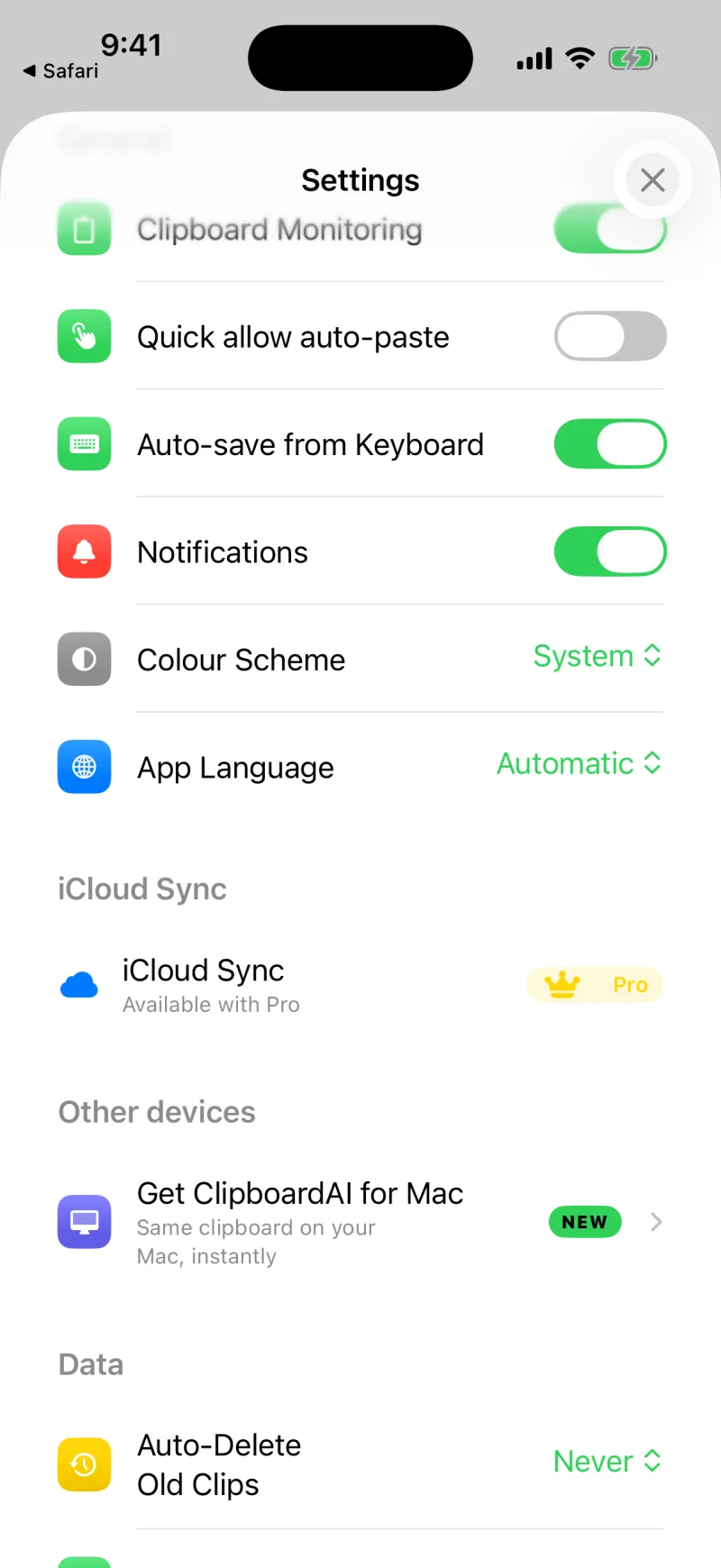
Open Settings inside the app and look for iCloud Sync. On the free plan it shows "Available with Pro"; once you are on Pro and sync is on, this is where the status panel appears.
The transport rows
Clipboard AI uses more than one path to move your clips so they arrive quickly and reliably. With sync on, the panel shows which paths are active right now.
The main path. Your clips sync through your private iCloud database with push updates, so new copies arrive on your other devices on their own. If this says it is unavailable, check that you are signed into iCloud.
A fast lane for your most recent clips, so the latest thing you copied shows up quickly even before a full sync finishes.
When two of your devices are on the same network, Clipboard AI can pass clips, and your Collections, between them directly for near-instant updates. The two also compare notes and pull across any clip that only exists on one of them. If there is no nearby device, it simply syncs over iCloud instead.
Your synced clips live in your private iCloud database and are encrypted at rest, and they travel over an encrypted connection. They are tied to your iCloud account.
Delivery details
Below the transports you may see Push subscription and Last push received. These confirm your device is registered for instant updates and show when it last heard from the server. They are handy if you are checking why one device feels behind.
Tap Sync now any time to run a full two-way sync. See Sync across devices.