
The clipboard you build on your iPhone is even better on a Mac, where it lives in your menu bar and is one keyboard shortcut away while you work.
Get the Mac app
- Open Settings inside the iPhone app and tap Get ClipboardAI for Mac.
- Tap Copy link to clipboard, then paste that link into Safari on your Mac to download the app.
- Open the Mac app, sign into the same iCloud account, and turn on sync so both devices share one clipboard.
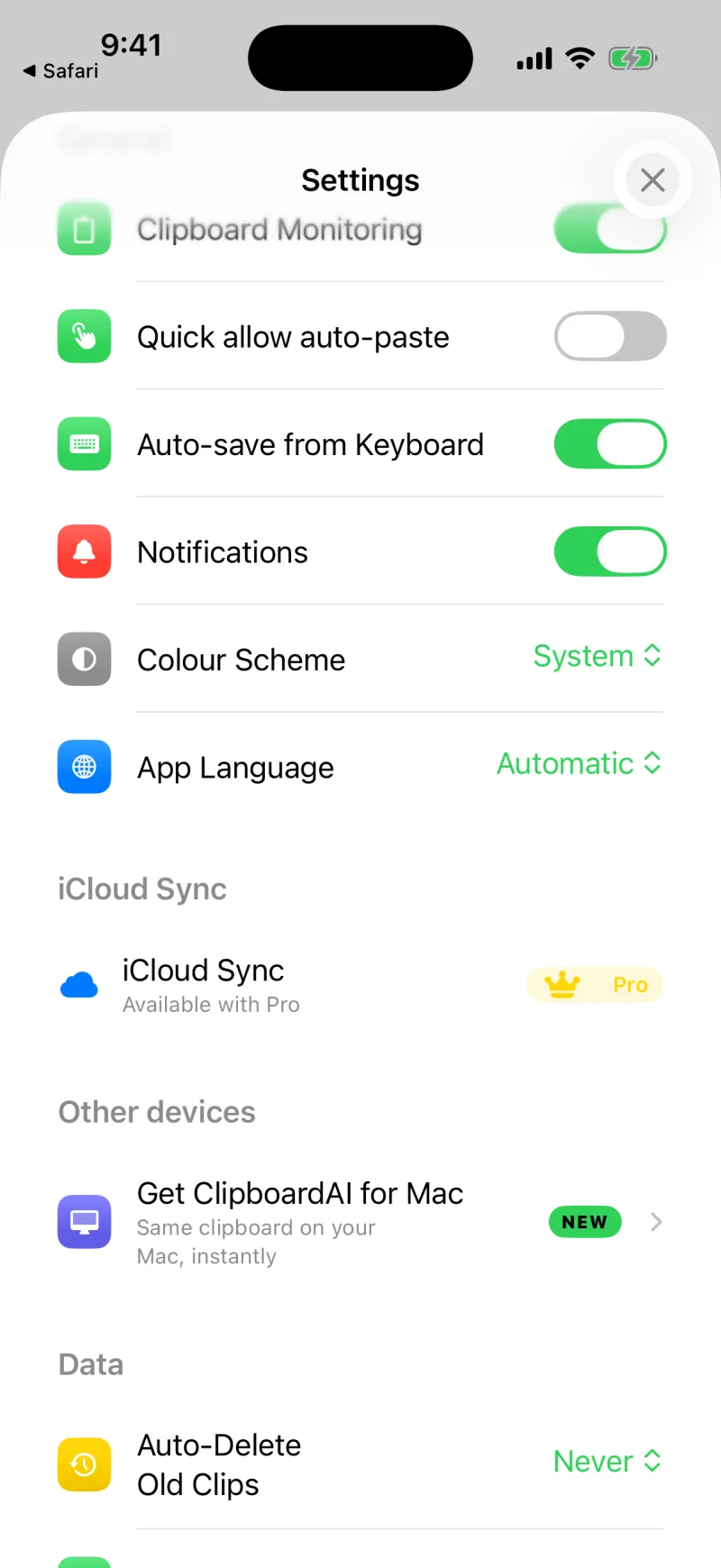
1
Tap "Get ClipboardAI for Mac"
In Settings, under Other devices.
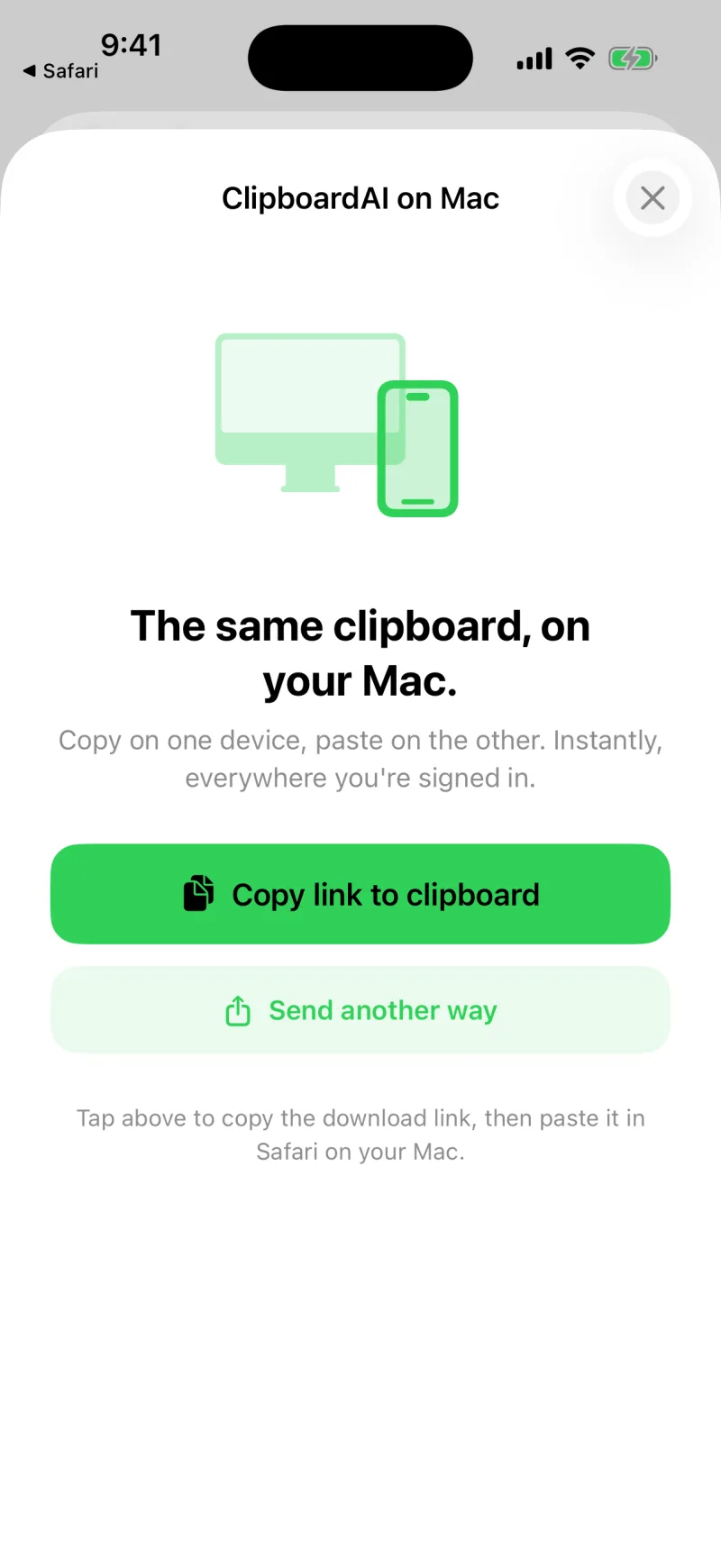
2
Copy the link, open it on your Mac
Then download and open the Mac app.
💻
Copy on your phone, paste on your Mac
With sync on, the address or code you copied on your iPhone is right there in the Mac menu bar, ready to paste.
What you can do on Mac
- See your full clipboard history from the menu bar, and pop a floating paste menu at your cursor with one shortcut
- Search and filter by category, just like on iPhone, or ask for a clip in plain words
- Pin the paste menu open, paste a whole batch in order, and file clips by dragging them onto the sidebar
- Pin, name, and organise the clips you reuse, or act on every result of a search at once
- Rewrite a clip with Apple Intelligence, read the text and tables out of a screenshot, and paste everything as plain text with one setting
☁️
Sync ties it together
The Mac app and the iPhone app stay in step through Clipboard AI Pro. See Sync across devices and Clipboard AI Pro and billing.
Was this article helpful?
Thanks for the feedback.