
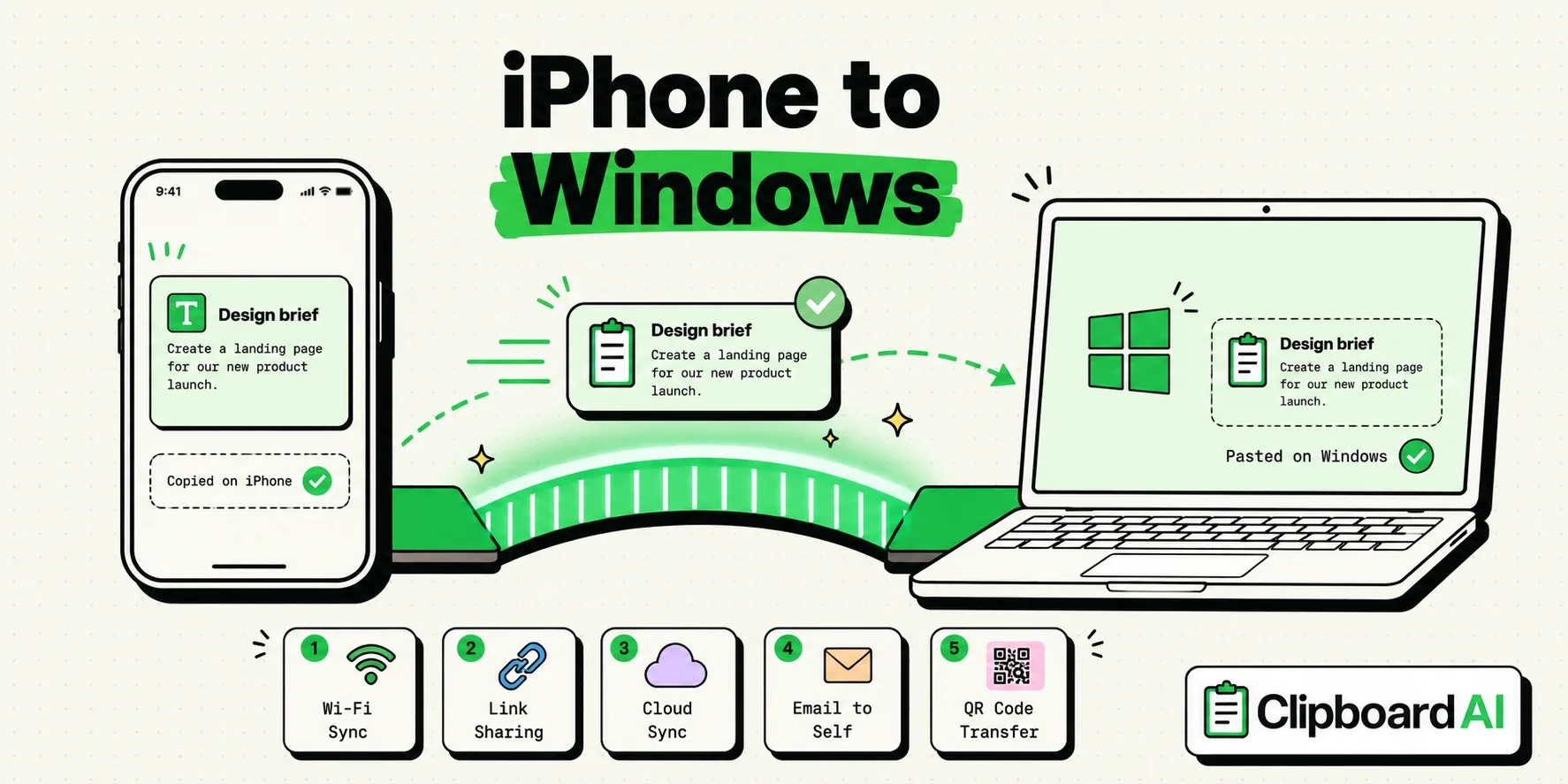
To copy and paste between an iPhone and a Windows PC, use a cross-platform manager like ClipboardAI, Microsoft SwiftKey, or Intel Unison. Alternatively, you can use cloud-based workarounds like iCloud Notes or local chat apps. Because Apple's Universal Clipboard does not support the Windows operating system, you must utilize third-party applications or shared cloud spaces to bridge the communication gap between iOS and Windows.
Here is a step-by-step walkthrough of the five most reliable methods available today.
The Human Scenario: The OS Divide
You are sitting at your desk, working on a Windows PC, and receive a text message on your iPhone containing a long tracking number or customer reference code. You need to paste this code into your company's web portal on your PC.
You select the text on your iPhone and tap "Copy". You look at your Windows monitor, press Ctrl+V on your keyboard, and... nothing happens.
Because Apple and Microsoft operate separate ecosystem walls, they do not share a native, local clipboard connection. To move that text, you must either type it out character-by-character or set up a secure bridge.
The 5 Methods to Copy and Paste Across Platforms
Here are five distinct ways to transfer clipboard data between iOS and Windows, ranging from automated background sync to simple manual workarounds.
Method 1: ClipboardAI (Best for Speed and History)
ClipboardAI provides a dedicated cross-platform bridge using secure cloud syncing.
- Install ClipboardAI on your iPhone from the App Store.
- Install the ClipboardAI Windows Client on your PC.
- Log into your account on both devices.
- On your iPhone, copy any text. It will automatically save to your local history and sync to the cloud container.
- On your PC, press
Ctrl+Alt+V(or open the system tray companion) to select and paste any item from your synced iPhone history.
Method 2: Microsoft SwiftKey (Best for Built-in Windows Integration)
Microsoft's official iOS keyboard, SwiftKey, has a built-in feature that syncs your iPhone keyboard copies directly to the Windows 10/11 system clipboard.
- Download SwiftKey on your iPhone.
- Open the app and log in with your Microsoft Account (must match the login on your Windows PC).
- Go to Settings > Rich Input > Clipboard in SwiftKey, and toggle on Sync Clipboard History.
- On your Windows PC, go to Settings > System > Clipboard and toggle on Clipboard history and Sync across devices.
- Copy text on your iPhone. Switch to your PC and press
Win+Vto open the Windows Clipboard History pane and select the synced text.
┌────────────────────────────────────────────────────────┐
│             SwiftKey Cross-Platform Sync               │
├────────────────────────────────────────────────────────┤
│  [Copy on iPhone SwiftKey] ──> Microsoft Cloud Server  │
│                                           │            │
│                                           ▼            │
│  [Press Win+V on PC]       ──> Windows System Clipboard │
└────────────────────────────────────────────────────────┘
Method 3: Intel Unison (Best for Local-Only Bluetooth Sync)
Intel Unison connects your iPhone to your PC using Bluetooth and local Wi-Fi, allowing text transfers without routing through external cloud servers.
- Download the Intel Unison app from the Microsoft Store on your PC.
- Download the companion Intel Unison app from the iOS App Store.
- Open both apps and scan the displayed QR code to pair your devices via Bluetooth.
- In the app settings, enable Clipboard Sync.
- Once paired, copying text on one device will automatically update the clipboard buffer on the other, provided both apps are running.
Method 4: iCloud Notes (Best for Occasional Transfers)
If you do not want to install third-party clients, you can use Apple's web services in your Windows browser.
- On your iPhone, paste your copied text into a folder in the Notes app.
- On your PC, open a web browser and navigate to iCloud.com.
- Sign in with your Apple Account.
- Open the Notes web app, select your folder, and copy the text.
Method 5: Messaging Parking Lot (Best for Rapid Manual Workarounds)
Using a private messaging thread is the fastest way to transfer links or images without setting up configuration profiles.
- Open a messaging app like WhatsApp, Slack, or Signal.
- Open a chat with yourself (e.g., WhatsApp's "Message Yourself" or Signal's "Note to Self").
- Paste the text or image on your iPhone and send it.
- Open the corresponding web client (e.g., WhatsApp Web) on your PC and copy the text from the chat window.
Cross-Platform Copy-Paste Methods Compared
To help you choose the right approach for your setup, we evaluated the options based on speed, safety, and setup complexity:
| Method | Speed | Setup Difficulty | Internet Required? | Encryption / Privacy | File Support |
|---|---|---|---|---|---|
| ClipboardAI | Instant | Low (App Login) | Yes (Sync) / No (Local) | High (Encrypted at Rest & In Transit, Apple iCloud) | Text, Links, Small Images |
| Microsoft SwiftKey | 2-3 Seconds | Medium (Microsoft Account) | Yes | Medium (Microsoft Cloud account logs) | Text only |
| Intel Unison | 1-2 Seconds | High (QR Pairing) | No (Uses local Wi-Fi/BT) | High (Local network direct transfer) | Text, Photos, Files |
| iCloud Notes | 10+ Seconds | Low (Browser Login) | Yes | High (Standard iCloud Security) | Text, Images, Files |
| WhatsApp Web | 5-6 Seconds | Low (Scan QR) | Yes | Medium (Metadata stored on servers) | Text, Media, Documents |
Privacy Note and Security Caveats
Syncing data across operating systems introduces unique security vulnerabilities:
- SwiftKey & Keylogging Permissions: Using SwiftKey as your primary keyboard requires granting full access. If you type passwords or financial codes, make sure to switch back to the native iOS keyboard, as Microsoft's servers log typing data to improve prediction models.
- Intel Unison Network Blocks: Intel Unison requires a stable local peer-to-peer Wi-Fi connection. On enterprise office networks, this local port discovery is usually blocked by IT firewalls, causing the sync to fail.
- ClipboardAI Encryption Standards: ClipboardAI encrypts all cross-platform traffic before transmission. If you use the Windows companion client on a shared computer, ensure you set the app to lock automatically when your PC is idle.
Product Fit: Where ClipboardAI Helps
ClipboardAI is designed to make cross-device workflows seamless. It is the best choice if you:
- Constantly move text segments, links, and code blocks between a Windows work PC and a personal iPhone.
- Require a history log of your synced items rather than just the single active copy.
- Need a sync system that works across cellular data and remote networks, bypassing corporate firewall limits.
When it is NOT appropriate:
- Enterprise High-Security Workstations: If your work computer blocks all third-party installation files or restricts background network traffic, you should use the iCloud Web interface.
Frequently Asked Questions
Why doesn't Handoff work with Windows?
Handoff is a proprietary Apple technology built on close integration between macOS and iOS hardware controllers. Apple does not license or port these Continuity systems to Windows, so direct local sync is blocked.
Does Windows 11 have a native clipboard link for iPhone?
No. While Windows 11 features the "Phone Link" app which supports clipboard sync for Android, this feature is not supported for iOS due to Apple's strict sandboxing rules on pasteboard sharing.
Can I copy-paste files from iPhone to Windows?
Yes, using Intel Unison or the iCloud Drive web interface. Clipboard managers only sync clipboard text and small image payloads, not full file directory paths.
Does SwiftKey clipboard sync work on Mac?
No. SwiftKey's clipboard sync is designed specifically for Windows integration. If you are on a Mac, you should use Apple's native Universal Clipboard.
Why is my synced text not pasting on Windows?
Ensure that your PC's clipboard history is turned on under Settings > System > Clipboard. If this setting is disabled, Windows will not register incoming sync events from your phone.