
Clipboard AI lives in your Mac's menu bar, quietly keeping everything you copy so it is always one shortcut away. Here is how to get going in a couple of minutes.
Get the app
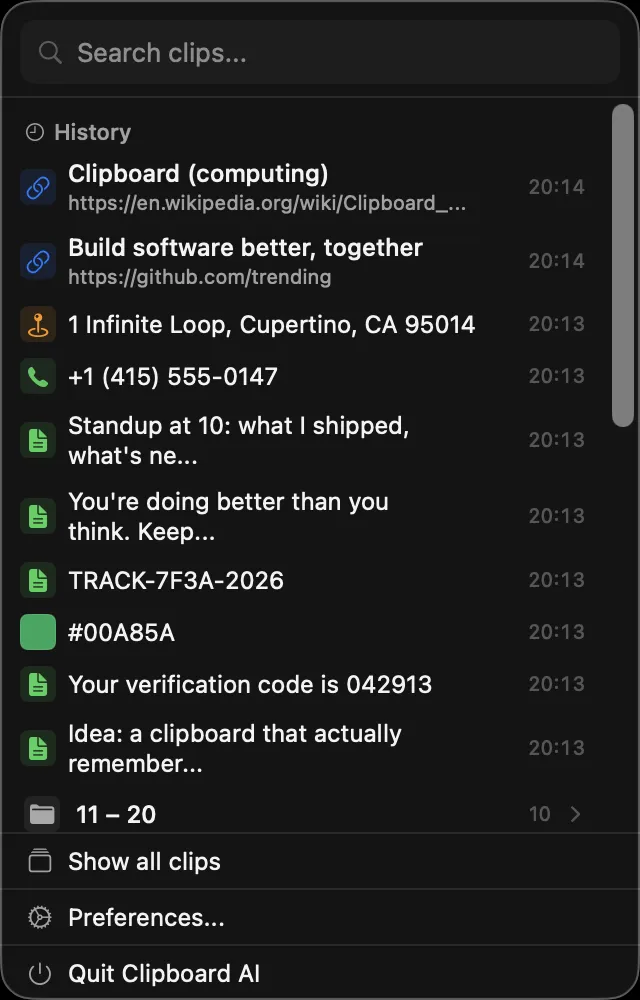
Download Clipboard AI from the Mac App Store and open it. A small Clipboard AI icon appears in your menu bar at the top of the screen. That icon is home base: click it any time to see your recent clips, or to open your full history.
Do these two things first
Clipboard AI walks you through a short setup the first time you open it. Two steps make everything click:
- Turn on Accessibility access so Clipboard AI can paste your clips into any app. This is the important one. See Turn on Accessibility so paste works.
- Turn on sync (optional) so the clipboard you build on your iPhone shows up on your Mac, and the other way around. See Your clipboard on every device.
Then just copy
That is it. Copy anything the way you normally would, and Clipboard AI keeps it. When you want something back, press ⌘⇧V to pop the floating menu at your cursor and choose a clip. See Paste anywhere with the hotkey.
Once you are in, these are the things Mac users reach for most: the keyboard shortcuts cheat sheet, pinning the paste menu open, pasting a batch in order, plain-text pasting, and asking for a clip in plain words.
Set Clipboard AI to launch at login so it is always in your menu bar. See Customize the hotkey and menu.