
On Mac, Clipboard AI pastes a clip by mimicking a Command V keystroke into whatever app you are using. macOS only allows that once you give the app Accessibility access. Turn it on one time and paste works everywhere, automatically.
Without Accessibility access, Clipboard AI still copies your clip to the clipboard, but the automatic paste into your current app is blocked by macOS. Granting access fixes it in one step.
Turn on Accessibility access
It takes about thirty seconds. Follow these three steps and you are done.
Open System Settings from the Apple menu in the top-left of your screen, then click Privacy & Security in the sidebar.
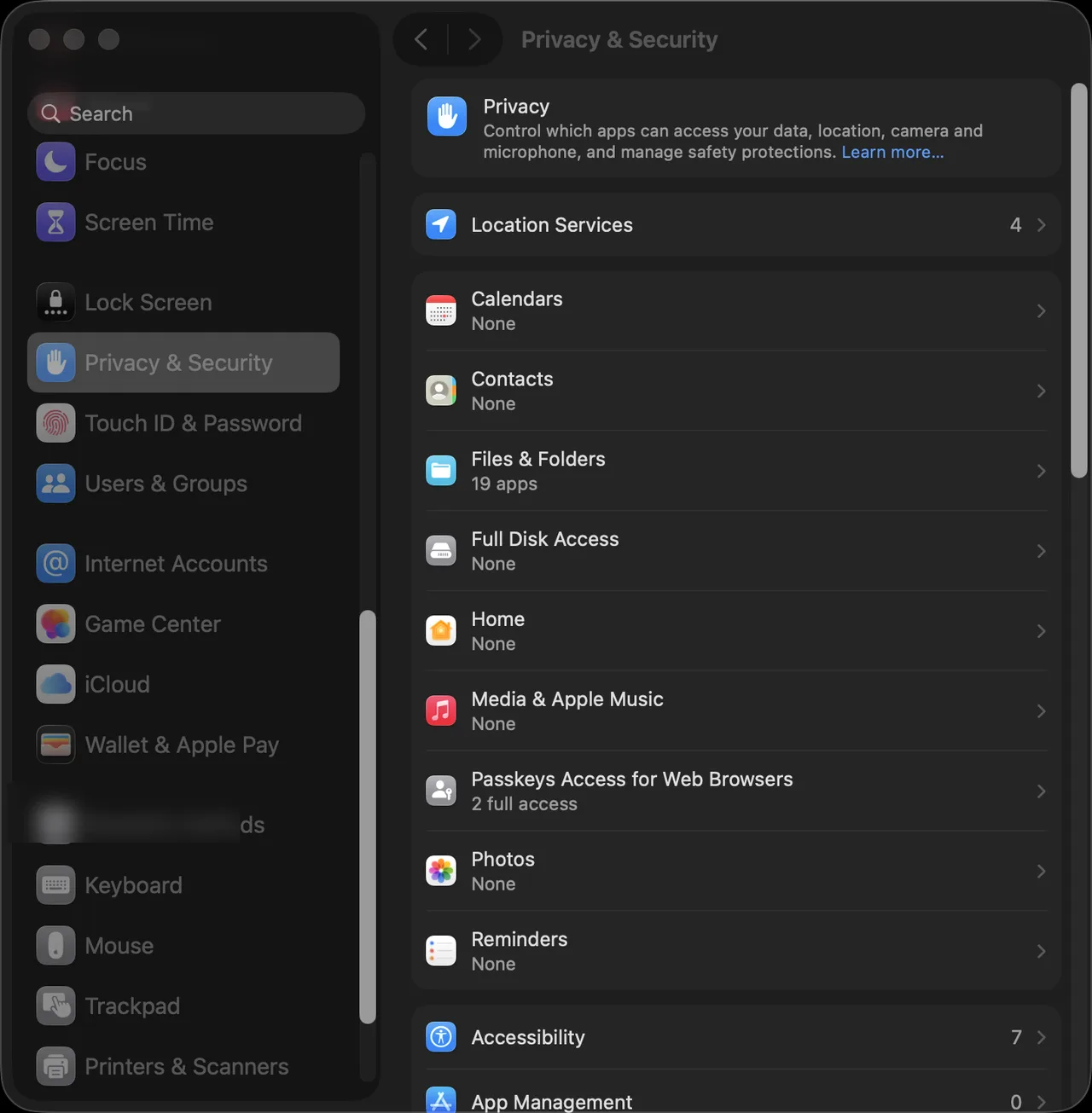
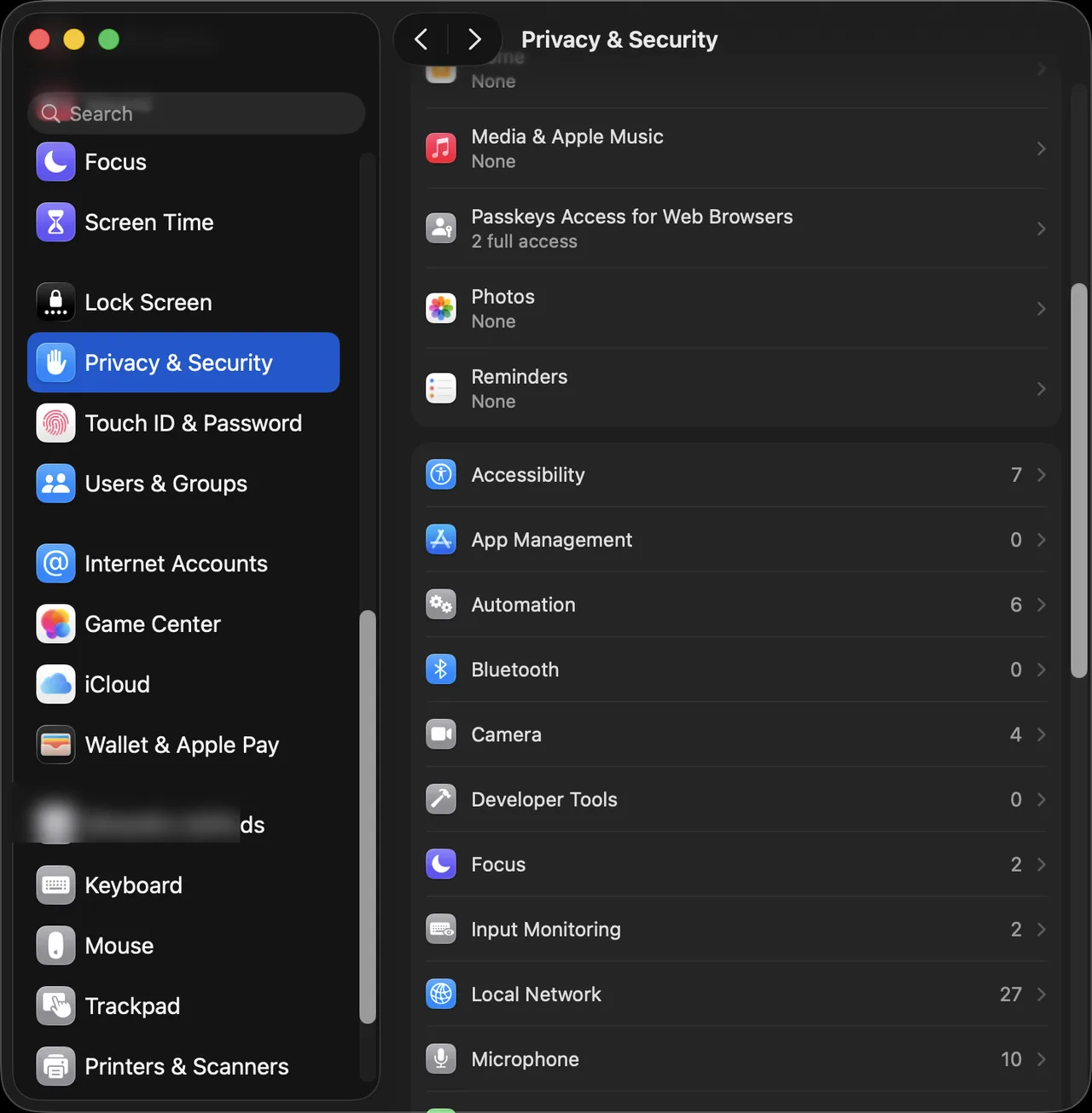
Scroll down the list on the right and click Accessibility.
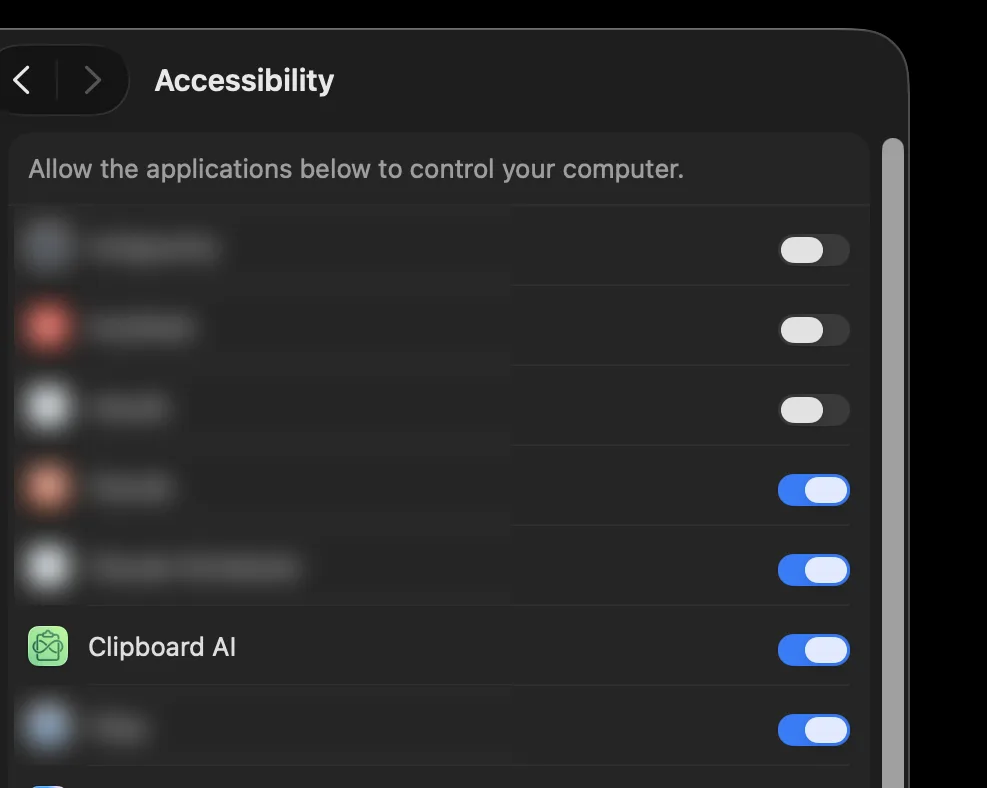
Find Clipboard AI in the list and turn its switch on. That is the whole fix.
Clipboard AI can jump you straight to this screen. When a paste does not go through, choose Open Settings from the prompt, or open Clipboard AI Settings and click the Accessibility button.
Check that it worked
Copy something, press the Clipboard AI hotkey (⌘⇧V by default), and pick a clip. It should drop straight into your document. If it does, you are all set.
Accessibility access only lets Clipboard AI send the paste keystroke for you. It does not read your screen or your typing. Your clips stay on your Mac, and only sync through your own private iCloud if you turn sync on.
The menu and the floating menu read as proper rows in VoiceOver, a running paste queue announces each clip as it lands, and the app respects Reduce Motion and Reduce Transparency from your system settings.
A macOS or app update can occasionally reset the permission. If paste goes quiet again, return to Privacy & Security, Accessibility, and toggle Clipboard AI off and back on. See Paste isn't working on Mac.